8
Tigin HG2330 series Quick Guide
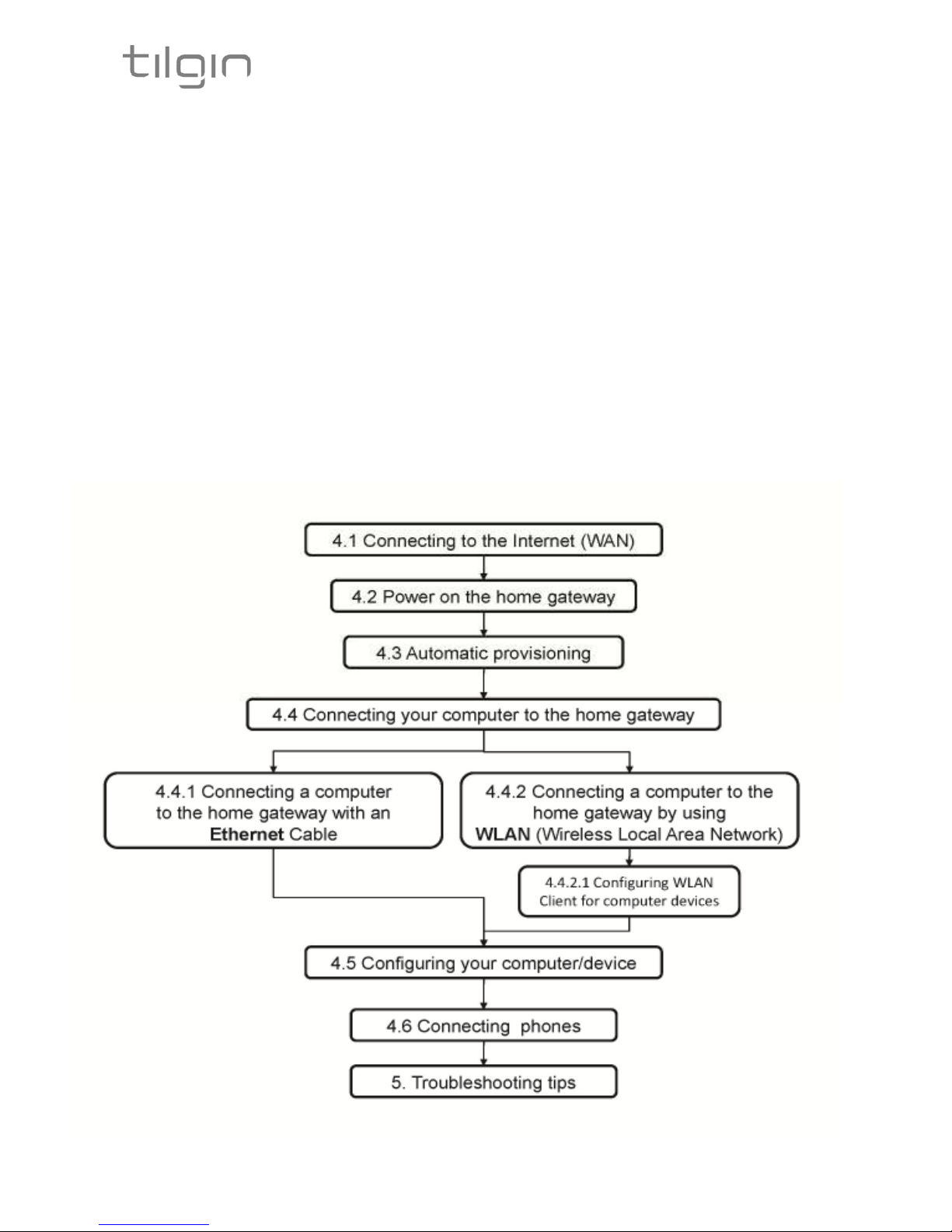
4.4 Connecting a computer to your Home Gateway
There are two ways to connect a computer to your home gateway, either with the Ethernet
cable or by using WLAN (Wireless Local Area Network).
Other Ethernet devices or WLAN enabled clients may use same methods to connect.
Note: ome computers can have problems when connecting both Ethernet and WLAN
simultaneously.
4.4.1 Connecting a computer by Ethernet cable
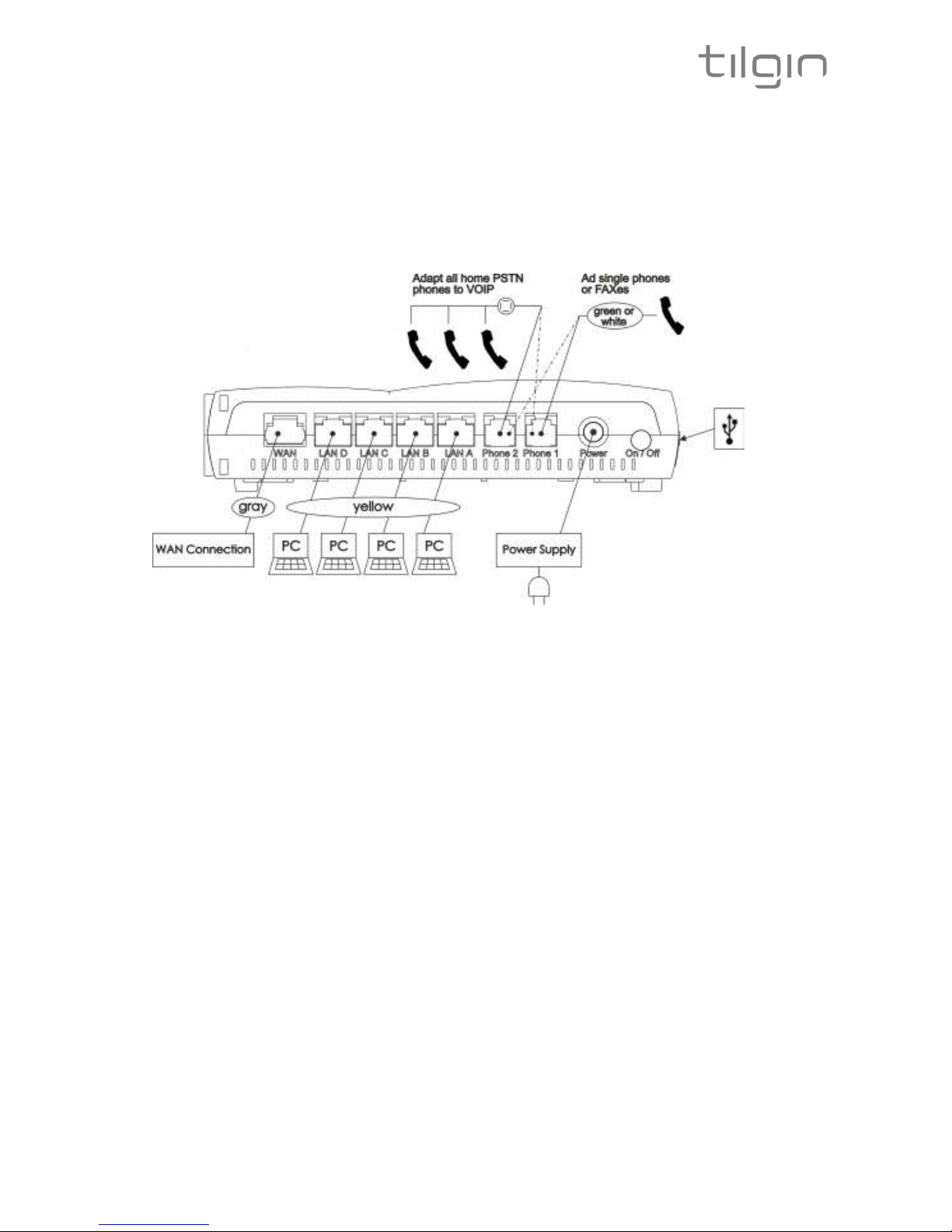
Connect the Ethernet port on your computer with an Ethernet cable to one of the LAN ports
marked LAN 1 – LAN 4.
4.4.2 Connecting a computer by using WLAN (Wireless LAN)
WPS method
The Tilgin home gateway supports the Wi-Fi Protected etup (WP ) feature to make it easy
to set up a secure wireless home network.
Two WP methods are supported, PIN and Push Button Connect (PBC).
If your wireless device/adapter supplier does not support WP setup, the WLAN connection
with the home gateway can be setup manually.
WPS-PIN method
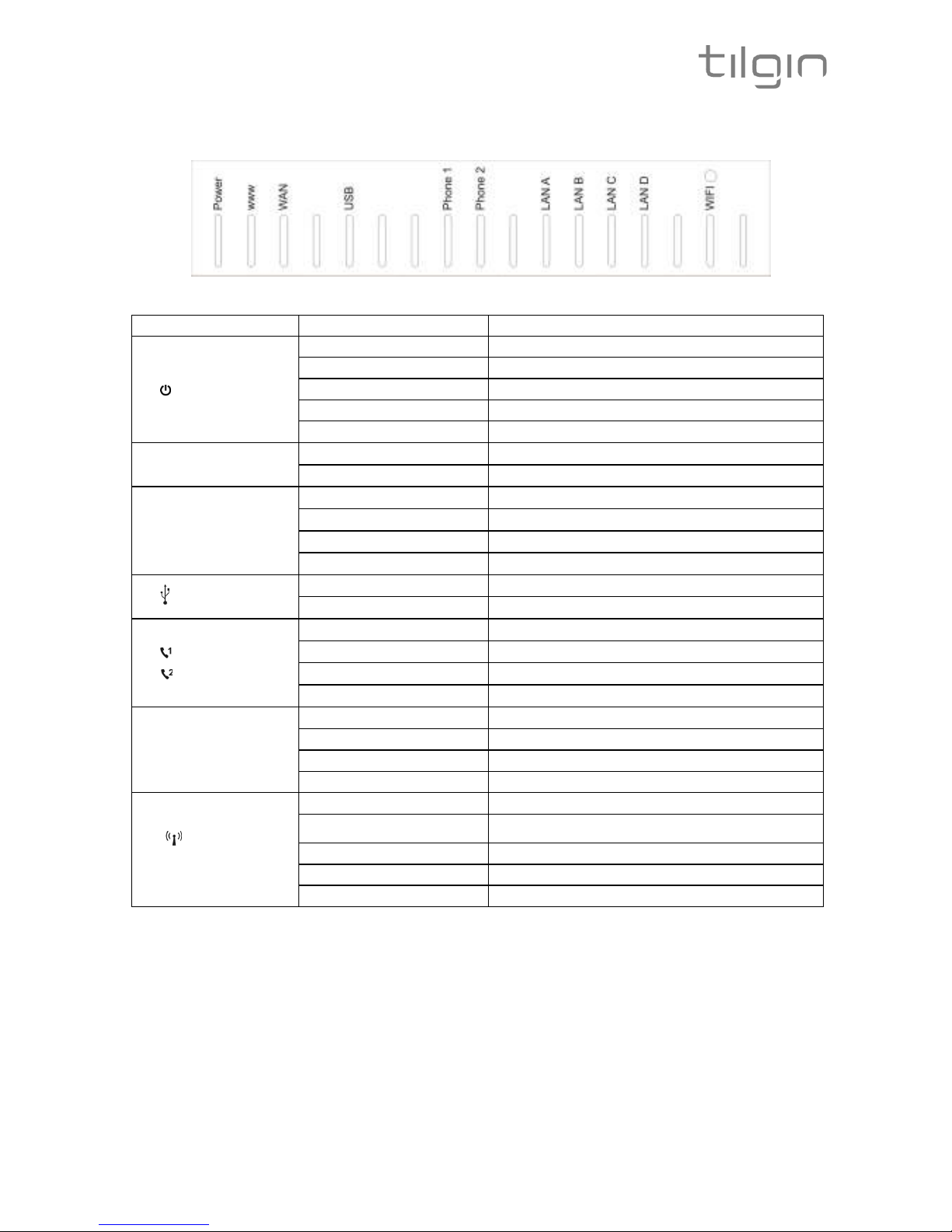
-Enable the WLAN by pressing the WiFi button once (see picture in 3.3 LEDs Front)
once. The WLAN LED on the front will turn green when enabled.
-Enter the PIN code, provided by your wireless device/adapter supplier, in the local
Web GUI of the home gateway.
WPS-PBC method
- Enable the WLAN by pressing the WiFi button once. The WLAN LED on the front
will turn green when enabled.
- Press the WiFi button again for 5-10 seconds to enable the PBC function on the
home gateway.
- Press the PBC button on your wireless device/adaptor.
.
Manual method
The WLAN settings are configured manually according to operator specific WLAN settings
or by using the default WLAN settings of the home gateway.
Note: Your wireless device/adaptor usually has a connection guide or wizard that will guide
you through configuration and connecting to the home gateway.
You should follow these instructions and take into account any WLAN security level settings
provided by your operator.
If the instructions provided with the WLAN client fail, and/or your operator does not
recommend specific WLAN settings, use the default WLAN port settings described in
chapter 4.4.2.1 Configuring WLAN Client for computer devices.