Kinnex Media Gateway Manuel utilisateur

Kinnex Media Gateway
Quick Start Guide
Starxoft
Published: March 30, 2015
help.kinnex.net

Kinnex Media Gateway. Quick Start Guide.
2
Table of Contents
1. Downloads ..............................................................................................................................................................3
Kinnex Media Gateway........................................................................................................................................3
Lync Administrative Tools....................................................................................................................................3
TFTP server ..........................................................................................................................................................3
Firmware Packs....................................................................................................................................................3
2. Enabling PIN Authentication.......................................................................................................................................4
3. Setting up PIN Authentication policy............................................................................................................................6
4. Preparing to installing Kinnex Media Gateway...............................................................................................................8
Configuring TLS on Windows Server 2012 R2 .....................................................................................................8
Installing Lync Server Administrative Tools.........................................................................................................8
IP Address Allocation...........................................................................................................................................8
5. Installing Kinnex Media Gateway ................................................................................................................................9
Firmware packs....................................................................................................................................................9
6. Activating Kinnex Media Gateway License ..................................................................................................................10
How to create an Activation Key .......................................................................................................................10
Enter registration key ........................................................................................................................................10
7. Installing and configuring Provisioning Server.............................................................................................................12
8. Configuring a DHCP Server.......................................................................................................................................13
9. Adding users from Lync Server..................................................................................................................................14
10. Setting up PIN for authentication from IP phones.......................................................................................................16
Setting a PIN for a single user............................................................................................................................16
Setting a PIN for a multiple users ......................................................................................................................16
11. Configuring automatic sign in to Lync Server.............................................................................................................18
Adding new devices...........................................................................................................................................18
Attach users to existing devices ........................................................................................................................19
12. Sign in to Lync Server manually ..............................................................................................................................20
Escene IP phones configuration example..........................................................................................................21
Yealink IP phones configuration example .........................................................................................................22
Grandstream IP phones configuration example................................................................................................23
Linksys IP phones configuration example .........................................................................................................24
Cisco SPA300 and SPA500 Series configuration example .................................................................................25
Polycom IP phones configuration example .......................................................................................................26

Kinnex Media Gateway. Quick Start Guide.
3
1. Downloads
To install Kinnex Media Gateway for connecting IP-phones to the Lync Server, you will need next installation
packages:
Kinnex Media Gateway
Lync Administrative Tools
TFTP server
Firmware Packs
Kinnex Media Gateway
The latest version of Kinnex Media Gateway you can download at http://www.kinnex.net/download/.
Lync Administrative Tools
Lync Administrative Tools are included into the Lync Server distribution kit and can be installed on a stand-
alone server or collocated with one of the roles of the Lync Server.
TFTP server
To provide Auto Provisioning service you must install a TFTP server. You can use an open-source TFTP server:
Tftpd32/64. This freeware and lightweight TFTP server is available for download at the product’s home page:
http://tftpd32.jounin.net, or at the Kinnex Media Gateway web site (Windows version only):
http://www.kinnex.net/download/.
Firmware Packs
Firmware Packs will be used for the centralized software update and configure IP phones via Provisioning
Server. For each manufacturer and each model line of IP phones supported by Kinnex Media Gateway, we
create special pack with the firmware and configuration files.
To download Firmware Packs for you IP phones visit Kinnex Media Gateway download page at
http://www.kinnex.net/download/.

Kinnex Media Gateway. Quick Start Guide.
4
2. Enabling PIN Authentication
To authentication users from IP phones personal identification number (PIN) authentication needs to be
enabled on Lync Server, and an appropriate PIN policy need to be in place.
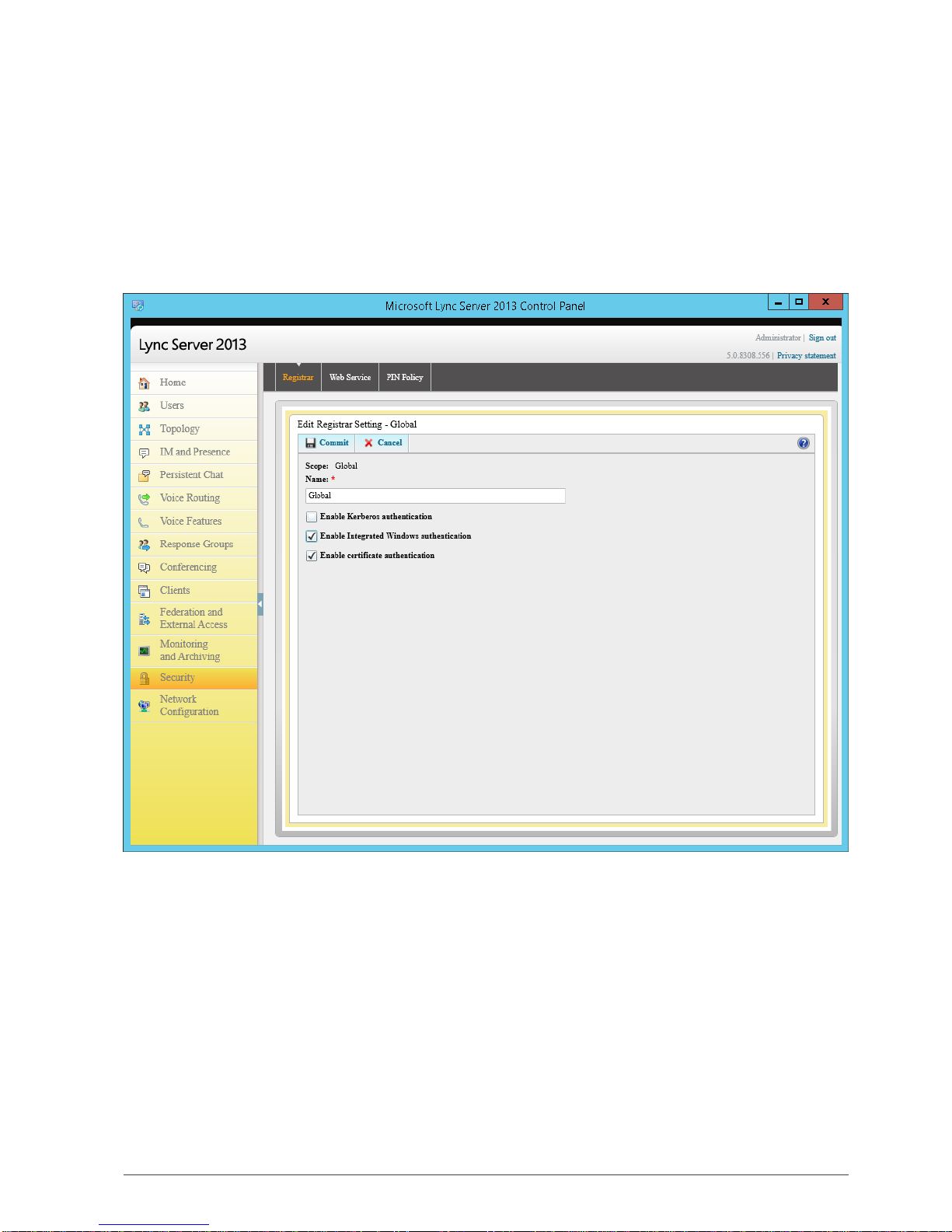
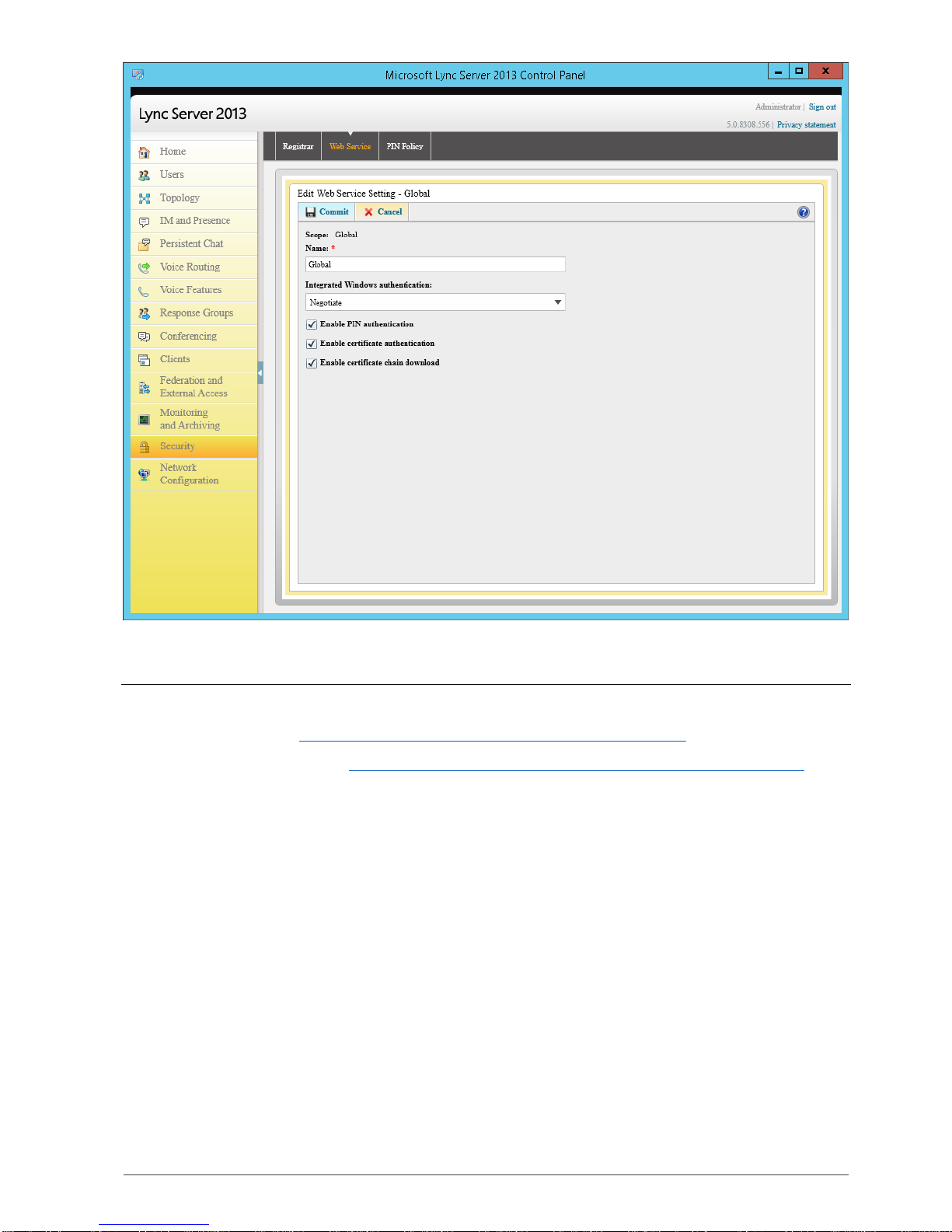
To enable PIN Authentication, click Security in the Lync Server Control Panel left navigation bar.
1. Click Registrar tab. Open the Global policy properties and select check boxes next to Enable
Integrated Windows authentication and Enable certificate authentication.
2. Click Web Service tab. Open the Global policy properties and select all check boxes.

Kinnex Media Gateway. Quick Start Guide.
5
For details about setting up the PIN Authentication, see:
Deploying Devices http://technet.microsoft.com/en-us/library/gg425854.aspx
Setting Up Authentication http://technet.microsoft.com/en-us/library/gg412902(v=ocs.14).aspx

Kinnex Media Gateway. Quick Start Guide.
6
3. Setting up PIN Authentication policy
You can manage PIN Authentication options via the PIN Policies. To set options for authentication from IP
phones you can either edit the Global policy or create your own. For convenience, we will create a new policy
and apply it to the users who will connect to the Lync Server from IP phones.
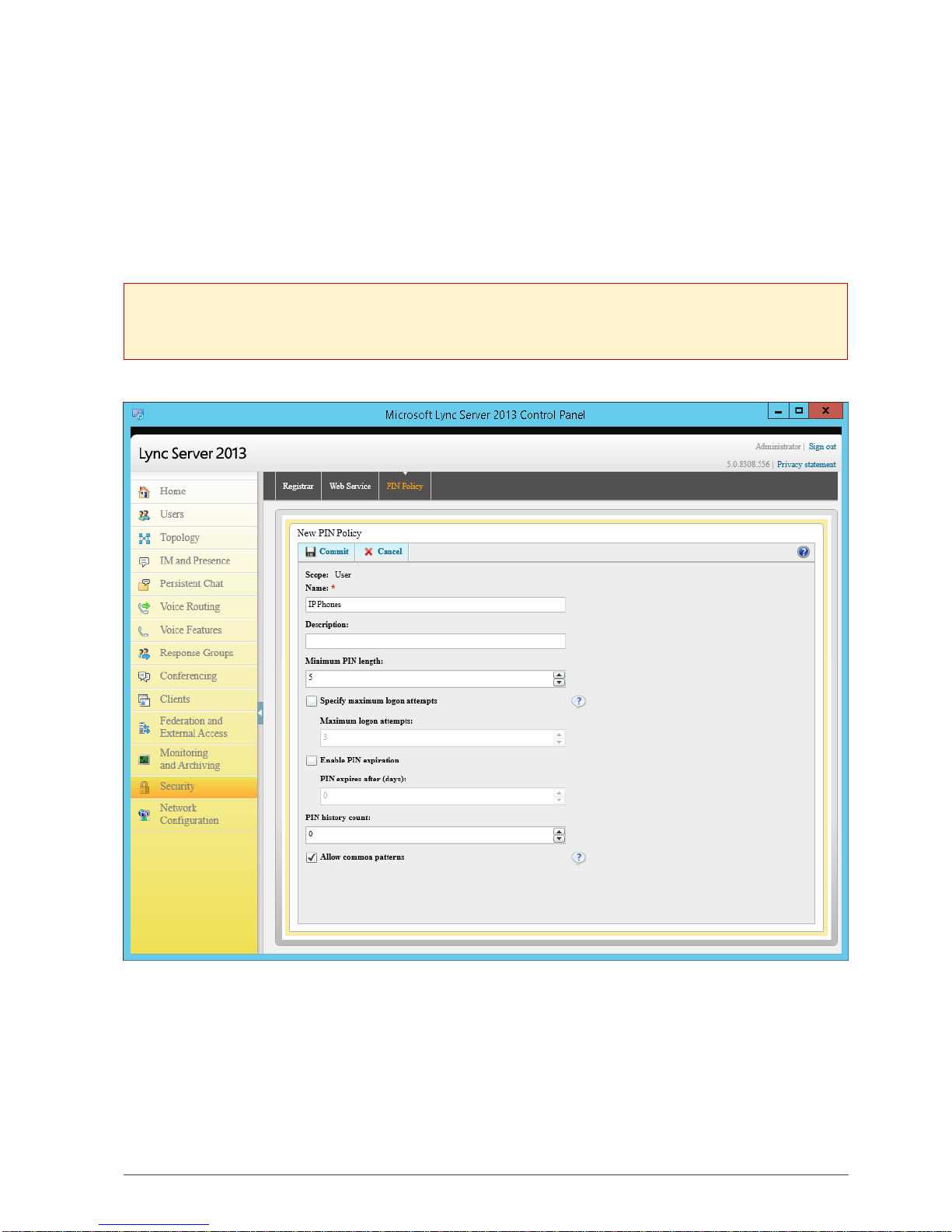
To create a new PIN policy, in the Lync Server Control Panel click Security, and then click PIN Policy tab. In
accordance with your company security requirements, select the options for the new PIN policy.
It is not recommended that you select Enable PIN expiration option because user login and PIN are
permanently stored in the IP phone settings and are not used by the user regularly.

Kinnex Media Gateway. Quick Start Guide.
7
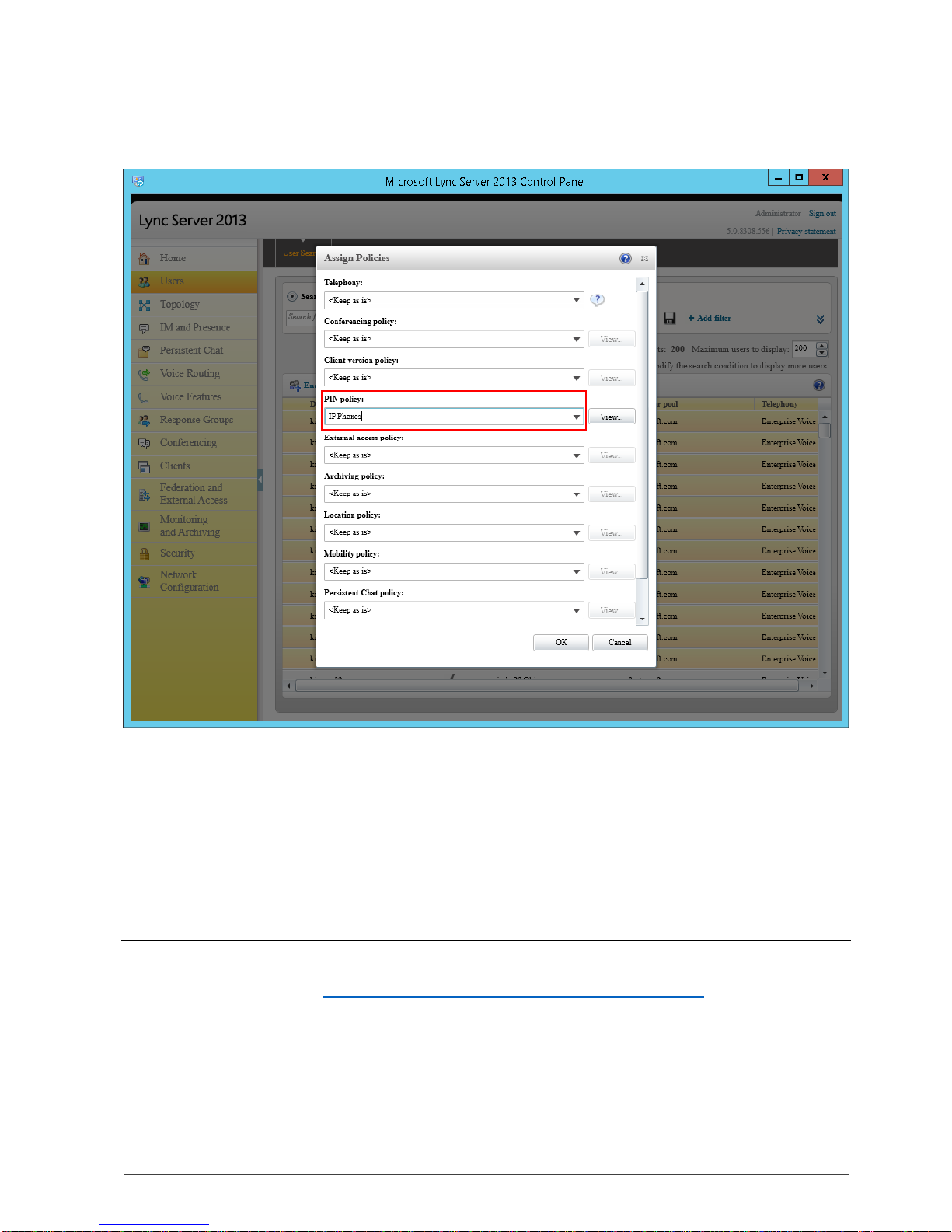
To assign created PIN Authentication policy to the users, click Users in the left navigation bar of Lync Server
Control Panel. Then select one or multiple users and click Action in the toolbar, and then click Assign policies.
Select the name of previously created policy in the PIN policy drop-down list.
After you set up PIN authentication policy, you can create user PINs in the Kinnex Media Gateway Control
Panel. New user PINs will be created on the Lync Server automatically.
For details about managing PIN Policies, see:
Managing PIN Policies http://technet.microsoft.com/en-us/library/jj721841.aspx

Kinnex Media Gateway. Quick Start Guide.
8
4. Preparing to installing Kinnex Media Gateway
Kinnex Media Gateway can be installed on a stand-alone server, or collocated with one of the Lync Server
roles. You can view the description of the deployment topologies at http://www.kinnex.net/features/ (see the
Reference Topologies tab).
Depending on the deployment scenario, you must allocate enough system resources for Kinnex Media
Gateway and Lync Server to work stable. The system requirements are available at
http://www.kinnex.net/features/ (see the System requirements tab).
Configuring TLS on Windows Server 2012 R2
When Lync Server 2013 Front End servers are installed in Windows Server 2012 R2, you must configuring TLS
session parameters. For more information, see http://support.microsoft.com/kb/2901554/en-us.
To configure TLS sessions, on all computers that are hosting Lync Server 2013 Front End servers open the
Registry editor (run regedit in the Windows shell) and add to the Schannel registry subkey new value:
Subkey
HKLM\System\CurrentControlSet\Control\SecurityProviders\Schannel
Key
EnableSessionTicket
DWORD (32-bit)
Value
0x0002
Run consecutively the following Lync Server PowerShell cmdlets to restart Lync Server services:
Stop-CsWindowsService
Start-CsWindowsService
Installing Lync Server Administrative Tools
After you select deployment topology for Kinnex Media Gateway, you need to install Lync Server
Administrative Tools from the Lync Server distribution kit. For details about installation, see the Install Lync
Server Administrative Tools page at http://technet.microsoft.com/en-us/library/gg398665.aspx.
IP Address Allocation
You must assign at least one dedicated (not used by other VoIP services) IP address for Kinnex Media Gateway
services. When Kinnex Media Gateway is collocated with one of the Lync Server roles, we recommend
installing an additional network interface if a large number of IP phones connected to corporate network. In
the low loaded telephony networks, you can assign one additional IP address to the existing network interface.

Kinnex Media Gateway. Quick Start Guide.
9
5. Installing Kinnex Media Gateway
Installing Kinnex Media Gateway is incredibly easy and does not require manual operations.
When you install Kinnex Media Gateway on a stand-alone server, you will need to reboot your server to apply
the security policies.
If localization of any operating system used in the Lync Server topology if differ from English, create new
user account in the domain, add it to group RTCUniversalServerAdmins and setup Kinnex Media
Gateway service to run from the created user account.
Firmware packs
You can install firmware packs for used IP phone manufacturers after the Kinnex Media Gateway installation
complete. New versions of firmware and auto configuration files will be recognized and applied to IP phones
automatically.

Kinnex Media Gateway. Quick Start Guide.
10
6. Activating Kinnex Media Gateway License
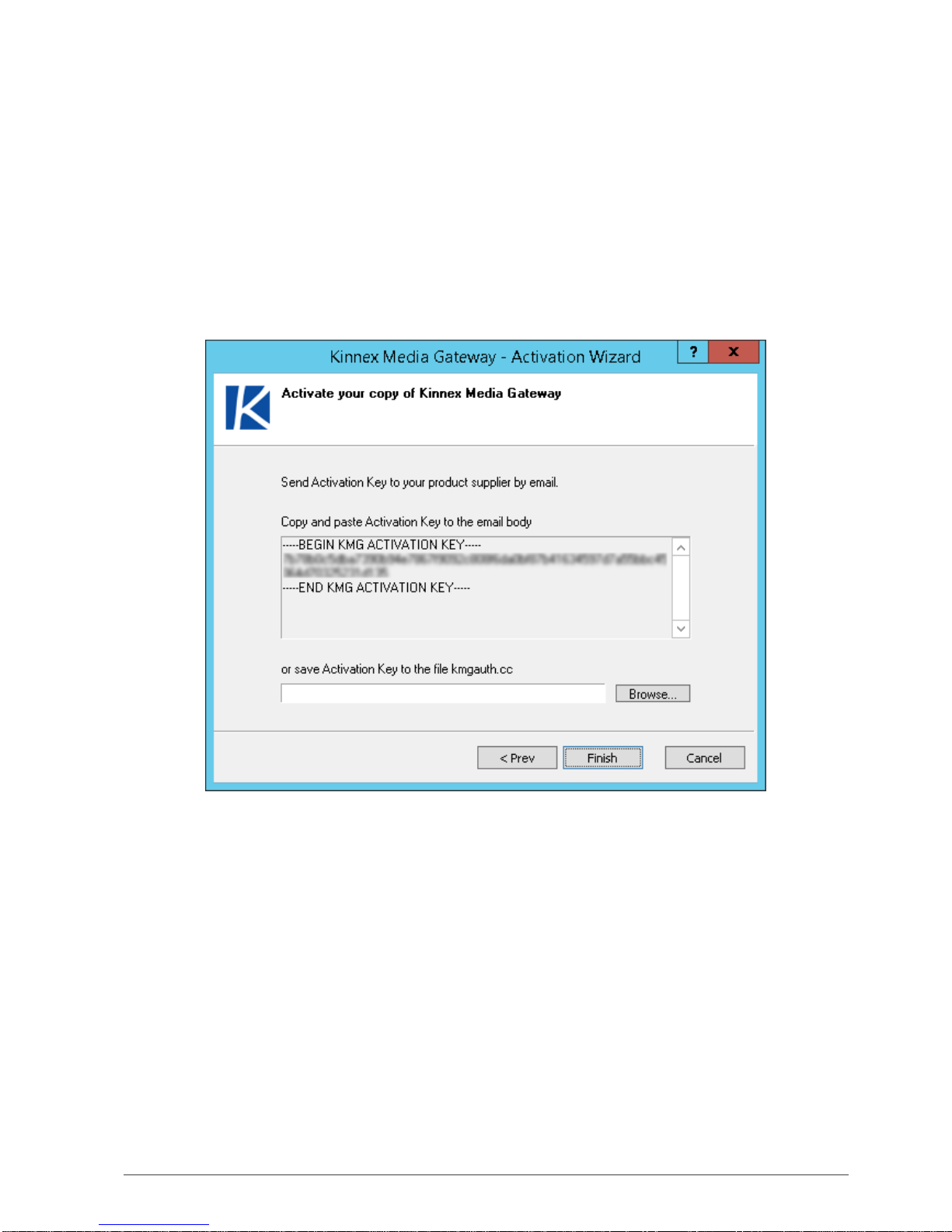
To activate the Kinnex Media Gateway License, create an Activation Key and send it to your supplier first. The
Registration Key, which activates your license, will be included in the response email.
How to create an Activation Key
To create an Activation Key, in the Kinnex Media Gateway control panel click Overview tab, and then click to
Install license link. In the Activation Wizard, enter your 25-digit License Key and License owner name. On the
next step, select Create Activation Key. Copy and send the Activation Key to your supplier.
Enter registration key
To complete the license installation, in the Kinnex Media Gateway control panel click Overview tab, and click
to Install license link. In the Activation Wizard, you should find your 25-digit License Key and License owner
name. If the fields are empty, enter the required values. On the next step, select Enter Registration Key. Copy
and paste the Registration Key or select a file with the key. Then click Finish. Restart Kinnex Media Gateway
service to activate your license.
Table des matières
Manuels Porte populaires d'autres marques

LST
LST M500RFE-AS Manuel utilisateur

2N Telekomunikace
2N Telekomunikace 2N StarGate Manuel utilisateur

Mitsubishi Heavy Industries
Mitsubishi Heavy Industries Superlink SC-WBGW256 Manuel utilisateur

ZyXEL Communications
ZyXEL Communications ZYWALL2 ET 2WE Manuel utilisateur

Telsey
Telsey CPVA 500 - SIP Manuel utilisateur

RTA
RTA 460A-NNA4 Fiche technique