G3D T-1000 Manuel utilisateur

The manual covers the most basic operations. For more information,
please check g3dsys.com.
UV 3D Printer Manual v1.8

i
CONTENTS
1
1
3
4
5
7
9
11
12
13
14
14
15
16
17
18
19
Introduction
Specifications
Package Contents
About 3D Printing
Introduction
T-1000 UV 3D printing
Digital Light Processing
Photopolymer resin
Self-leveling vat
Getting to know the T-1000
T-1000 Diagram
Safety
Explanation of the symbols
Terms and conditions
Getting started
Setting the build plate
Setting the vat
Removing the vat
Powering on
Powering down
Connecting your device to T-1000 Printer WiFi
Connecting via Ethernet
Changing details of T-1000 Printer WiFi settings
Connecting T-1000 to Home WiFi
Resetting WiFi connection
G3D Web User Interface
Updating the G3D Web User Interface
Printing with T-1000
Uploading a new file
Choosing a file
Uploading files from USB
Deleting a file
Setting cure time
Calibrating the vat
Positioning the build plate
Filling the vat
Printing
Pause printing
Abort printing
Adjusting the projector
Adjusting the xy resolution of projector
Focusing the projector
1
1
3
4
4
4
5
5
6
7
7
9
10
11
12
12
13
14
15
16
17
18
20
21
23
24
25
26
26
26
27
27
28
30
33
35
35
36
36
37
37
41

CONTENTS
Cleaning guide
Raising the build plate
Removing the build plate
G3D print workstation kit
Removing the print
Cleaning the print
Cleaning the vat
Cleaning the projector
Cleaning the T-1000
Vat handling
Troubleshooting
Contact
Resin Cure Matrix
47
47
47
49
50
50
52
53
53
54
55
56
57
ii T-1000

HARDWARE
SPECIFICATIONS
Printer Technology
Build Volume (Max)
Build Dimension (Max)
Thickness per layer(Z axis)
Print Speed
Material
Printer Weight
Dimension
Input
Operating Temperature
SOFTWARE
Connectivity
System compatibility
Supported file
Max
Min
H
W
L
DLP/SLA
441 cu. in
7,225,344 cu. mm
7.06 in(L) x 5.29 in(W) x 11.81 in(H)
179.20 mm(L) x 134.40 mm(W) x 300.00 mm(H)
0.00472 in
120 μm
0.00029 in
7.50 μm
25 min/in - 35min/in
0.98 min/mm - 1.38 min/mm
Photopolymer
29 kg
63.9341 lbs
26.71 in
678.50 mm
17.86 in
453.60 mm
11.66 in
296.13 mm
110 - 220 VAC, 0.8A
50 Hz - 60 Hz
17ºC - 40ºC
62.6ºF - 104ºF
WiFi / USB / Ethernet
Windows / Mac / Linux
G3D, G3L / importable STL
T-1000 1

SPECIFICATIONS
XY RESOLUTION TO BUILD VOLUME
25 min/in
0.98 min/mm
32 min/in
1.26 min/mm
35 min/in
1.38 min/mm
35 min/in
1.38 min/mm
100 μm
125 μm
150 μm
175 μm
4.03 in x 3.02 in x 11.81 in
102.4 mm x 76.8 mm x 300 mm
5.04 in x 3.78 x 11.81 in
128 mm x 96 mm x 300 mm
6.05 in x 4.54 in x 11.81 in
153.6 mm x 115.2 mm x 300 mm
7.06 in x 5.29 in x 11.81 in
179.2 mm x 134.4 mm x 300 mm
143.97 cu. ln
2359296 cu. mm
224.96 cu. ln
3686400 cu. mm
323.94 cu. ln
5308416 cu. mm
440.92 cu. ln
7225344 cu. mm
Speed
Resolution Build Dimension Build Volume
2 T-1000

T-1000 3
Be sure all items listed here were included with your printer.
PACKAGE CONTENTS
VatBuild PlateResin Clippers Scraper

XXX
4 T-1000
XXX
ABOUT 3D PRINTING
INTRODUCTION
3D printing refers to creation of three-dimensional objects from a cad file, one
layer at a time. 3D printing is used in rapid prototyping and additive manufacturing.
The most common and widely used in additive 3D printing are fused deposition
modeling (FDM), stereolithography (SLA) and digital light processing (DLP).
One of the main advantages of 3D printing is the speed at which parts can be
produced compared to traditional manufacturing methods. Another advantage in
3D printing is low cost in labor where it requires an operator to press a button, 3d
printer then follows an automated process to produce the part. 3D printing allows
customization and has a relatively small learning curve to operate successfully.
T-1000 UV 3D PRINTING
The T-1000 is a digital light processing (DLP) 3D printer which uses ultraviolet
light to cure the resin. Prints are produced by “photopolymerization” or hardening
series of thin layers.
T-1000 UV 3D printing begins with a 3D model from a computer-aided design
(CAD) software, you need to export the 3D model file as an STL file. Once you
have the STL file, preparation must be done in the G3D Layout and Slice
software. Import the STL file into the Layout module of the software, this is where
you modify, orient and add support or base. After the layout is complete, save the
file as a G3L file. In the Slice module of the software, open the G3L file, this is
where you will slice the model of the file, in order to divide it into horizontal layers
or known as the Z layer thickness or height. Once the model of the file is sliced,
save the file as G3D file, this is now ready to upload in the G3D Web UI that will
integrate with the T-1000 for printing.
1. DESIGN 3D MODEL
2. EXPORT FILE AS STL FILE
CAD SOFTWARE LAYOUT AND SLICE SOFTWARE
LAYOUT MODULE
1. IMPORT STL FILE
2. ORIENT, MODIFY & ADD
BASE/SUPPORT
3. SAVE AS .G3L FILE
LAYOUT AND SLICE SOFTWARE
SLICE MODULE
1. OPEN .G3L FILE
2. SET PARAMETERS
XY : PIXEL SIZE
Z : LAYER THICKNESS
3. SLICE
4. SAVE AS .G3D FILE
LAYOUT
SLICE
Layout
LAYOUT
SLICE
Layout
Browse
JobName
PixelSize (µm)
LayerThickness (µm)
Slice Edit Slice

X-axis
Z-axis
(Z Layer Thickness)
Y-axis
DIGITAL LIGHT PROCESSING
T-1000 has a completely custom designed UV LED light engine that uses the DLP
technology to cure liquid resin into solid prints. Digital Light Processing (DLP) is
a display device that uses a digital micromirror device. The display device is a
projector that will flash a single image of each layer across the entire build plate at
once. Image is displayed as square pixels therefore the print is composed of
voxels.
PHOTOPOLYMER RESIN
G3D Photopolymer Resin is a type of polymer that changes its physical properties
when exposed to UV light. Photopolymer liquid plastic resin turns to solid when
introduced to a specific light source.
G3D Resins have optimal settings that can be your reference as your base line
when your printer is set to XY:175 microns and Z Layer: 120 microns. Consult to
the Resin Cure Matrix for more info about cure time settings.
CONNECTION G3D WEB USER INTERFACE
g3dprint:8080
XXX
T-1000 5
XXX
ABOUT 3D PRINTING
1. CONNECT YOUR DEVICE
TO T-1000 PRINTER WIFI
SSID: G3DPrinter
PASSWORD: G3D54321
1. TYPE: G3DPRINT:8080
IN THE WEB BROWSER
2. UPLOAD .G3D FILE FOR
PRINTING
3. PREPARE THE
PRINTER

SELF-LEVELING VAT
The T-1000 has a self-leveling vat system which ensures accurate prints. After
several prints there’s a possibility that the build plate can misalign after several
usage. An unlevel build plate can cause first layer issues that can result in poor
adhesion.
It is best to position the build plate before you print. This process will enable the
printer to self-level the vat and align the build plate.
Ensure to untighten all vat lock screws before you press < Position Build Plate>
button or this can damage the self-leveling system of the printer.
If the printer is newly purchased or you will use a new vat on the printer, untighten
all vat lock screws and release all calibration levers before you press < Position
Build Plate> button.
After self-leveling, lock all calibration levers and tighten all vat lock screws to
prepare for printing.
6 T-1000
ABOUT 3D PRINTING
FIG. 2 FIG. 4FIG. 1 FIG. 3
SELF-LEVELING VAT SYSTEM

T-1000 7
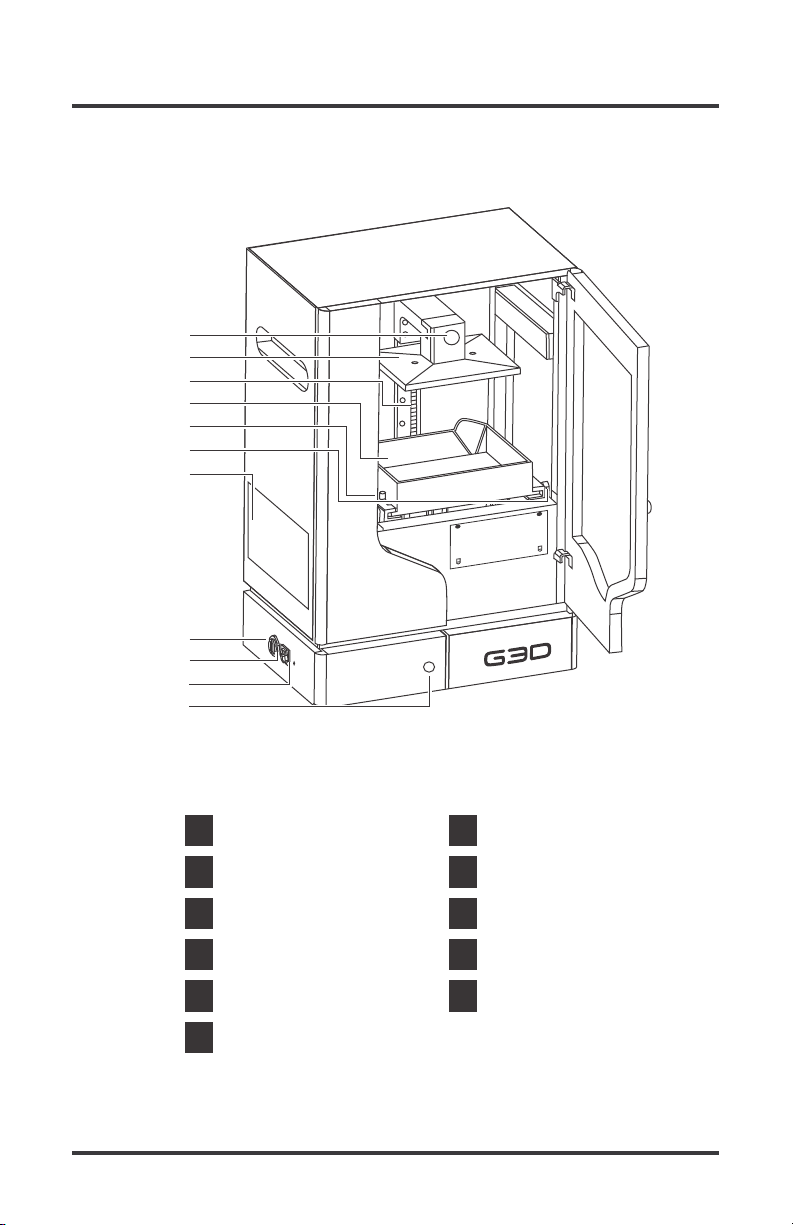
GETTING TO KNOW THE T-1000
3
1
2
Acme thread
Build plate lock screw
Build plate
6
4
5
Calibration lever
Vat
Vat lock screw
9
7
8
Ethernet port
Servo panel
USB port
10
11
WiFi reset
Power button
1
2
3
4
5
6
7
8
9
10
11
Autres manuels pour T-1000
3
Table des matières
Autres manuels G3D Imprimante 3D