
Sylvania SDPF7095 Manuel utilisateur

USER MANUAL
ENGLISH
SYLVANIA is aregistered trademark of OSRAM Sylvania Inc. used under license.
SDPF7095

Key Points
This manual includes security measures and correct operating methods. For personal
safety, please make sure to read this manual before using. Thank you!
1. The machine adopts capacitive touch screen, you can just touch it by finger or click with
capacitive pen for operation. (Never use the sharp objects to click the screen, or the touch
screen may be damaged).
2. Do not put the device at any high temperature, high humidity or dusty place.
3. Do not drop or crash the device to prevent the violent impacting between the display and
the capacitive touch screen. Or the customers have to take the consequence by them-
selves.
4. Don’t use the different type charger or it may make the device burned. We assume no
liability for the damage. Please contact with our agent if you need the original adaptor.
5. Do not disconnect the device while formatting, or it may make the error.
Our company won’t bear the duty for the loss of the memory erasing on account of the
damage, repair or some other reason. Please operate the device according to the user
manual rightly and backup the important data in time.
6. Do not dismantle this device by yourself, and do not polish it with alcohol, dilution,
or benzene.
7. Do not use this device where electronics is forbidden, such as on the airplane.
8. Do not use this device while walking and driving, avoiding traffic accident.
9. USB is for connecting u-disk only.
For any support needed for this device please contact the
company or the authorized
dis-tributor. Any unauthorized dismantling of the device will make the warranty null and
void.
We reserve the right to keep the change of the products, the specification and design is
subject to change without notice!

This micro USB port is for uploading photos from USB drive only, it is not for
connecting computer. Photos in the USB drive can’t be displayed directly in
the frame, you have to upload/import photos from USB drive to the frame first.
You can export/copy photos from the frame to USB drive. Remarks: The usb
flash drive is recognized as “SD card” when it was inserted in the frame.
Note: Need a OTG cable to connect this USB to this unit. This OTG cable is
not included.
3. USB
2. RESET
Use a needle or paper clip to reset unit.
1.POWER
Use power adapter to power on the frame.
When it is on, press and hold power button for approximately 3 seconds to
access reboot or power off menu. Short press on power button will turn
off/onscreen (but leave the photo frame in on position).
Power off: To avoid any possible damage to the frame, please do not
unplug the power adapter from the frame directly, please always press
the power button for 2 seconds and tap “Power off” .
1
2
3
4
5
1

5. DC
Connect DC adapter to power on the device.
Load external micro SD memory cards here. Photos in the micro SD card
can’t be displayed directly in the frame, you have to upload/import photos
from micro SD card to the frame first. You can export/ copy photos from
the frame to micro SD card. If you want to backup the photos in the frame,
please follow the below steps: step 1: get a micro SD card(maximum
32GB), and put it in the micro SD card slot. step 2: tap the screen and go to
“Settings”
step 3: go to “Backup and Restore”
step 4: tick “ Automatic backup”
step 5: tap “Backup frame to SD card”
Then you will see a sentence “Last successful backup: 29 December...”
under “Backup frame to SD card”.
4. Micro SD (Support maximum 32G micro SD card)
2

3
Getting started
Congratulations with your brand new Frameo photo frame!
If you are new to using Frameo then start by following the Frameo quick setup
or follow the on-screen guide when powering it on for the first time.
Once you have set up your Frameo frame, you can start connecting it to your
friends and family.
Frameo app
To send photos to your frame, use the Frameo app for iOS or Android.
Find the Frameo app by scanning this code:
For Android:
Search for “Frameo” on Google Play.
For iOS:
Search for “Frameo” on App Store.

4
Frameo quick setup
When starting your frame for the first time, you will need to setup the frame.
●Select alanguage. This will be the language used on the Frameo.
●Connect your frame to the internet by connecting it to aWi-Fi.
●Frameo may ask you to update to the latest version. It is recommended
to update your frame before continuing if asked to.
●Enter your name, and the location where you have placed your frame e.g.
“John Doe” and “Living room”, “Kitchen” or “Office”. Finally set the
timezone if not already correct.

Start using Frameo
Next step is to connect Frameo with your friends and family by providing them
with a code from your frame.
If you want to be able to send photos to the frame yourself, start by downloading
the app for iOS or Android on App Store or Google Play. Then use the code to
connect your frame and app as described below.
Connecting a new friend
Make sure that your friend has downloaded and installed the
Frameo app.
Click the add friend icon on your frame . A dialog will appear showing a
connection code, which is valid for 12 hours.
Now share this code in whatever fashion you prefer e.g. SMS, E-Mail, IM,
phone call, to your friend.
Once your friends have added the code in their Frameo app, they will automat-
ically appear on your frame and be able to send you photos.
Read chapter Change options for a friend to allow connected friends, to retrieve
and share the connection code via the smartphone app.
5
6
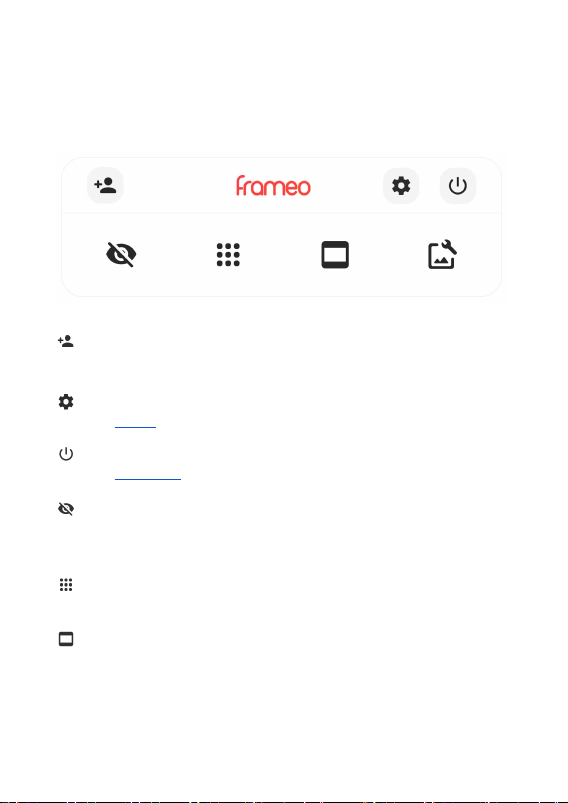
Navigating your Frameo
Swipe left or right to go through your photos.
To access the menu, simply tap once on the screen.
In the menu you will find the most used features.
Add friend
This will generate a code that you can share with your friends and family so they
can connect and send photos to your frame.
Settings
Opens the Settings.
Power menu
Opens the Power menu
Hide photo
Hides the current photo. This means that the photo will no longer be shown in
the slideshow. If needed the photo can be shown again through the settings
menu.
Gallery
Opens a gallery which allows for easy and fast navigation through your photos.
Fit to frame/Fill frame
This toggles how the photo is shown.
The Fill frame
option is the default. The photo is scaled so that it fills the whole
screen. It will be centered around what is selected as the most important part.
See the first picture below.

7
Fit to frame will make sure that the entire photo is shown on the screen. See the
second picture below.
NB. Make sure to always use the power off button on the device or in the power
menu to turn Frameo off. Never disconnect power when Frameo is running.
Settings
Through the settings, you can personalize your frame to your needs.
Adjust photo
Allows you to adjust the position of the photo in the frame for an even
better fit. Here you can also use to rotate your photo.
Interacting with videos
When a video is shown two additional controls are shown. One for play/
pause of the video and one to control the volume level for video
sounds.
Press to start the video playback. Pressing will pause the video
playback.
Press to open the volume slider. Use the slider to adjust the volume level
for video sounds.
Pressing will mute the video while pressing will unmute the video.
Power menu
Tap the power icon to access the power menu. Here you can power off
using , restart your frame using or enter sleep mode using .

8
My frame
Frame name
Changes the name of your frame. This is also the name that connected friends and
family will see in their list of connected frames in the smartphone app.
Frame location
Changes the location of your frame. This is the location displayed on your friends'
and family's list of connected frames which can help to distinguish frames from each
other.
Set language
Sets the language used on the frame.
Set time zone
Sets the time zone used on the frame.
Enable/Disable 24-hour format
Enables, and disables, 24-hour time format.
Manage photos
In the manage photos menu you can see how many photos are on your frame and
the storage they use. You can also see the amount of storage left available on your
device for storing new photos.
Show/hide photos
Select which photos to hide by tapping them. Hidden photos will NOT be deleted from
your frame and you can always select them to be shown again.
Use to hide or show all photos.
Delete photos
Select photos that you want to permanently delete from your frame by tapping the
photo.
Use to select or deselect all and to permanently delete the selected photos.
Table des matières
Manuels écran tactile populaires d'autres marques

Elecro Engineering
Elecro Engineering Poolsmart Plus Instructions d'installation

Johnson Controls
Johnson Controls IQ4 HUB Manuel utilisateur

Elo TouchSystems
Elo TouchSystems ET2270L Manuel utilisateur

Elo TouchSystems
Elo TouchSystems ET1002L Manuel utilisateur

Elo TouchSystems
Elo TouchSystems 3201L Manuel utilisateur

Duratec
Duratec S15 Manuel utilisateur


