Penpower Technology Super ScanEYE Manuel utilisateur

PenPower Super ScanEYE
User Manual
Version 2.1
Created: September, 2010

Contents
Chapter 1 Product Features ............................................................................1-1
Chapter 2 Installation ......................................................................................2-1
2.1 Accessories ...........................................................................................................2-1
2.2 Product Contents ..................................................................................................2-1
2.3 System Requirements ...........................................................................................2-1
2.4 Hardware Installation ...........................................................................................2-2
2.5 Super ScanEYE Installation .................................................................................2-3
Step 1: Set up USB Cable on your PC ..................................................................2-3
Step 2: Install the Desktop Application.................................................................2-4
Step 1: Establish Pen-PC Communications..........................................................2-6
Chapter 3 Main Function ................................................................................3-1
3.1 Hardware Button ..................................................................................................3-1
3.2 Main Function Flow Chart ...................................................................................3-2
3.3 Addition Function Flow Chart ..............................................................................3-3
3.4 Main Function Layout ..........................................................................................3-4
Chapter 4 Dictionary Program .......................................................................4-1
4.1 Scanning Techniques ............................................................................................4-1
4.2 Single Word Translation .......................................................................................4-3
4.3 Phrase Translation ...............................................................................................4-5
4.4 Sentence Translation ............................................................................................4-7
4.5 Dictionary Program Function ...............................................................................4-9
Chapter 5 Scan and Store ................................................................................5-1
5.1 Edit Current File ...................................................................................................5-1
5.2 Creating New File ................................................................................................5-1
5.3 Open File ..............................................................................................................5-2
5.4 Delete File ............................................................................................................5-2
5.5 Set Scanning Direction .........................................................................................5-2
5.6 Set New File Language .........................................................................................5-2
5.7 Beam Current File ................................................................................................5-3

Chapter 6 Data Transfer ..................................................................................6-1
6.1 Super ScanEye Program ......................................................................................6-1
6.2 Connecting Super ScanEYE to the PC ..................................................................6-2
Connection Wizard .........................................................................................6-2
Manual Connection ...........................................................................................6-4
6.3 Data Transfer ........................................................................................................6-6
Data Transfer Setting............................................................................................6-6
Transfer Data........................................................................................................6-7
6.4 Editing data Within Super ScanEYE Manager .....................................................6-8
Chapter 7 Scan to PC .......................................................................................7-1
Chapter 8 Additional Functions .....................................................................8-1
8.1 Install Add-on Programes..................................................................................8-1
8.2 Address Book Component ...................................................................................8-3
New Address .......................................................................................................8-3
View Addresses ...................................................................................................8-4
Settings ................................................................................................................8-5
Beaming .............................................................................................................8-5
Edit Address Book in Super ScanEYE Manager ..................................................8-6
8.3 Internet Link Component .....................................................................................8-7
New Link ............................................................................................................8-7
View Link ...........................................................................................................8-7
Settings ...............................................................................................................8-7
Edit Internet Link in Super ScanEYE Manager ..................................................8-8
8.4 Table Component..................................................................................................8-9
Edit Current File...................................................................................................8-9
Settings ..............................................................................................................8-10
New File ............................................................................................................8-10
Open File...........................................................................................................8-10
Delete File ........................................................................................................8-10
Edit Table in Super ScanEYE Manager ............................................................8-11
8.5 Add/Delete Software..........................................................................................8-12
8.6 Install External Dictionary.................................................................................8-13
8.7 Transtar..........................................................................................8-14

Chapter 1 Product Features 1-1
Chapter 1 Product Features
Scanning/Recognition/Translation 3-In-1
Combining the functions of scanning, recognition, translation, it provides immediate
translation once scanning has completed. The Super ScanEYE can also be used to scan
words directly into application programs.
Scanning Input Method
The Super ScanEYE’s memory enables quick scanning and input of words, even articles.
Super ScanEYE is Light in Weight and User-Friendly
It provides great assistance when users are gathering or translating data.
Human Voice Reading for English Document
Human voice reading is available for all English sentences or single words that are
scanned.
Combination of Address Book, Internet Link and Tables
Super ScanEYE can scan name card, communication document, for example, email,
documents or Internet Link and save these data in the appropriate file type.
Sophisticated Recognition System
Using the most advanced words recognition techniques availability globally, it can
recognize both horizontally aligned or vertically aligned words. Right-handed or
left-handed users setting are available too.
Computer Connection and Data Organization
By connecting the Super ScanEYE to the computer, direct transfer of data into the
computer and backup of data is easy.
Extra Software
The installation CD includes an extra translation software, Transtar, which can help to
shorten the translation time.

1-2 Supper ScaneEYE

Chapter 2 System Installation 2-1
Chapter 2 System Installation
2.1 Accessories
2.2 Product Properties
CPU: ARM7TDMI
Computer Cable Connection: USB conversion cable.
Scanner Head: 128 line and image sensor.
Scanning Analysis: 400 DPI.
Display Screen: 61mm × 20mm.
Power: 2 × 1.5 V AAA batteries.
Weight: 90g (without batteries).
Size: 163mm × 38mm × 23mm.
2.3 System Requirement
Traditional Chinese Windows2000 /XP/Vista/7
16MB RAM.
8MB free hard drive space.
CD ROM (program installation).
Computer must have USB port.
Super ScanEYE
Registration Card
2 AAA batteries
Earpiece
Registration Card
User Manual
Installation CD
USB Conversion Cable

2-2 Supper ScaneEYE
2.4 Hardware Installation
in built speaker
display screen
power on/offbutton
scanner head
protection casing
Take off Super ScanEYE battery cover and put in 2 AAA batteries.
battery cover
battery compartment
RAM
earphone connection
Infrared communication port
PC connection

Chapter 2 System Installation 2-3
2.5 Super ScanEYE Installation
Step 1: Set up USB-to-Serial Drive
1. Insert the installation CD-ROM, the system will automatically load the installation
screen. Select “Super ScanEYE” (Figure 1). Next select “I accepet the terms of the
licence agreement” (Figure 2).
2. Enter the selection screens for installation steps, and select “Install and Set Up Super
ScanEYE”. Make sure that the USB cable is not connected to the computer, If it is,
disconnect the cable and click on “Install Driver” to install the USB cable driver.
3. Click “Next” to begin installation.
Figure 1 Figure2
Figure 3 Figure 4

2-4 Supper ScaneEYE
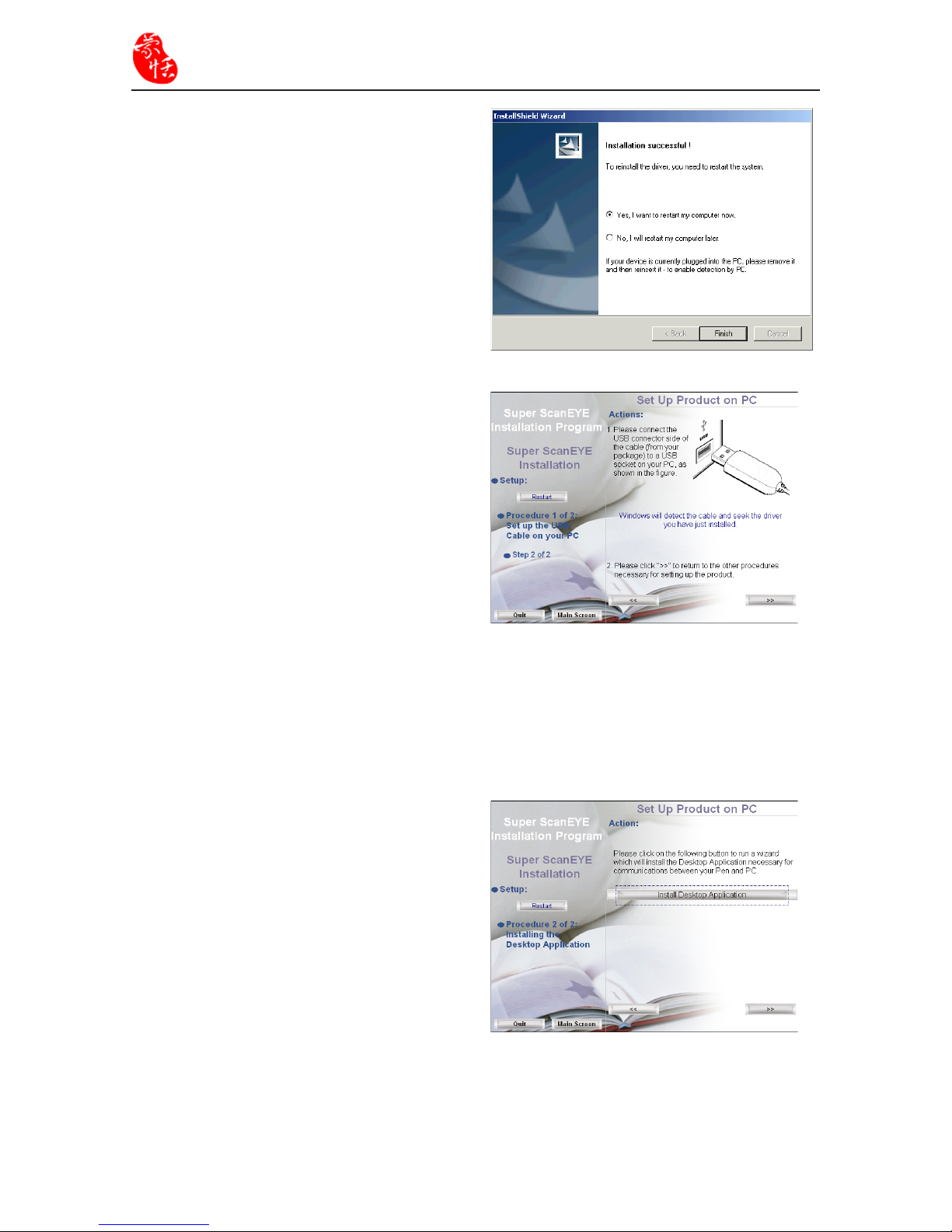
4. Click “Finish” to end the installation
and restart the computer. You can also
choose to restart your computer later.
Figure 5
Figure 6
Step 2: Install the Desktop Application
5. When the software installation is
completed, click on the [>>] button
in Figure 4, and Figure 5 will appear.
Refer to the instructions in Figure 5
and plug the USB connector into the
computer’s USB port. Then click on
[>>] button to continue Step 2 of 2 for
installing Desktop Application.
1. Select “Install Desktop Application”
in Figure 6 and start installation.

Chapter 2 System Installation 2-5
2. Click “Next” to begin installation.
3. Select the folder destination and click
“Next” to continue.
4. Please enter the user name and the
company name, then click “Next”.
5. Please check the duplicate file setting,
then click “Next” to continue.
Table des matières
Autres manuels Penpower Technology Scanner

Penpower Technology
Penpower Technology mini ScanEYE? Manuel utilisateur

Penpower Technology
Penpower Technology WorldPenScan Go Manuel utilisateur

Penpower Technology
Penpower Technology WorldPenScan X Manuel utilisateur

Penpower Technology
Penpower Technology WorldPenScan Series Manuel utilisateur

Penpower Technology
Penpower Technology WorldPenScan Manuel utilisateur

Penpower Technology
Penpower Technology WorldPenScan Series Manuel utilisateur

Penpower Technology
Penpower Technology WorldPenScan Manuel utilisateur