
Medion MD 85637 Manuel utilisateur

5/29/2008 11:10 AM
Contents:
Safety and service .........................................................................................1
Safety notes ................................................................................................. 1
Operating safety........................................................................................1
Point of use ...............................................................................................1
Environment conditions............................................................................. 2
Electro-magnetic compatibility................................................................... 2
Connecting................................................................................................2
Data security .............................................................................................2
Battery Handling ........................................................................................... 3
Repairs .........................................................................................................4
Cleaning .......................................................................................................4
Recycling and Disposal ................................................................................4
Introduction....................................................................................................5
Proper Use ...................................................................................................5
Notes on these instructions ..........................................................................5
Our target group........................................................................................5
Quality....................................................................................................... 5
Service ......................................................................................................5
Box contents.................................................................................................6
System requirements....................................................................................6
Technical Data.............................................................................................. 6
Views...............................................................................................................7
Graphic Tablet .............................................................................................. 7
Digital pen ....................................................................................................7
Using the Pen................................................................................................. 8
Inserting or changing the battery ..................................................................8
Software Installation .....................................................................................8
Connecting to the computer .........................................................................9
Operation......................................................................................................10
Changing the Tip ........................................................................................10
Removing the tip .....................................................................................10
Inserting the tip........................................................................................ 10
Customer service......................................................................................... 11
Troubleshooting..........................................................................................11
Is Further Assistance Necessary?........................................................... 11
FCC Compliance Statement.......................................................................12
MEDION Limited Warranty ..........................................................................13

ii
Copyright © 2008
All rights reserved.
This manual is protected by Copyright.
Trademarks:
MS-DOS®and Windows®are registered trademarks of Microsoft®.
Pentium®is a registered trademark of Intel®.
Other trademarks are the property of their respective owners.
Medion® makes no warranty of any kind with regard to this material, including, but
not limited to, the implied warranties of merchantability and fitness for a particular purpose.
Medion®shall not be liable for errors contained herein or for incidental or consequential damages in connection with
the furnishing, performance, or use of this material.
Medion®assumes no responsibility for the use or reliability of its software on equipment that is not furnished by
Medion®.
This document contains proprietary information that is protected by copyright. All rights are reserved. No part of this
document may be photocopied, reproduced, or translated to another language without the prior written consent of
Medion®.
The information in this document is subject to change without notice.

1
Safety and service
Safety notes
Please read through this section carefully. Following all the instructions will guarantee reli-
able operation and years of enjoyment from your new Graphic Tablet.
Always keep these instructions near your Graphic Tablet for easy reference.
Keep these instructions and packaging safe. Use the original packaging in the event that
you need to ship or transport your Graphic Tablet.
Operating safety
•Never open the housing of the Graphic Tablet! This could lead to an electrical
short-circuit, damage to your Graphic Tablet or fire.
•Never insert any objects through the slits and openings into the inside of the Graphic
Tablet. Doing so could lead to an electrical short circuit or damage to your Graphic
Tablet.
•The device is not intended for use by young children or infirm persons without su-
pervision.
•Keep the packing materials such as foil away from children as there is a danger
of suffocation.
•This Graphic Tablet is intended for personal use only and is not intended for com-
mercial use of any kind.
•Do not press heavily on the digital pen cartridge. Doing so may cause damage to
the pen tip or the pen itself and result in malfunction.
•In the first hours of operation, new devices may emit a typical, unavoidable but
completely harmless smell, which will decline increasingly in the course of time.
We recommend you ventilate the room regularly, to counteract the formation of the
smell.
Point of use
•Keep your Graphic Tablet and all connected equipment away from moisture, dust,
heat and direct sunlight in order to avoid malfunctions.
•Only use in a suitable ambient temperature:

2
Environment conditions
After transporting your Graphic Tablet wait until it has reached room tempera-
ture before turning on. In the event of major variations in the temperature or
humidity, condensation can form on the inside of the Graphic Tablet which can
cause an electrical short-circuit.
Electro-magnetic compatibility
•When connecting the Graphic Tablet observe the guidelines for electro-magnetic
compatibility (EMC).
•Maintain a distance of at least 3 feet from sources of high frequency and mag-
netic interference (television sets, loudspeakers, mobile telephones, etc.), in order
to avoid malfunctions and data loss.
Connecting
Observe the following instructions to connect your Graphic Tablet
properly:
•Route the cable so that no one can step on it or stumble over it.
•To avoid damage to the cable do not place any objects or furniture on the cable.
Data security
Every time you update your computer’s data make back-up copies on an exter-
nal storage medium, i.e. CDR disc. We cannot assume a liability for data loss or
associated subsequent damage.

3
Battery Handling
Batteries may contain combustible materials. Misusing them may cause battery leakage,
heat, explosion or ignition, bringing about injury or damage to the product or YOU. Please
observe strictly the following:
•KEEP CHILDREN AWAY from batteries.
•If by any chance, batteries are swallowed, consult a medical doctor immediately.
•DO NOT CHARGE batteries (except rechargeable batteries).
•DO NOT FORCIBLY DISCHARGE batteries.
•DO NOT SHORT-CIRCUIT batteries.
•DO NOT HEAT or DISPOSE OF IN FIRE.
•DO NOT DISASSEMBLE or DEFORM batteries. Your hands and fingers may be in-
jured, or the liquid of the battery may get into your eyes or adhere to your skin. If this
happens, rinse with a large quantity of water immediately and consult a medical doc-
tor.
•DO NOT expose batteries to strong impacts by dropping or throwing the batteries.
•DO NOT reverse the positive (+) and negative (-) terminals to avoid short-circuit.
•REMOVE PROMPTLY any used battery from the device.
•REPLACE THE BATTERY with a new battery of the same type.
•INSULATE THE TERMINAL parts with tape or the like when storing or at disposal of
the batteries.
DO NOT throw drained batteries in with the domestic rubbish! Respect the environ-
ment and dispose of them in the specific containers for separate collection. If neces-
sary, turn to your reseller or to our service center. Thank you!

4
Repairs
Please contact our service center if you have any problems with your Graphic Tablet.
ONLY have repairs completed by our authorised service center.
Contact your local service center when...
•Liquid has got into the Graphic Tablet
•The Graphic Tablet does not operate properly
•The Graphic Tablet is dropped or the housing is damaged.
Cleaning
•Clean the Graphic Tablet with a moist cloth.
•Do not use any type of solvents, caustic or gaseous
cleaning agents.
Recycling and Disposal
Device
At the end of its life, the appliance must not be disposed of in household rubbish. Enquire
about the options for environmentally-friendly disposal
Batteries
Do not dispose of used batteries in the household rubbish! They must be deposited at a
collection point for used batteries.
Packaging
The packaging from your Graphic Tablet is produced mostly from materials which can be
disposed of in an environmentally friendly manner and be professionally recycled.

5
Introduction
Proper Use
This device is intended for recording written notes and drawings on a computer. Using the
software supplied, you can convert the handwritten notes to text or drawings to graphics. In
addition, certain computer commands (e.g., mouse control or program or functional execu-
tions) can be controlled via the digitizing tablet.
Notes on these instructions
We have arranged these instructions so that you can quickly find the subject related infor-
mation in the table of contents. The purpose of these instructions is to help you operate
your Graphic Tablet safely, quickly and easily.
Our target group
Thank your for purchasing this Graphic Tablet. We thank you for your confidence in our
products and are pleased to welcome you as a new customer. These instructions are in-
tended for novice users as well as advanced users. Regardless of your profession this
Graphic Tablet is intended for domestic home use only.
Quality
We focused on great features, ease of use, safety and reliability in manufacturing this
Graphic Tablet.
The balanced hardware and software design offers you an advanced Graphic Tablet design
which will provide you a great deal of functionality for business or entertainment purposes.
Service
Service and support is available any time you use your Graphic Tablet. Contact us, we will
be glad to help you. This manual contains a separate chapter on the subject of service
beginning on page 11.

6
Box contents
Please check the contents of the box and notify us within 14 days of purchase if the
content of the box is incomplete.
Your Graphic Tablet includes:
•Graphic Tablet
•Digital pen
•Pen clip
•2 replacement tips
•1 x 1.5V R03 / AAA battery
•Installation and application software on 2 CDs
•A pair of tweezers to change pen tip
•Operating instructions
System requirements
•Computer PC/AT compatible computer
•Processor type Pentium III with 1 GHz or higher
•Operating system Windows® XP/Vista®
•Installation optical drive (CD or DVD)
•Connections USB interface
Technical Data
•Technology Electromagnetic
•Recognition area 15.9 x 25.4 cm
•Interface USB 1.1
•Dimensions 306 x 257 x 9 mm
•Power supply Device: via USB port
Pen: 1 R03/AAA battery

7
Views
Graphic Tablet
Digital pen
LED display
USB cable
Input surface
Function fields
Battery-
compartment lid
Tip
8
Using the Pen
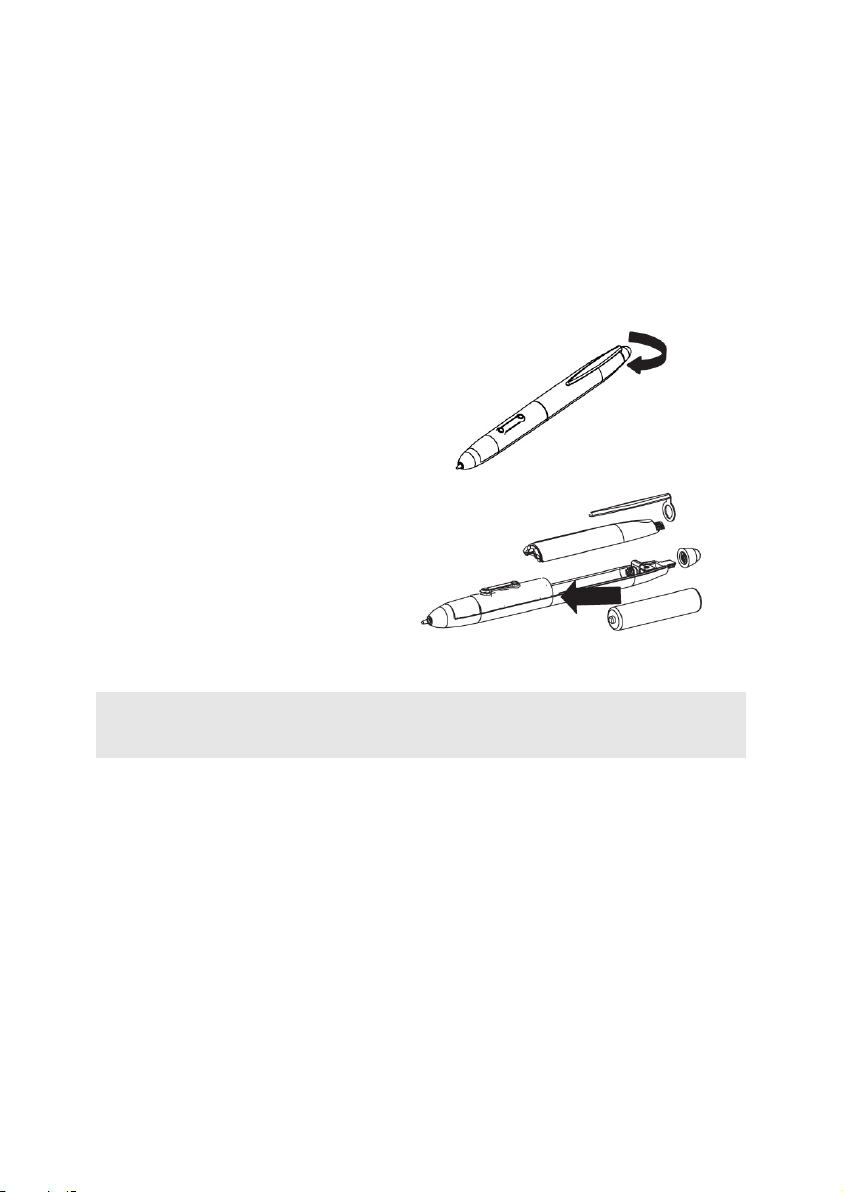
Inserting or changing the battery
When you see disruptions in the input or when strokes are no longer recorded correctly the
battery of the digital pen is almost empty and should be changed.
The pen does not have an on/off-switch. It is activated automatically when it is moved close
to the input surface, and switches off when it is removed from the surface again.
1. Open the battery compartment by
turning the cap at the clip counter-
clockwise.
2. Remove the clip and take off the
battery lid.
3. Remove the spent battery and in-
sert a new AAA battery. Make sure
that the battery end marked "+"
points toward the pen tip and that
the other end marked "-" touches
the contact spring at the back.
4. Put the battery back on, reattach the clip and screw on the cap.
Note:
Read the instructions on the safe handling of batteries starting on page 3.
Software Installation
You can manage, edit and convert your notes and drawings with the software supplied.
You can also use the Graphic Tablet in combination with a compatible graphics program
such as "Paint".
Table des matières
Autres manuels Medion Tablette graphique


