
MachPower Prisma EB-3DP16-016 Manuel utilisateur


2REV 020817

3
Thanks
For choosing our product
PRISMA Series Desktop 3D Printers inheriting the design concept of the simple to the extreme.
Use it can build parts quickly and easily, even if you’ve never used a 3D Printer.
The printer use the ABS or PLA to produce the model, so the parts are strong and durable. ABS or
PLA material also ensures that you can model for drilling, tapping, grinding and painting. PRISMA
Series Desktop 3D Printers creatively proprietary hardware, software and materials technology
together. Welcome to a new realm of 3D modeling!
INDEX
User-Guide Instructions
Learn More Information
Safety Precautions
Chapter 1 Overview
1.1 Overview
1.2 Front, Left and Back View
1.3 Start Kit Contents
Chapter 2 Installation
2.1 Install Machinery
2.2 Install the Material Shelf
2.3 Dismantle the Model
2.4 Paste the Masking Tape
2.5 Install the Material (for example, PLA materials)
2.6 Manual Calibration
2.6.1 Preparation for Calibrating
2.6.2 Adjusting the overall height of the Printing Platform
2.6.3 Fine Tune the Printing Platform
2.7 Printing the Test File
Chapter 3 Printing Operation
3.1 Display Panel
3.2 Display Panel HOME Overview
3.2.1 Install filament
3.2.2 Value input
3.2.3 Application
3.2.3.1 Manual
Chapter 4 SD card file list
4.1 SD card file list
4.2 Printing Display
Chapter 5 System
Chapter 6 Power Outages
Chapter 7 General Maintenance
7.1 Daily Preventive Maintenance
7.2 Maintenance
7.2.1 About every 500 hours should clean up the nozzle parts
7.2.2 2000 Hours Maintenance
Chapter 8 Trouble Removal
Chapter 9 Support
04
04
04
05
05
05
05
06
06
06
06
07
07
08
08
08
08
09
09
09
09
09
010
010
011
011
011
012
012
013
013
013
013
013
013
014
014

4
USER-GUIDE INSTRUCTIONS
This user guide has been carefully choreographed, divided into “Setup”, “operations”, “Maintenance” and “Troubleshooting” sections,
so that the readers can read in order. Please be sure to carefully read each part, in order to enjoy the best performance of the system.
LEARN MORE INFORMATION
SD card provides the electronic user guide. This guide provides information about the following topics:
1. troubleshooting information
2. important safety notices and regulatory information
3. information about supported printing supplies
4. detailed Description
SAFETY PRECAUTIONS
The following precautions ensure the proper use of the printer and prevent the printer from being damaged. Always follow these pre-
cautions.
1. use the power supply voltage specified on the nameplate. Avoid printer overload caused by the multiple devices attached to your power
outlet.
2. make sure that the printer is properly grounded. Otherwise, it may result in electrical shock, fire, and prone to electromagnetic inter-
ference.
3. Before to remove or repair a printer, please contact the local service representative. Please see the “support” part of the user guide.
4. only use the power cord that came with the printer. Do not damage, cut or repair the power cord. A damaged power cord has risk of fire
or electric shock. Please use approved power cord replace damaged power cords. Do not allow metal or liquids to touch the internal parts
of the printer. Otherwise, it may result in fire, electric shock or other serious injury.
5. in any of the following cases, please turn off the printer, and then unplug the power cord from the power outlet:
• Printer smoking or abnormal smell
• The printer makes strange noises that never produced during normal operation
• Metal or a liquid (not part of cleaning and maintenance routines) touches internal parts of the printer
• Thunderstorm weather
• Power off
This guide uses the following categories.
Note: potentially dangerous situation, if not avoided, may result in minor or moderate injury.
Warning: potentially dangerous situation, if not avoided, may result in serious injury.
High temperature surface: the hot surface symbol indicates a high-temperature equipment. When working close to the hot parts,
make sure to be careful and wear safety gloves.
Gloves: When performing some maintenance procedures, the machine may be hot, so need to use gloves to avoid burns.
Safety glasses: Please wear safety glasses to avoid eye injury.
Lifting hazard: when lifting the printer, there are need two or more persons co-operate, in order to avoid causing serious injury.
Recovery: Use the correct method for recovering materials and packaging materials.
ESD: When using electronic components or work around these parts, please use standard electrostatic discharge (ESD) precautions.

5
CHAPTER1
OVERVIEW
1.1 Overview
PRISMA Series Desktop 3D Printers through the stl file into gcode document production model. The printer make part in the following
ways: through computer-controlled printing nozzle, squeeze ABS or PLA material that can be used to produce high-quality parts.
PRISMA Series Desktop 3D Printers product dimensions and sizes can be made as follows. Materials available for each material
carrier is equipped with 1000g, enough to make about 120 hours in a row without having to reload, and you can add a second material
to extend time.
Product Dimensions (W×D×H)mm 300×350×380
The size can be made (W×D×H)mm 150×150×150
1.2 Front, Left and Back View
1Material shelf 5USB port
2Print platform 6Power Socket
3Display panel 7ON/OFF Button
4SD card slot
1.3 Start Kit Contents
1Jumper cable 7Scraper knife
2Screwdriver 8SD card
3Extrusion nozzle, Hexagon screw, Wrench, socket 9Masking tape
4Material shelf 10 Art knife
5Tweezer 11 Diagonal pliers
6Feeding tube 12 Power cable

6
CHAPTER2
INSTALLATION
2.1 Install Machinery
Take Out the Machine,can not pull the optical axis inside the machine, otherwise it will cause deformation of the optical axis.
2.2 Install the Material Shelf
Step 1: Use the M3 screw, which attached in the accessory box
Step 2: Plugged in.
Step 3: Turn on the power switch.
2.3 Dismantle the Model
1. Click “Application” on display panel, Enter the “Manual” control, Choose “Z” (which means Heating bed move up and Down ), click
on the to let hot bed fell to a suitable height.
2. Click BACK to return, then click on the hot bed pattern to BED PREHEAT interface, input 80 and turn “on” hotbed temperature
is automatically heated to 80°C.
3. About 2 minutes heating, Gently off the model with the scraper knife.

7
2.4 Paste the Masking Tape
Tear the broken tape and paste a new one, pay attention not to overlap and too large clearance.(If the tape
is not broken, it can be reused).
2.5 Install the Material (for example, PLA materials)
1. Click Control Panel from “Unload” to “ head preheat”, adjust the extrusion nozzle temperature to 205°C. Turn “ON” ( left), extrusion
nozzle temperature is automatically heated to 205°C.
2. Insert the material
3. When the temperature rises to 205°C, press the material at the entrance of shrapnel, insert the material, the material squeezing
down, if the material is melted and flow out from nozzle, and the material is inserted successfully.

8
2.6 Manual Calibration
NOTE. BEFORE CALIBRATION, YOU NEED TO DISMANTLE THE MODEL AND PUT A NEW TAPE.
2.6.1 Preparation for Calibrating
1. Click “Application” on the display panel, Enter the Manual control.
2. Click on the Z axis reset icon, the hot bed will rose to the maximum height.
3. Click on the red icon,the motors will be unlocked.
2.6.2 Adjusting the overall height of the Printing Platform
Observe the distance/Gap between the printing nozzle and printing platform.
If it is greater than 0.5 mm, you can rotate height regulation nut up or down, and reset Z Axis Home until the gap about 0.1 mm (about
one A4 paper thickness). Before shipment, factory has adjusted height of platform, you can get into the fine tuning steps directly.
2.6.3 Fine Tune the Printing Platform
1. Let the hot bed rose to maximum height and Cancel the motor lock, then the printing head can be lightly pushed to everywhere by
hand. It can be moved by Manual Control.
2. Observe the distance/Gap between the printing nozzle and printing platform, it should be about 0.1 mm (about one A4 paper thick-
ness). You can check the gap by inserting a sheet of A4 into it, then move the extruder head to the plate 4corners in order, under this
way. If the gap is too large or too small, adjust the fine tuning nut (as following picture).
9
2.7 Printing the Test Files
Click on the SD card icon, chose a gcode file which you want to print. Click on print icon, the machine will automatically start to print.
,When printing bottom layer, Observe the print nozzle. If the material can not pasted on the hotbed, you need to Adjusting nut coun-
ter clockwise. If the tape was broken, you need to Adjust the nut clockwise.
CHAPTER3
PRINTING OPERATION
3.1 Display Panel
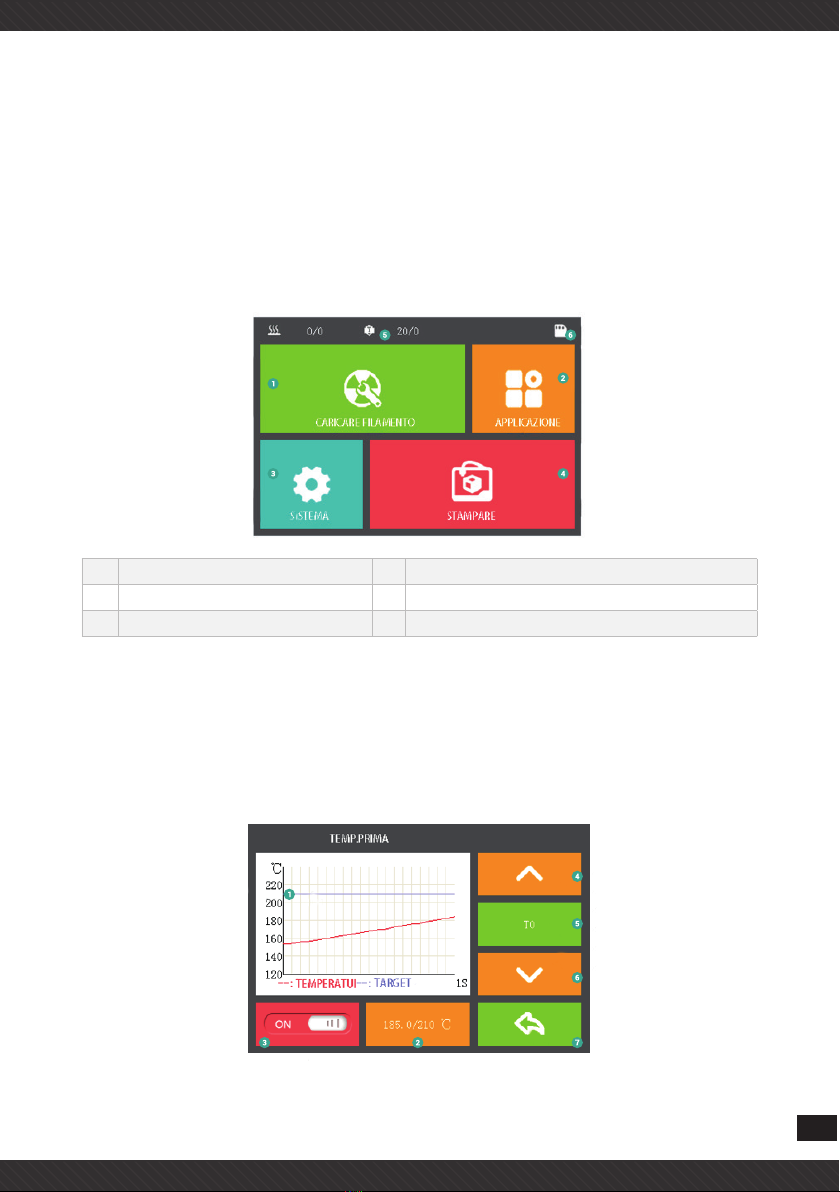
The main user interface of the printer is a display panel.
1Install filament 4Printing
2Application 5Temperature Display
3System 6SD card condition
3.2 Display Panel HOME Overview
3.2.1 Install filament
Preset Head temperature,use to set up the nozzle temperature, as for the different materials need to set up the different temperatu-
re. For example, ABS is set to 225°C, PLA is set to 205°C.

10
1Temperature monitoring curve 5Extruder Head “T0”
2Manually enter the temperature 6Extrusion
3Turn on or off the heating 7Return Back
4Material retraction ( Be careful)
*Only if the nozzle is heated to preset temperature can you extrude the material. Using retraction may cause nozzle clogged.
3.2.2 Value input
1. Such as input Printer Head and Heating Bed Temperature degree value, pls write and confirm”OK”
3.2.3 Application
Pre-heating build plate ,Manual, Auto manual, update, Fan and Return.
• Auto calibrating: Without installation
• Update: Update the display. Before updating, pls ensure have insert SD card in case failure.
• Cooling fan PWM speed adjust: When click this button, it will appear value input interface, PWM (1-255). ‘255” is the fan fastest
speed
• Pre-heating build plate: The operation is the same as the head preheat, ABS is set to 80-110°C, PLA is set to 50°C).
• Manual: Click into “Manual” adjustment interface.
Autres manuels MachPower Imprimante 3D


