LeapFrog Creatr HS Manuel utilisateur

Kop
Platte tekst
Mac
Version
Full manual available in
EN / NL / DE / FR
from creatrhs.lpfrg.com

facebook.com/lpfrg
twitter.com/Leapfrog_3D
instagram.com/leapfrog_3d
Sign up for our newsletter www.lpfrg.com
Follow us online!

1
Dear Customer,
Congratulations with your very own Leapfrog
Creatr HS! In this document we will help you
get started with your rst print and with all the
prints to come after that. Also, we would like to
help you get acquainted with the Leapfrog 3D
Printers Ecosystem. We will be by your side
when you are setting up your printer and help
you with any questions you might have during
printing. We will also cheer you on when you
are making your amazing and value-added
prints.
The Ecosystem: tips and tricks, installation
video’s, and support
You are now ofcially part of The Ecosystem: the place where all Leapfrog 3D printer users gather
to help each other and to interact with the Leapfrog 3D Printers support team. Here are a few valu-
able tips on what you are able to nd there.
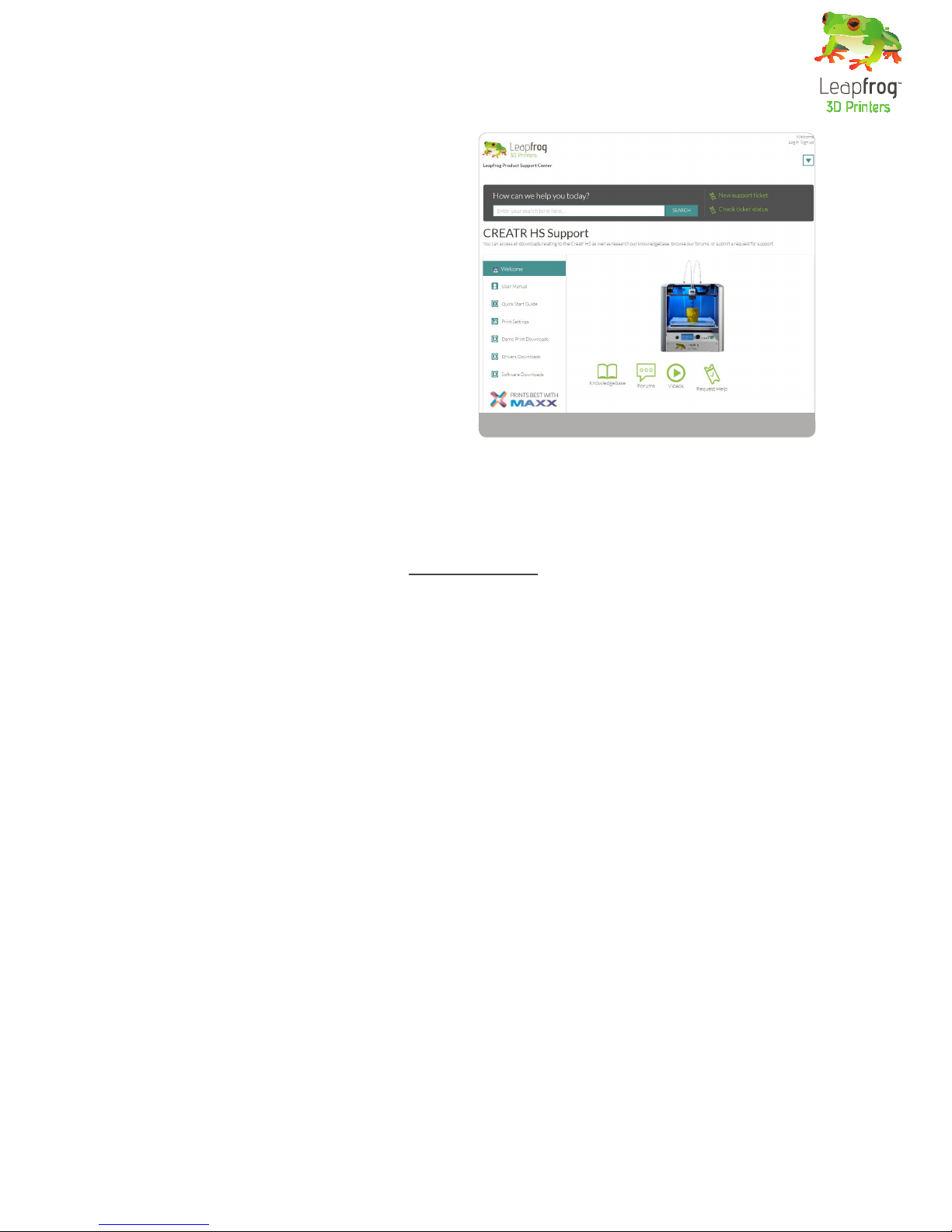
The Ecosystem can be entered through creatrhs.lpfrg.com. The Ecosystem is constantly growing in
content and users. Here are some of the most important things you can nd:
• Installation and support videos, as well as the manual for all the printers
• The latest software settings for all materials (posted under “knowledgebase”)
• Solutions for the most common issues
• Our forum, where users help each other and where you can post your amazing prints (every
once in a while, we will highlight a few in our newsletter and on our website, we will always
mention you of course!)
• The Leapfrog 3D Printers support team: if you have any questions you can just submit a ticket
online (“request help”) and we will get you on your way.
Are you all set to start?
To get started you need the following items:
• Your Creatr HS
• At least one lament
• Print stickers
• Your Materialise Creatr license key that you received with the Leapfrog 3D Printer
•
We will keep you up to date on our social media platforms (left page) about print settings and other
Leapfrog 3D Printers news. You are also invited to share your prints on our pages.
Now let’s start,
Happy printing!
The Leapfrog team
The ecosystem


3
Table of content
1. Making your very rst 3D print – Quick Print Guide
1.1 Unpacking your Creatr HS and nding the right place for it 4
1.2 Getting to know your printer 5
1.3 Plugging in your Creatr HS 6
1.4 Preheating the printer 6
1.5 Loading lament 6
1.6 Checking and adjusting the bed 7
1.7 Printing 8
2. Preparing for your next print
2.1 Removing your print and replacing your print sticker 9
2.2 Changing lament 10
3. Creating your own printable le: from STL to gcode
3.1 The 3D printing workow – from idea to print 11
3.2 Installing Materialise Creatr 11
3.3 Materialise Creatr software overview 12
3.4 Printer setup 13
3.5 Materialise Creatr workow 14
3.6 Export to le or print directly 16
3.7 Prole Editor 21
3.8 Calibrating your printer using Materialise Creatr 26
4. Frequently Asked Questions
4.1 How can I solve the issue of the print not sticking to the bed? 27
4.2 What should I do when I cannot get my lament to go through the lament
guiding tube? 28
4.3 What can I do if my lament does not come out of the extruder? 28
4.4 My print surface is very rough, how can I solve this? 28
4.5 Where do I go with my other questions? 28
5. Glossary of 3D printing vocabulary
5.1 3D printing vocabulary 29
5.2 Getting to know your printer 31

Making your very rst 3D print – Quick Print Guide
4
1. Making your very rst 3D print
– Quick Print Guide
We know you cannot wait to start 3D printing! In this guide we will take you on the easiest journey
from box to print.
This section contains the following information:
1.1 Unpacking your Creatr HS and nding the right place for it
1.2 Getting to know your printer
1.3 Plugging in your Creatr HS
1.4 Preheating the printer
1.5 Loading lament
1.6 Checking and adjusting the bed
1.7 Printing
1.1. Unpacking your Creatr HS and nding the right place for it
Unpacking your Creatr HS carefully, according to the following steps, ensures that the machine
stays calibrated (although in some cases decalibration might occur during transport). These steps
you only have to follow when your brand new Creatr HS arrives at your doorstep for the rst time.
Before you start, make sure that you have cleared a spot where you want to place the printer. We
advise you to nd a place at room temperature, where there is no draft (for example next to a win-
dow) and where the printer cannot get wet. Choose a surface which is sturdy (so the printer cannot
move) and supports the weight of the machine. It is useful to have another set of hands to help out,
the machine is quite heavy.
STEP 1: Cut the tie cords and lift the top of the box from where the handles are.
STEP 1: Cut the tie cords and lift the top box.

Making your very rst 3D print – Quick Print Guide Making your very rst 3D print – Quick Print Guide
5
STEP 2: Pull off the tape from the plastic bag wrap on the top of the printer and push the plastic
down and away from the printer.
NOTE: Do not grab the Creatr HS by
the top cover as this can damage it.
Lift the machine from the bottom.
STEP 3: Place the printer in its new location and
make sure it sits rmly on all four rubber feet.
If necessary adjust their length by unscrewing
the feet slightly.
STEP 4: Remove three sets of tie-wraps with a
cutting tool: at the front of the carriage, in the
corner of the carriage and in the back of the
printer.
1.2 Getting to know your printer
1. Printing head and extruders
2. Filament guiding tube
3. Filament drive unit
4. Axes
5. Print bed
6. Print bed levelling knobs
7. Display
8. Quick release knob (back)
9. USB port for USB stick
10. USB port for connecting to the computer
(back)
11. Belt (inside the printer)
12. Z-sensor adjustment knob (only to be used
when bed levelling cannot be achieved using
the print bed knobs!)
Large image including close ups on page 26.
STEP 2: Remove plastic wrap
STEP 4: Cut the tie wraps at the front and back of the carriage and in the back of the printer
The Creatr HS
1
2
4
5
6
79
12
11
3

Making your very rst 3D print – Quick Print Guide
6
1.3 Plugging in your Creatr HS
OPTIONAL: If you want to use the printer con-
nected to your computer, use the USB cable
supplied with the printer, insert the USB-A (at
rectangular connector) cable in your computer
and insert the USB-B (square connector) cable
in the backside of the Creatr HS.
In this Quick Guide we will use the stand-alone
modus, therefore the cable does not have to be
plugged in.
NOTE: If your printer has a USB-A
(at rectangular) backside connec-
tion, make sure you only use the USB-A cable with the built in FTDI chip that is included
in the box. Any other USB might interfere with the communication.
STEP 5: Plug the power cord in the outlet and turn on your Creatr HS.
1.4. Preheating the printer
Before you start loading your lament, it is necessary to preheat your printer. Heating your extrud-
ers will make sure that your lament will melt and feed through. You are also preheating your print
bed. This will make sure your print will stick to your bed.
STEP 6: To preheat, scroll to the preheat icon
on your screen, and push the button. If the co-
lour of the icon changes, your nozzles and bed
are preheating.
1.5. Loading lament
The Creatr HS is compatible with a wide range
of 1.75 mm laments. All laments provided by
Leapfrog 3D Printers are of high quality and are
thoroughly tested by us. For every lament, we
also provide standard proles for Materialise
Creatr Software.
STEP 7: Unpack your role of lament and cut
the end into a sharp point.
OPTIONAL: connect USB cable to port
STEP 6: Preheat
STEP 7: Cut to a sharp point

Making your very rst 3D print – Quick Print Guide Making your very rst 3D print – Quick Print Guide
7
STEP 8: Home the printer so you can reach
the bottom where the lament has to be fed
through. To do this, select the home icon on
your screen and press the button to start hom-
ing.
STEP 9: Make sure your nozzles are preheated
to at least 180 degrees Celsius. Place your role
of lament in the bottom of the printer. Start
feeding the lament through the hole.
STEP 10: Once you reach the lament drive
unit, pull out the quick release knob on the
back, and feed the lament through further
until they reach the printer head.
TIP: If you have problems with
feeding your lament, there is a
possibility that your lament has
trouble to pass the lament guiding
tubes connection. Take the top connections out
by turning them counter-clockwise. Manually
feed some lament while pulling the quick re-
lease knob, and put the connections back. Put
the lament guiding tubes back in place.
STEP 11: On your screen, select the lament
icon and push the button.
STEP 12: Select your extruder and press “Load”.
After a few seconds, lament should be owing
out of the extruder. Remove the printed la-
ment once the extrusion is nished.
NOTE: Do not touch the bed or the tip of the extruder with your ngers, this is very hot.
STEP 13: To go back to the main menu turn the button counter-clockwise.
1.6. Checking and adjusting the bed
Each Creatr HS is carefully calibrated before it leaves Leapfrog 3D Printers’ headquarters. How-
ever, during transport, calibration might get shifted. Calibration means that your extruder is at the
correct distance from the bed to print smoothly, and that your bed is exactly levelled. Here is ex-
plained how you can slightly adjust the calibration during printing. If a full recalibration is neces-
sary, the steps described in Chapter 3.9 should be followed.
STEP 8: Home the printer
STEP 10: Pull the quick release knob
STEP 9: Feed lament in hole
STEP 11: Select lament icon
STEP 12: Extruder ‘load’

Preparing for your next printMaking your very rst 3D print – Quick Print Guide
8
In the next paragraph you are going to start printing. During this print you can manually adjust the
bed while printing. Check if the bed is levelled during the rst 2 or 3 layers of the print and verify if
the lament is adhering well to the bed.
• If a corner of the bed is too far from the nozzle you observe lament being extruded too loosely
in this area of the print bed, causing your print not to stick.
• If a corner of the bed is too close to the nozzle the extruder scratches through the print sticker,
or (almost) no lament comes out of the nozzle.
You can manually adjust the four corners of the bed where necessary during printing by very care-
fully turning the bed levelling knobs. Only turn it slightly! Usually not more than a quarter of a turn
is necessary. Looking from the top, slightly turn the knob clockwise in the corner where no lament
is owing or where the nozzle is scratching the print sticker. Turn the knob counter-clockwise in the
corner where the lament is not pressed enough onto the bed and comes loose easily.
If these steps are not sufcient to successfully calibrate the printer, it can be recalibrated using the
computer, which is explained in Section 3.
1.7 Printing
STEP 14: Surf to creatrhs.lpfrg.com and click on ‘Demo Print Downloads’. Select the single extrud-
er print.
STEP 15: Insert your USB stick in the front USB port of your printer.
STEP 16: On your screen, select the USB stick icon and press the button.
STEP 17: Find your le, select it and press the
button. It can take a few seconds for the les to
be displayed if there are many les on the USB
stick. The printer will now start to heat up to
the required heat encrypted in the le. Once it
hits that temperature, it will start printing!
TIP: The rst layers of a print are always the most difcult and it is best to carefully ob-
serve them. Slight adjustments to the level of the bed during the rst print layers might
be necessary to obtain a successful print.
Calibrating the printer.
STEP 17: USB port and display in one screen
Autres manuels pour Creatr HS
3
Table des matières
Autres manuels LeapFrog Imprimante 3D

LeapFrog
LeapFrog BOLT Manuel utilisateur

LeapFrog
LeapFrog Xeed Manuel utilisateur

LeapFrog
LeapFrog BOLT Manuel utilisateur

LeapFrog
LeapFrog Creatr HS Manuel utilisateur

LeapFrog
LeapFrog Creatr HS Manuel utilisateur

LeapFrog
LeapFrog BOLT Manuel utilisateur

LeapFrog
LeapFrog 3d printer Manuel utilisateur

LeapFrog
LeapFrog Creatr HS Manuel utilisateur

LeapFrog
LeapFrog Bolt PRO Manuel utilisateur

LeapFrog
LeapFrog Bolt PRO Manuel utilisateur