
Furuno TZT9F Manuel

Icon (home/displays), power switch operations
Operational Overview
How to select a display
MULTI FUNCTION DISPLAY
TZT9F/TZT12F/TZT16F/TZT19F
Operator’s Guide
Model
This guide provides the basic operating procedures for this equipment. For detailed information, see the Operator’s
Manual on the WEB site. You can get the latest version of the manual by accessing the quick response code at the
bottom of this page. Connection of sensors required.
iPhone, iPod and iPad are trademarks of Apple Inc. Android is a trademark of Google Inc. All brand and product
names are trademarks, registered trademarks or service marks of their respective holders.
The screenshots used in this guide were mainly taken from the TZT19F.
Displays the
home screen.
Home iconHome icon
Display icons
(max. 16 on home screen)
Home screenHome screenHome screenHome screenHome screen
Long tap a display icon to edit, delete, resize, or
change its location.
Display icon long tapped
Edit Delete
Size
(large or
small)
location
.
Tap
“eGuide” provides
an abbreviated
operator’s guide.
How to edit a display iconHow to edit a display icon
www.furuno.com
Tap
TZT9F/
TZT12F
䠄Right side of the Panel䠅
TZT9F/
TZT12F
䠄Right side of the Panel䠅
TZT16F/TZT19FTZT16F/TZT19F
Swipe downward from
top of display.
Quick pageQuick pageQuick pageQuick pageQuick page
- Tap a display icon on the home screen (see illustration above).
- Tap a display icon on the Quick page.
- Tap a display icon on the home screen (see illustration above).
- Tap a display icon on the Quick page.
Operator’s Manual
Download Link
Power switchPower switch
- Turns on power.
- Shows [Quick Access] window.
Power offPower offPower offPower offPower off
Device: Powers off
this unit.
Network: Powers off
all NavNet TZtouch3
units in network.
Day
Brilliance, HueBrilliance, HueBrilliance, Hue
Hue:
Brilliance:
DRS6A_X-CLASS BBDS1
Tap

Touchscreen operations
Menu operation
Pop-up menu
Tap screen (applicable
point, object, etc.)
Tap the required function.
(”>” indicates additional options.)
Layers menu
Tap the required function.
Slide-out menu
Tap the required function.
Slide-out menuSlide-out menuSlide-out menu
Slide-out menuSlide-out menu
Swipe leftward from the right edge. Icon color and function state
Yellow: ON, White: OFF
Tap the [Home] icon.
Tap [Settings].
Drag menu to find required
item, then tap item.
Tap the required option.
Settings menu
Swipe upward from
the bottom edge.
Layers menuLayers menuLayers menu
Layers menuLayers menu
2
2
Pop-up menuPop-up menuPop-up menu
Pop-up menuPop-up menu
Tap
- Select an item on a menu.
- Tap the display or an object to
show the corresponding pop-up
menu.
- Move the chart.
- Scroll the menu.
- Show Slide-out menu, Layers menu.
Drag, swipe
Zoom in Zoom out
Pinch
- Zoom in, zoom out the plotter
and weather displays.
- Change the range on the radar
display, fish finder display.
Slider barSlider barSlider bar
Slider barSlider bar
Drag
Zoom
in
Zoom
in
Zoom
in
Zoom
in
Zoom
in
Zoom
out
Zoom
out
Zoom
out
Zoom
out
Zoom
out
Tap operation also
available.
Do the function assigned to
[Two Finger Tap Function] in
the [Settings] - [General] menu.
Two finger tap
Two finger drag
Change the viewpoint
position on the 3D display.
Tap
Tap Tap

33
Chart Plotter
Swipe from the left edge of the screen rightward to show navigation data in the data area at the left edge of the screen.
To hide the data area, swipe the data area leftward or tap the [NavData] indication (yellow) in the Slide-out menu.
Data Area (Data Box)Data Area (Data Box)
Data area COG vector (broken line)COG vector (broken line)
Heading line
(yellowish-green solid line)
To add a data box;To add a data box;
Data box settings
Status barStatus bar
Display range
Track
Return own ship
to screen center.
Orientation Mode
Switch between
NU and HU.
Switch between 2D
and 3D. (Drag upward
with two fingers also.)
2D: 3D
3D: 3D
Boat iconBoat icon
Inactive route
(sleeping)
(Departure or
arrival point,
selectable on
[Layers] menu.)
Point
Inactive route
(expanded)
Position Lost
Left: Undo
Right: Back
Slider bar
Long tap the data box to show
[Edit NavData] display.
Long tap the data box to show
[Edit NavData] display.
11
11Tap empty space on
the data area or
[+Add NavData].
Tap empty space on
the data area or
[+Add NavData].
2
2Tap a data
to add.
2
2
Ta
p
a dataTa
p
a data
o add.
to add.
Tap
Tap
Long
tap
Tap
Tap [Close] to finish.Tap [Close] to finish.
To delete a data box, or
change the displayed data;
To delete a data box, or
change the displayed data;
11
Tap
22
Tap
11Tap the data box to
delete or change.
Tap the data box to
delete or change.
22To delete the data box: Tap
the [Delete].
To change the data: Tap the
data to display.
To delete the data box: Tap
the [Delete].
To change the data: Tap the
data to display.
Tap
Tap [Change Type]
to change the data
display method
among Graphic
(analog), Numeric
(digital) and Graph.
Tap [Change Type]
to change the data
display method
among Graphic
(analog), Numeric
(digital) and Graph.
Navigation barNavigation bar
Grip icon: Drag the grip icon
to move the data box.
Grip icon: Drag the grip icon
to move the data box.

44
Points/boundaries
Points can be entered on the chart plotter display (radar, fish finder and weather displays also) to mark important
locations such as a good fishing spot. Point attributes (position, symbol type, color, etc.) are recorded to the points
list. Also, boundaries can be set at the position desired (net position, area to avoid, etc.)
Tap where to enter a point.
The point is entered
on the screen.
Tap a point or the location
to set as destination.
On-screen point Selected location
On-screen pointOn-screen point
Points listPoints list
How to enter a point
Yellow line:
Shortest course from own
ship to the destination.
Purple line (with arrow):
Indicates course to go to
the destination.
How to set a point as destination
Tap [Lists] on the
home screen.
Destination point
Lists
If a point was tapped.
NoticeNoticeNoticeNoticeNotice
Note: [Find on Chart] puts the
selected point at the screen center.
Sort the list by date, name, icon, color, range.
Tap the point to set as the destination.Tap the point to set as the destination.
How to set a boundary
Tap the position where to
set a boundary. Tap the shape to use for
the boundary.
[Area]/[Line]: Tap neces-
sary points to complete
the boundary, referring to
"Route" on the next page.
[Circle]: Drag icons to
adjust the size and
position, and then tap
[End Boundary].
Tap
Tap
Tap Tap Tap
Tap
Tap
Tap Tap
Tap

55
Routes
A route is comprised of a series of waypoints leading to a destination. Routes are saved to the
routes list.
On-screen routeOn-screen route
Routes listRoutes list
Tap the first point for
the route.
At the last point
Tap the next point for the route.
Repeat to enter all points for the route.
How to create a new route
How to follow a route
Tap a leg of the route.
T
l
f
t
h
t
Home screen
Sort list by date, name, color, length or range.
Tap the route.
Enter a name for the route, then tap [ ].
(Top right corner)
Lists
1st point
(route start point)
1st point
(route start point)
Last
point
Last
point
Tap
Tap
Tap
Tap
Tap
Tap
Tap
Tap
Tap
Tap
Tap

6
6
Radar
How to switch between standby and TX
How to switch between standby and TX
Tap to switch between
automatic and manual.
Drag the
slider/tap the
slider bar to
adjust.
How to adjust the gain / sea clutter / rain clutter
How to adjust the gain / sea clutter / rain clutter
TX
: Standby
: TX
TX
TX
“A” means automatic adjustment
“M” means manual adjustment
(At bottom of data area)
(Top right corner)
Radar Control
Data
area
Own ship position
Own ship position
Heading line
Heading line
Guard zone
Guard zone
Fixed range rings
Range
North mark
North mark
Slider
bar
RADAR
D
ATA
2
D
ATA 1
74
Radar Control
Gain
Auto adjustment mode
l
Switch
Switch
Switch
Manual adjustment mode
Move
Own ship
position to center
(lower left side of
the screen)
Tap
Tap
Tap
Tap
Tap
77
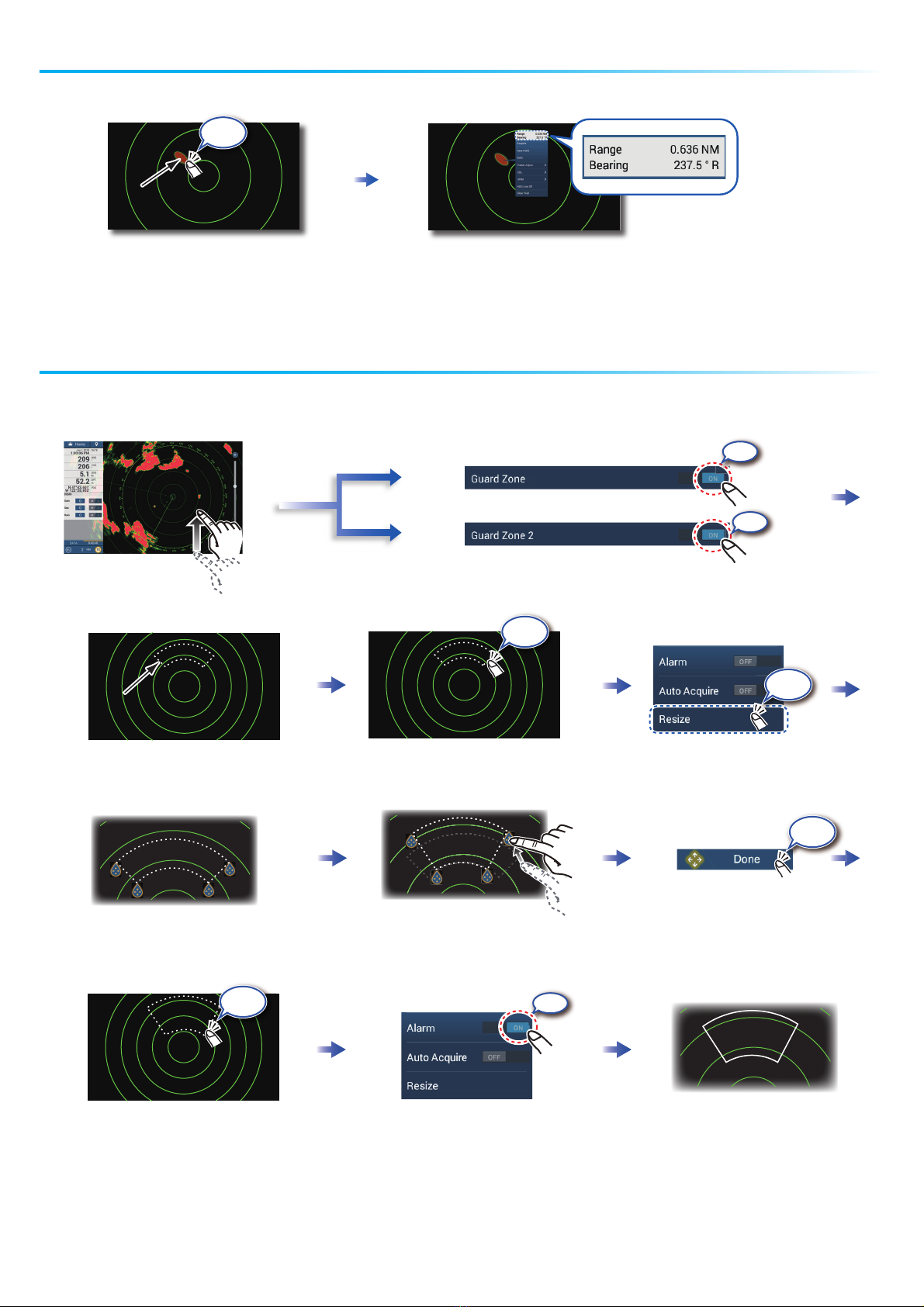
TargetTarget
Tap a target to show its range
and bearing from own ship.
How to measure the range, bearing from own ship to a target
How to set a guard zoneHow to set a guard zone
A guard zone alerts you (with aural and visual alarms) when a radar target enters the area you
specify.
The guard zone appears in dashed
lines.
An icon appears at each corner
of the guard zone.
The dashed lines change to
solid lines, indicating the
guard zone is active.
Drag the icons to set guard zone.
20
30
40
60
Open the
[Layers] menu.
1
Tap dashed line on guard zone.
Guard zoneGuard zone
Tap the guard zone again.
ON
ON
(Top right corner)
Goto
Goto
Goto
Tap
Tap
Tap
Tap
Tap
ON

ON
Auto Acquire
8
8
ARPA Operation
ARPA is an anti-collision aid that tracks the movement of other ships to help prevent collision. ARPA not only tracks other ships
but also provides their navigation data. Targets can be acquired manually, automatically, or both automatically and manually.
How to show, hide ARPA symbols
How to manually acquire a target
Tap the target to acquire.
Target
Target
ARPA symbols
Automatic target acquisition
At acquisition Lost target
How to display target data
1
Within 30 seconds
after acquisition
1
ARPA symbols ON
ARPA symbols OFF
Acquire
Set a guard zone, then tap the
guard zone.
Open the [Layers] menu.
20
30
40
60
80
ARP
ON
A
A
A
AR
A
A
A
OFF
Tap an ARPA target to show its data.
4
ARPA symbol
ARPA symbol
ON
1
The dashed lines change to solid lines,
indicating the guard zone is active.
4
Tap Tap
Tap
Tap

9
9
OR
CPA/TCPA alarm
CPA Line
The CPA/TCPA alarm releases an aural alarm and a visual alarm (message in Status bar) when both the CPA
and TCPA of a tracked target are equal to or lower than the CPA/TCPA alarm setting.
How to set the CPA/TCPA alarm
How to set the CPA/TCPA alarm
CPA: Closest point of approach
TCPA: Time to closest point of approach
How to acknowledge the CPA/TCPA alarm
How to acknowledge the CPA/TCPA alarm
How to enable the CPA Line feature
How to show the CPA Line
CPA Line
Own ship
ARPA target
Tap the alarm message (top of screen) to acknowledge the alarm and stop the aural alarm.
The CPA Line feature gives you a visual line that depicts the closest point of approach to a selected ARPA target. To
use this feature, own ship position and heading data is required.
CPA/TCPA Alarm
Set the alarm value, then tap [ ].
ON
㻻㻺
CPA Graphic Display
5
Tap
Tap
Tap
Tap
Tap
Tap
Home screen
Tap
Tap
Home screen
Tap
Tap

1010
AIS symbols ON
AIS symbols OFF
How to show or hide AIS target symbolsHow to show or hide AIS target symbols
AIS target symbols
AIS target symbols
Proximity AIS target alarmProximity AIS target alarm
The proximity AIS target alarm releases aural and visual alarms when the distance between own ship and an AIS target is near
the alarm value.
How to show AIS target dataHow to show AIS target data
AIS (Automatic Identification System)
FU
R
U
N
O
98765432
1
Set the alarm value, then tap [ ].
20
30
60
Open the
[Layers] menu.
AI
S
s
ON
OFF
ON
Tap an AIS target to show its data.
AIS symbolAIS symbol FURUNO FURUNO
FURUNO
987654321
Color: Blue
SOG and
COG vector
Color: Red
Color
- AIS target: Blue
- Cross: Red
Color
- AIS target: Green
- Cross: Red
Class A AIS
Activated
target
Dangerous
target
Lost
target
BFT* AIS
Class B AIS
Color: Green
SOG and
COG vector
SOG and
COG vector
Color: Blue (filled)
Color
- AIS target: Blue (filled)
- Cross: Red
*: Blue Force Tracking
Tap
Tap
Tap
Tap
Home screen
Tap
Tap
Autres manuels pour TZT9F
1
Ce manuel convient aux modèles suivants
3
Table des matières
Manuels écran tactile populaires d'autres marques

Elecro Engineering
Elecro Engineering Poolsmart Plus Instructions d'installation

Johnson Controls
Johnson Controls IQ4 HUB Manuel utilisateur

Elo TouchSystems
Elo TouchSystems ET2270L Manuel utilisateur

Elo TouchSystems
Elo TouchSystems ET1002L Manuel utilisateur

Elo TouchSystems
Elo TouchSystems 3201L Manuel utilisateur

Duratec
Duratec S15 Manuel utilisateur


