
FS S5860-48SC Manuel d'utilisation

Innovation · Expertise · Agility
S5860-48SC
Switch Hardware Installation
and Maintenance Guide
V1 .0 .2306A

Audience:
This document is for network engineers responsible for installing
and maintaining S5860-48SC switch. Experience with network
equipment installation and maintenance is required.
Feature Statement:
Please visit the FS.COM Technical Documents page to download the
datasheet and obtain information on the specifications supported
by the product .
Safety Statement:
•To avoid harm to people and equipment, please read the safety
recommendations in the Safety Precautions for FS Switches
before installing the FS Switch .
•Verify that the requirements described in the Safety Precautions
for FS Switches have been met .
Innovation · Expertise · Agility 1
Preface

1. Hardware Installation and Parts Replacement
Contents
Innovation · Expertise · Agility 2
1.1 Installation Procedure
1.2 Installation Preparation
1.3 Installing a Switch
1.4 Installing Modules
1.5 Connecting a Switch
1.6 Post-Installation Checks
1.7 System Commissioning
1.8 Parts Replacement
04
04
06
08
12
16
17
20
2. Troubleshooting After Installation
2.1 Troubleshooting Flowchart
2.2 Guide to Using Switches
2.3 Guide to Using Optical Modules
26
27
29

Hardware Installation
and Parts Replacement
Innovation · Expertise · Agility 3
S5860-48SC switch is the next-generation Layer 3 switch. Featured with high
performance, reliable security, and multiple services. S5860-48SC switch is mainly
applicable to the convergence layer of large-scale networks to provide full line-rate
exchanging. Complete QoS features differentiate services according to business
needs to ensure the prompt transmission of key data.S5860-48SC switch is a 10
Gigabit device and supports 48 10G rate ports and 8 100G rate ports.

Item
Requirement
Cleanliness
The device must be installed in a clean, dry, and well ventilated standard equipment room with controllable
temperature .
Dust proofing
Dustproof measures must be taken in the site . Dust will cause electrostatic discharges on the chassis and
affect connections of metal connectors and joints . This shortens service life of the device and may cause
failures of the device .
Temperature and
humidity
The equipment room must be free from leaking or dripping water, heavy dew, and damp . The temperature
and humidity in the installation site must be within specifications . For the operating temperature and
relative humidity ranges required by the device, see the device specifications . If the relative humidity
exceeds 70%, using dehumidifiers or dehumidifying air conditioners is recommended .
Corrosive gases
avoidance
The installation site must be free from acidic, alkaline, or corrosive gases.
Hardware Installation and Parts Replacement
Switch Hardware Installation and Maintenance Guide
1.2 Installation Preparation
S5860-48SC switch is a relatively complex device. Before installation, careful planning and arrangements
should be made for the installation location, networking mode, power supply and wiring of the devices.
Confirm the following before installation:
1.2.1 Checking the Installation Site
Innovation · Expertise · Agility 4
1.1 Installation Procedure
Installing Modules
Installation Preparation Installing a Switch
Post- Installation Checks
System Commissioning Connecting a Switch
End
•The installation site provides sufficient space for heat dissipation.
•The installation site meets the temperature and humidity requirements of the switch.
• The power supply and required current are available in the installation site.Cut off all power supplies and
unplug all power cords before installing or dismantling the chassis.
•The Ethernet cables have been deployed in the installation site.
S5860-48SC switch must be installed indoors.The installation site must meet the following requirements.
Table 1: Requirements for the Installation Site

Innovation · Expertise · Agility 5
1.2.2 Mounting the Cabinet or Rack
Precautions
•All expansion bolts for fastening the cabinet base to the ground should be installed and tightened in
sequence from bottom to up (large flat washer, spring washer, and nut), and the installation holes on the
base and the expansion bolts are aligned.
•The installed cabinet is not movable after installation.
•The installed cabinet is vertical to the ground.
•When multiple cabinets are placed side by side in the equipment room, they should be aligned with each
other, leaving an error less than 5mm (0.20 in.).
•The front and rear doors of the cabinet should be installed to allow you open and close them smoothly. The
locks should work normally, and all keys should be complete.
•There should be no unnecessary and informal labels inside the cabinet and on service modules.
•Filler panels are installed in empty slots.
•The switch is securely installed, and the screws on the panel should be fastened tightly.
•All wiring outlets at the top and bottom of the cabinet should be installed with rodent-resistant nets with
openings of no more than 15mm (0.59 in.) in diameter to prevent rodents and other small animals from
entering the cabinet.
• An anti-static wrist strap should be provided in the cabinet. The screws in the cabinet should be fastened
tightly and be of the same model.
1.2.3 Checking the Power Conditions
When mounting the cabinet, please note the following:
Installation Steps
1. Plan the available space before installing the cabinet. Maintain a clearance before the front and back doors
for maintenance and operation.
2. Install and fasten the cabinet in the specified site as planned.
3. Install the cable troughs and cables.
4. Install the trays and cable management brackets on the rack according to the number of switches installed
into the cabinet.
Hardware Installation and Parts Replacement
Switch Hardware Installation and Maintenance Guide
•Before use, please check whether there is obvious damage to the power supply shell and whether the
power supply is defective such as abnormal noise.
•The device is only allowed to be plugged into the power module that accompanies the device, otherwise it
may lead to unknown risks.
•Power module in 1+1 backup can be hot-swapped one of them, need to ensure that the other power module
on the equipment is in the power supply state when replaced, otherwise unplugging the power module will
cause the switch to lose power, resulting in business interruption.
• Prohibit the mixed use of power modules with different power and different cooling methods.

Innovation · Expertise · Agility 6
Before installing S5860-48SC switch in a cabinet, please check whether the racks are properly positioned. If
the racks are too closeto the front door of the cabinet, you may not be able to close the front door after
plugging in the Ethernet and fiber cables .The front panel of the switch should be at least 10 mm (0.39 in.)
away from the front door of the cabinet. Please confirm the following before installing the switch:
1.2.4 Preparing Installation Tools and Accessories
1.3.1 Mounting the Switch in a Cabinet or Rack
•The cabinet is secured.
•The modules in the cabinet are installed.
•There are no obstructions in and around the cabinet.
•The switch is prepared and transported to a location close to the cabinet.
Common Tools
Phillips screwdriver, Ethernet and optical cables, cage nuts, diagonal pliers and cable ties
Special Tools
Anti-static gloves, wire stripper, crimping plier, RJ45 connector crimping plier, and wire cutter
Cleaning Tools
Dust-free paper and fiber end-face microscope
Meters
Multimeter, bit error rate tester (BERT), and optical power meter
•S5860-48SC switch is delivered without a tool kit. Please prepare a tool kit.
1.3 Installing a Switch
Precautions
Mounting the Brackets
1. Take out the two L-shaped brackets and eight M4 x 8 mm screws from the packing materials.
2. Attach a bracket to each side of the switch and secure the brackets with the provided screws.
Figure 1: Mounting the Brackets
Hardware Installation and Parts Replacement
Switch Hardware Installation and Maintenance Guide

Innovation · Expertise · Agility 7
1.3.1 Mounting the Switch in a Cabinet or Rack
Mounting the Switch in a Rack
S5860-48SC switch can be installed in a standard 19-inch four-post EIA rack. Mount the switch in the rack
with the front panelfacing forward. You are advised to use a tray to install S5860-48SC switch and secure the
tray on the rack, or use the rack-mount guides to secure the switch.S5860-48SC switch has a small depth and
are not equipped with rear brackets.
Figure 2: Mounting the Switch in a Rack
•Install a mounting bracket by driving four screws into the four among the six screw holes on each side of
the panel.
•Distinguish left and right rack-mount guides according to the marked orientation.
•The rack-mount guides are only applicable for a rack with a depth ranging from 800mm (31.50 in.) to
1200mm (47.24 in.).
Hardware Installation and Parts Replacement
Switch Hardware Installation and Maintenance Guide

Innovation · Expertise · Agility 8
1.4.1 Installing Fan Modules
In most cases, users do not have a standard 19-inch rack. Therefore, the most common method is to
place the switch on.
1. Attach four rubber pads to the four corners on the switch bottom.
2. Place the switch on the workbench to allow for adequate airflow.
Figure 3: Mounting the Switch on a Workbench
Hardware Installation and Parts Replacement
Switch Hardware Installation and Maintenance Guide
1.3.2 Mounting the Switch on a Workbench
1.4 Installing Modules
1. Take a fan module from its packing materials.
2. Grasp the handle and slide the module into the slot along the guide rail until you feel the connector
snap into place.
3. Tighten the captive screws to secure the fan module in the chassis.
Figure 4: Installing a Fan Module
Innovation · Expertise · Agility 9
•Slide the fan module into the slot. Verify that the fan module is in the correct orientation.
•If you find it difficult to fully insert the fan module, pull the fan module out, and slide it into the slot
again.
•If you cannot fully tighten the captive screws , it indicates that the fan module is not fully inserted
into the fan slot.
•The power modules and fan modules with different airflow directions cannot be used together.
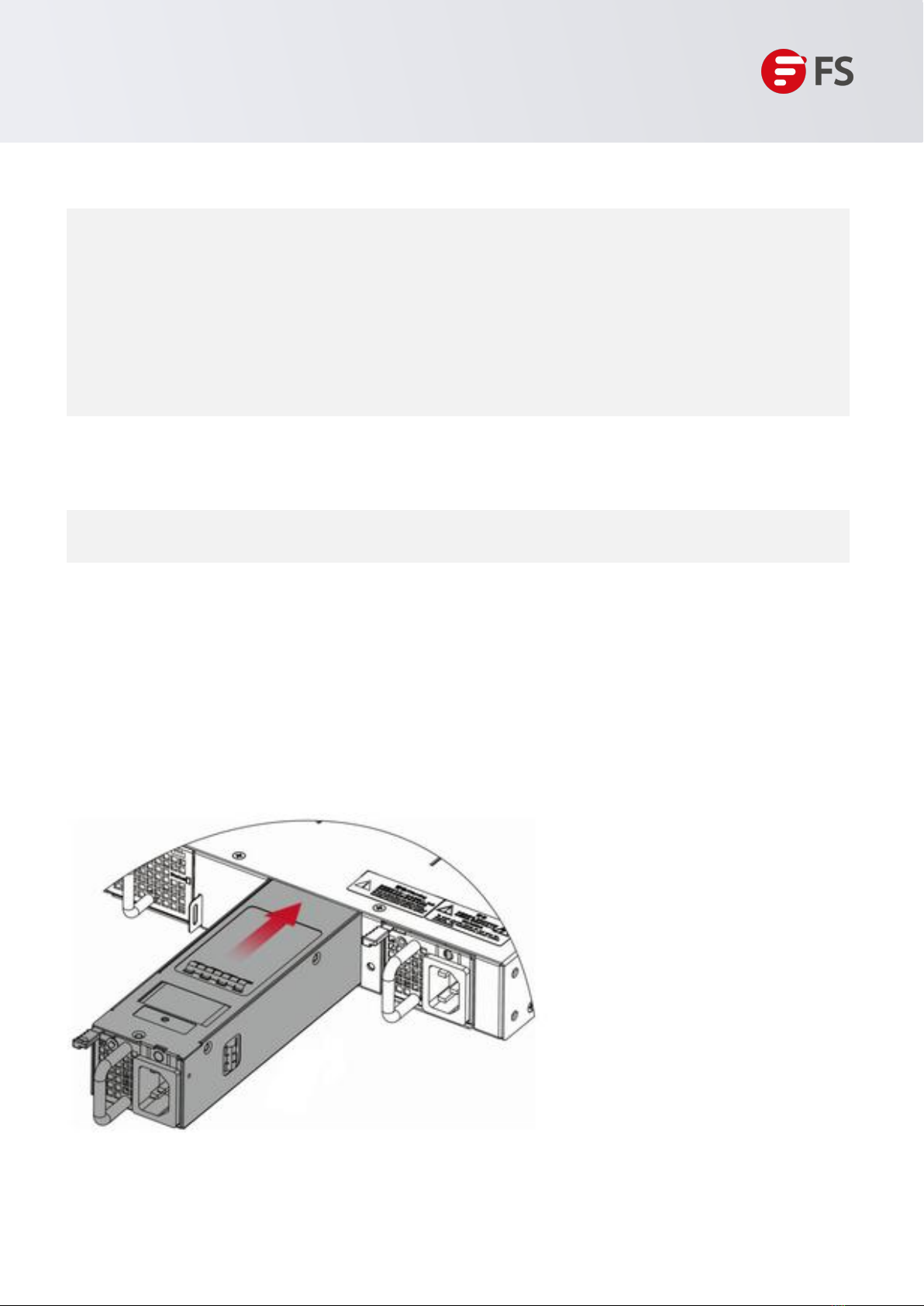
1.4.2 Installing pluggable Power Modules
•Wear an anti-static wrist strap before the following operations
1. Remove the new power module from its packing materials and make sure the input specifications meet
requirements.
2. Remove the filler panel covering the slot. Keep the module nameplate face upward.Grasp the power
module handle with one hand and use the other hand to support the bottom of the power module. Slowly
push the power module into the slot along the guide rails, until you hear a click and the power module
cannot move forward.
Installing PSM-C550WAC Power Module
Hardware Installation and Parts Replacement
Switch Hardware Installation and Maintenance Guide
Table des matières
Autres manuels FS Changer

FS
FS S3700-24T4F Mode d’emploi

FS
FS N Series Manuel utilisateur

FS
FS S3700-24T4F Mode d’emploi

FS
FS PoE+ Series Manuel utilisateur

FS
FS S3700-24T4F Mode d’emploi

FS
FS S3410 Series Manuel utilisateur

FS
FS S1900-8T Manuel utilisateur

FS
FS S5800-48F4S Manuel utilisateur

FS
FS S5900-24S4T2Q Feuille d'instructions

FS
FS S3150-8T2FP Manuel utilisateur

FS
FS S3900 Series Manuel utilisateur

FS
FS S5860-20SQ Manuel utilisateur

FS
FS S1150-8T2F Manuel utilisateur

FS
FS IES3100-8TF-P Manuel utilisateur

FS
FS S5800-48F4SR Manuel utilisateur

FS
FS S3700-24T4F Mode d’emploi

FS
FS S5900-24S4T2Q Guide rapide

FS
FS S3150-8T2FP Manuel utilisateur

FS
FS S3910-24TF Manuel d'utilisation

FS
FS IES3100-8T4F-P Manuel utilisateur


