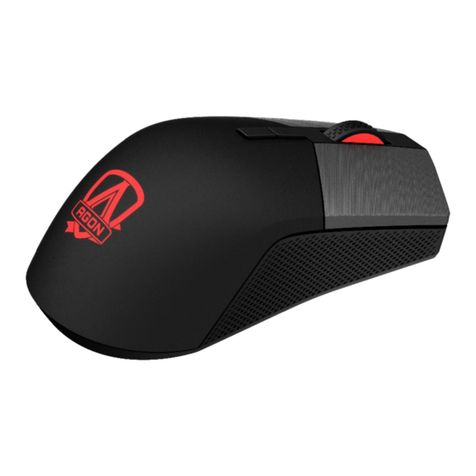
AOC GM500 Manuel utilisateur

AOC GM500 RGB Gaming Mouse
USER'S GUIDE
Ver.:1.00
CAUTION: To use this product properly, please read the user's guide before installing.
Contents
1. PACKAGE CONTENTS/SYSTEM REQUIREMENTS
1
2. SPECIFICATIONS
1
3. DEVICE LAYOUT
2
4. AOC G-TOOLS INSTALLATION
3
5. AOC G-TOOLS INTRODUCTION
4
6. SAFETY GUIDE AND MAINTENANCE
13

1
PACKAGE CONTENTS/SYSTEM REQUIREMENTS
Package Contents
AOC GM500 FPS Gaming Mouse
Quick Setup Guide
Product System Requirements
Windows® 7/8/8.1/10
MAC OS X (V10.7 to 10.9)
Available USB port
160MB free hard disk space
Internet connection
AOC G-Tools System Requirements
Windows® 7 or above
160MB free hard disk space
Internet connection
Technical Support
2 years limited warranty
Free online technical support at www.aoc.com
SPECIFICATIONS
Technical Specifications
Advanced optical sensor with true 5,000 DPI
Switchable DPI - 800/1600/3200/5000/smart DPI (default 1600 DPI)
Up to 100 inches per second (IPS) and 20g acceleration
8 programmable buttons
Swappable left and right keys
Omron mechanical switch with up to 50 million clicks lifespan
Up to 1000 Hz/1ms report rate
Symmetry design for right and left hand user
Customizable RGB lighting effect syncing with other AOC gaming devices
1.8 M braided cable
Approximate Size & Weight
Length: 123.80 mm/ 4.9 in
Width: 63.42 mm/ 2.5 in
Height: 37.90 mm/ 1.54 in
Weight: 145 g/0.32 lbs
Cable Length: 1.8 m/ 5.9 ft
Operating Environment
Operating Temperature: 0 ° C (32 ° F) to 40 ° C (104 ° F)
Operating Humidity: 10% - 85%

2
DEVICE LAYOUT
A. Left Button
B. Right Button
C. Middle Button/Scroll Wheel
D. DPI Shift
E. WWW Home
F. DPI Cycle
G. Browser Forward
H. Browser Backward
I. True 5,000 DPI Optical Sensor
J. Smooth Mouse Feet

3
AOC G-TOOLS INSTALLATION
Step 1: Plug the device into a USB port on your computer.
Step 2: The computer operating system will automatically detect the device.
Step 3: For more information on programming the device, go to http://www.aoc.com and follow the
instruction to find the AOC G-Tools.
Step 4: Download AOC G-Tools.
Step 5: Start the installation process by clicking on the file “Setup.exe”.
Step 6: Windows® will prompt you if installation should continue; install the driver despite this.
Note:
When updating to the latest version, the driver will firstly uninstall the last version; it may take a
while for the driver to install before you can start programming the device.
Step 7: When the installation process is completed, please reboot your computer system to assure
the smooth running of the program.
Step 8: The AOC G-Tools icon is displayed in the Windows® taskbar while AOC G-Tools is running, you
can access the device configuration menu by right clicking it.

4
AOC G-TOOLS INTRODUCTION
Game Profile Management
You can export a profile by clicking or import a profile from your computer by
clicking . .
The default profile names are Profile 1 to Profile 5. You can rename your profiles by typing on the text
field below Profile Name.
Each game profile supports 7 macro keys, and the on-board memory of the device supports one
profile for you to take anywhere with you.
Each profile can be activated along with a linked program. To do so, put the executable path of the
program you want to link in the text field of Path To Executable (*EXE).

5
Buttons
Switch between the left and right hand orientation by clicking the icon or . The icon in
functioning is shown in red; right hand orientation is set as default.
For each numbered button, you could assign an action from its drop-down menu. Options listed in the
drop-down menu are explained in the following.
Macro Manager
A macro is a prerecorded sequence of keystrokes and button presses executed with precise timing.
By assigning a macro to a button, you can execute complex combinations with ease. GM500 allows
you to create, delete, import, and export your macros. When choose this option from the drop-
down menu, the Macro Manager window will pop-up; you could select an existing macro as the
assignment of the button, or start to record a new macro and assign it to the button. If you like to
perform the assignment later, click the Macro Manager button in the lower right corner; the Macro

6
Manager window will show for your further operations as below.
1. Create a Macro
(1) Click and name the macro you are about to record. Confirm the name by hitting the enter key
on your keyboard.
(2) Set the delay time between events:
-Recording: The delay between events are registered as they are recorded.
-Fixed: Use a predefined time (shown in millisecond) for the delay.
-Ignore: Omit all the pauses between keystrokes and button presses.
(3) Click Start to record all your keystrokes and mouse button commands into the macro. When
done, click Stop to complete this recording.
(4) Click Cancel if you want to discard this recording, or Ok to confirm this recording. Successfully
recorded macros can be found from the drop-down list of the Macro Select.
(5) For any recorded macro, you could later delete or adjust its event sequences, or add new events
by initiating another recording session.
2. Delete a Macro
Select the macro to be deleted and click on the trash bin button
down below. A message window will pop up to confirm your
decision. Click Ok to delete the macro.
3. Edit Delay
To adjust the delay time, double-click the field to be revised and
enter the new value. Some games may not be able to detect short
delays.
4. Delete Recorded Actions
To delete a single or multiple actions or delay time of the macro,
click the trash bin button.
5. Insert Macro Item
Click to start inserting another macro to an existing macro. Choose
to record this new macro before or after the existing one; then click
Start to start the recording. When done, click Stop to complete the
session and Save to keep the recording. You can also insert delay
time before/after the selected event. After entering the desired time
value, click Save.
Multimedia
Open Player: Start media player.
Pre Track: Toggle to the previous media track.
Next Track: Toggle to the next media track.
Note:
Each Macro key can record 64 actions (32keys).

7
Play/Pause: Toggle between playing and pausing media.
Stop: Stop playing the media.
Mute: Mute (turns off) the computer sound.
Volume +: Increase the computer sound volume.
Volume -: Decrease the computer sound volume.
DPI Switch
DPI Cycle: Cycle between the 5 options of the G-Tools.
DPI Up: Increase the DPI.
DPI Down: Decrease the DPI.
DPI Shift: Predefined DPI at 400.
Window Management
Calculator: Start Microsoft Calculator.
Email: Start the default mail program.
WWW Favorites: Open the Internet Explorer Favorites.
WWW Forward: Go to the next webpage.
WWW Back: Go to the previous webpage.
WWW Stop: Stop loading webpage.
My Computer: Open the My Computer window ( or This PC for Win10).
WWW Refresh: Refresh the current webpage.
WWW Home: Start the default web browser and load the homepage.
WWW Search: Go to web browser search bar or Search Windows.
Show Desktop: Switch between desktop and the current view.
Text Editor
9 text commands available: Cut, Copy, Paste, Undo, Select All, Find, New, Safe, and Open.
Left Click
Perform a left-click.
Right Click
Perform a right-click.
Middle Click
Activate the universal scrolling function.
Browser Backward
Perform "Backward" command for most internet browsers.
Browser Forward
Perform "Forward" command for most internet browsers.

8
Double-Click
Perform a double-click.
Fire Button
Perform a fire button until release.
Assign a Shortcut
Assign a shortcut combination.
Windows Key
Start Windows menu.
Smart Key
If you assign a button with Smart Key function, while holding down the Smart Key, press the other
button, the Smart Key will repeat this button’s action continuously.
Button Off
Switch off the button.
Sensitivity
DPI Setting
You can define 4 sets of the DPI values ranged from 200 to 5000 to suit your needs. The set DPI
values will be applied to the DPI cycle function. When a set value is currently in use, it will be
highlighted in red, and the corresponding LED color will be shown on your device.
The default values are as below:
.DPI #1: 800 DPI / Red LED
.DPI #2: 1600 DPI / Orange LED (Default)
.DPI #3: 3200 DPI / Blue LED
.DPI #4: 5000 DPI / Green LED
.DPI #5: SMART DPI / Purple LED
When switching DPI, the scroll light of GM500 displays the corresponding color for 5 seconds
and then resumes the lighting effect in use.

9
Polling Rate
Choose from 4 options of polling rate: 125Hz/8ms, 250Hz/4ms, 500Hz/2ms,1000Hz/1ms(default).
Double Click
Drag the slider bar knob toward left or right to adjust the double-click speed.
Table des matières
Autres manuels AOC Souris