AOC AGON AGM600 Manuel utilisateur

1
USER'S GUIDE
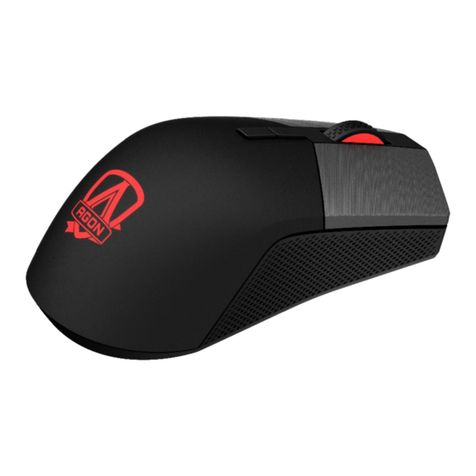
AGM600 Gaming Mouse
CAUTION: To use this product properly, please read the user's guide before installing.

2
Contents
1 Package Contents and System Requirements.............................................................3
2 Technical Specifications...............................................................................................3
3 Device Layout..............................................................................................................4
4 Windows Installation ..................................................................................................5
5 Open Methods ............................................................................................................7
6 Software Update.........................................................................................................8
7 Home...........................................................................................................................8
8 Device Setting............................................................................................................10
8.1 Mouse Settings...............................................................................................14
8.1.1 Customize............................................................................................15
8.1.2 Sensitivity............................................................................................19
8.1.3 Light FX................................................................................................20
8.1.4 Light FX Sync........................................................................................21
8.2 Macro.............................................................................................................23
8.3 Discover..........................................................................................................27
8.3.1 Download profile ................................................................................29
8.3.2 Configure Profile .................................................................................30
8.3.3 Upload.................................................................................................32
8.3.4 Search..................................................................................................33
8.3.5 Login....................................................................................................33
8.4 Setting ............................................................................................................42
8.5 Tray.................................................................................................................42
9 Safety Guide and Maintenance.................................................................................43

3
1 Package Contents and System Requirements
Package Contents
◼AGM600 gaming mouse
◼Quick setup guide
◼Warranty card
Product Requirements
◼Windows® 7 or above
◼Available USB port
AOC G-Menu Requirements
◼Windows® 7 or above
◼500MB free hard disk space
◼Internet connection
Technical Support
◼2 years limited warranty
Free online technical support at www.aoc.com
2 Technical Specifications
Technical Specifications
◼Advanced optical sensor with true 16,000 DPI
◼Switchable DPI - 1200/1600/3200/6400/12000/16000 (default 1200 DPI)
◼Up to 400 inches per second (IPS) and 50g acceleration
◼10 programmable buttons
◼Kailh mechanical switch with up to 80 million clicks lifespan
◼Up to 1000 Hz/1ms report rate
◼2 onboard memory profiles
◼Customizable RGB lighting effect syncing with other AOC gaming devices
◼1.8 M braided cable
Approximate Size & Weight
◼Length: 130.5 mm/ 5.13 in
◼Width: 73.9 mm/ 2.9 in
◼Height: 43.3m/ 1.7 in
◼Weight: 115g/0.25 lbs (without cable)
◼Cable Length: 1.8 m/ 5.9 ft

4
Operating Environment
◼Operating Temperature: 0 ° C (32 ° F) to 40 ° C (104 ° F)
◼Operating Humidity: 10% - 85%
3 Device Layout
1. Left Button
2. Right Button
3. Middle Button/Scroll Wheel
4. Volume up
5. Volume down
6. DPI shift
7. Browser Forward
8. Browser Backward
9. DPI Up
10. DPI Down
11. Profile Switch

5
4 Windows Installation
1. Download the AOC G-Menu executable, and double click the EXE file to start the installation.
2. Accept the license agreement by selecting the I Agree radio button, and clicking the Next
button.
3. Select the installation folder. Select the default folder by pressing the Next button.
Selecting the Browse button will open a Browse for Folder dialog box.

6
4. Confirm Installation by pressing the Next button.
5. Complete the installation by pressing the Close button. Congratulations on
installing G-menu!

7
To uninstall G-Menu:
For Windows 10: Go to Windows Settings > Apps > Apps and Features > select G-
Menu and press the Uninstall button.
For Windows 7/8/8.1: Go to Control Panel > Programs > Programs and Features >
select G-Menu and press the Uninstall button.
5 Open Methods
There are 3 ways to access the G-Menu application.
① Start Menu>G-Menu
② Taskbar>Right click on the taskbar icon
③ Shortcut on Desktop

8
6 Software Update
⚫When you enter the G-Menu home page, the software will automatically check for updates, if
there is a new version, it will be downloaded in the background.
⚫After the download is complete, the interface will alert you to install the update.
⚫Note: If there is no network connection, G-Menu will not be able to detect updates.
7 Home
⚫Open AOC G-Menu application and enter the home page.

9
1) Application name: Displayed on the top left, not clickable.
2) Brand logo, Software version: Displayed at the bottom right, not clickable.
3) Minimize/Restore: Displayed at the top right. Click to switch the interface to zoom in/restore the
display.
4) Setting: Displayed at the top right. Click to enter the setting interface, where you can set the
language.
5) Device display:
⚫The device types supported by the current software are displayed by default, including: Monitor,
Keyboard, Mouse, Mouse mat, and Headset.
⚫Currently connected devices are highlighted and may be clicked. Other device types are grayed
out and cannot be clicked.
⚫Click on the device icon to enter the device settings interface.
6) Discover
⚫Click the Discover button to find the latest game profiles.
7) Close: Click the Close button to close the application interface, the actual application is still
running in the background.

10
8 Device Setting
1. Top Navigation
⚫G-Menu navigation options: Home, Monitor, Mouse, Keyboard, Mouse mat, Headset, and Macro.
⚫The names of unconnected devices are greyed out.
⚫Click an active button to open the device settings interface.
⚫Click the Home button to return to the homepage.
2. Left Navigation
⚫Navigation button are, from top-to-bottom: Monitor, Keyboard, Mouse, Mouse mat, Headset.
⚫The icons of unconnected devices are hidden.
3. Multi-model
⚫Click on the Model drop-down menu to display a list of devices attached to the system.
⚫Data will start loading automatically after selecting a model.
4. Select a profile
⚫Click on the Profile drop-down menu to display all local profiles.
⚫After switching the profile, it will be automatically configured on the current board and takes
effect in real time.
5. More Profile Management
Table des matières
Autres manuels AOC Souris