
XESS XSUSB Manuel utilisateur

How to install and use
your new XSUSB Board
RELEASE DATE: 9/28/2007

Copyright © 2007 by X Engineering Software Systems Corporation.
All XS-prefix product designations are trademarks of XESS Corp.
All XC-prefix product designations are trademarks of XILINX.
All rights reserved. No part of this publication may be reproduced, stored in a retrieval
system, or transmitted, in any form or by any means, electronic, mechanical,
photocopying, recording, or otherwise, without the prior written permission of the publisher.
Printed in the United States of America.
XSUSB INTERFACE BOARD V1.0 USER MANUAL 1

Table of Contents
Table of Contents .............................................................................................2
Preliminaries .....................................................................................................3
Getting Help!.................................................................................................3
Take Notice!!.................................................................................................3
Packing List ..................................................................................................3
Installation ......................................................................................................... 4
Installing the XSTOOLS Utilities and Documentation ................................4
Setting the Jumpers on Your XSUSB Board ..............................................4
Connecting the XSUSB Board to Your XSA or XSB Board ......................5
Connecting a PC to Your XSUSB Board....................................................5
Applying Power ............................................................................................8
Testing Your XSUSB Board ........................................................................8
Programming ..................................................................................................10
Using the XSTOOLs Utilities with the XSUSB Board...............................10
FPGA Bitstream Generation Options When Using the XSUSB..............10
FPGA Bitstream Generation Options When Using the Flash..................11
XSUSB Schematics........................................................................................12
XSUSB INTERFACE BOARD V1.0 USER MANUAL 2

1
Preliminaries
Getting Help!
Here are some places to get help if you encounter problems:
If you can't get the XSUSB Board hardware to work, send an e-mail message
describing your problem to help@xess.com or submit a problem report at
http://www.xess.com/help.php3.
Sign-up for our email forum where you can post questions to other XS Board users.
Take Notice!!
The XSUSB Board works only with the XSA-50, XSA-100, XSA-200, XSA-3S1000
and XSB-300E Boards. It is not compatible with any of the XS40, XS95 or
XSV Boards!
The XSUSB Board gets its power through the USB cable. It does not require an
external power supply! However, the XSUSB Board does not supply power to the XS
Board it is attached to; you still need an external power supply for the XS Board.
Even if you have experience with the XILINX software tools, please read this section
on setting the FPGA bitstream generation options for the XSUSB Board.
Packing List
Here is what you should have received in your package:
an XSUSB Board;
a 6' USBA-to-USBB cable;
an XSTOOLS CDROM containing the XSTOOLs software utilities and documentation
for all XESS products.
XSUSB INTERFACE BOARD V1.0 USER MANUAL 3

2
Installation
Installing the XSTOOLS Utilities and Documentation
XESS Corp. provides the XSTOOLS utilities for interfacing a PC to your XS Board through
the parallel and USB ports. These utilities should be installed automatically when you
insert the XSTOOLs CDROM into your CDROM drive. If not, then manually run the
SETUP.EXE installation program on the CDROM.
Setting the Jumpers on Your XSUSB Board
There are four jumpers on the XSUSB Board and shunts should be set on them as shown
below. A shunt should be on jumper JP2. There should not be any shunts on jumpers
JP1, JP3 or JP4.
XSUSB INTERFACE BOARD V1.0 USER MANUAL 4

Connecting the XSUSB Board to Your XSA or XSB Board
Just push the male DB25 connector on the XSUSB Board into the female DB25 connector
on your XSA or XSB Board as shown in Figure 1. The fit of the connectors will keep the
XSUSB Board in place, but you can also use the mounting screws to prevent the boards
from separating.
Don’t worry if the metal shell on the XSUSB DB25 connector is loose. The shell will be
held in place when the XSUSB and XS Board are connected.
Note that the XSUSB Board works only with the XSA-50, XSA-100, XSA-200, XSA-
3S1000 and XSB-300E Boards. It is not compatible with any of the XS40, XS95 or
XSV Boards!
USB Cable
USBB Port
XSUSB Board
XSA-3S1000 Board Mounting Screw
Figure 1: Connection of the XSUSB Board to an XSA-3S1000 Board.
Connecting a PC to Your XSUSB Board
Attach the USBA plug of a USB 1.1 or USB 2.0 cable to a USB port on your PC. Then
attach the USBB plug on the other end of the cable to the USBB port of the XSUSB
Board.
XSUSB INTERFACE BOARD V1.0 USER MANUAL 5

The PC will need to install a USB driver if this is the first time you have connected an
XSUSB Board to this particular USB port. Just select the option and click on the indicated
button shown in each of the following screenshots and the driver will be installed.
XSUSB INTERFACE BOARD V1.0 USER MANUAL 6

The LED on the XSUSB Board will turn on once the driver has been installed and the USB
port is activated.
XSUSB INTERFACE BOARD V1.0 USER MANUAL 7

Applying Power
The XSUSB Board gets its power through the USB cable. It does not require an external
power supply. However, the XSUSB Board does not supply power to the XS Board it is
attached to; you still need an external power supply for the XS Board.
Testing Your XSUSB Board
The easiest way to test your XSUSB Board is to try testing the XS Board it is attached to
using the GUI-based GXSTEST utility as follows.
You start GXSTEST by clicking on the icon placed on the desktop during the
XSTOOLS installation. This brings up the window shown below.
First, select the type of XS Board connected to the XSUSB Board in the Board Type
pulldown list (in this case, the XSA-3S1000).
XSUSB INTERFACE BOARD V1.0 USER MANUAL 8
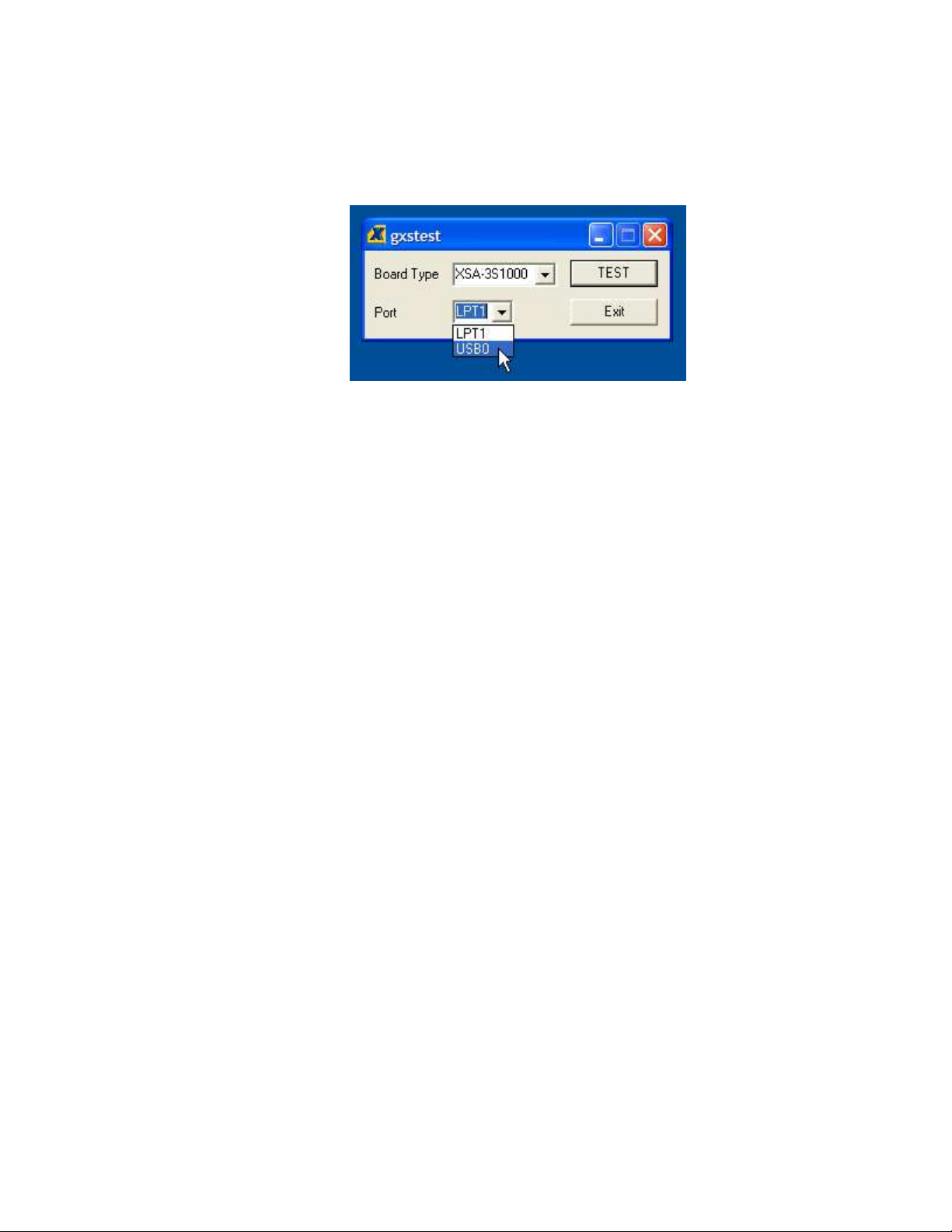
Next, select the USB port that your XSUSB Board is connected to from the Port pulldown
list. If you only have one XSUSB Board connected, then it will probably be USB0. (If no
USB ports appear in the pulldown list, then either the XSUSB Board is not working or
there was a problem installing the driver software.)
Now click on the TEST button to start the testing procedure. GXSTEST will configure the
FPGA to perform a test procedure on the XSA-3S1000 Board. The LED on the XSUSB
Board will blink during the FPGA configuration and testing processes. Within thirty
seconds you will see a Odisplayed on the LED digit if the test completes successfully.
Otherwise an Ewill be displayed if the test fails. A status window will also appear on your
PC screen informing you of the success or failure of the test.
Regardless of the result of the test, your XSUSB Board is operating correctly if you have
reached this point.
XSUSB INTERFACE BOARD V1.0 USER MANUAL 9
Table des matières
Autres manuels XESS Matériel informatique


Manuels Matériel informatique populaires d'autres marques

EMC2
EMC2 VNX Series Manuel du propriétaire

Panasonic
Panasonic DV0PM20105 Manuel utilisateur

Mitsubishi Electric
Mitsubishi Electric Q81BD-J61BT11 Manuel utilisateur

Gigabyte
Gigabyte B660M DS3H AX DDR4 Manuel utilisateur

Raidon
Raidon iT2300 Manuel utilisateur

National Instruments
National Instruments PXI-8186 Manuel utilisateur


