Wasp BC100 Manuel utilisateur

BC100/RF200/HD300

© 2012 by Wasp Barcode Technologies. All rights reserved.
No part of this publication may be reproduced or used in any form, or by any electrical or mechanical means, without
permission in writing from Wasp Barcode Technologies. This includes electronic or mechanical means, such as photocopying,
recording, or information storage and retrievalsystems. The material in this manual is subject to change without notice.
The software is provided strictly on an “as is” basis. Allsoftware, including firmware, furnished to the user is on a licensed
basis. Wasp Barcode Technologies grants to the user a non-transferable and nonexclusive license to use each software or
firmware program delivered hereunder (licensed program). Except as noted below, such license may not be assigned,
sublicensed, or otherwise transferred by the user without prior written consent of Wasp Barcode Technologies. No right to
copy a licensed program in whole or in part is granted, except as permitted under copyright law. The user shall not modify,
merge, or incorporate any form or portion of a licensed program with other program material, create a derivative work from a
licensed program, or use a licensed program in a network without written permission from Wasp Barcode Technologies. The
user agrees to maintain Wasp Barcode Technologies’ copyright notice on the licensed programs delivered hereunderand to
include the sameon any authorized copies it makes, in whole or in part. The useragreesnot to decompile,disassemble,decode,
or reverse engineer any licensed program delivered to the user or any portion thereof.
Wasp Barcode Technologies reserves the right to make changes to any software or product to improvereliability, function, or
design.Wasp Barcode Technologies does notassume any productliability arising out of, or in connection with,theapplication
or use of any product, circuit, or application described herein. No license is granted, either expressly or by implication,
estoppel, or otherwise under any Wasp Barcode Technologies, intellectualproperty rights. An implied license only exists for
equipment, circuits, and subsystems contained in Wasp Barcode Technologies products.
Wasp Barcode Technologies is a registered trademarkof Wasp Barcode Technologies. Otherproduct names mentioned in this
manual may be trademarks or registered trademarks of their respective companies and are hereby acknowledged.
Wasp Barcode Technologies
1400 10th St.
Plano TX 75074
http://www.waspbarcode.com

i
BC100/RF200/HD300 User Manual
Table of Contents
Installation Notice................................................................................................................1
Chapter 1 – Overview..........................................................................................................2
1.1 System Configuration ............................................................................................... 2
1.2 Device Interface ....................................................................................................... 3
Chapter 2 – Device Installation and Wiring........................................................................7
2.1 Device Installation Guidelines ................................................................................... 7
2.2 Communication Connection ...................................................................................... 7
2.2.1 Ethernet Mode .............................................................................................7
2.2.2 RS232 Mode................................................................................................8
2.3 Printer Connection.................................................................................................... 9
2.4 Power Connection .................................................................................................... 9
2.5 Test After Installation .............................................................................................. 10
Chapter 3 – User Management.......................................................................................... 11
3.1 User Management .................................................................................................. 11
3.2 Administrator Enrollment ........................................................................................ 11
3.3 User Enrollment ..................................................................................................... 13
3.3.1 Card Enrollment.........................................................................................13
3.3.2 Password Enrollment .................................................................................15
3.4 Delete User ............................................................................................................ 17
3.5 Verification Mode .................................................................................................... 20
3.5.1 Card Verification.........................................................................................20
3.5.2 Password Verification.................................................................................20
3.6 Browse Attendance Records .................................................................................. 21
3.6.1 Inquiry Methods..........................................................................................21

ii
BC100/RF200/HD300 User Manual
3.6.2 To browse attendance records:...................................................................24
Chapter 4 - Communication..............................................................................................25
4.1 Network (Ethernet) ................................................................................................. 25
4.2 RS232/485 ............................................................................................................. 27
4.3 Security .................................................................................................................. 29
4.4 Web Setup ............................................................................................................. 29
4.5 Wiegand (HD300 Only) .......................................................................................... 29
Chapter 5 – Device Management......................................................................................32
5.1 System Menu ......................................................................................................... 34
5.2 Data Management Menu ........................................................................................ 35
5.3 Upload Firmware .................................................................................................... 36
5.4 Keyboard ............................................................................................................... 36
5.5 Display ................................................................................................................... 37
5.6 Reset ..................................................................................................................... 38
5.7 Bell ........................................................................................................................ 39
5.8 Misc. Set ................................................................................................................ 39
Chapter 6 - Date/Time........................................................................................................41
Chapter 7 - Pen Drive........................................................................................................43
Chapter 8 - Auto Test.........................................................................................................45
Chapter 9 – Record (Attendance/Audit Logs)..................................................................48
Chapter 10 – System Information.....................................................................................50
Appendix I – Troubleshooting...........................................................................................52
Appendix II – WiFi Function..............................................................................................53
Appendix III – Environmental-Friendly Use Description..................................................54

1
BC100/RF200/HD300 User Manual
Installation Notice
This device was manufactured following China, USA and EU manufacture and inspection specifications. Read this
document carefully to ensure proper use and installation of the device. Incorrect installation may damage the unit.
1. Prior to installation, make sure you have turned off the power supply. Accidental contact of the power
cable during installation can damage the device.
2. Connect the power cable after all other wiring is completed. If the device is not working properly after
installation, turn off the power first, then make changes. Any damage done to the device by installing it while
powered on is not covered under the warranty.
3. The height at which you should mount the device is approximately 3’10” above the floor. (This is about the
same height as light switches).
4. After installing, please run the auto-test function on the device to confirm the installation is completed.
5. This device has an auto-sleep and wake up function set by default. After installation, please review the
default settings and make any changes as needed.
6. We recommend using the supplied DV12V power source for the device. Using a power source other
than that supplied may cause damage to the device. Any damage caused by using a different power source
are not covered under warranty.
7. Before connecting the device please review the information in the user manual.

2
BC100/RF200/HD300 User Manual
Chapter 1 – Overview
1.1 System Configuration
This device supports RS232 and TCP/IP connections to the PC. (Note: This illustration depicts the BC100. T he
configuration is the same for the RF200 and HD300.)

3
BC100/RF200/HD300 User Manual
1.2 Device Interface
Front View (BC100):
Front View (RF200 and HD300):

4
BC100/RF200/HD300 User Manual
• Led Indicator:
Status Indicator
Blinking Green Normal State
Solid Green (three seconds) Verification Successful
Solid Red (three seconds) Verification Failed
• Speaker: Plays the beep sound and voice prompts.
• Screen: Displays all visual information, including time and menu screens for operation prompts.
• Card Reader: Used to enroll or verify user identities.
• Keyboard: Used to input information to the device or execute the menu operation.

5
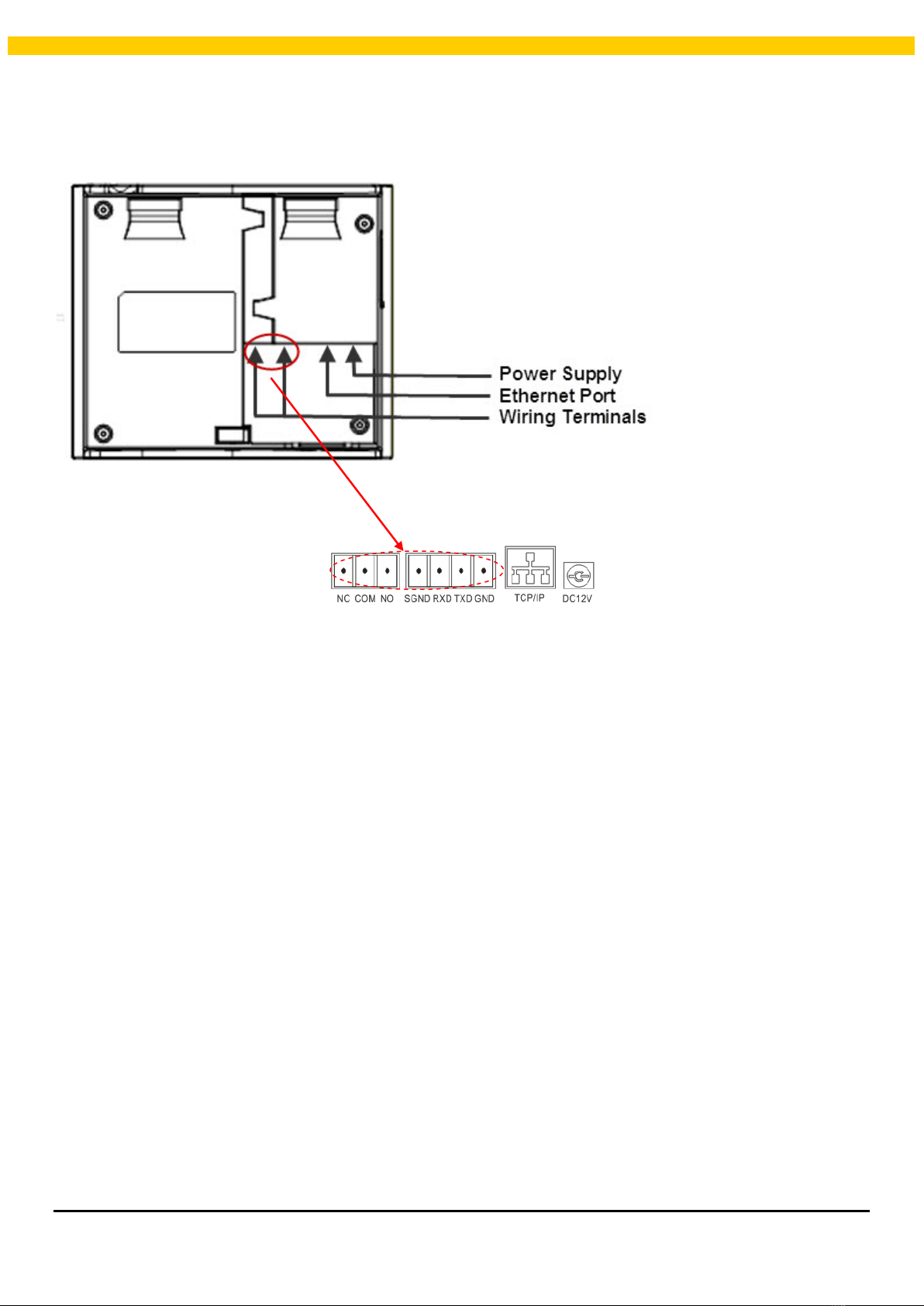
BC100/RF200/HD300 User Manual
Back View:
• Power Supply: Use to connect to the power supply.
• Ethernet Port: Connect the device to the Internet or connect directly to the PC.
• Wiring Terminals: Use to connect with the external ring, door lock or RS232 communication (or connect with the
printer.
Note: You cannot use RS232 communication and connect to a printer at the same time.

6
BC100/RF200/HD300 User Manual
Side View:
• USB Port – You can use the U disk to download or upload user information and verification records.
• Reset Function – If the device is not working properly, you can use the Reset function to restart it. To reset,
open the black rubber cap, then use a sharp tool (less with 2mm tip) into the Reset button hole.
Reset Button
USB Port
Ce manuel convient aux modèles suivants
2
Table des matières
Autres manuels Wasp Terminal tactile
Manuels Terminal tactile populaires d'autres marques

Wincor Nixdorf
Wincor Nixdorf iPOS plus Advanced Manuel utilisateur

Ingenico
Ingenico AXIUM EX4000 Manuel utilisateur

Heisei Electronics
Heisei Electronics Q-POS 815 Manuel utilisateur

Amano
Amano MTX-15 Manuel utilisateur

FLOWBIRD
FLOWBIRD CWT Compact Touch Manuel utilisateur

Demco
Demco SP7 Manuel utilisateur