
UC Logic Penates 10.1SP Manuel utilisateur

10.1SP
Penates 10.1SP
User Manual for Mac
MAC OSX 10.7/10.8/10.9
Driver Version 2.0.5
Version:V14.07
Release Date:2014/07

Penates 10.1SP Driver Version 2.05
2
Contents
Penates 10.1SP.......................................................................................................................................1
I. General Information .......................................................................................................................3
OVERVIEW..................................................................................................................................3
PENATES FUNCITONS .................................................................................................................3
SYSTEM REQUIREMENTS............................................................................................................3
VERYFYING HARDWARE .............................................................................................................4
HARDWARE INSTALLATION ........................................................................................................5
INSTALLING THE DRIVER SOFTWARE ON WINDOWS.................................................................6
UNINSTALLING THE DRIVER ON MAC SYSTEM...........................................................................8
USAGE TIPS.................................................................................................................................9
MAPPING TO MULTIPLE MONITORS ..........................................................................................9
II. Penates configuration...................................................................................................................10
YOUR PENATES SETTING ..........................................................................................................10
THE INFO TAB ...........................................................................................................................11
THE PEN TAB.............................................................................................................................12
Pen Button Setting ...........................................................................................................12
Pressure Test ....................................................................................................................13
Coordinate Mode .............................................................................................................13
Default Button Setting .....................................................................................................13
HOT EXPRESS KEYS DEFINE TAB ...............................................................................................14
Default Button Setting .....................................................................................................14
Re-define Hot Express keys ..............................................................................................14
THE CALIBRATION SETTING TAB...............................................................................................17
III. Changing the Pen Tip...............................................................................................................18
Changing the pen tip:.......................................................................................................18
IV. Question & Answer ..................................................................................................................19
How can I get the updated software?..............................................................................19
My Penates does not work. What can I do? ....................................................................19

Penates 10.1SP Driver Version 2.05
3
I. General Information
OVERVIEW
Welcome to the world of Penates! You’ll be able to discover how easy it is to control your personal
computer by using a U Pen instead of a mouse.
The function of the U Pen is able to draw a very thin, thick, light, or dark line (called “pressure
sensitivity”). You also can write, sign, annotate documents, and draw, sketch or paint as easily as
you would on normal paper and simulate the functions like pencil, mark pen, brush, or watercolor
pen by using the commercial software packages such as Adobe® Photoshop™, Corel® Painter™ and
Paint Shop™.
PENATES FUNCITONS
After installing the device driver, your Penates features have the following functions:
Direct pointing –You can move the cursor to any location by hovering the digital pen tip over
your Penates screen.
Three-button mouse commands - Your Penates provides all the functions of a three button
mouse by using its pen tip and two buttons.
Pen scrolling –You can scroll documents and Web pages by pressing the middle button of the
digital pen over your Penates screen.
Pressure sensitivity –This feature allows you to emulate various brushes and pencils so when
you press down the pen tip harder, lighter, or stronger, you create pencil lines from very thin to
thick.
SYSTEM REQUIREMENTS
Mac OSX 10.7 / 10.8 / 10.9
USB and HDMI port
CD/DVD-ROM drive or internet connection
Penates 10.1SP Driver Version 2.05
4
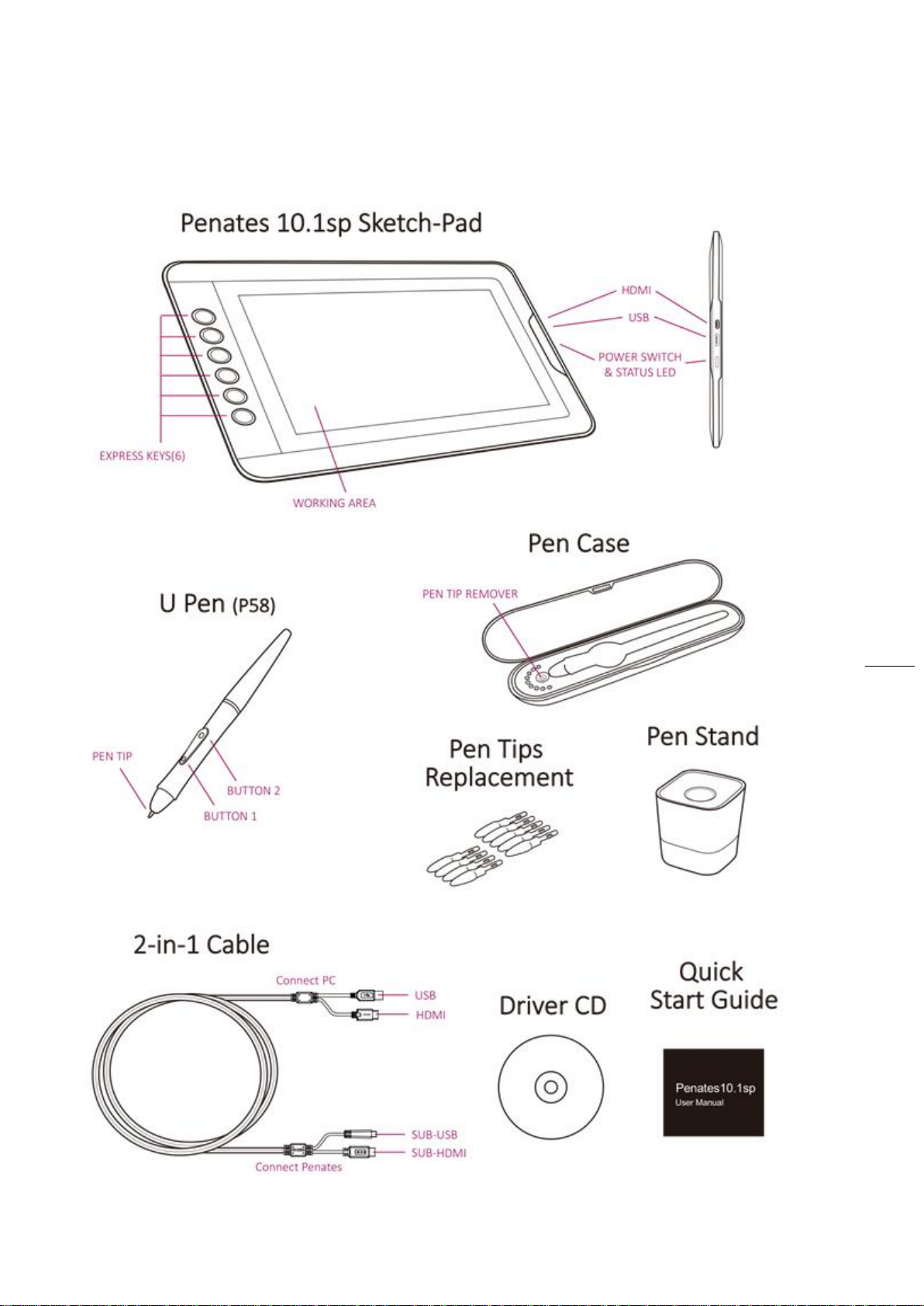
VERYFYING HARDWARE
Your Penates and package contents are shown below. If anything is missing, contact your dealer
immediately.

Penates 10.1SP Driver Version 2.05
5
HARDWARE INSTALLATION
Connect your Penates with the HDMI & USB interface into the computer before the driver
installation.

Penates 10.1SP Driver Version 2.05
6
INSTALLING THE DRIVER SOFTWARE IN MAC
To install the driver, just follow the installation instructions below:
1. Place the DVD into the optical disc drive.
2. Select 【mac driver】►【Mac OS X】►【PenTabletDriver】for installation.
3. Continue to follow the installation instructions on screen.
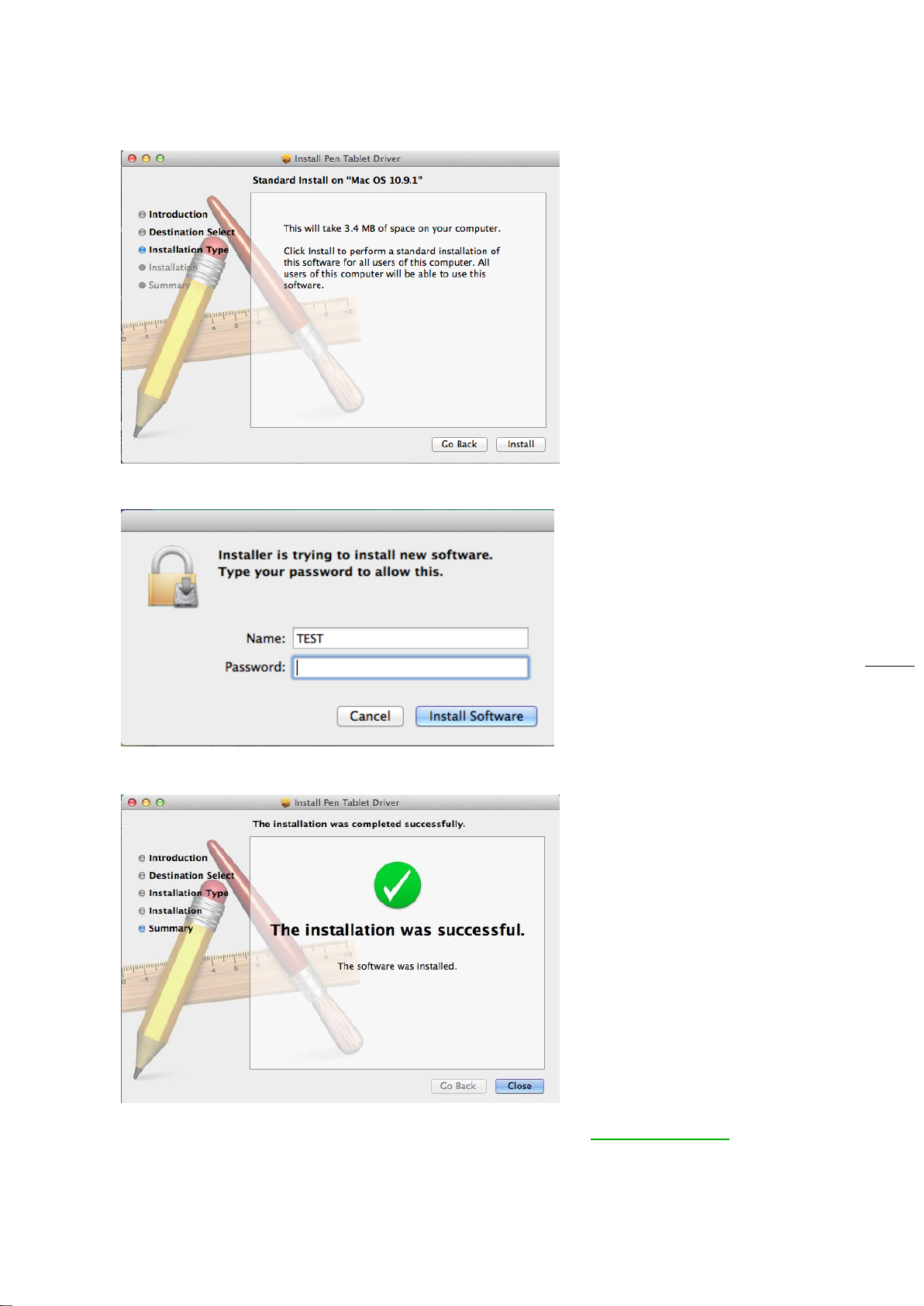
3.1 Click 【Continue】
Penates 10.1SP Driver Version 2.05
7
3.2 Click【Install】
3.3 Enter the user name and password. Click【Install Software】.
3.4 Click【Close】to complete the installation.
4. If you do not have a CD/DVD driver, download the driver from www.uc-logic.com “Supports”
page and follow the installation instructions on screen.
Penates 10.1SP Driver Version 2.05
8
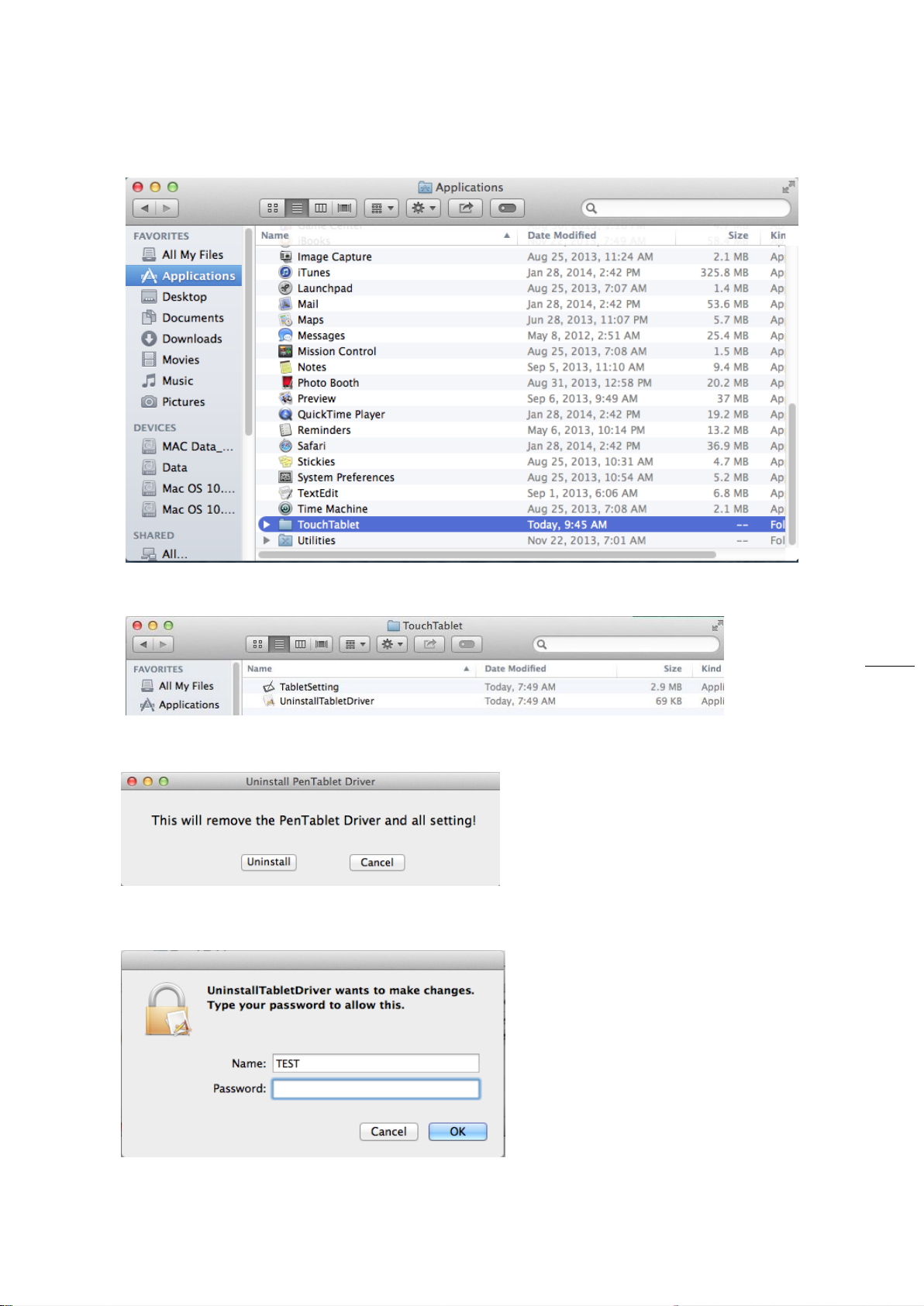
UNINSTALLING THE DRIVER ON MAC SYSTEMS
A. Click【GO】►【Applications】
B. Click 【TouchTablet】►【Uninstall PenTablet Driver】
C. Click【UninstallTabletDriver】
D. You can enter the user name and password and click【OK】to complete the uninstall
process.

Penates 10.1SP Driver Version 2.05
9
USAGE TIPS
1. Double tapping
When you double tap with the digital pen (equivalent to a double click with a mouse), try to
keep the pen tip away from the Penates screen, or at least try to lift the pen tip as fast as
possible before the second tap.
2. Using a pen without an ordinary mouse
You may install the Penates and a mouse in your computer at the same time. However, only
one device is able to work at a time. You cannot use both devices at once.
MAPPING TO MULTIPLE MONITORS
If your computer is equipped with more than one monitor, the display resolution of your other
monitor must be the same resolution as your Penates. Otherwise, the pen cursor will be misplaced
on the screen. For Penates 10.1SP, please make sure the other monitor resolution is 1280 x 800.

Penates 10.1SP Driver Version 2.05
10
II. Penates configuration
YOUR PENATES SETTING
1.1 Click【GO】►【Applications】
1.2 Click【TouchTablet】►【Tablet Setting】
Table des matières
Autres manuels UC Logic Tablette graphique


