
THIEYE T3 Manuel utilisateur

成品尺寸:97mm*62mm
封面157g哑粉纸
内页128g哑粉纸
黑白-胶装-哑膜

01
T3 1.0 1712 PT3-V1.0
Камера для екстремальних
умов знімання
(Екшн-камера)
Т3
ІНСТРУКЦІЯ КОРИСТУВАЧА
71
01
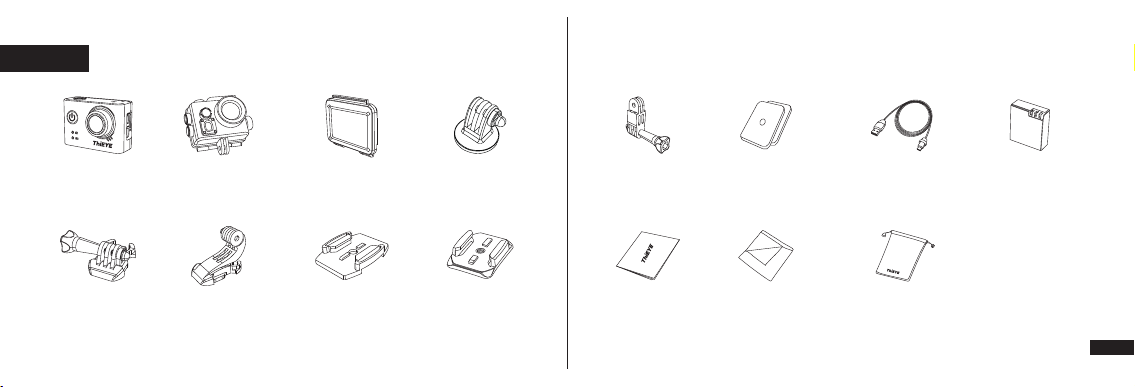
Packing List - 1 Enligsh
USER MANUAL
Guide de démarrage rapide
取り扱い説明書
ᔘ䕌᧺҉ᠴࢄ喍㍮喎
Deutsche Anleitung
Guía de Inicio Rápido
01
22
44
12
33
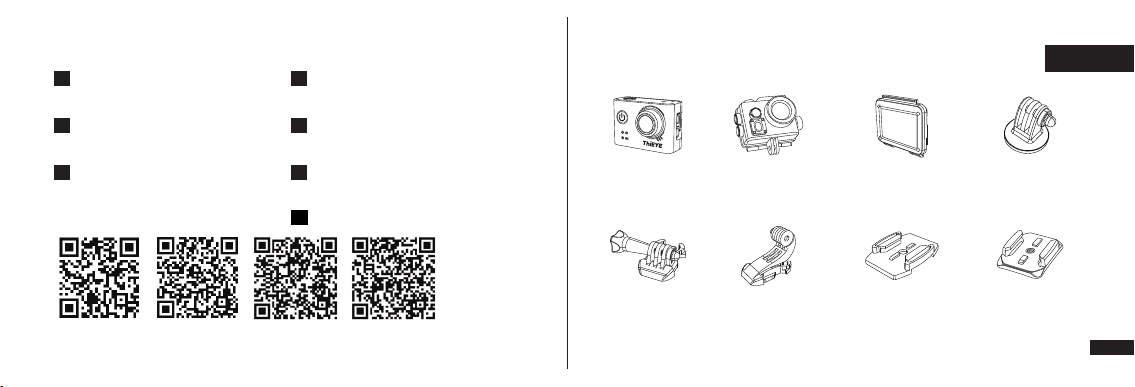
55 Action Camera Waterproof
Housing
Additional Skeleton
Backdoor
1/4” Tripod
Mount Adapter
Quick Release
Buckle
Vertical Quick
Release Buckle
Curved Adhesive
Mount
Flat Adhesive
Mount
ThiEYE Social Media
Facebook YouTube Instagram Twitter
Довідник користувача
65
03
Packing List - 2
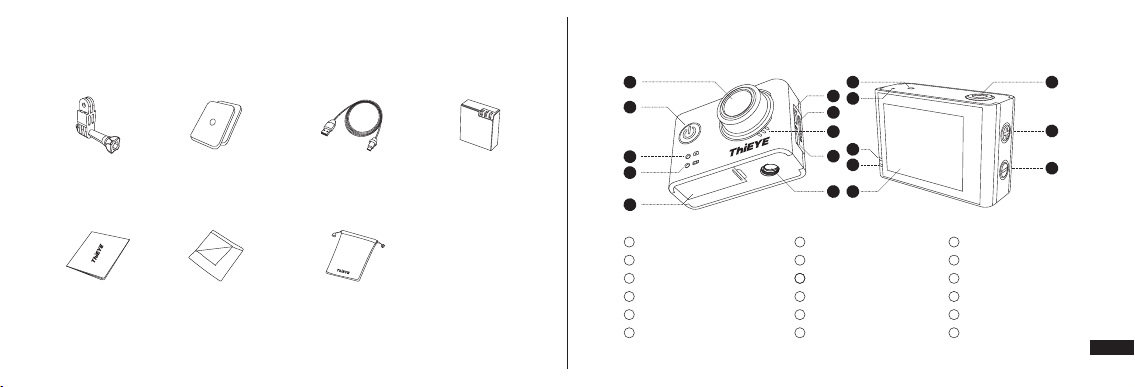
Switch Support Adhesive
Sticker×2
Mini USB Cable Lithium Battery
User Manual Wiper Cloth Bag
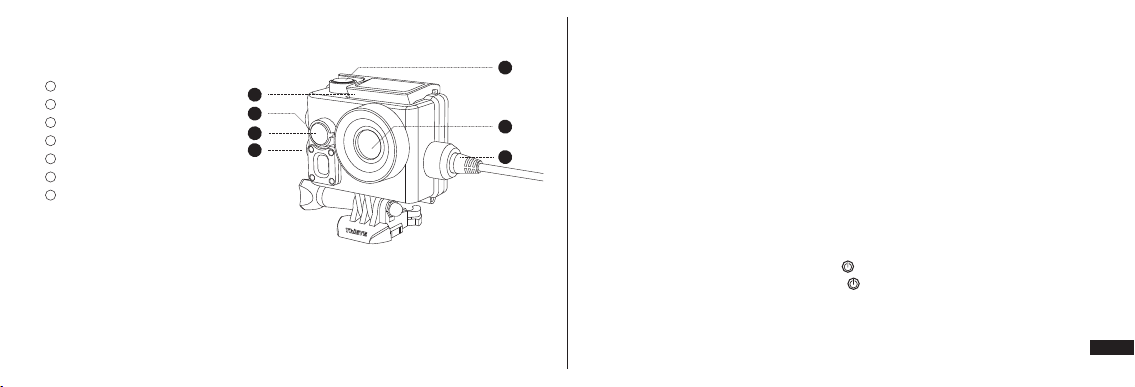
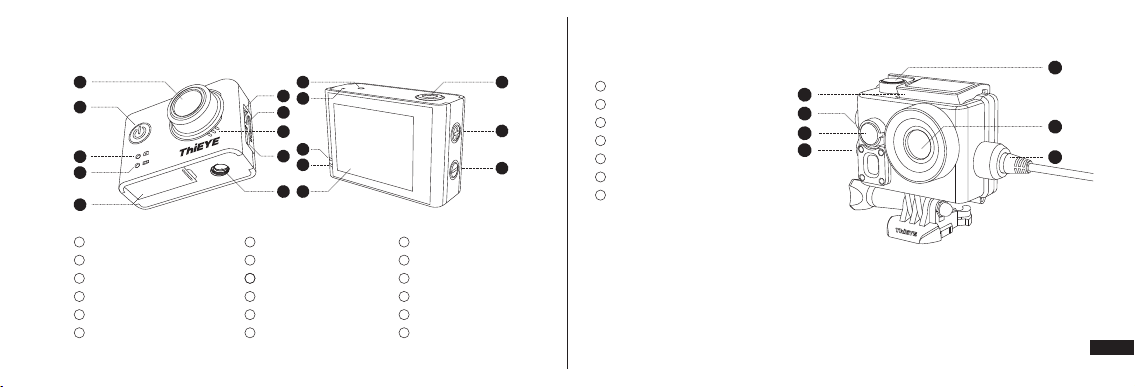
Layout - 1
1
2
3
4
6
7
8
9
10 11
12
13
14
15 16
17
18
5
170° Wide Angle Lens
Power/Mode Button
Photo Indicator
Recording Indicator
Battery Cover
HDMI Slot
Micro SD Slot
Speaker
Mini USB Slot
1/4" Threaded Insert
2.0” LCD
Charging Indicator
Working Indicator
Microphone
WiFi Indicator Light
Shutter/OK Button
Up/WiFi Button
Down Button
1
2
3
4
5
6
7
8
9
10
13
14
15
16
17
18
11
12
05
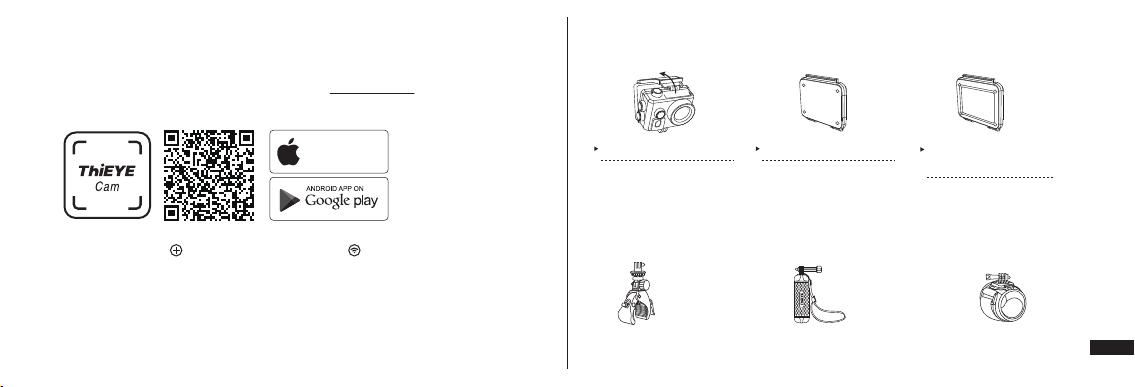
Layout - 2
Waterproof Housing Lock
Up/WiFi Button
Power/Mode Button
Down Button
Shutter/OK Button
Lens
Waterproof USB Cable
1
2
3
4
5
6
7
1
5
6
7
2
3
4
Getting Started
Insert a Micro SD Card
· Support up to 64G Class 10 UHS-I Suggested, sold separately.
· To keep your Micro SD card in good condition, please reformat it regularly. As reformatting
erases all of your content, be sure to offload your photos and videos first.
Charging the Battery
Connect the camera to a computer or PC or other USB charging adapter using the included
Mini USB cable. The red charging indicator turns on when charging and turns off when charging
is complete.
Power ON/OFF
To Power ON: Hold the Power/Mode Button “ ” (3s).
To Power OFF: Hold the Power/Mode Button “ ” (3s).
Mode Switching
After the action camera turned on, press the “Power/Mode Button” to cycle switching the video
Rechargeable Waterproof Housing
The T3 includes rechargeable waterproof housing and a precision waterproof USB cable, which
support battery charging when in the housing. This offers you the freedom of charging the
battery while recording under the water or in the rain.
1.
2.
3.
4.

07
mode, the photo mode, the video/photo playback mode, and the setting mode.
(1) Video Mode
When the camera in video mode, the upper left corner of the screen will show the sign “ ” ,
press the Shutter/OK Button “ ” to turn on/off. There will be a red dot flash on the screen, and
the blue status indicator will flash during recording.
(2) Photo Mode
Switch to photo mode, the upper left corner of the screen will show the sign “ ” , click the
Shutter/OK Button “ ” to take pictures.
(3) Playback
① Open the machine, switch to video playback mode, then press the up and down keys to
select the video file.
② Short press Shutter/OK Button “ ” for video playback and pause.
③ Select the video file and press the OK Button for 2 seconds, will show “Delete Current”,
“Delete All” hint and press the up and down button to select “Delete Current”, “Delete All”
options and press OK Button to execute.
(4) Settings
Turn on the camera, switch to the videos settings, camera settings, system settings any of the
three setting menus. Press the up and down button to select first level menu option, press the
OK Button into the second level menu, in the second level menu, press the up and down button
to select second menu options and press OK Button to confirm, and exit the second level menu
options (and the Power Button will return the first level menu).
Video Settings
① Video Resolutions: 4K 24fps · 2.5K 30fps · 2K 30fps · 1080P 60/30fps · 720P 120fps
② Loop Recording: In the case of recording and saving at interval of 2/3/5 minutes, when the
Micro SD card is full, the latest video will automatically cover the earliest in a circular way.

09
③ Time-lapse Video: Take continuous photos at the interval of 1/2/5/10/30/60s, then photos will
be form into a time lapse video when play at normal video speed.
Camera Settings
① Photo Resolutions: 12M(4032x3024) / 10M(3648x2736) / 8M(3264x2448) / 5M(2592x1944)
② Self-Timer: Support self-timer at 3/5/10/30/60s setting.
③ Photo Burst: Take photos to 3/5/10 photos per time.
④ Time-lapse Photo: Take photos at the interval of 3/5/10/30/60s.
System Settings
WiFi
Gyro Stabilizer
Car Mode
180° Image Rotation
Auto Power Off
Screen Saver
OFF/ON
OFF/ON
OFF/ON
OFF/ON
OFF/1min/2min/3min/5min/10min
OFF/30s/1min/3min /5min
Cautions
· Firmware and App Upgraded
Please keeping upgrading the firmware and App in time to maintain the best user experience.
And when upgraded, please make sure the action camera is connected to a power source or
the battery capacity is over 50%.
· Video Playback
Playback is choppy when connected to a computer or a TV at the high resolution or high frame
rate recording time like 4K@24fps, so make sure your computer/TV meets the minimum
requirements for the playback software.
5.
11
App Connection
Please scan the QR Code or visit our official website www.thieye.com to download
ThiEYE Cam App.
Hold Up/WiFi Button “ ” for 2-3s, the LCD will show a “ ” icon, then WiFi is on.
Connect your smartphone to the WiFi of the action camera (WiFi account: ThiEYE_CAM,
Password:1234567890), then open the App and click the “Connect” button.
View, edit and remote control your action camera with via App.
DOWNLOAD ON THE
App Store
Necessary Accessories | Special Note
Optional Accessories | Sold Separately
Waterproof Housing
Please test the housing
by placing it in water
before diving.
Waterproof Backdoor
Support up to 197' (60m)
waterproof level.
Additional Skeleton
Backdoor
Not waterproof, enables
enhanced audio capture
during activities.
Floating Hand GripBike Mount Wrist Strap
1.
3.
4.
2.
13
物品清單 - 2
長轉軸 底座粘膠×2 Mini USB線 電池
說明書 清潔布 便攜袋
物品清單 - 1
繁體中文
運動攝像機 防水殼 非防水殼後蓋 1/4英寸通用轉接頭
標準卡扣 J型卡扣 弧面粘貼底座平面粘貼底座
15
外觀介紹 - 2
防水殼鎖扣
快門/OK鍵
上調鍵/WiFi鍵
下調鍵
電源/模式鍵
防水充電線
鏡頭
1
2
3
4
5
6
7
1
5
6
7
2
3
4
充電防水殼
防水與充電兩用,可支持在水下充電,
讓戶外運動相機拍攝從此不斷電,永久續航。
外觀介紹 - 1
1
2
3
4
6
7
8
9
10 11
12
13
14
15 16
17
18
5
170°廣角鏡頭
電源/模式鍵
拍照指示燈
錄像指示燈
電池蓋
HDMI接口
Micro SD卡槽
揚聲器
Mini USB接口
1/4”標準螺旋孔
2.0”顯示屏
充電指示燈
工作指示燈
麥克風
WiFi指示燈
快門/OK鍵
上調鍵 /WiFi鍵
下調鍵
1
2
3
4
5
6
7
8
9
10
13
14
15
16
17
18
11
12
Table des matières
Langues :
Autres manuels THIEYE Caméra d'action


