TeVii D640 Manuel utilisateur

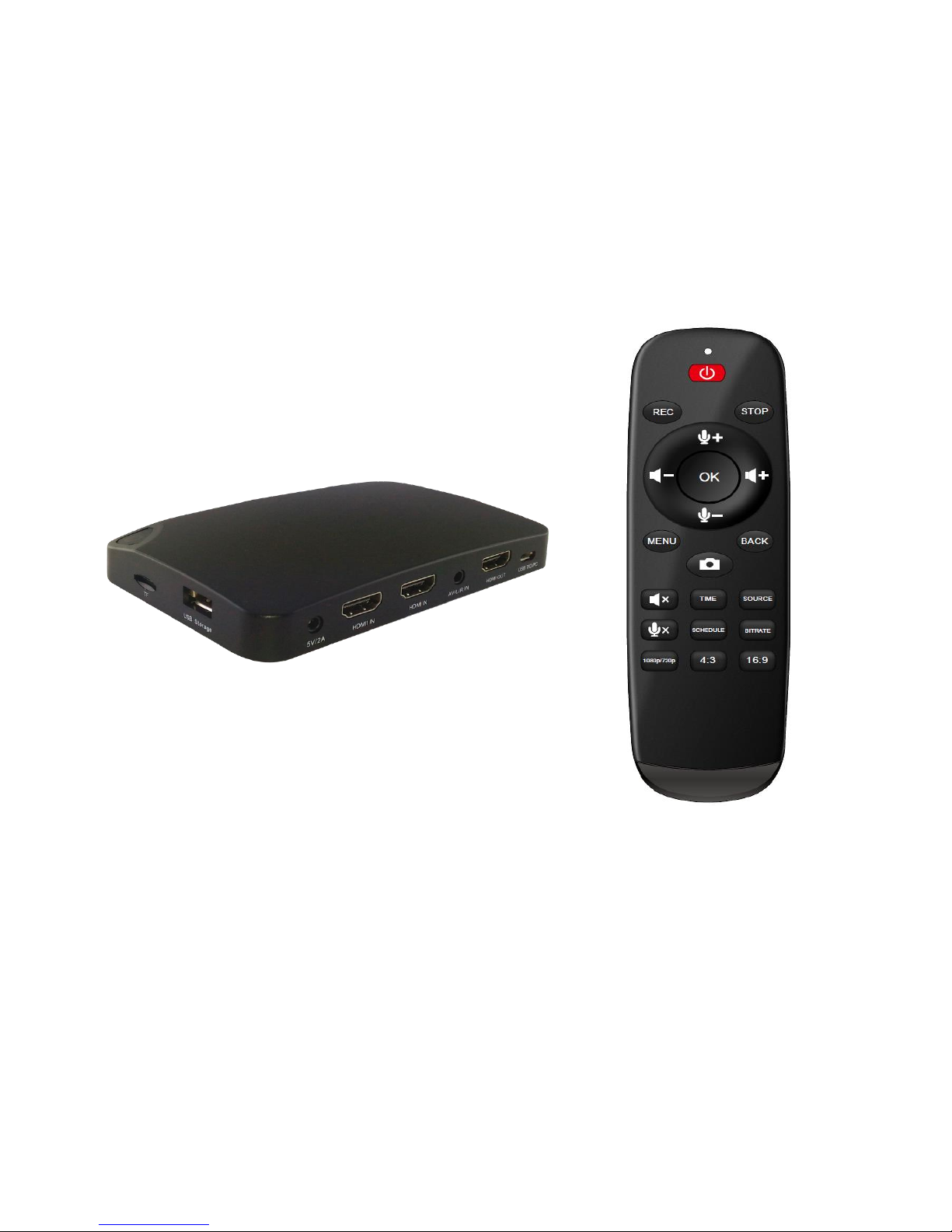
D616/D640 4K Capture Box
User Manual

1
Important Safety Instructions
Before using D616/D640 4K Capture Box, please ensure that you
read and understand the safety precautions below:
1. Do not attempt to open the case of D616/D640 4K Capture Box or
modify it in any way, as this will void the warranty.
2. Keep D616/D640 4K Capture Box away from water and other liquids,
as this may cause the unit to malfunction.
3. D616/D640 4K Capture Box may become warm during use. This does
not indicate malfunction.
4. Do not place heavy objects on D616/D640 4K Capture Box, as this may
cause the unit to overheat and malfunction.
5. If the exterior of D616/D640 4K Capture Box requires cleaning, wipe it
with a soft dry cloth.
6. Do not dispose of the unit via conventional domestic waste.

2
Table of Contents
Important Safety Instruction ................................................................ ………… 1
Table of Contents ................................................................................................ 2
What’s included .................................................................................................. 3
Product Connectors ........................................................................................... 4-5
Connection Instruction and installtion ................................................................... 6
Standalone Mode
1. Installation ............................................................................................... 6
2. Record / Capture to USB or TF Card .......................................................... 7
3. Set Up by OSD .......................................................................................... 7-9
PC Mode
1. Software Installation & Connection ......................................................... 10
2. PC Software (GXPlayer) registration & key features .................. …….. 11-13
Upload video to YouTube ...............................................................................14-16
Live Streaming via XSplit .............................................................................. 17-19
Live Streaming via OBS ................................................................................. 20-22
Record / Capture to PC ...................................................................................23-24
Schedule Recording & Set up ...........................................................................24-25
New Firmware Upgrade Instruction ....................................................................26
Product Specifications .........................................................................................27
Contact ...............................................................................................................27

3
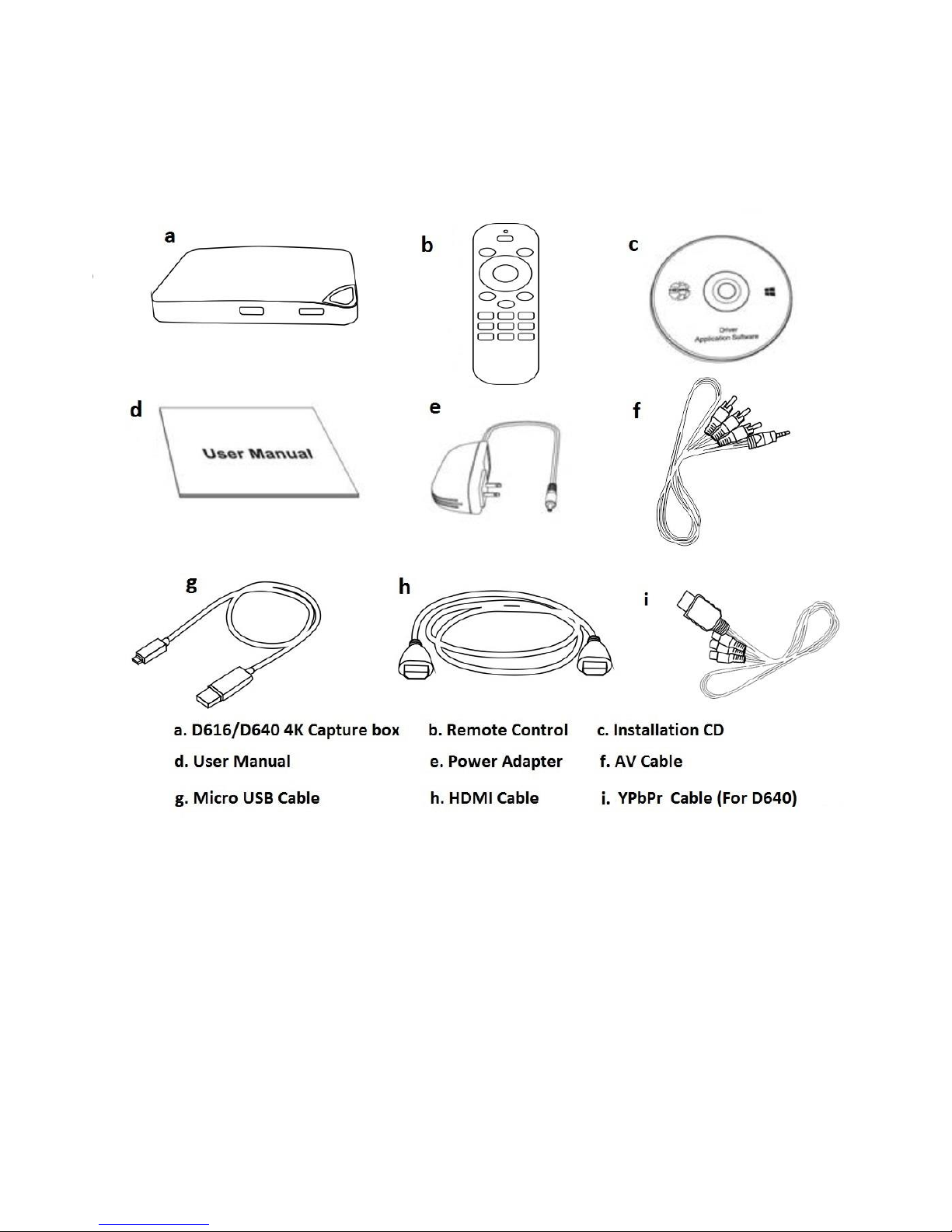
What's included

4
Product Connectors
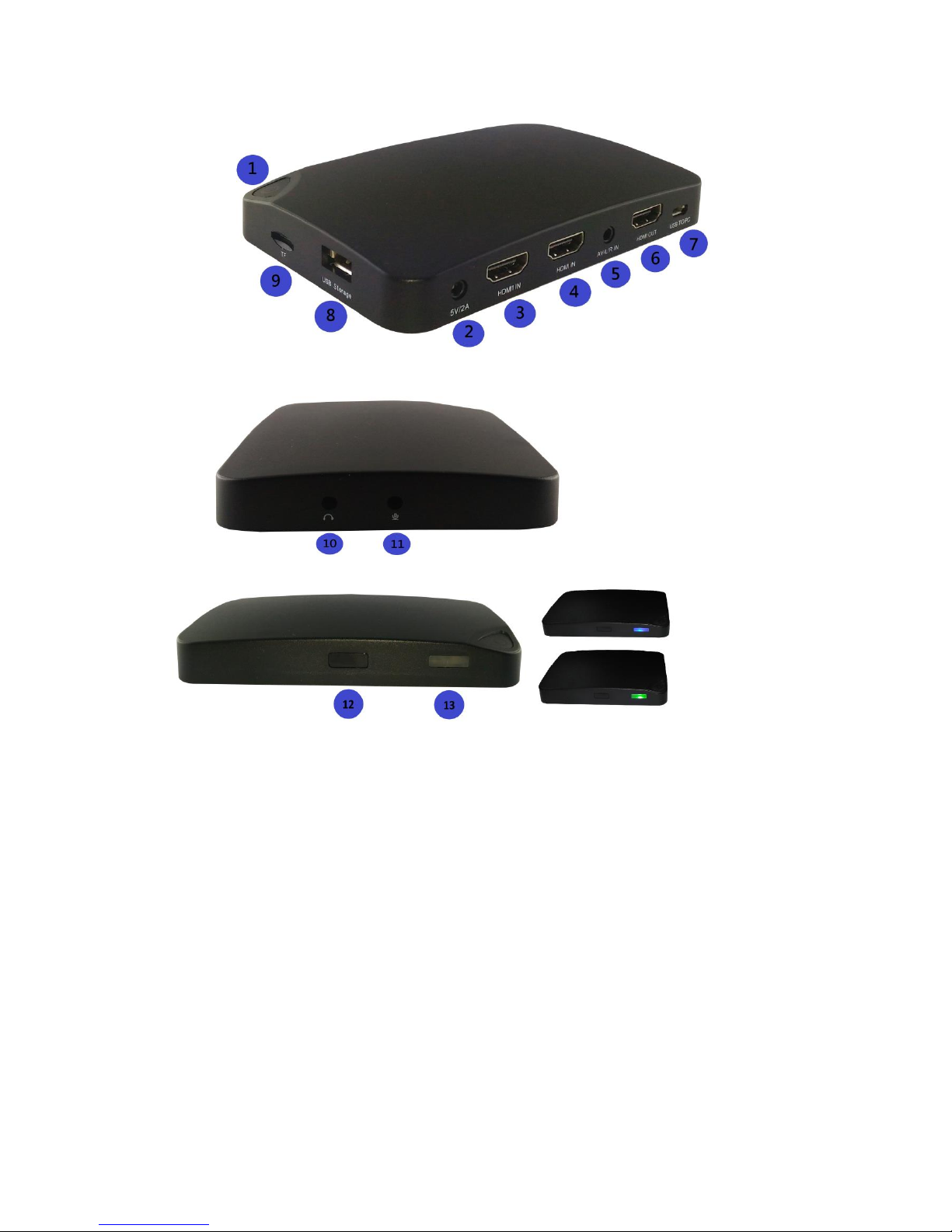
1. Power on and REC/STOP button
2. DC input 5V/2A : DC jack for power adaptor
3. HDMI IN : HDMI input 1
4. HDMI input 2 (D616) / YPbPr input (D640)
5. AV/L/R IN: AV/Audio L/R cable
6. HDMI OUT : HDMI output
7. USB TO PC : MicroUSB for connecting to computer.
8. USB Storage : USB connector for USB HDD/USB Flash Drive
9. TF card (MicroSD) input : (Standalone mode only)
10. Line Out: Audio output
11. MIC: Microphone input
12. IR: Infrared Receiver for remote control
13. LED indicator for recording:
- Blue: Recording videos in 1080p
- Green: Recording videos in 720p.

5

6
Connection instruction and installations (Standalone Mode)
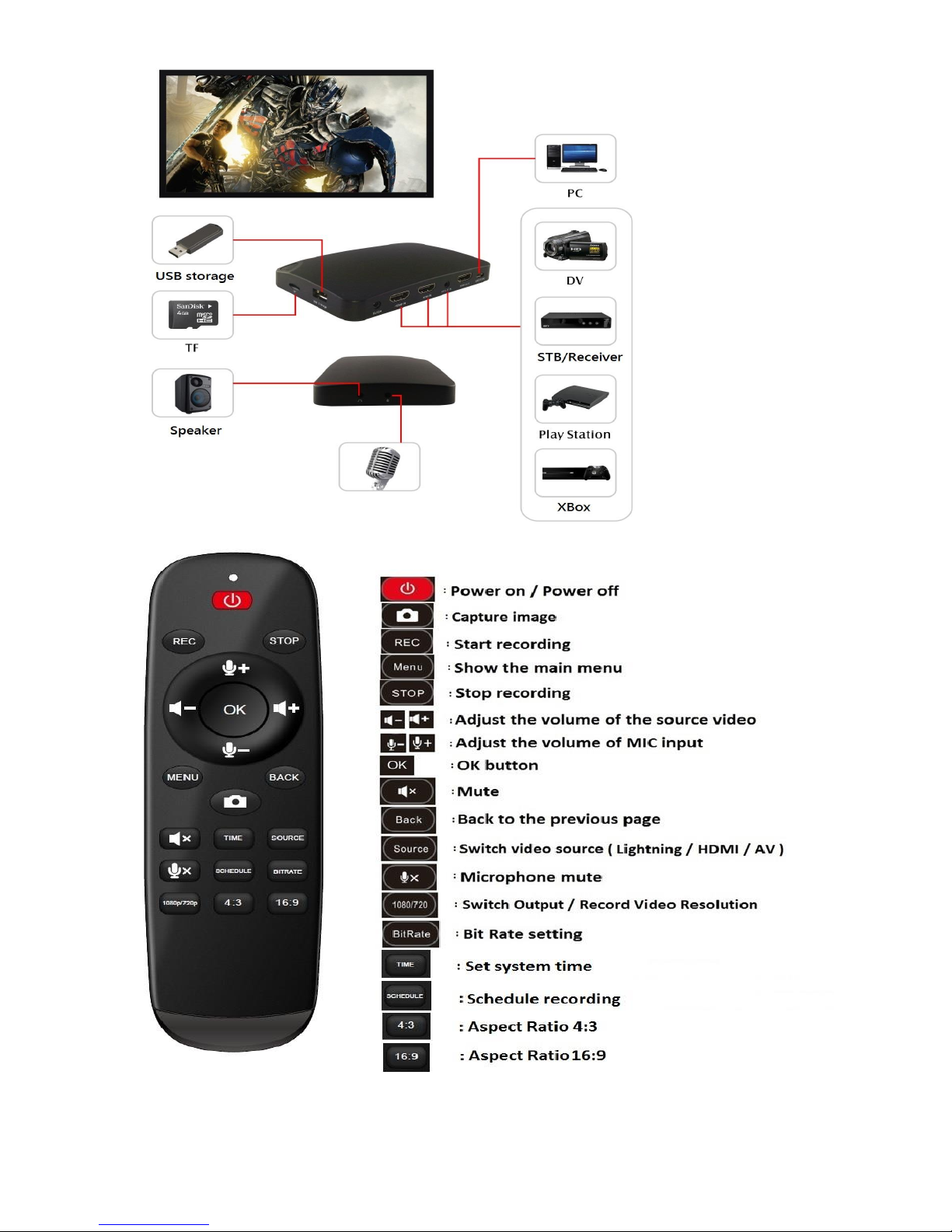
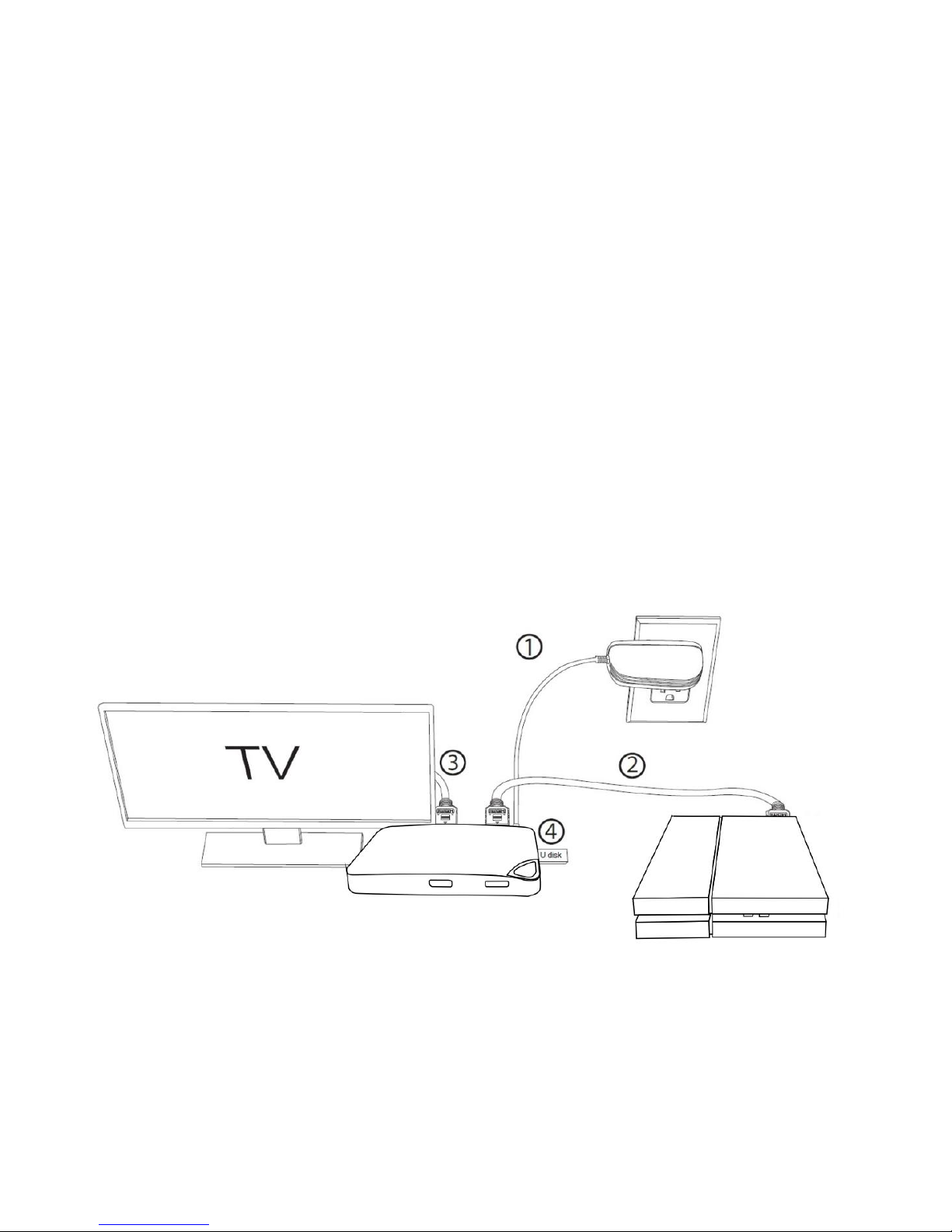
1. Installation
(1) Connect power adapter to DC jack ○
2of D616/D640
(2) Connect video source (PS, XBox, Blu-ray player) to D616/D640 by
HDMI: HDMI in ( D616: ○
3or ○
4/ D640: ○
3 )
AV: AV/L/R ○
5
YPbPr: D640 ○
4
(3) Connect D616/D640 from HDMI OUT ○
6to TV via HDMI cable.
(4) Plug the USB storage device into the USB ○
8 of D616/D640 4K Capture Box.

7
2. Record/Capture to USB or TF card
(1) After all devices are connected properly, the power will switch on automatically.
(2) Press the REC/STOP button on the capture box or press the REC button on the remote
control to start recording.
(3) Press the REC/STOP button again on the capture box or press the STOP button on the
remote control to stop recording. The recorded files will be saved to USB storage or TF
(MicroSD) card
NOTE: D616/D640 supports FAT32 & NTFS formats only. In FAT32, it will record a new file
when the previous recording file reaches the maximum 2GB capacity, the maximun is 32GB
for FAT; in NTFS there is no 2GB per file limitation D616/D640 will record as long as needed.
When HDD or USB storage is full, D616/D640 stops recording and LED will go off.
D616/D640 saves files in MPEG4 format. The resolution can be set at either 720p or 1080p
for capture. Please note that not all games/video files are produced at 1080p.
D616/640 will record approximately 1GB per 10mins at either 720p or l080p.
3. Setup by OSD (On Screen Display)
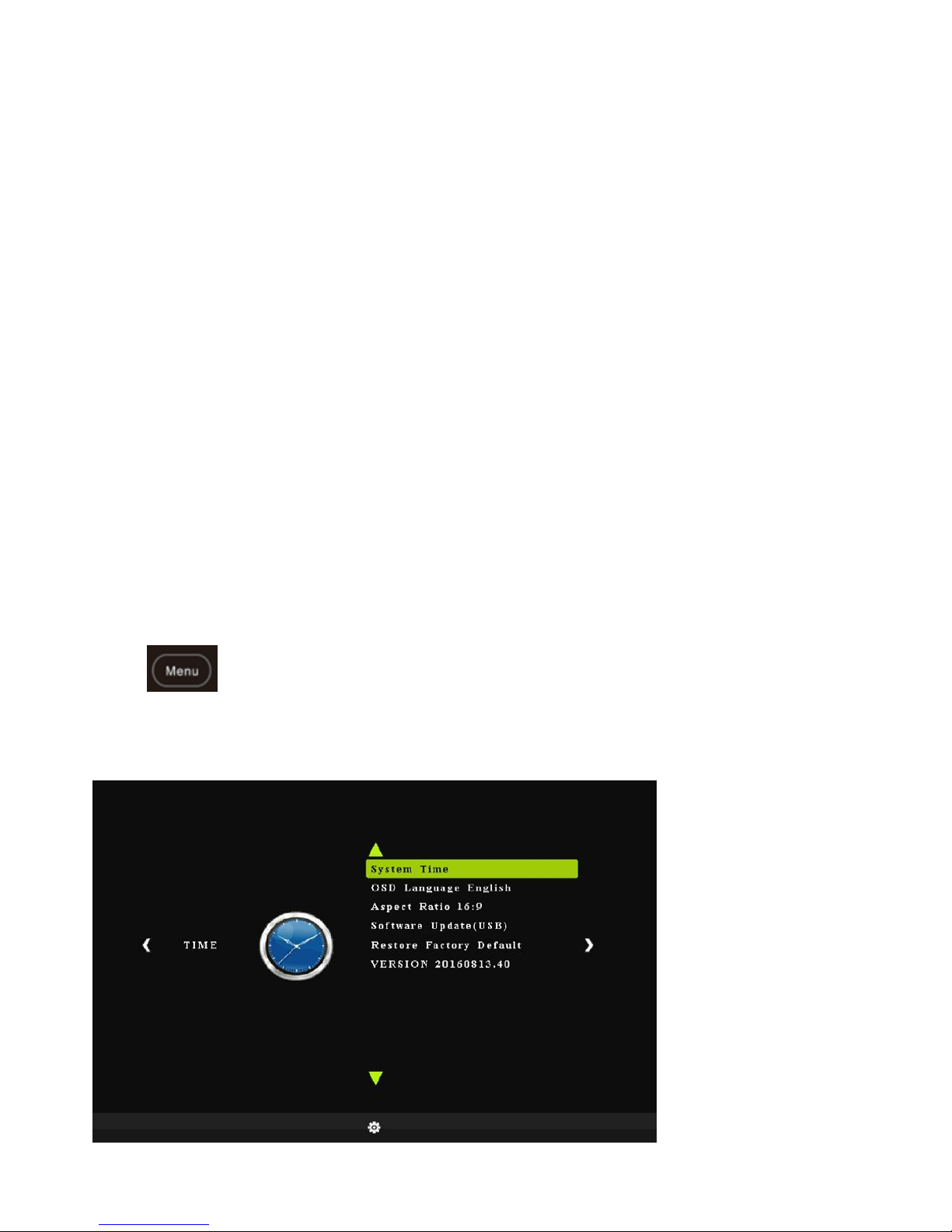
Press on the remote control to browse the menu settings of D616/D640
4K Capture Box
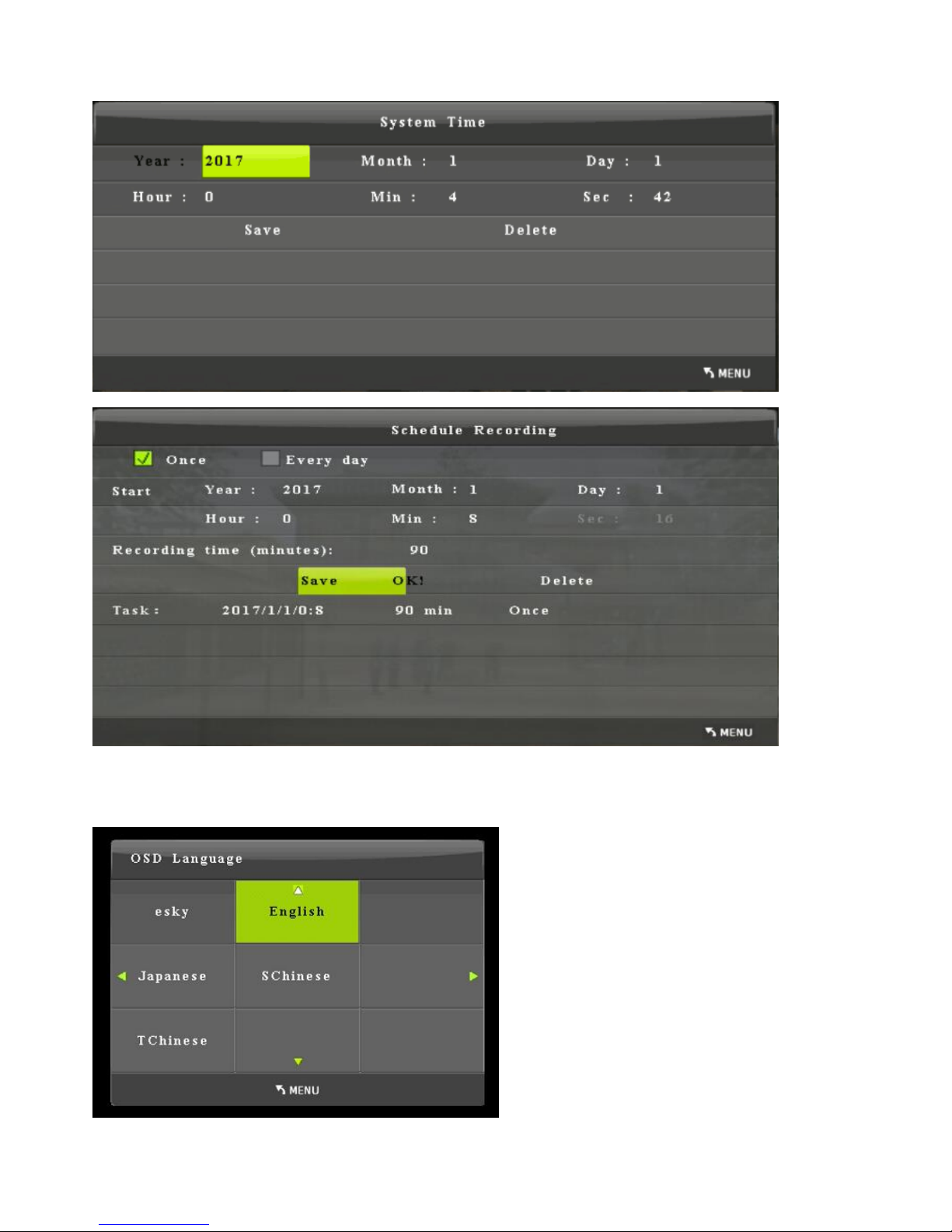
System Time: Set the time of D616/D640 by year, month, day, hour and minute.

8
Schedule Recording: Allow you to preset recording up to 4 different schedules
OSD Language: Set the language to be displayed on the menu. English, Japanese,
Simplified Chinese & Traditional Chinese are available.

9
Aspect Ratio: Auto, 4:3, 16:9, Zoom 1, Zoom 2 and Just Scan are available. The default is set
as 16:9.
Software Update: Upgrade the firmware when there is a new version available. You need to
download new firmware & save in USB storage, then connect to D616/D640 4K Capture Box
Restore factory default: Restore the factory settings.
Version: Shows the current version info.
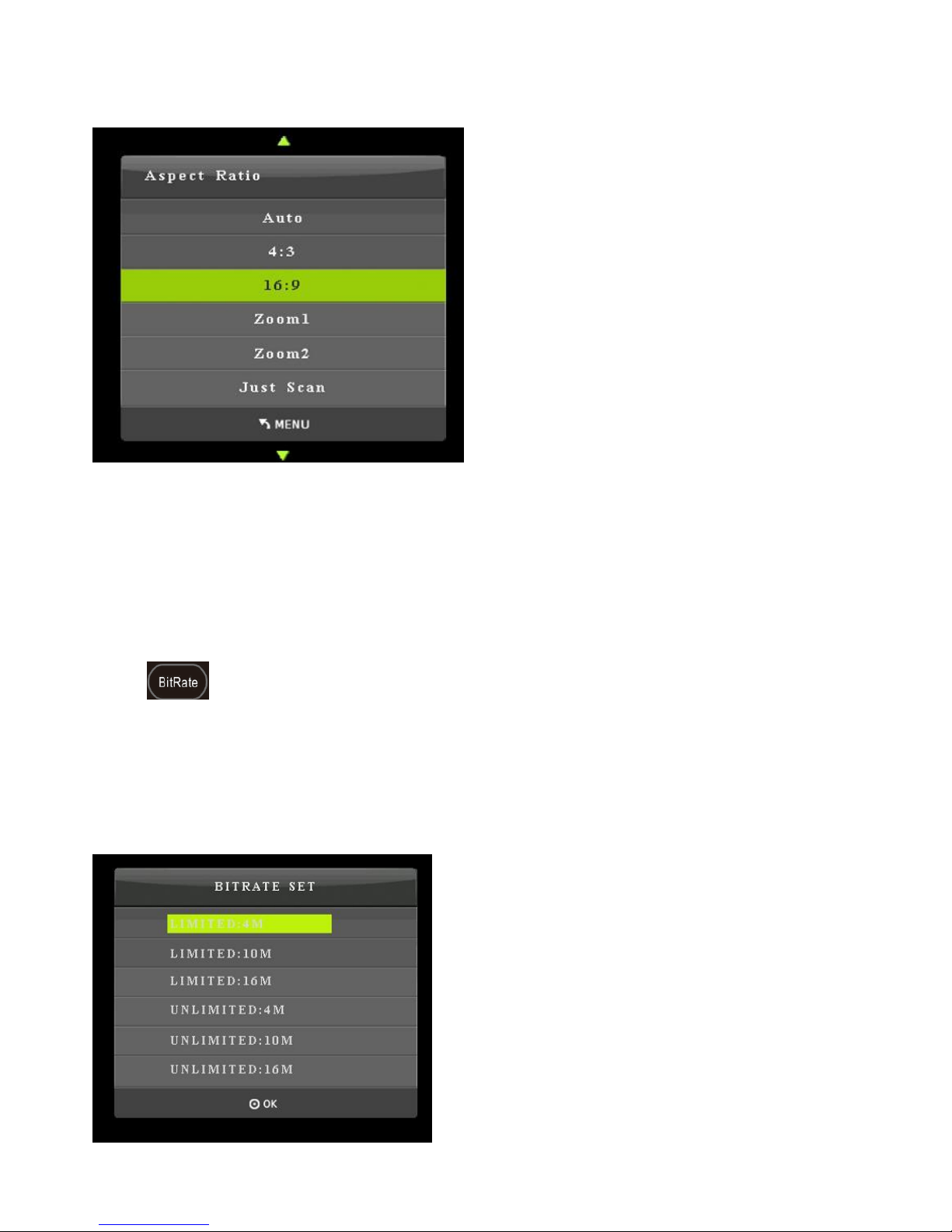
Press on the remote control to browse the Bit Rate settings of D616/D640 4K
Capture Box
If you set it to a large value, you will get higher image quality, but with larger file size.
If you set it to a small value, you will get lower image quality but with smaller file size.
For example: LIMITED: 10M means the recorded file is limited to 2GB per file, bit rate is
10Mbps. UNLIMITED means there is no 2GB per file limitation
Ce manuel convient aux modèles suivants
1
Table des matières
Autres manuels TeVii Accessoires de jeux vidéo
Manuels Accessoires de jeux vidéo populaires d'autres marques

Sega
Sega Visual Memory Unit Manuel utilisateur

Datel
Datel Go-tcha Expedition Manuel utilisateur

TruGolf
TruGolf TruFlight 2 Manuel utilisateur

CH Products
CH Products CH PRO THROTTLE Manuel utilisateur

Thrustmaster
Thrustmaster T2PA Manuel utilisateur

Cube Controls
Cube Controls Mercedes-AMG - GT Edition SIM Wheel Manuel utilisateur