
Tenda TED8620R Manuel utilisateur

Table of Contents
Chapter One TED8620R+ Introduction .................................. 1
1.1 Product Features ....................................................................................1
1.2 Unpacking..............................................................................................2
1.3 Physical Environmental Requirements ..................................................2
1.4 Panel and LED Indicators ......................................................................3
Chapter Two Hardware Installation
Chapter Three Configuration For Access to the Internet... 7
3.1 Configuration on the main Interface ......................................................8
3.2 Use Built-in Dial-up Software to Connect to Internet9
3.3 Use Fixed IP Address to Connect the Internet......................................11
3.4 Use External Dial-up Software to Connect to the Internet...................13
Chapter Four TED8620R+ Advanced configuration..................... 19
4.1 LAN Configuration..............................................................................20
4.2 Admin Setting......................................................................................23
FAQ ........................................................................ 26
5.1 Q: How to judge if the ADSL2+ is connected normally? .......................26
5.2 Q: What is Virtual dial-up? .....................................................................26
5.3 Q: I am the user of ADSL2+, but sometimes I can’t have access to the
Internet, why? ...............................................................................................26
5.4 Q: I am far away from the telephone office, can I still use ADSL2+? ....27
5.5Q: Does ADSL2+ fall off the internet like the common 56K Modem?....27
5.6Q: Can ADSL2+ support sharing internet access in the LAN? ................27
5.7Q: How to set and obtain dynamic IP for LAN users?................28
5.8Q: I am now using ADSL service, can I use ADSL2+ modem?
......................................................................................................................28

TED8620R + ADSL User’s manual
1
Chapter One Introduction
1.1 Product Features
Welcome to use Tenda TED8620R +MODEM
1.1.1 Features
Wired-speed, auto-negotiation ADSL2+ Modem, supports
bridge/ routing mode.
MAX downstream: 24Mbps/ upstream:1Mbps
Max transmission distance: 6.5KM;
Complete and friendly user configuration interface, compliant
with currently popular Server/Browser mode.
1.1.2 Protocol
Wired speed ADSL2+ Standard supported
ANSI T1. 413 Issue 2
ITU-T G. 992. 1 (G. dmt)
ITU-T G. 992. 2 (G. Lite)
ITU-T G. 992. 3
ITU-T G. 992. 5
1.1.3 Data Encapsulation

TED8620R + ADSL User’s manual
2
RFC 1483 Bridge、RFC 1483 Router supported
Classical IP over ATM (RFC 1577) supported
PPP over ATM(RFC 2364) supported
PPP over Ethernet (RFC 2516) supported
1.2 Unpacking
Please unpack and you would find the following items:
TED8620R+ Modem one unit
User’s manual one copy
External Power Adapter (AC9V/1A)one unit
ADSL2+ Splitter one unit
RJ45 cable one piece
RJ11telephone line two pieces
Product Warranty Card one piece
Fast Installation Guide one piece
If you find any of the above items not included in the packing, please contact
distributor or our company with the Product warranty card.
1.3 Physical Environmental Requirements
We recommend using the following computer configuration in order to realize the
best performance of ADSL2+.
TED8620R + ADSL User’s manual
3
Pentium 233MHz or above
64MB Memory or above
10Bas-T Ethernet Network Interface Card or above, 100M Network Interface
Card is recommended
WINDOWS 9X/2000/XP/ME/NT
1.4 Panel and LED Indicators
1.4.1 Description of Panel and LED Indicators
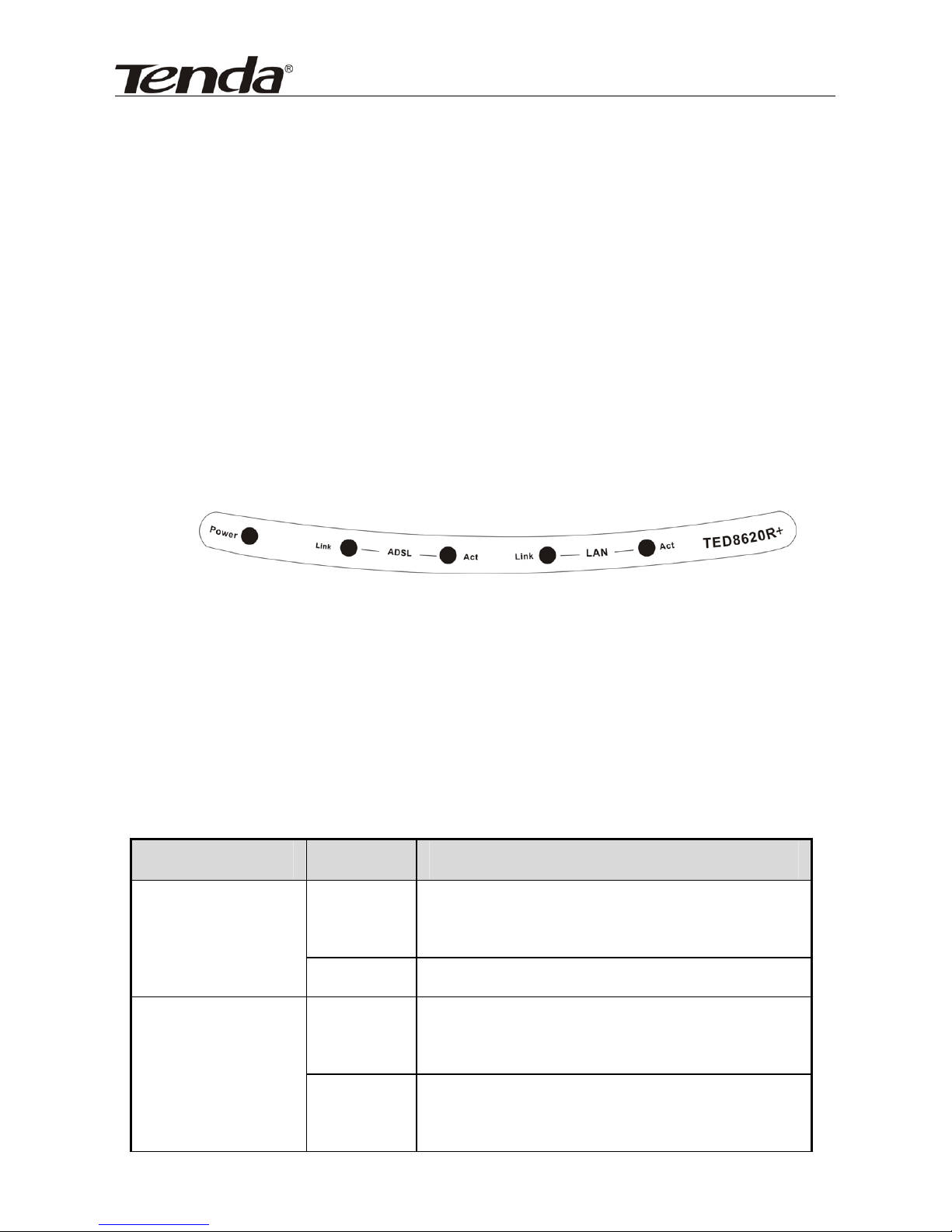
Figure 1.1 TED8620R+ Panel
TED8620R+ has 5LED indicators, through checking the status of the LED
lights, we can judge whether the Modem is working normally. They
indicate as follows:
LED Indicator Status Description
ON When POWER LED Indicator lights on,
the machine is receiving power.
POWER
OFF The machine is not receiving power.
ON TED8620R+ connects to NIC of the
computer or switch successfully.
LAN_LINK
OFF TED8620R+ is not connected to NIC of
the computer or switch successfully.

TED8620R + ADSL User’s manual
4
LAN_ACT Blinking
TED8620R+ is receiving or transmitting
data with the NIC or the switch.
ON ADSL2+ connection is established
successfully
Blinking ADSL2+ connection is not established
successfully
ADSL2+_LINK
Fast
Blinking
Handshaking to try to establish ADSL2+
connection
ADSL2+_ACT Blinking TED8620R+ is receiving or transmitting
data.
1.4.2 Description of Rear Panel
LINE LAN RESET OFF
ON
A
C 9V
Figure 1.2 Rear Panel
AC 9V: Power connector for AC 9V
ON/OFF: To turn on of turn off the power of the machine
RESET: It is a small hole. If you want to load in the set value, please use
acute item to press this button for 3 times continually. All the LED
Indicators would turn ON and then turn off, the system would

TED8620R + ADSL User’s manual
5
restart and restore to factory default setting. (Note: Unless you want
to clear the current set information, otherwise, please don’t press
reset button.)
LAN: It is RJ-45 Port. Please use cable with RJ-45 Interface to connect NIC
on your computer with this port.
LINE: Connecter for ADSL2+ telephone line
Chapter Two Hardware Installation
The basic steps for hardware installation are as follows:
Please connect the external power adapter to the “AC 9V” power
connecter
Connect one side of RJ-45 cable to LAN port, and the other side to the
NIC on the computer
Connect the telephone line to the TED8620R+ LINE port.
If you are using splitter, please connect the ADSL2+ telephone line to
the LINE interface of the splitter, connect the telephone to the PHONE
interface of the splitter, and connect the LINE interface of TED8620R+
together with the MODEM interface of the splitter.
Please refer to the figure as follows:

TED8620R + ADSL User’s manual
6
Device Connection Figure

TED8620R + ADSL User’s manual
7
Chapter Three Configuration for Access to the Internet
TED8620R+ is plug and play device, there are six bridge modes in the setting, you
can directly use external dial-up software or router dial-up to connect to Internet
without making any configuration. If you require to use built-in dial-up software of
TED8620R+ to connect to internet and also require to use its router function,
please configure according to the following steps:
In order to have configuration on TED8620R+, you are required to enter into the
configuration Interface of the machine. Please operate as follows:
Step 1. Default IP Address of TED8620R+ is 192.168.1.1, please set your
computer in the same IP segment as TED8620R+, Please set your NIC as “Auto
Obtain IP Address” or you can also set manually: IP address of your computer as
192.168.1.x (x is a number between 3 and 255), Subnet Mask of your computer as
255.255.255.0, Gateway of your computer as 192.168.1.1
Step 2.Then please open your IE explorer and enter 192.168.1.1 in the address bar.
Then the follow dialogue box would appear, in “User Name” please enter “admin”;
in “Password” please enter “admin”
Note: Please pay attention to the differences between capital letter and non capital
letter.

TED8620R + ADSL User’s manual
8
3.1 Configuration on the main Interface
After correctly entering the user name and password, the following interface
will appear on your screen:

TED8620R + ADSL User’s manual
9
In this Interface, we can see that there are 6 bridges modes for WAN
connecting. For each bridge mode, their parameters are different. Please pay
attention to the VPI and VCI or the local ISP. In configuration, we can not add
two groups with the same VCI and VPI parameters. If the parameters that you
want to configure are the same as the built-in bridge mode, please modify the
related bridge mode. You could operate in quick configuration section.
3.2 Use Built-in Dial-up Software to Connect to Internet
Autres manuels pour TED8620R
1
Table des matières
Autres manuels Tenda Modem


Manuels Modem populaires d'autres marques

Davicom
Davicom DM562AP Manuel utilisateur

EpiValley
EpiValley TATA indicom SXC-1080 Manuel utilisateur

Zte
Zte WiMAX Manuel utilisateur

Intelimax
Intelimax MA-2060 Manuel utilisateur

SMC Networks
SMC Networks D3CM1604V Manuel d'utilisation et d'entretien

Telstra
Telstra Wi-Fi 4G Advanced Pro X Manuel utilisateur


US Robotics
US Robotics 3453C Manuel utilisateur

MaxTech
MaxTech Plug & Play Internal Voice/FAX/Data/SVD... Manuel utilisateur

Zte
Zte MF823 Manuel utilisateur

Four-Faith
Four-Faith F1403 Manuel utilisateur

Sierra Wireless
Sierra Wireless AIRLINK MP595W Manuel utilisateur

Gemtek
Gemtek WiMAX WIXFBR-103 Manuel utilisateur