
Tenda AV1000 Manuel utilisateur

I
AV 1000 Wi-Fi Powerline Extender Kit
Model: PH15
User Guide
AV1000 WiFi Powerline Extender Kit
User Guide

I
Copyright Statement
© 2017 Shenzhen Tenda Technology Co., Ltd. All rights reserved.
is a registered trademark legally held by Shenzhen Tenda Technology Co., Ltd. Other brand and
product names mentioned herein are trademarks or registered trademarks of their respective holders. Copyright
of the whole product as integration, including its accessories and software, belongs to Shenzhen Tenda
Technology Co., Ltd. No part of this publication can be reproduced, transmitted, transcribed, stored in a retrieval
system, or translated into any language in any form or by any means without the prior written permission of
Shenzhen Tenda Technology Co., Ltd.
Disclaimer
Pictures, images and product specifications herein are for references only. To improve internal design,
operational function, and/or reliability, Tenda reserves the right to make changes to the products without
obligation to notify any person or organization of such revisions or changes. Tenda does not assume any liability
that may occur due to the use or application of the product described herein. Every effort has been made in the
preparation of this document to ensure accuracy of the contents, but all statements, information and
recommendations in this document do not constitute a warranty of any kind, express or implied.

II
Preface
Thank you for choosing Tenda! Please read this user guide before you start with PH5.
Conventions
The typographical elements that may be found in this document are defined as follows.
Item
Presentation
Example
Cascading menus
>
System > Live Users
Parameter and
value
Bold
Set User Name to Tom.
Variable
Italic
Format: XX:XX:XX:XX:XX:XX
UI control
Bold
On the Policy page, click the OK button.
Message
“”
The “Success”message appears.
The symbols that may be found in this document are defined as follows.
Symbol
Meaning
This format is used to highlight information of importance or special interest.
Ignoring this type of note may result in ineffective configurations, loss of data or
damage to device.
This format is used to highlight a procedure that will save time or resources.
Acronyms and Abbreviations
Acronym or Abbreviation
Full Spelling
ISP
Internet Service Provider
DHCP
Dynamic Host Configuration Protocol
DNS
Domain Name System
PLC
Powerline Communication
STB
Set Top Box

III
Additional Information
For more information, search this product model on our website at http://www.tendacn.com.
Technical Support
If you need more help, contact us by any of the following means. We will be glad to assist you as soon as
possible.
Hotline
Global: (86) 755-27657180
Email
Canada: 1-888-998-8966
Hong Kong: 00852-81931998
Website
http://www.tendacn.com
Skype
tendasz

IV
Contents
1Get to Know Your Devices ................................................................................................................................ 1
1.1 Overview................................................................................................................................................................... 1
1.2 Features .................................................................................................................................................................... 1
1.3 Packing list ................................................................................................................................................................ 1
1.4 Appearance............................................................................................................................................................... 2
PA6.............................................................................................................................................................................. 2
LED Indicators for PA6 ................................................................................................................................................ 2
Buttons & Ports for PA6.............................................................................................................................................. 3
Label for PA6............................................................................................................................................................... 3
P3................................................................................................................................................................................ 4
LED Indicators for P3 .................................................................................................................................................. 4
Button & Port for P3................................................................................................................................................... 4
1.5 Installation Requirement .......................................................................................................................................... 5
2Quick Setup ..................................................................................................................................................... 6
2.1 Installing the devices ................................................................................................................................................ 6
2.2 Securing Your Powerline Network ............................................................................................................................ 7
3Configuring PA6 ............................................................................................................................................... 9
3.1 Login ......................................................................................................................................................................... 9
3.2 Wireless .................................................................................................................................................................... 9
3.2.1 Changing the WiFi Name and Password............................................................................................................ 9
3.2.2 Setting a WiFi Schedule ................................................................................................................................... 10
3.2.3 Blocking an Unknown Device .......................................................................................................................... 11
3.2.4 Configuring Wireless Parameters .................................................................................................................... 13
3.3 Powerline................................................................................................................................................................ 14
3.3.1 PLC Network Settings ...................................................................................................................................... 14
3.3.2 PLC Device List ................................................................................................................................................. 15
3.4 Adminstration......................................................................................................................................................... 16

V
3.4.1 Changing the Login Password.......................................................................................................................... 16
3.4.2 Configuring Network Settings.......................................................................................................................... 17
3.4.3 Setting Date & Time......................................................................................................................................... 18
3.4.4 Device Management ....................................................................................................................................... 18
3.4.5 Rebooting PA6 ................................................................................................................................................. 19
3.4.6 Resetting PA6................................................................................................................................................... 20
3.4.7 Upgrading PA6 ................................................................................................................................................. 20
3.4.8 Backing up the Configuration .......................................................................................................................... 21
3.4.9 Restoring the Configuration ............................................................................................................................ 21
3.4.10 Exporting System Logs................................................................................................................................... 22
4Appendix ....................................................................................................................................................... 23
4.1 Connecting a Computer to the WiFi Network ........................................................................................................ 23
Windows 8................................................................................................................................................................ 23
Windows 7................................................................................................................................................................ 23
Windows XP.............................................................................................................................................................. 24
4.2 Configuring the Computer ...................................................................................................................................... 26
Windows 8................................................................................................................................................................ 26
Windows 7................................................................................................................................................................ 27
Windows XP.............................................................................................................................................................. 29
4.3 FAQ ......................................................................................................................................................................... 31
4.4 Safety and Emission Statement .............................................................................................................................. 32

1
1 Get to Know Your Devices
1.1 Overview
AV1000 Wi-Fi Powerline Extender Kit
(PA6+P3) extends your wireless network to
every room of your house through the
existing electrical circuit in your house.
With WiFi button, the powerline extender
can copy WiFi name and password of your
wireless router, allowing your wireless
devices to roam seamlessly in your house.
The application scenario is shown on the
right. PA6 and P3 should be used in a same
electrical circuit.
1.2 Features
Homeplug AV2 powerline technology
Up to 1000 Mbps powerline speed
Gigabit Ethernet ports for multiple wired devices
Easy setup with the WiFi clone function
N300 WiFi technology
Built-in power saving element
1.3 Packing list
The package should contain the following items:
AV1000 Gigabit Powerline Adapter * 1

2
AV1000 WiFi Powerline Extender * 1
Ethernet Cable * 1
Installation Guide * 1
If any item is incorrect, missing or damaged, please keep the original package and contact the vendor.
1.4 Appearance
PA6
LED Indicators for PA6
LED
Color
Status
Description
/
Off
The device does not pair with a powerline device, or is
powered off.
Green
Solid on
The device succeeds in pairing with another powerline
device.
Green
Quick Blinking
The device is pairing with a powerline device.
Green
Slow Blinking
The device is in power saving mode.
Red
Solid on as soon as it
is powered on
The device is starting up.
Solid on after it is
powered on for a
The extender is in poor condition; try changing another wall
receptacle until the light turns to green.

3
while
/
Off
The WiFi is disabled.
Green
Solid on
The WiFi is enabled.
Green
Quick Blinking
The device is performing WiFi cloning.
Buttons & Ports for PA6
Button/Port
Description
Press it to perform pairing process.
When the device is in standby mode, press it to wake up it.
When the WiFi function is enabled, press it to perform WiFi cloning process.
Hold it down for about 6 seconds to disable WiFi.
When the WiFi function is disabled, press it to enable WiFi.
Reset
Hold it down for about 6 seconds to restore to factory settings.
LAN
Used to connect to wired devices, such as computer, router, and so on.
Label for PA6
1: It specifies the MAC address of PA6.
2: It specifies the default WiFi name of PA6.
1
2

4
P3
LED Indicators for P3
LED
Color
Status
Description
/
Off
The device is NOT connected to a power supply.
Green
Solid on
The device is connected to a power supply.
Green
Slow blinking
The device is in power saving mode.
/
Off
The device does not pair with other powerline devices, or is
powered off.
Green
Solid on
The device is connected to a powerline network.
Green
Fast blinking
The device is pairing with a powerline device.
Red
Solid on
The powerline signal of P3 is poor; try plugging the adapter closer
to your router or modem until this LED turns green.
/
Off
No Ethernet cable is detected on the Ethernet port.
Green
Solid on
The Ethernet cable is connected properly.
Button & Port for P3
Interface/Button
Description
LAN
Used to connect to a router, computer, and so on.
Autres manuels pour AV1000
3
Ce manuel convient aux modèles suivants
2
Table des matières
Autres manuels Tenda Extenseur

Tenda
Tenda A301 Manuel utilisateur

Tenda
Tenda A9 Manuel utilisateur

Tenda
Tenda A300 Manuel utilisateur

Tenda
Tenda A21 Manuel utilisateur

Tenda
Tenda A27 Manuel utilisateur
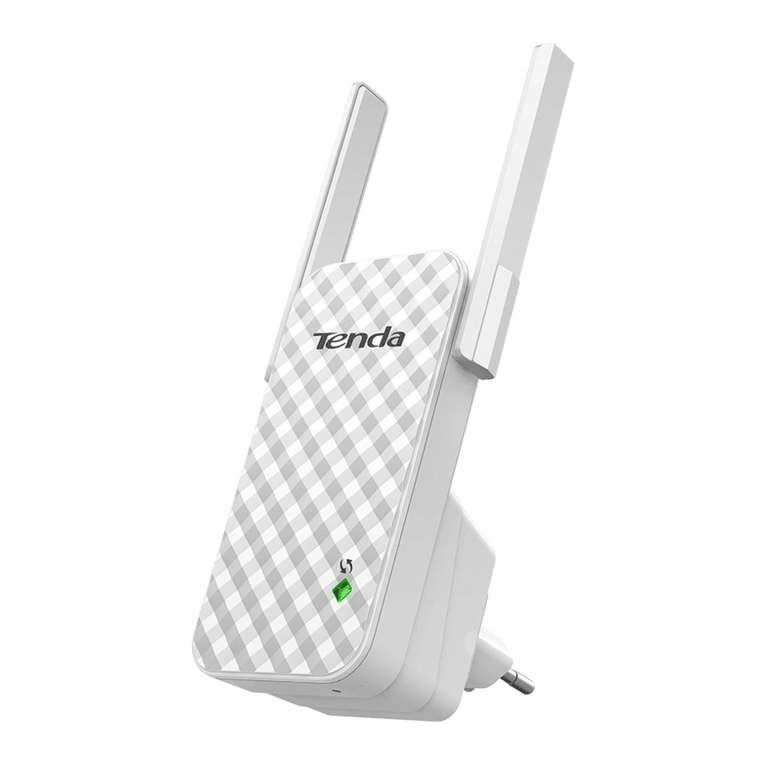
Tenda
Tenda A9 Manuel utilisateur

Tenda
Tenda A300 Manuel utilisateur

Tenda
Tenda A3 Manuel utilisateur

Tenda
Tenda 11N Wireless AP Manuel utilisateur

Tenda
Tenda A301 Manuel utilisateur


