
Telecom tg589 Manuel utilisateur
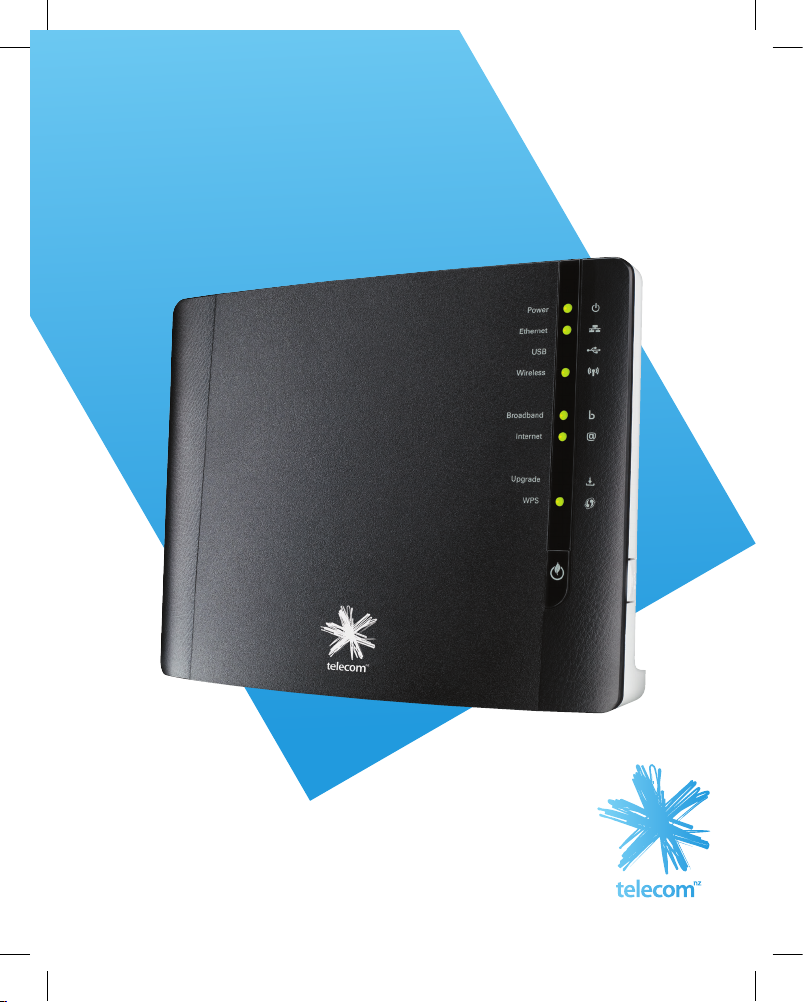
Get your Business Broadband
Gateway up and running
LET’S GO
5-0 TEL0592 DEVICE QSG Business VDSL TG589 Modem.indd 1 5/11/13 12:03 PM

CONTENTS
1 Equipment Check 1
2 Gateway Overview 2
3 Getting Started 3
4 Setting Up VDSL2 Broadband 4
5 Setting Up ADSL Broadband 5
6 Connect Gateway To Computer 6
7 Power Up 7
8 Gateway Light Check 8
9 Check Your Connection 9
10 Connect Using WiFi 10
11 Securing Your Gateway 12
12 Advanced Features 13
13 Applying A Static IP (Optional) 14
14 Important Tips 16
15 Factory Reset 17
16 Not Working? 17
5-0 TEL0592 DEVICE QSG Business VDSL TG589 Modem.indd 2 5/11/13 12:03 PM

1
Technicolor TG589vn V2 Gateway
Power Supply 12v
Quick Start WiFi Connection Sticker
Ethernet CableVDSL Cable
User Guide
Upgrade
WPS
Internet
Broadband
Wireless
USB
Ethernet
Power
Let’s check everything is here.
Important information for the set up
of your wireless network. Please do
not dispose and keep in a safe place.
Network Name(SSID): TELECOM123456
Wireless Key(Password): 1234ABCDEF
1. EQUIPMENT CHECK
1 x ADSL Cable (grey)
with ADSL installations only
2 x ADSL Filters
with ADSL installations only
5-0 TEL0592 DEVICE QSG Business VDSL TG589 Modem.indd 1 5/11/13 12:03 PM

2
MAC : 0876FF4E91AB ACCESS KEY : SZQ3M8JC GW: DSWWBA643PREB SN: CP1121RAF1G
DSL 1 2 3 4 Reset
This Technicolor TG589vn v2
VDSL2 Residential Gateway
may be connected to the
Telecom Network
PTC 274 / 12 / 001
Z765
N10406
technicolor
TG589vn v2
Network Name (SSID): TELECOM123456
Wireless Key (Password): 1234ABCDEF
wireless user codes
Use Technicolor power
supply model DSL36849990
with this product.
Rated Input: 12V 1.5A
CERTIFIED
2. GATEWAY OVERVIEW
USB Light (Green when device connected)
WiFi Protected Set-up (WPS) Light - see step 10.2
WiFi On/Off Button (on by default) - see step 10.1
DSL Port
4 x LAN
Ethernet Ports
10/100 Mbit
Hardware
Reset Button
See step 15
Power
Socket
On/Off
Switch
USB 2.0
Port
Rear
Front
WPS ( ) button
on side of Gateway
See step 10.2
Upgrade
WPS
Internet
Broadband
Wireless
USB
Ethernet
Power
5-0 TEL0592 DEVICE QSG Business VDSL TG589 Modem.indd 2 5/11/13 12:03 PM

3
3. GETTING STARTED
To set up your internet connection, you’ll initially need to use the ethernet cable. Your
computer needs to be within reach of the phone socket for ADSL or VDSL2 broadband
services, or the optical network termination point for fibre broadband services.
Once you’ve established your internet connection, you’ll then be able to go on to set up a
wireless connection if you choose.
Important: If you are running an alternative DHCP server on your network, contact your
IT support specialist before progressing. (DHCP is enabled by default on the Gateway and
this will conflict with your existing DHCP server).
5-0 TEL0592 DEVICE QSG Business VDSL TG589 Modem.indd 3 5/11/13 12:03 PM

4
4. SETTING UP VDSL2 BROADBAND
If you only have an ADSL broadband connection, skip this step.
To receive a VDSL2 broadband service you must have a Central Splitter installed. If
you have signed up for a Telecom VDSL2 broadband plan, a Central Splitter and VDSL2
connection point will be installed by a technician as a part of your plan.
To set up your VDSL2 broadband connection you must use a Windows or Mac computer with
an ethernet port and a web browser. Due to the length of the cables supplied, you must set
up close to the VDSL2 connection point. Once broadband is working you can unplug the
ethernet cable and use the Gateway’s wireless (WiFi) network.
Connect the VDSL cable to the DSL port on the Gateway and the VDSL2 connection point.
Note the small connector (RJ11) should go into the DSL port and the large connector
(RJ45) should go into the VDSL2 connection point.
When complete skip to step 6.
MAC : 0876FF4E91AB ACCESSKE Y : SZQ3M8JC GW: DSWWBA643PREB SN: CP1121RAF1G
DSL 1 2 3 4 Reset
This Technicolor TG589vn v2
VDSL2 Residential Gateway
may be connected to the
Telecom Network
PTC 274 / 12 / 001
Z765
N10406
technicolor
TG589vn v2
Network Name (SSID): TELECOM123456
Wireless Key (Password): 1234ABCDEF
wireless user codes
Use Technicolor power
supply model DSL36849990
with this product.
Rated Input: 12V 1.5A
CERTIFIED
VDSL2 connection point
Large connector
Small connector
5-0 TEL0592 DEVICE QSG Business VDSL TG589 Modem.indd 4 5/11/13 12:03 PM

MAC : 0876FF4E91AB ACCESSKE Y : SZQ3M8JC GW: DSWWBA643PREB SN: CP1121RAF1G
DSL 1 2 3 4 Reset
This Technicolor TG589vn v2
VDSL2 Residential Gateway
may be connected to the
Telecom Network
PTC 274 / 12 / 001
Z765
N10406
technicolor
TG589vn v2
Network Name (SSID): TELECOM123456
Wireless Key (Password): 1234ABCDEF
wireless user codes
Use Technicolor power
supply model DSL36849990
with this product.
Rated Input: 12V 1.5A
CERTIFIED
5
5. SETTING UP ADSL BROADBAND
If you have VDSL2 broadband, please skip this step.
An ADSL cable and ADSL filters are required to connect to an ADSL service. ADSL filters are
required for every phone socket in use, including phone lines, faxes or digital TV decoders.
Filters remove interference on your phone lines and improve your broadband service.
You can purchase additional filters from the Telecom Business Broadband Helpdesk on
0800 28 74 63 77 or from most electronics retailers.
a. Connect the ADSL filter to the phone socket.
b. If you use a telephone, fax machine etc. at the same phone socket, connect that
device into the ADSL filter socket marked PHONE.
c. Connect the ADSL cable into the ADSL filter socket marked ADSL.
d. Connect the other end of the ADSL cable into the Gateway port marked DSL.
a
c
d
b
5-0 TEL0592 DEVICE QSG Business VDSL TG589 Modem.indd 5 5/11/13 12:03 PM

MAC : 0876FF4E91AB ACCESS KEY : SZQ3M8JC GW: DSWWBA643PREB SN: CP1121RAF1G
DSL 1 2 3 4 Reset
This Technicolor TG589vn v2
VDSL2 Residential Gateway
may be connected to the
Telecom Network
PTC 274 / 12 / 001
Z765
N10406
technicolor
TG589vn v2
Network Name (SSID): TELECOM123456
Wireless Key (Password): 1234ABCDEF
wireless user codes
Use Technicolor power
supply model DSL36849990
with this product.
Rated Input: 12V 1.5A
CERTIFIED
6
6. CONNECT GATEWAY
TO COMPUTER
Connect the Ethernet Cable to any LAN port in the Gateway and connect the other
end to the computer’s ethernet port.
Look for this symbol on your computer if you are not sure.
5-0 TEL0592 DEVICE QSG Business VDSL TG589 Modem.indd 6 5/11/13 12:03 PM

MAC: 0876FF4E91AB ACCESS KEY : SZQ3M8JC GW: DSWWBA643PREB SN: CP1121R AF1G
DSL 1 2 3 4 Reset
This Technicolor TG589vn v2
VDSL2 Residential Gateway
may be connected to the
Telecom Network
PTC 274 / 12 / 001
Z765
N10406
technicolor
TG589vn v2
Network Name (SSID): TELECOM123456
Wireless Key (Password): 1234ABCDEF
wireless user codes
Use Technicolor power
supply model DSL36849990
with this product.
Rated Input: 12V 1.5A
CERTIFIED
7
7. POWER UP
Connect the Power Supply to the Gateway power socket and the other end into an
electrical power outlet and turn both on.
Please wait up to 5 minutes for the Gateway to establish a broadband connection.
Please do not touch any buttons on the Gateway at this time. Your Gateway lights
will tell you when the connection is working correctly.
6. CONNECT GATEWAY
TO COMPUTER
Connect the Ethernet Cable to any LAN port in the Gateway and connect the other
end to the computer’s ethernet port.
Look for this symbol on your computer if you are not sure.
5-0 TEL0592 DEVICE QSG Business VDSL TG589 Modem.indd 7 5/11/13 12:03 PM

8
8. GATEWAY LIGHT CHECK
Please wait up to 5 minutes for the Gateway to establish a broadband connection.
Please do not touch any buttons on the Gateway at this time.
Your Gateway lights will tell you when the connection is working correctly.
The lights should be as follows:
The POWER and BROADBAND lights should be solid GREEN not blinking.
The ETHERNET and INTERNET lights should be GREEN and blinking.
If the ETHERNET light is off - check Step 6. Ensure the ethernet cable is connected
to the correct port in the computer.
If the BROADBAND light is off or flashing:
yWith a VDSL2 connection
>Check step 4.
>If your BROADBAND light remains off or flashing, please contact the
Telecom Business Broadband Helpdesk on 0800 28 74 63 77.
yWith an ADSL connection
>Check step 5.
>If after checking the BROADBAND light remains off or flashing, you may have
a faulty phone socket. Try connecting using another phone socket. If your
BROADBAND light remains off or flashing after changing wall sockets,
contact the Telecom Business Broadband Helpdesk on 0800 28 74 63 77.
5-0 TEL0592 DEVICE QSG Business VDSL TG589 Modem.indd 8 5/11/13 12:03 PM
Table des matières
Autres manuels Telecom Porte

Manuels Porte populaires d'autres marques

LST
LST M500RFE-AS Manuel utilisateur

Kinnex
Kinnex Media Gateway Manuel utilisateur

2N Telekomunikace
2N Telekomunikace 2N StarGate Manuel utilisateur

Mitsubishi Heavy Industries
Mitsubishi Heavy Industries Superlink SC-WBGW256 Manuel utilisateur

ZyXEL Communications
ZyXEL Communications ZYWALL2 ET 2WE Manuel utilisateur

Telsey
Telsey CPVA 500 - SIP Manuel utilisateur


