
TECOM BT3038 Fiche technique

BluetoothTM USB Dongle
Product User’s Guide
May 2005
㫟㪉㪇㪇㪌㩷㪘㫃㫃㩷㫉㫀㪾㪿㫋㫊㩷㫉㪼㫊㪼㫉㫍㪼㪻㪅
Printed in Taiwan

Application Setup & User’s Guide
Trademark(s) ™ and Registered Trademark(s) ®
The BLUETOOTH trademarks are owned by Bluetooth SIG, Inc. USA and licensed to the
company.
Microsoft, Windows, Outlook are registered trademarks of Microsoft Corporation.
Other brand and product names may be registered trademarks or trademarks of their respective
holders.
BTW is Copyright Widcomm, Inc. and the BTW software is licensed to the company
Winroute Lite is Copyright Tiny Software, Inc.
©2005 All rights reserved. 2

TABLE OF CONTENTS
INTRODUCTION............................................................................................................. 5
The Bluetooth Technology.......................................................................................................................5
What is BTW............................................................................................................................................5
What’s in the box .....................................................................................................................................5
What’s new in BTW4.0 ............................................................................................................................6
Bluetooth Tray.........................................................................................................................................6
My Bluetooth Places................................................................................................................................6
Icons used for Bluetooth devices and services.........................................................................................7
GETTING STARTED .................................................................................................... 11
My Bluetooth Places..............................................................................................................................11
Finding Bluetooth devices .....................................................................................................................11
Finding services.....................................................................................................................................11
Setting up a connection..........................................................................................................................12
Determining a connection status ...........................................................................................................13
Send to another Bluetooth device ..........................................................................................................14
CLIENT APPLICATIONS ............................................................................................ 16
About Client and Server ........................................................................................................................16
Human Interface Device........................................................................................................................16
Printer ...................................................................................................................................................17
Audio Gateway ......................................................................................................................................17
Headset..................................................................................................................................................18
Bluetooth Serial Port.............................................................................................................................18
Dial-up Networking ...............................................................................................................................19
Fax.........................................................................................................................................................20
File Transfer..........................................................................................................................................20
Image .....................................................................................................................................................22
PIM Exchange ......................................................................................................................................23
PIM Synchronization .............................................................................................................................24
Network Access......................................................................................................................................24
BLUETOOTH SERVICE .............................................................................................. 27
Common Configuration Settings............................................................................................................27
Notifications ..........................................................................................................................................27
Audio Gateway ......................................................................................................................................28
Bluetooth Image Transfer......................................................................................................................29
Bluetooth Serial Port.............................................................................................................................29
Dial-up Networking Service ..................................................................................................................30
Fax Service ............................................................................................................................................30
File Transfer Service .............................................................................................................................30
Headset Service .....................................................................................................................................31
Network Access......................................................................................................................................32
PIM Item Transfer .................................................................................................................................34
PIM Synchronization .............................................................................................................................36
CONFIGURATION PANEL ......................................................................................... 37
General Tab...........................................................................................................................................37
Accessibility Tab....................................................................................................................................37
Discovery Tab........................................................................................................................................38
Local Services Tab.................................................................................................................................40
©2005 All rights reserved. 3

Hardware Tab .......................................................................................................................................44
SECURITY...................................................................................................................... 46
Introduction ...........................................................................................................................................46
Authentication........................................................................................................................................46
Authorization .........................................................................................................................................46
Bluetooth Device Identity ......................................................................................................................47
Encryption .............................................................................................................................................47
Link Key.................................................................................................................................................47
Pairing Devices .....................................................................................................................................47
Passkey ..................................................................................................................................................48
Secure Connection.................................................................................................................................48
Security Request Dialog Box .................................................................................................................48
TROUBLESHOOTING ................................................................................................. 50
TECHNICAL SUPPORT............................................................................................... 52
LIMITED HARDWARE WARRANTY....................................................................... 53
DECLARATION OF CONFORMITY......................................................................... 54
©2005 All rights reserved. 4

INTRODUCTION
The Bluetooth Technology
Bluetooth is a worldwide standard for the wireless exchange of data between two compatible
devices. It utilizes short-distance radio link technology and replaces the traditional cable
connections to enable wireless connections between desktop and laptop computers, cellular
phones, scanners, digital cameras, printers, and other devices. You can now transfer files
between two computers, dial up to the Internet using the host computer’s modem or a cell phone,
or even share a network connection without literally attaching your cables to a device. To put it
simply, Bluetooth unplugs all your cables and lets you forget about cable clutter for a change.
What is BTW
BTW is the solution for the seamless integration of Bluetooth technology into personal computers
that the company has created. It provides you with the means to locate other Bluetooth-enabled
devices in the immediate vicinity, allowing you to make use of the services that the remote
devices offer. These services, which range from gaining access to the Internet to sending a fax
transmission, make mobile computing so much more convenient than ever before.
Installation of the Bluetooth USB dongle is easy. This user’s guide will guide you through the
process of making wireless connection between your devices.
For an overview of the features added in this version, please refer to the section What’s New on
page 6. To see an updated version of the Bluetooth software, please check out our Website.
BTW supports:
Windows 98SE (Second Edition)
Windows Me (Millennium Edition)
Windows 2000
Windows XP Professional
Windows XP Home Edition
What’s in the box
Check if the following items are included in the package. If there are any items missing, please
contact your dealer.
Quick Installation Guide
Bluetooth USB Dongle
CD-ROM (includes Quick Installation Guide, Product User’s Guide,
Application Setup Guide, Bluetooth software for Windows, and
Acrobat Reader)
USB Extension Cable (optional)
©2005 All rights reserved. 5

What’s new in BTW4.0
1. Advanced Audio Distribution Profile (A2DP)
2. Hands-Free Profile (HFP)
3. Basic Imaging Profile (BIP)
4. Bluetooth 1.2 support
5. Extended HID handling
Bluetooth Tray
After installing the software, you would find a shortcut icon to My Bluetooth Places on your
desktop. However, there is another icon that you will see after successful installation of the
software.
Normally located on the lower right-hand corner of your computer screen, the Windows system
tray will now have an additional icon. This is the Bluetooth Tray.
The Bluetooth Tray provides quick access to numerous Bluetooth operations. In this section, we
will discuss the many uses of this icon. From this tray, you can:
Have access to My Bluetooth Places: double-click the Bluetooth tray icon.
Have access to the Bluetooth Setup Wizard: The wizard will help you
.Configure how this computer accesses a service on another Bluetooth device
.Locate remote Bluetooth devices.
.Configure the way that this computer provides services to remote Bluetooth devices.
.Set the name and type of this Bluetooth device, e.g., “Mary’s PC” on desktop.
Have access to the Bluetooth Configuration Panel: right-click the Bluetooth tray
icon. Select Advanced Configuration.
Have Quick Connect option: right-click the Bluetooth icon, select Quick Connect,
and then select the type of service to which you wish to connect.
Start/Stop Bluetooth on this computer.
My Bluetooth Places
My Bluetooth Places is part of Windows Explorer. There are multiple ways to access My
Bluetooth Places:
In the Windows system tray,
Right-click the Bluetooth icon and select Explore My Bluetooth Places
Or
Double-click the Bluetooth icon
On the desktop, double-click the Bluetooth icon
Open Windows Explorer and select My Bluetooth Places in the Folder panel or from
the Address shortcut menu.
©2005 All rights reserved. 6

Icons used for Bluetooth devices and services
Before we move on to the next chapter about the various Bluetooth devices and services, it is
important to get familiar first with the icons that you will see and know what they mean.
Each Bluetooth icon changes its color to provide at-a-glance feedback about the status of a
device or service. In the next few tables below, you will find both device and service icons in
different colors, depending on which Windows platform you are using.
Here, we divide the icon types into two – one for Windows XP, and the other for Windows 98SE /
ME / 2000.
Device icons for Windows XP
Bluetooth icons provide at-a-glance feedback about a device or service’s status by
changing appearance.
The Bluetooth icon in the Windows system tray provides feedback about Bluetooth
status.
Bluetooth Icon Indicates Bluetooth Status
Status Icon Description
Paired
Enable Blue with White
Disabled Blue with Red
Connected Blue with Green
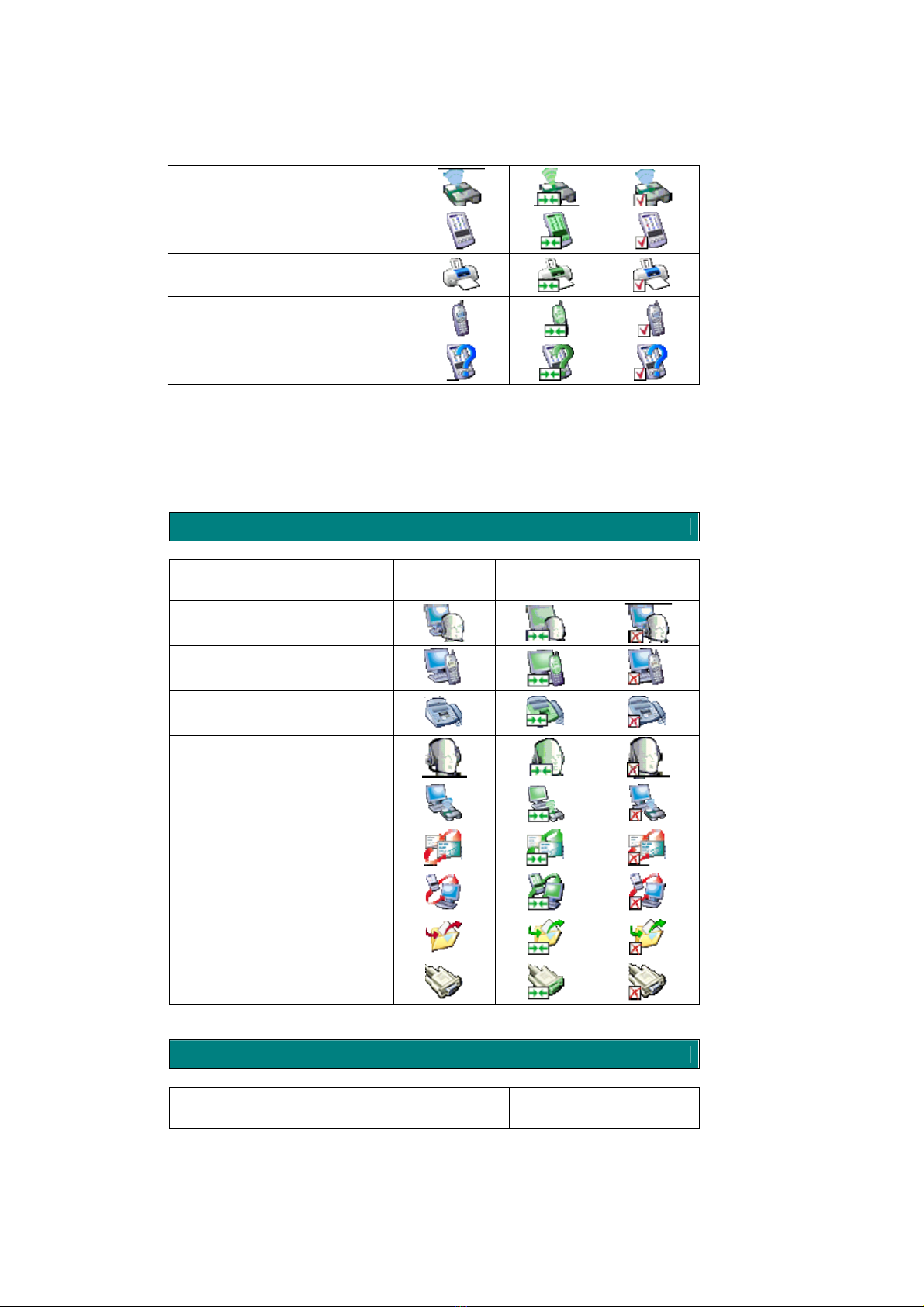
Device Icon Types
Device Type Normal Connected Paired
Audio Gateway
Desktop Computer
Headset
Human Interface Device
Laptop Computer
Modem
©2005 All rights reserved. 7
Network Access Point
Personal Digital Assistant (PDA)
Printer
Cellular Telephone
Unknown Devices
Service icons for Windows XP
Service icons are gray or yellow in color (or gray with yellow accents) in their “normal”
state. When in their “connected” state, the primary color of the icon changes to green.
Service Icon Types
Service Name Normal Connected Unavailable
Audio Gateway
Dial-up Networking
Fax
Headset
Network Access
PIM Item Transfer
PIM Synchronization
Public Folder
Bluetooth Serial Port
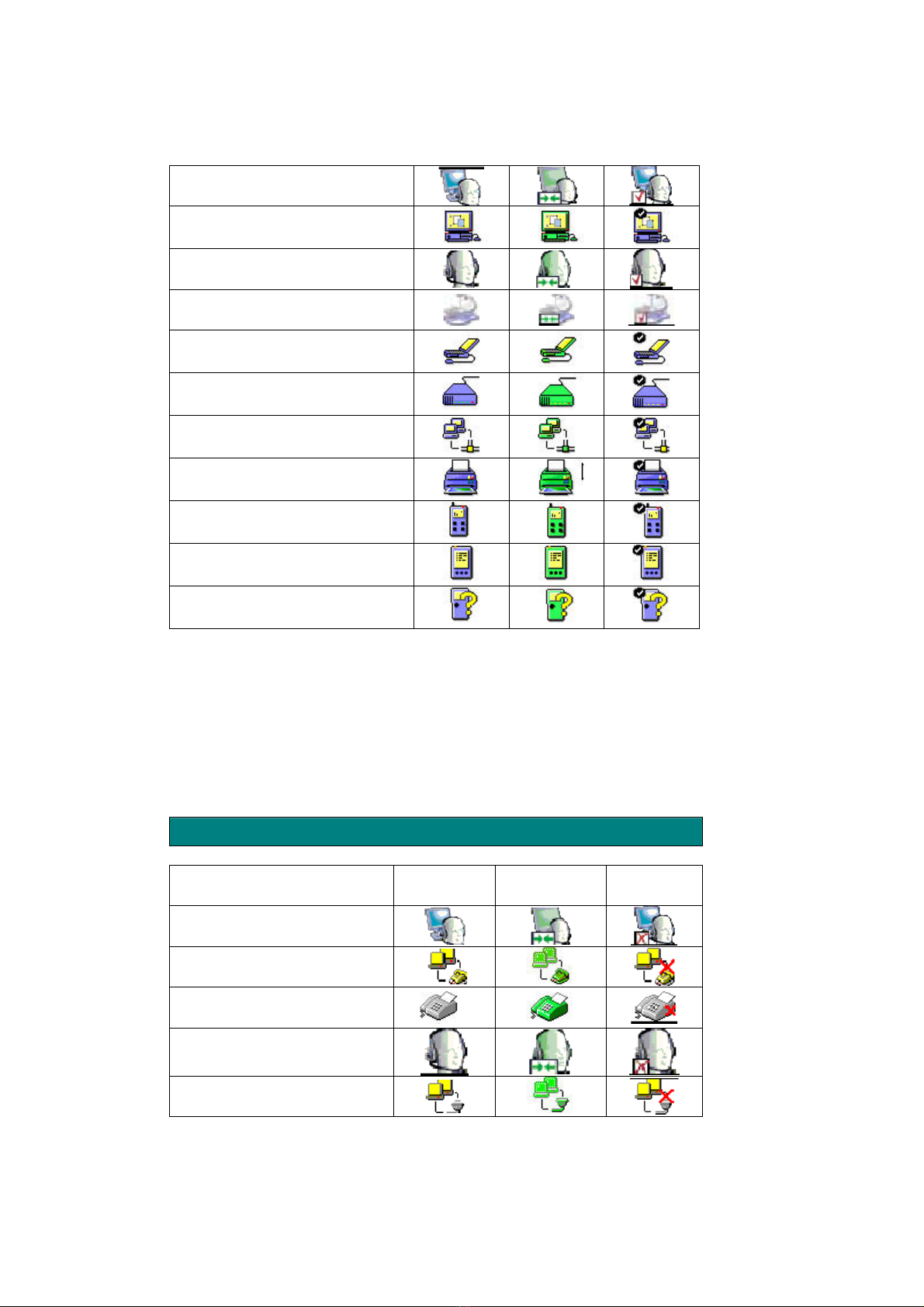
Device icons for Windows 98SE / ME / 2000
Device Icon Types
Device Type Normal Connected Paired
©2005 All rights reserved. 8
Audio Gateway
Desktop Computer
Headset
Human Interface Device
Laptop Computer
Modem
Network Accept Point
Printer
Cellular Telephone
Personal Digital Assistant (PDA)
Unknown Devices
Service icons for Windows 98SE / ME / 2000
SERVICE ICONS ARE GRAY OR YELLOW IN COLOR (OR GRAY WITH
YELLOW ACCENTS) IN THEIR “NORMAL” STATE. WHEN IN THE
“CONNECTED” STATE, THE PRIMARY COLOR OF THE ICON CHANGES
TO GREEN.
Service Icon Types
Service Name Normal Connected Not
Available
Audio Gateway
Dial-up Networking
Fax
Headset
Network Access
©2005 All rights reserved. 9

PIM Item Transfer
PIM Synchronization
Public Folder (File Transfer)
Bluetooth Serial Port
©2005 All rights reserved. 10
Table des matières
Autres manuels TECOM Routeur sans fil


