
Sparklan WUBR-502GN Manuel utilisateur

User’s Manual 1
WUBR-502GN
Wireless-GN USB Dongle
User’s Manual
Version 1.0

User’s Manual 2
Copyright Statement
No part of this publication may be reproduced, stored in a retrieval system, or
transmitted in any form or by any means, whether electronic, mechanical,
photocopying, recording, or otherwise without the prior writing of the publisher.
JULY 2008

User’s Manual 3
Contents
1. Introduction ................................................................................................4
2. Wireless LAN Basics..................................................................................5
3. Installation for Windows platform.............................................................6
3.1. Installation Overview...............................................................................6
3.2. Install Procedure for Windows...............................................................7
3.3 Uninstall Procedure................................................................................13
4. Connect to Wireless Access Point .........................................................14
4.1 Connect to Wireless Access Point .......................................................15
4.2 Using Windows Zero Configuration .....................................................19
4.3 Connection Profile Management...........................................................23
4.4 View Network Statistics and Link Status .............................................31
4.5 Advanced Settings.................................................................................34
4.6 QoS Setting.............................................................................................36
4.7 WPS Configuration.................................................................................38
4.8 About.......................................................................................................43
5. Soft-AP Function:.....................................................................................44
5.1 Switch to AP Mode and Basic Configuration.......................................44
5.2 Security Settings....................................................................................47
5.3 Access Control.......................................................................................49
5.4 Connection table ...................................................................................51
5.5 Event Log................................................................................................53
5.6 Statistics .................................................................................................54
6. APPENDIX.................................................................................................55
6.1 Hardware Specification..........................................................................55
6.2 Troubleshooting.....................................................................................56
6.3 Glossary..................................................................................................58

User’s Manual 4
1. Introduction
Before you starting to use this wireless network card, please check if there’s anything
missing in the package, and contact your dealer of purchase to claim for missing items:
Package Contents
Please make sure you have the following in the box:
♦Wireless-GN USB Dongle
♦Protection Cap
♦Quick installation guide
♦User manual / device driver CDROM
Note: if anything is missing, please contact your vendor

User’s Manual 5
2. Wireless LAN Basics
Wireless LAN (Local Area Networks) systems offer a great number of advantages over a
traditional, wired system. Wireless LANs (WLANs) are more flexible, easier to setup and
manage and often more cost effective than their wired equivalence.
Using radio frequency (RF) technology, WLANs transmit and receive data over the air,
minimizing the need for wired connections. Therefore, WLANs combine data connectivity
with user mobility, and, through simplified configuration, enable movable LANs.
With wireless LANs, users can access shared information without looking for a place to plug
in and network managers can set up or augment networks without installing or moving wires.
Wireless LANs offer the following productivity, convenience and cost advantages over
traditional wired networks:
•Mobility - Wireless LAN systems can provide LAN users with access to real-time
information anywhere in their organization. This mobility supports productivity and
service opportunities not possible with wired networks.
•Installation Speed and Simplicity - Installing a wireless LAN system can be fast and easy
and can eliminate the need to pull cable through walls and ceilings.
•Installation Flexibility - Wireless technology allows the network to go where wires cannot
go.
•Reduced Cost-of-Ownership - While the initial investment required for wireless LAN
hardware might be higher than the cost of wired LAN hardware, overall installation
expenses and life-cycle costs will be significantly lower. Long-term cost benefits are
greatest in dynamic environments requiring frequent moves, adds, and changes.
•Scalability - Wireless LAN systems can be configured in a variety of topologies to meet
the needs of specific applications and installations. Configurations are easily changed
and range from peer-to-peer to full infrastructure networks, also allow roaming over a
broad area.

User’s Manual 6
3. Installation for Windows platform
The following section will assist you in installing wireless LAN Adapter successfully. You will
first install software (Utility) and then insert / attach the Wireless LAN Adapter to your system,
and finally set the network properties to accommodate resource sharing and select the type
of wireless network that you wish to install. The Wireless LAN card can easily be installed
and used, without bothering to connect cables for keeping your computer to use network
resources.
3.1. Installation Overview
Here are some steps you will perform in establishing your wireless network connection:
zInstall the Access Point at first. AP is needed in case of Infrastructure network mode.
zInstall the software using the Install CD.
zInstall the Wireless LAN Card.
zInstall the network protocol(s) required to communicate on your network. Most likely you
will need the TCP/IP protocol.

User’s Manual 7
3.2. Install Procedure for Windows
Please follow the following instructions to use Ralink configuration utility to connect to
wireless access point.
1. Insert the USB wireless network card into an empty USB 2.0 port of your computer
when computer is switched on. Never use force to insert the card, if you feel it’s stuck, flip
the card over and try again.
2. The following message will appear on your computer, click ‘cancel’.

User’s Manual 8
3. Insert the given Install CD in the CD-ROM, and wait for the Autorun prompt. If Autorun
does not work, please browse the CD content and double click the “ Autorun.exe ”.
4. Click the “Driver” for beginning the installation.
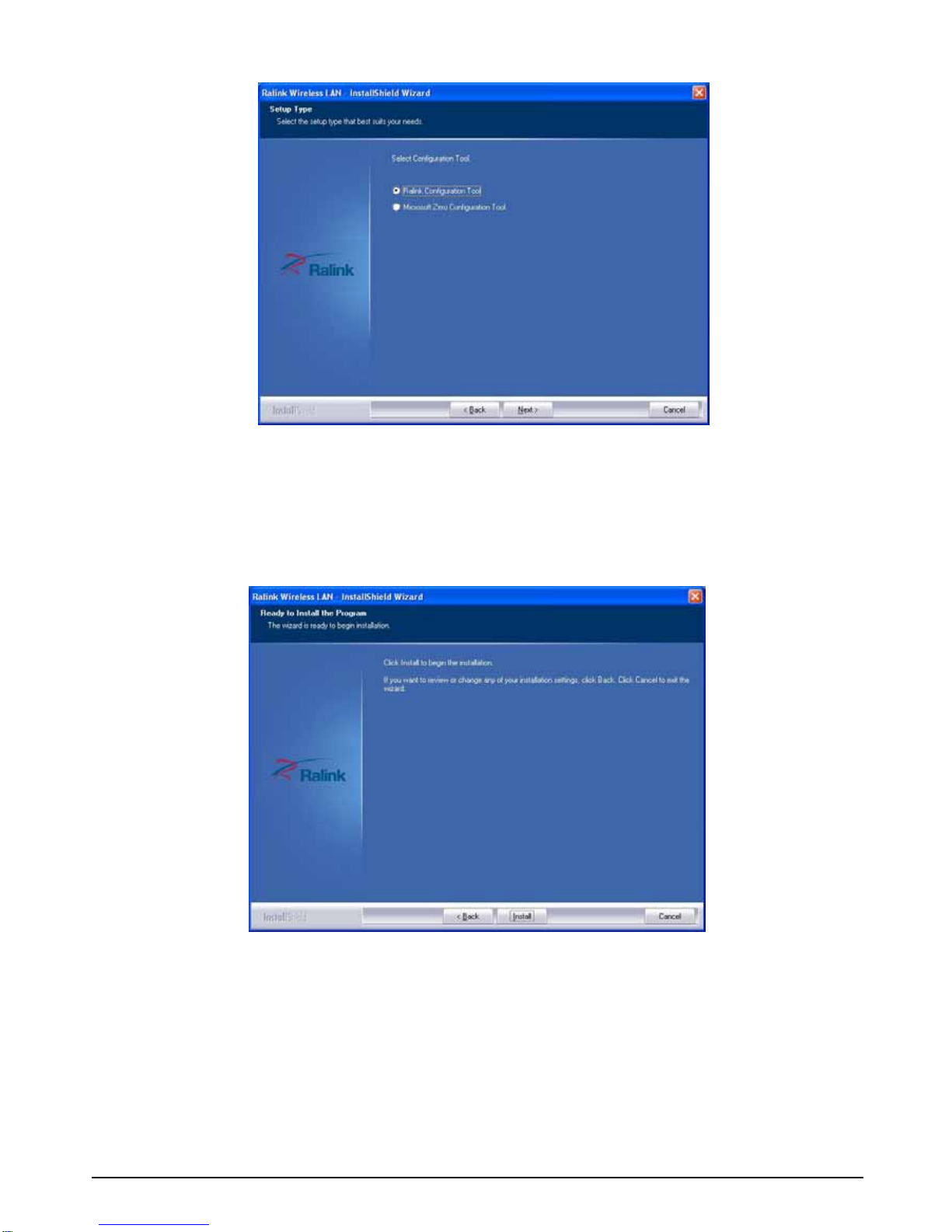
5. You can choose the configuration tool used to configure the wireless network card
here. It’s recommended to select ‘Ralink Configuration Tool’, which provides fully access
to all function of this wireless network card. If you prefer to use the wireless configuration
tool provided by Windows XP or Vista, please select ‘Microsoft Zero Configuration Tool’,
then click ‘Next’.
User’s Manual 9
When you select one mode, please click ‘Next’ to continue. If you see ‘Found New
Hardware’ message again, please ignore it and wait.
7. Please wait while the install procedure is running. When you see this message, please
click ‘Finish’ to complete the driver installation process.
Note: If the wireless network card is PCI interface, then you should shut down your
computer first then power on your computer after you complete the card insertion.

User’s Manual 10
8. Click the right button of mouse on My Computer ÆManage ÆDevice Manager.
Check whether it has WLAN adapter in one of the sockets or not. If you find Wireless 11n
USB Dongle in one of the sockets, it means the card is detected properly.
If you cannot find this adapter on device manager, please click the Action ÆScan for
hardware changes to search again. If this adapter is shown with yellow exclamation mark,
please remove it and click the Action ÆScan for hardware changes to search this
hardware again for proper hardware installation.
9. Click StartÆSettingsÆNetwork Connections or right click mouse on the My Network
Places (Network Neighborhood) for TCP/IP setting.
Table des matières
Manuels Matériel informatique populaires d'autres marques

EMC2
EMC2 VNX Series Manuel du propriétaire

Panasonic
Panasonic DV0PM20105 Manuel utilisateur

Mitsubishi Electric
Mitsubishi Electric Q81BD-J61BT11 Manuel utilisateur

Gigabyte
Gigabyte B660M DS3H AX DDR4 Manuel utilisateur

Raidon
Raidon iT2300 Manuel utilisateur

National Instruments
National Instruments PXI-8186 Manuel utilisateur


