
Sony PCGA-BM1 Manuel utilisateur

4-654-859-11(1)
2001 Sony Corporation
Bluetooth™
Modem Station
PCGA-BM1
DE
FR
GB
Read Me First
Bitte zuerst lesen!
Lisez-moi en premier
Informazioni importanti IT

2
GB
Contents
Introduction ............................................................................................3
Supplied Accessories ..............................................................................5
Bluetooth Device Driver .........................................................................6
Updating the Bluetooth device driver ......................................... 6
Checking the Bluetooth device driver version ............................ 8
Installing the Modem Driver ..................................................................9
• Sony, VAIO and the VAIO logo are registered trademarks of Sony Corporation.
• Microsoft and Windows are registered trademarks of Microsoft Corporation in
the United States and/or other countries.
• The Bluetooth trademarks are owned by their proprietor and used by Sony
Corporation under license.
• All other names of systems, products and services are trademarks of their
respective owners. In the manual, the ™ or ® marks are not specified.

3
GB
Continued on next page
Introduction
To use this unit for communication with a notebook, setup must be
completed in the following sequence.
Verify that all parts are complete.
See the section “Supplied Accessories” (page 5) in this document.
When using the PCG-SR31K or PCG-C1VFK, update the
Bluetooth device driver.
See the section “Bluetooth Device Driver” (page 6) in this document.
This step is not necessary when using a computer model other than the PCG-SR31K
or PCG-C1VFK.
Perform notebook bonding.
Carry out steps 1 - 4 in the section “Notebook bonding” (page 19) in the PCGA-
BM1 Operating Instructions.
Install the modem driver on the notebook.
See the section “Installing Modem Driver” (page 9) in this document.
Set up the PCGA-BM1 for the country of use.
See the section “Selecting the Country Code” (page 21) in the PCGA-BM1
Operating Instructions.
(Continued on next page)
GB

4
GB
(Continued from previous page)
Make the dial-up connection settings.
Select the newly installed “PCGA-BM1 (Modem)” modem driver and perform
setup. For details, refer to the Windows help.
Start using the unit.
See the section “Communication” (page 24) in the PCGA-BM1 Operating
Instructions.
5
GB
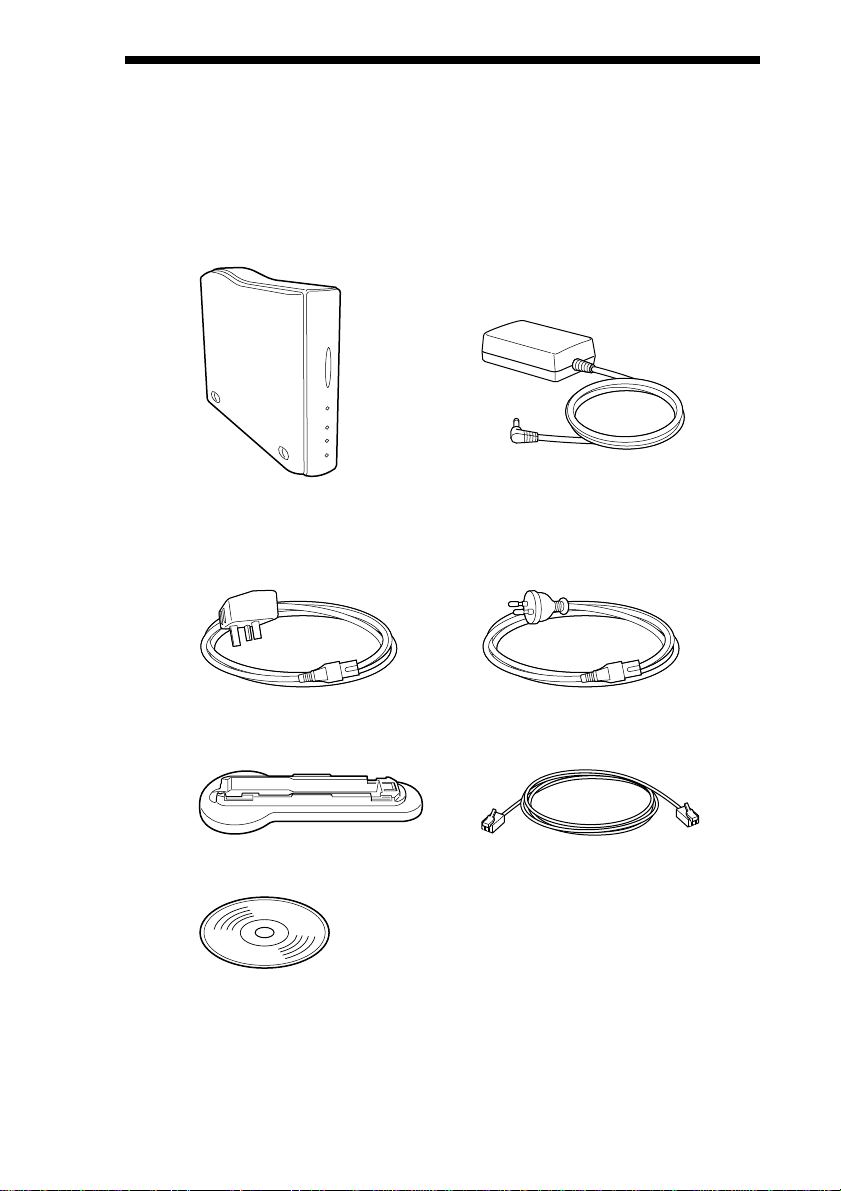
Supplied Accessories
After unpacking the unit, make sure that the accessories shown below are
complete. If anything is missing, contact the Sony dealer where you
purchased this product or a Sony service representative serving your area.
• Bluetooth modem station • AC adapter
• AC cable • AC cable
(for the United Kingdom) (for Continental Europe)
• Base • Telephone cable
• Utility CD-ROM
• Read Me First (this document)
• Operating Instructions
• Guarantee Card

6
GB
Bluetooth Device Driver
When using one of the following notebooks with the Bluetooth device
driver version 1.161 or earlier, the Bluetooth device driver must be updated.
• PCG-SR31K
• PCG-C1VFK
The procedure for updating the driver is described below.
When using a computer model other than those listed above, this step is not
necessary. Proceed to “Installing Modem Driver” (page 9).
For information on how to check the driver version, see the section
“Checking the Bluetooth device driver version” (page 8).
Updating the Bluetooth device driver
The Bluetooth device driver can be found on the supplied utility CD-ROM.
Perform the update as follows.
Note
Before starting the procedure below, the notebook must be set up to read CD-ROM discs.
For details on CD-ROM use, refer to the manuals provided with your Sony notebook and/
or the CD-ROM drive.
1Turn the notebook on and enable the Bluetooth function.
For details, refer to the manuals provided with your Sony notebook.
2Click the “Start” button, move the pointer to “Settings”, and
click “Control Panel”.
3Double-click the “System” icon.
The “System Properties” dialog box appears.
4Select the “Hardware” tab and click the “Device Manager”
button.
The “Device Manager” window appears.

7
GB
Continued on next page
5Double-click “USB (Universal Serial Bus) Controller” to show
the lower hierarchic levels, and double-click “USB Bluetooth
Driver (CSR)”.
The “USB Bluetooth Driver (CSR) Properties” dialog box appears.
6Select the “Driver” tab and click the “Update Driver” button.
The “Upgrade Device Driver Wizard” dialog box appears.
7Click the “Next” button.
The “Install Hardware Device Driver” dialog box appears.
8Select “Display a list of the known drivers for this device so
that I can choose a specific driver”, and click “Next”.
The “Select Device Driver” dialog box appears.
9Insert the Utility CD-ROM into the CD-ROM drive of the
notebook.
10
Click the “Have Disk” button.
The “Install from Disk” dialog box appears.
11
Click the “Browse” button to open the “Locate” dialog box.
Select the “Bluetooth” folder on the CD-ROM drive, and click
the “Open” button.
zHint
Instead of the above procedure, you can also enter “E*:\Bluetooth” in the “Copy
manufacturer’s file from:” field.
* E may also be another drive name.
12
Click the “OK” button.
The “Install from Disk” dialog box closes and the display returns to the
“Select a Device Driver” dialog box.
13
Verify that “USB Bluetooth Driver (CSR)” is shown in the
“Models” list, and click the “Next” button.
The “Start Device Driver Installation” dialog box appears.

8
GB
14
Click the “Next” button.
Installation of the new device driver begins. When the installation is
complete, the “Completing the Upgrade Device Driver Wizard” dialog
box appears.
15
Click the “Finish” button.
16
Click the “Close” button to close the “USB Bluetooth Driver
(CSR) Properties” dialog box.
The “System Settings Change” dialog box appears.
17
Click “No”.
Do not restart the computer at this point.
18
Disable the Bluetooth function of the notebook, and then
restart the notebook.
The updated device driver becomes active when the notebook is
restarted. For details on how to enable and disable the Bluetooth
function and how to restart the notebook, refer to the manuals provided
with your Sony notebook.
Checking the Bluetooth device driver version
Verify that the Bluetooth device driver has been correctly updated by
carrying out the following steps.
1Perform steps 1 - 5 of “Updating the Bluetooth device driver”
to display the “USB Bluetooth Driver (CSR) Properties”
dialog box.
2Select the “Driver” tab and click the “Driver Details” button.
The “Driver File Details” dialog box appears.
3Verify that “C:\WINNT\System32\Drivers\OIIBTUSB.sys” is
selected, and then check the contents of the “File version”
field.
If the indication is “Version 1.161” or higher, the device driver was
updated correctly.

9
GB
Continued on next page
Installing the Modem Driver
Install the modem driver on the notebook which is to be used for
communication with the PCGA-BM1.
Note
Before starting the procedure below, the notebook must be set up to read CD-ROM discs.
For details on CD-ROM use, refer to the manuals provided with your Sony notebook and/
or the CD-ROM drive.
1Turn on the power of the PCGA-BM1.
For details, see the section “Installation” in PCGA-BM1 Operating
Instructions.
2Execute Bluetooth communications at the notebook to
connect to the PCGA-BM1.
Carry out steps 1 - 4 in the section “Notebook bonding” (page 19) in
the PCGA-BM1 Operating Instructions.
3Check the communications port allocated to Bluetooth
communications.
For details on how to check the communications port, refer to the
manuals provided with your Sony notebook.
4Click the “Start” button, move the pointer to “Settings”, and
click “Control Panel”.
5Double-click the “Phone and Modem Options” icon to open
the “Phone and Modem Options” dialog box.
6Select the “Modems” tab and click the “Add” button.
The “Install New Modem” dialog box appears.
7Click the “Next” button.
8Select the communications port checked in step 3, and click
the “Next” button.
Detection of a new modem is carried out and the result is shown on
screen.

10
GB
9Click the “Next” button.
10
Click the “Have Disk” button.
11
Insert the Utility CD-ROM into the CD-ROM drive of the
notebook.
12
Click the “Browse” button to open the “Locate File” dialog
box. Select “PCGA-BM1(Modem).inf” on the CD-ROM drive,
and click the “Open” button.
zHint
Instead of the above procedure, you can also enter “E*:\PCGA-BM1(Modem).inf”
in the “Copy manufacturer’s file from:” field.
* E may also be another drive name.
13
Click the “OK” button.
14
Verify that “PCGA-BM1 (Modem)” is shown in the “Models”
list, and click the “OK” button.
15
Click the “Next” button.
16
Select the communications port checked in step 3, and click
the “Next” button.
The message “Digital Signature not found” may appear.
17
Click the “Finish” button.
18
Click the “OK” button.
“PCGA-BM1 (Modem)” is now installed under the “Modems” tab of
the “Phone and Modem Options” dialog box.
The modem installation is now complete.
Next, refer to the Operating Instructions of the PCGA-BM1.
Table des matières
Langues :
Autres manuels Sony Modem


Manuels Modem populaires d'autres marques

Davicom
Davicom DM562AP Manuel utilisateur

EpiValley
EpiValley TATA indicom SXC-1080 Manuel utilisateur

Zte
Zte WiMAX Manuel utilisateur

Intelimax
Intelimax MA-2060 Manuel utilisateur

SMC Networks
SMC Networks D3CM1604V Manuel d'utilisation et d'entretien

Telstra
Telstra Wi-Fi 4G Advanced Pro X Manuel utilisateur


US Robotics
US Robotics 3453C Manuel utilisateur

MaxTech
MaxTech Plug & Play Internal Voice/FAX/Data/SVD... Manuel utilisateur

Zte
Zte MF823 Manuel utilisateur

Four-Faith
Four-Faith F1403 Manuel utilisateur

Sierra Wireless
Sierra Wireless AIRLINK MP595W Manuel utilisateur

Gemtek
Gemtek WiMAX WIXFBR-103 Manuel utilisateur