SoftBank 604HW Manuel utilisateur

604HW
User Guide


1
604HW
604HW User Guide Contents
Introduction
Introduction.........................................................................2
Getting Started
Parts & Functions.............................................................. 6
USIM Card............................................................................ 7
Connecting with USB Cable (Windows)
Device Recognition/Removal on Windows PC..................10
Installing/Uninstalling Driver (Windows PC).................. 11
Dial-Up Connection (Windows PC)...................................13
Connecting with USB Cable (Mac)
Device Recognition/Removal on Mac...............................16
Installing/Uninstalling Driver (Mac)................................16
Settings (Using WEB UI)
Overview of WEB UI.........................................................20
WEB UI Window on PC..................................................... 23
Setting Mobile Network...................................................25
Setting Function...............................................................40
System............................................................................... 67
Showing/Setting Data Usage........................................... 74
Updating Software........................................................... 82
Appendix
Troubleshooting................................................................ 84
Specifications....................................................................86
Warranty & Service.......................................................... 88
Customer Service.............................................................. 88
Safety Precautions
Safety Precautions........................................................... 90
General Notes................................................................... 95
Specific Absorption Rate (SAR) Information for this
Product.............................................................................. 96

2Introduction
Introduction
Before You Begin
Read "クイックスタート(Quick Start)" (Japanese), "Safety
Precautions" and this guide thoroughly beforehand for proper
usage.
Accessible services may be limited by contract conditions.
Guide Usage Notes
Most operation descriptions are based on default settings.
Some operations appear abbreviated.
Other Notations
This product is referred to as "wireless modem" in this guide.
Operating Environment (Compatible
OSs)
Use wireless modem in any of these operating environments.
Use outside these environments may affect performance.
Operating environment (hardware, connected peripherals,
installed applications, etc.) may also affect performance.
・For computer support, OS version upgrade information,
etc., see corresponding manufacturer's product support
documentation.
・The information for operating environment (compatible OSs)
listed here is the current information as of June 2017.
Item Description
Compatible
Operating
Systems
Windows 7 Home Basic (32-bit or 64-bit)
Windows 7 Home Premium (32-bit or 64-
bit)
Windows 7 Professional (32-bit or 64-bit)
Windows 7 Ultimate (32-bit or 64-bit)
Windows 7 Enterprise (32-bit or 64-bit)
Windows 8 (32-bit or 64-bit)
Windows 8 Pro (32-bit or 64-bit)
Windows 8 Enterprise (32-bit or 64-bit)
Windows 8.1 (32-bit or 64-bit)
Windows 8.1 Pro (32-bit or 64-bit)
Windows 8.1 Enterprise (32-bit or 64-bit)
Windows 10 Home (32-bit or 64-bit)
Windows 10 Pro (32-bit or 64-bit)
Windows 10 Enterprise (32-bit or 64-bit)
Mac OS X 10.6 to 10.7 (32-bit or 64-bit)
Mac OS X 10.8 to 10.12 (64-bit)
Memory
Requirements
Windows 7:1 GB+ (32-bit)/2 GB+ (64-
bit)
Windows 8:1 GB+ (32-bit)/2 GB+ (64-
bit)
Windows 8.1:1 GB+ (32-bit)/2 GB+ (64-
bit)
Windows 10:1 GB+ (32-bit)/2 GB+ (64-
bit)
Mac OS X:256 MB+ (512 MB+
recommended)
Hard Disk
Capacity
200 MB+ recommended (100 MB+ free
space needed) (Common to each OS)
Interface USB2.0
Compatible
Browser
Microsoft Internet Explorer 8.0 or later
Microsoft Edge 20 or later
Safari 6.0 or later
Mozilla Firefox 24.0 or later
Google Chrome 21.0 or later
Opera 12.0 or later

3
Introduction 604HW
Package Contents
The following items are included in the package. Please
confirm package contents before use. Contact Customer
Service for missing items.
Keep accessories including Warranty in a safe place.
・クイックスタート (Japanese)
・お願いとご注意 (Japanese)
・保証書(本体) (Japanese)
Getting Started
・Wireless modem accommodates software updates. Use the
latest software.
・Note that connection speeds may drop or connections
may be disabled depending on line traffic or connection
environments.
・This model wireless modem is designed for corporate
users, and allows its functionality to be regulated by
administrators. Depending on how functions are regulated,
settings or operations as described herein may not be
available.
・Wireless modem has "Normal Mode" and "Modem Mode" for
Windows dial-up connection. For details on switching modes,
refer to Modem setting tool user guide.
Trademarks
・SoftBank, SoftBank's equivalent in Japanese and the
SOFTBANK logo are registered trademarks or trademarks of
SoftBank Group Corp. in Japan and other countries.
・HUAWEI is a trademark or registered trademark of HUAWEI
TECHNOLOGIES CO., LTD.
・Microsoft®, Windows®, Internet Explorer are trademarks
or registered trademarks of Microsoft Corporation in
the United States/other countries. Microsoft Windows
Operating System is indicated in its abbreviated form as
Windows.
・TM and © 2017 Apple Inc. All rights reserved.
・Apple, the Apple logo, Mac, Macintosh, and Safari are
trademarks of Apple Inc. registered in the United States and
other countries.
・Google and Google Chrome are trademarks or registered
trademarks of Google Inc.
・Firefox is a trademark or registered trademark of Mozilla
Foundation in the United States/other countries.
・Opera is a trademark or registered trademark of Opera
Software ASA. Go to "http://www.opera.com/" for details
on Opera.
・The names of the companies, products and services used in
this guide are registered trademarks or trademarks of the
respective companies.

4

6
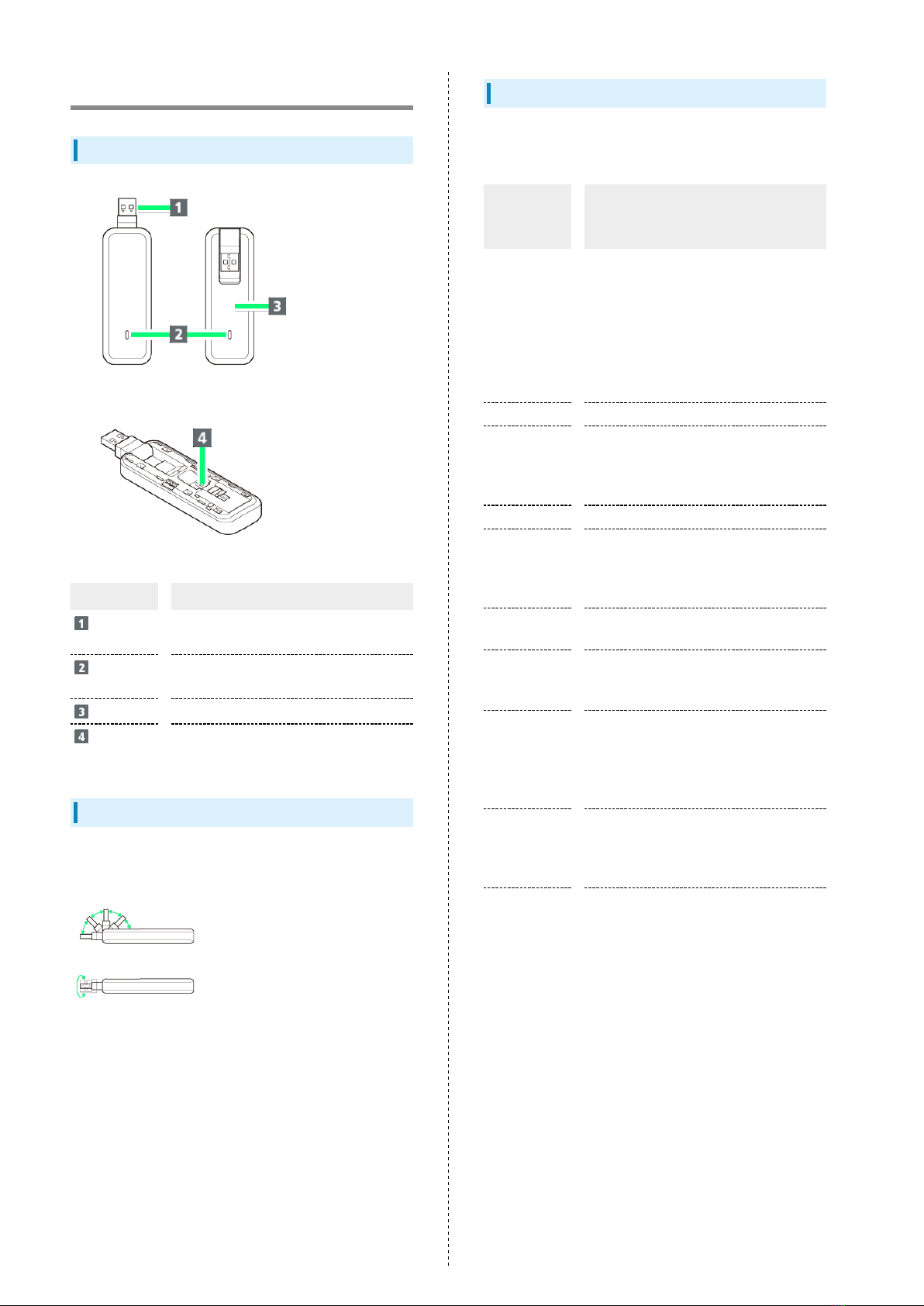
Parts & Functions
Wireless Modem
Part Description
USB
Connector Connect to PC USB port
LED Status
Lamp
Color and lighting pattern Indicate status
of USB modem
Cover Protects USIM Card
USIM Card
Slot Insert USIM Card
USB Connector
Position USB Connector vertically, horizontally, or rotate it as
shown in illustration.
LED Status Lamp
LED Status Lamp indicates communication status or abnormal
status.
LED color
and lighting
pattern
Communication status/
Abnormal status
Flashes in red
(flashes twice
briefly, off
long)
・Searching for network
・Registering network
・USIM Card is completely locked
・USIM Card malfunction
・Communication suspended due to high
temperature
・Waiting for PIN entry
・Waiting for PUK entry
Lights in red Out of service area
Flashes in
blue (on
briefly, off
long)
4G/LTE available (not communicating or
sending while within service area)
Lights in blue 4G/LTE communicating
Flashes in
purple (on
briefly, off
long)
3G available (not communicating or
sending while within service area)
Lights in
purple 3G communicating
Flashes in
green (at even
intervals)
Activating
Flashes in
green (flashes
quickly
at even
intervals)
Updating software
Flashes in
green (on
briefly, off
long)
GSM available (not communicating or
sending while within service area)
Lights in
green GSM communicating

7
Getting Started 604HW
USIM Card
USIM Card is an IC card that contains customer information
including phone number.
Handling USIM Card
・Carrier is not liable for damages resulting from installing
USIM Card into an IC card reader manufactured by another
company.
・Keep IC chip surface clean.
・Clean USIM Card with a dry, soft cloth.
・Do not attach label on USIM Card. May cause malfunction.
・For handling, see USIM Card user guide (Japanese).
・USIM Card is the property of SoftBank Corp.
・Reissue of USIM Card due to loss or damage is at cost.
・Return USIM Card when canceling subscription.
・Returned USIM Cards are recycled for environmental
conservation.
・Specifications and capabilities are subject to change
without notice.
・Keep a copy of information saved to USIM Card. SoftBank
Corp. is not responsible for damages due to loss of saved
information.
・In case USIM Card or wireless modem (USIM Card inserted)
is lost or stolen, urgently request to have usage suspended.
Contact Customer Service, General Information.
・Remove wireless modem from computer before removing/
installing USIM Card.
・Be careful not to touch or scratch the IC chip when
installing/removing USIM Card.
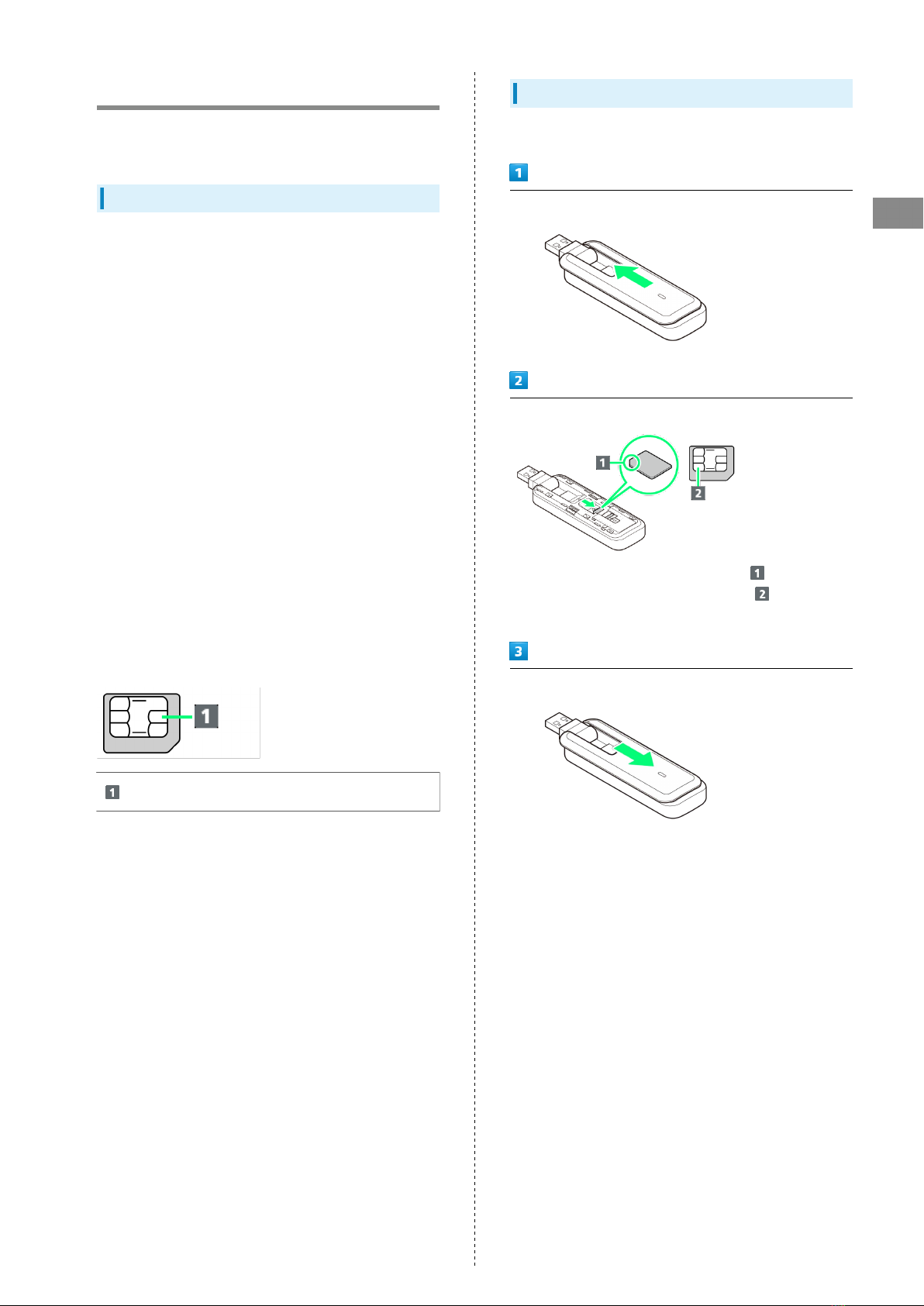
IC chip
Installing USIM Card
Remove wireless modem from computer in advance.
Slide and open Cover in the direction of the arrow
Insert USIM Card
・Confirm the orientation of corner notch ( ) and insert
USIM Card in USIM Card Slot with IC chip ( ) facing down.
・Be careful not to touch or scratch IC chip.
Slide and close Cover in the direction of the arrow

8
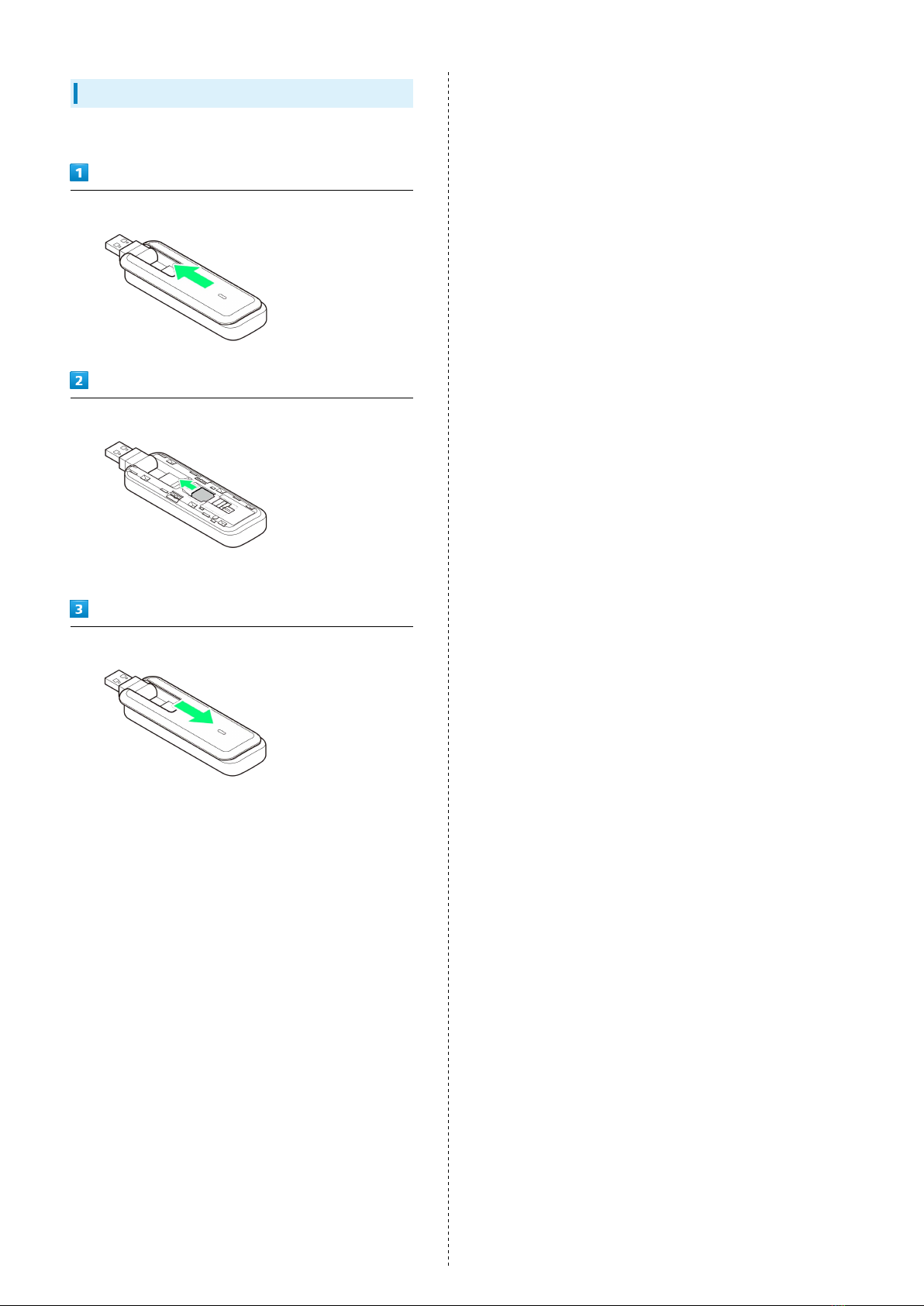
Removing USIM Card
Remove wireless modem from computer in advance.
Slide and open Cover in the direction of the arrow
Remove USIM Card
・Be careful not to touch USIM Card when removing.
Slide and close Cover in the direction of the arrow
Table des matières
Autres manuels SoftBank Modem
Manuels Modem populaires d'autres marques

Davicom
Davicom DM562AP Manuel utilisateur

EpiValley
EpiValley TATA indicom SXC-1080 Manuel utilisateur

Zte
Zte WiMAX Manuel utilisateur

Intelimax
Intelimax MA-2060 Manuel utilisateur

SMC Networks
SMC Networks D3CM1604V Manuel d'utilisation et d'entretien

Telstra
Telstra Wi-Fi 4G Advanced Pro X Manuel utilisateur

US Robotics
US Robotics 3453C Manuel utilisateur

MaxTech
MaxTech Plug & Play Internal Voice/FAX/Data/SVD... Manuel utilisateur

Zte
Zte MF823 Manuel utilisateur

Four-Faith
Four-Faith F1403 Manuel utilisateur

Sierra Wireless
Sierra Wireless AIRLINK MP595W Manuel utilisateur

Gemtek
Gemtek WiMAX WIXFBR-103 Manuel utilisateur