SMK-Link VP6155 Manuel utilisateur

USER’S MANUAL
VP6155
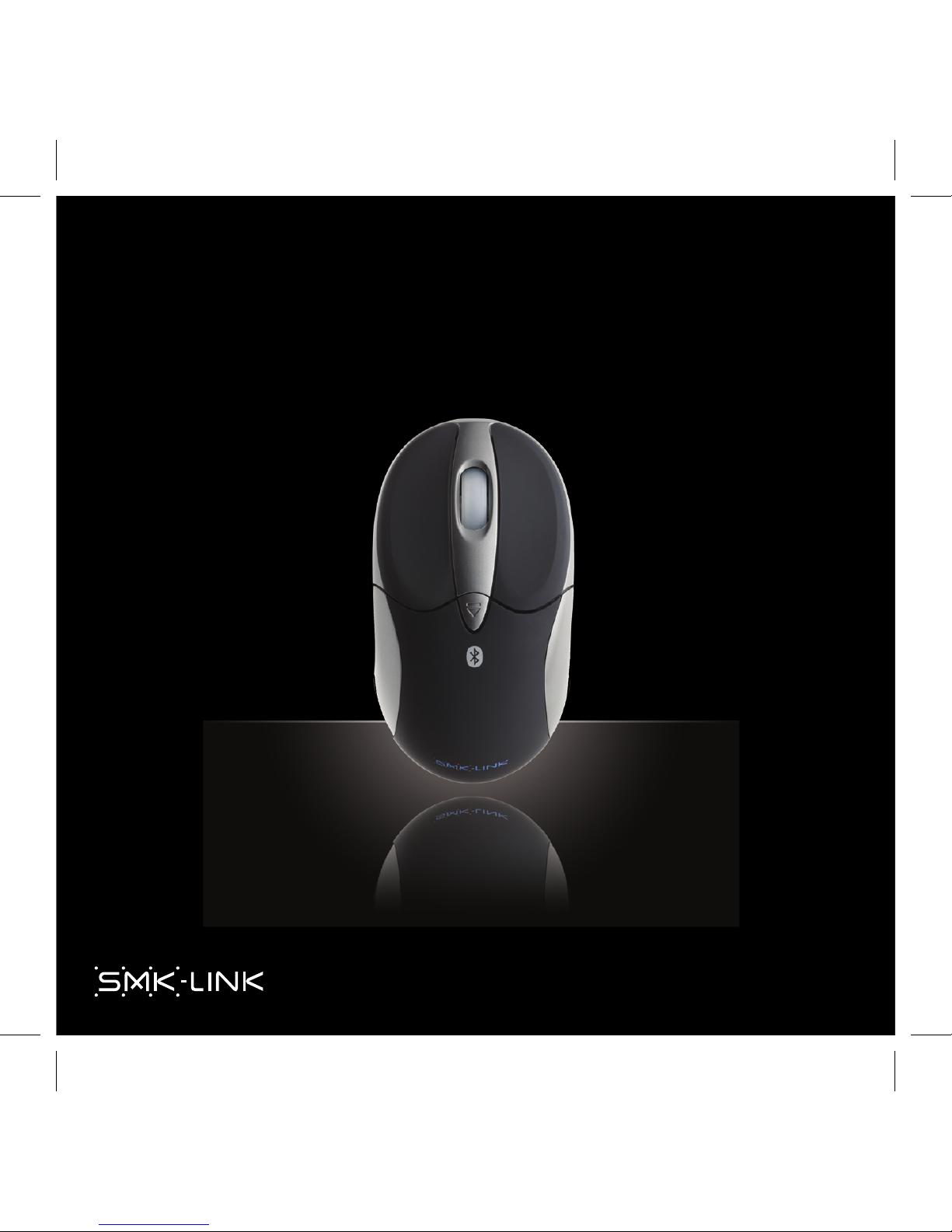
RECHARGEABLE BLUETOOTH
NOTEBOOK
MOUSE
RECHARGEABLE
BLUETOOTH
NOTEBOOK MOUSE
RECHARGEABLE
BLUETOOTH
NOTEBOOK MOUSE
SOURIS
BLUETOOTH
RECHARGEABLE
POUR ORDINATEUR PORTATIF
SOURIS
BLUETOOTH
RECHARGEABLE
POUR ORDINATEUR PORTATIF

Regulatory Compliance
This device complies with Part 15 of the FCC Rules. Operation is subject to the
following two conditions:
(1) This device may not cause harmful interference, and
(2) This device must accept any interference received, including interference
that may cause undesired operation.
FCC Certication
This equipment has been tested and found to comply with the limits for a
Class B digital device, pursuant to Part 15 of the FCC rules. These limits
are designed to provide reasonable protection against harmful interference
when the equipment is operated in a residential installation. This equipment
generates, uses and can radiate radio frequency energy and, if not installed
and used in accordance with the instructions, may cause harmful interference
to radio communications. However, there is no guarantee that interference
will not occur in a particular installation. If this equipment does cause harmful
interference to radio or television reception, which can be determined by
turning the equipment off and on, the user is encouraged to try to correct the
interference by one or more of the following measures:
• Reorient or relocate the receiving antenna.
• Increase the separation between the equipment and receiver.
• Consult the dealer or an experienced radio/TV technician for help.
Notice: Any changes or modications not expressly approved by the party
responsible for compliance could void the user’s authority to operate the
equipment. Extension cables are not recommended, if used, they must be
shielded in order to comply with the emission limits.
IC Certication
The term “IC” before the certication/registration number only signies that the
Industry Canada technical specications were met.
Declaration of Conformity
Hereby, SMK-LINK Electronics Corporation, declares that this product is in
compliance with the essential requirements and other relevant provisions of
Directive 1999/5/EC.
All trademarks and registered trademarks mentioned in this document are the
property of their respective owners.
Features and specications are subject to change without notice.
©2011 SMK-LINK Electronics, Inc.
Page 1 Page 2

SYSTEM REQUIREMENTS
Hardware:
• Bluetooth-enabled computer system
• 1 available USB port for charging
Operating System:
• Windows XP, Vista, 7 (32- and 64-bit)
• Mac OS 10.4.6+
Package Contents
• Rechargeable Bluetooth notebook mouse
• USB charging cable
• 2 x AAA rechargeable Ni-MH batteries
• User’s manual
• Carrying pouch
Installing the Rechargeable Batteries (Supplied)
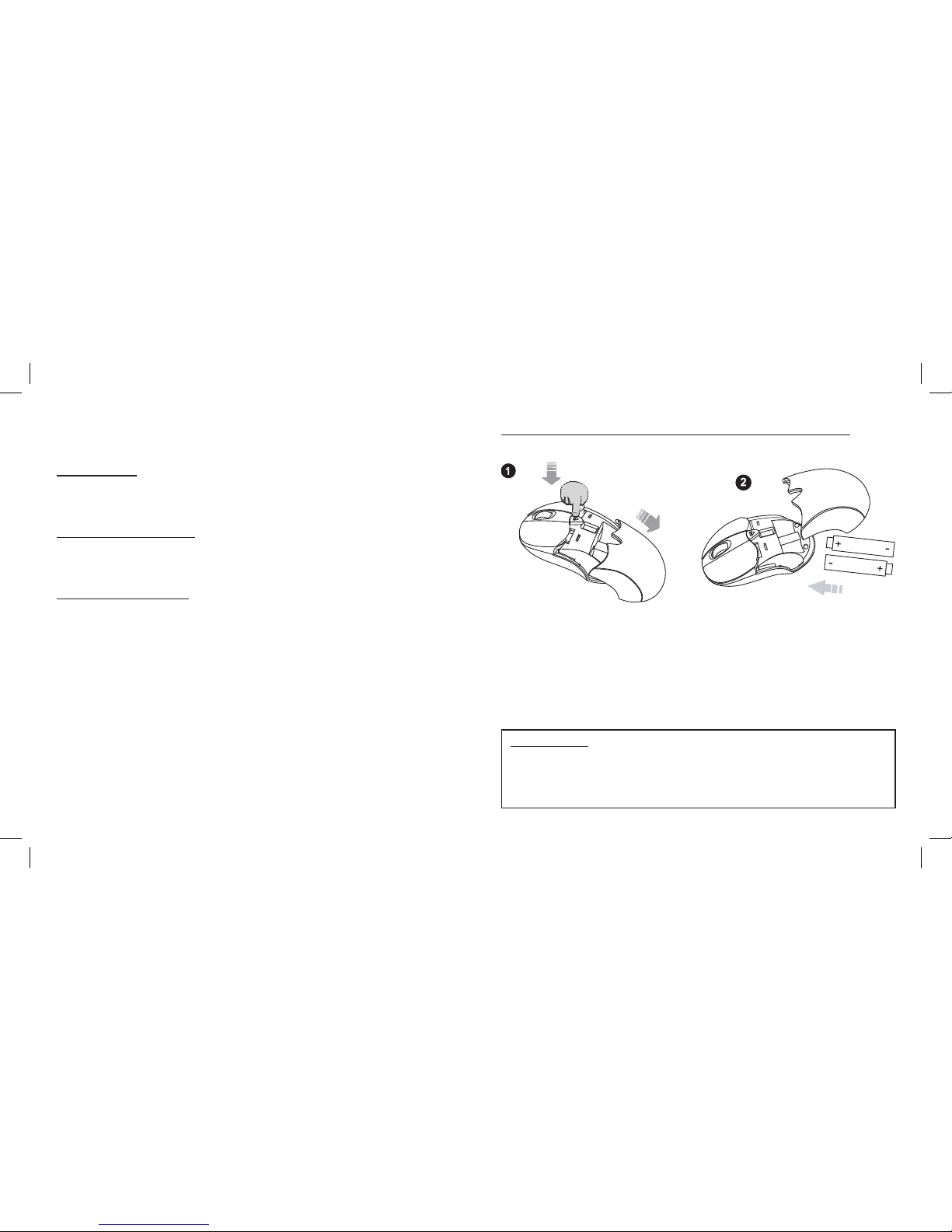
• Place the mouse on a at surface and remove the battery cover from the
top of the mouse by pressing the release button located below the scroll
wheel. The mouse will automatically eject the battery cover.
• Insert the two AAA rechargeable Ni-MH batteries (included in the
package) to the battery slots. Make sure the positive (+) and negative
(-) ends of the batteries match the polarity markings inside the battery
compartment.
• Snap the battery cover back into position.
Page 3 Page 4
CAUTION
Do not use any disposable or Alkaline batteries in this mouse. Use only the
rechargeable Ni-MH batteries supplied with this mouse. Should replacing
batteries become necessary use only rechargeable AAA batteries. Do not
mix new and old batteries in the mouse.

Charging the Batteries
• It’s recommended that you fully charge the batteries before initial use;
nevertheless it’s ready for set up (see next step) anytime during charging.
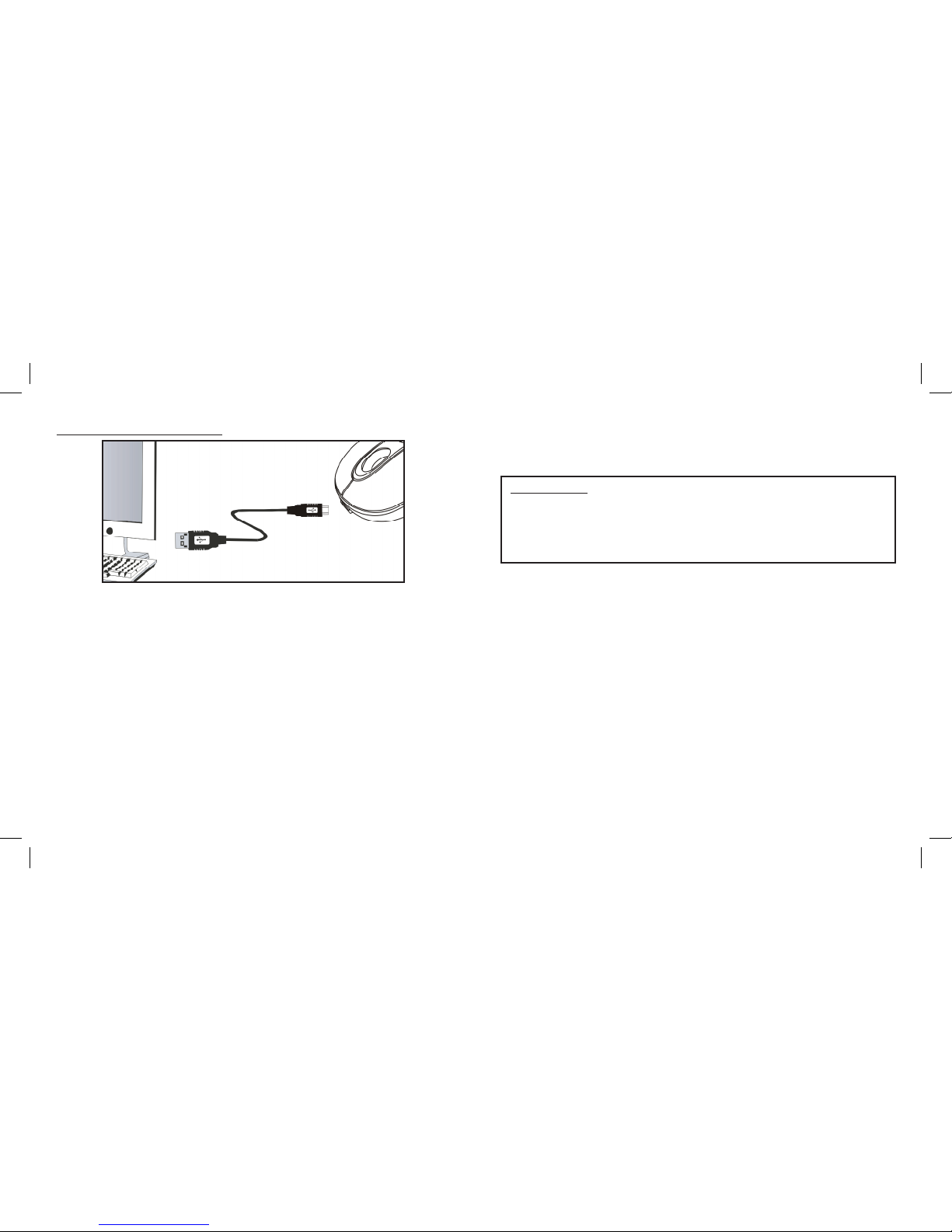
• Plug the USB connector of the charge cable (included in the box) into the
computer’s available USB port.
• Connect the mini-USB tip of the cable into the mouse charge port located
at the front end of the mouse.
• The mouse scroll wheel glows indicating the battery power is low and
continues to glow while the batteries are being charged. When fully
charged the scroll wheel will cease to glow.
• The initial charging process may take up to 8 hours. Subsequent recharge
may require less time depending on the level of residual power of the
batteries.
• The mouse is operational during charging; you can continue to use the
mouse while charging it via the USB charge cable.
• You are now ready to set up the mouse to work with your Bluetooth
system. (Note: it’s not necessary to wait for the batteries to be fully
charged before setting up Bluetooth connection to your system.) Turn on
the power by sliding the on/off switch located at the bottom of the mouse
to the “on” position.
Page 5 Page 6
CAUTION
Make sure the computer’s power management is set to disable hibernation
mode while the mouse is being charged. (Go to Control Panel, Power
Options, select “Hibernate” from the tabs and uncheck the box marked
“Enable Hibernation.)

Page 7 Page 8
Setting up Bluetooth Connection
• Before you can use Bluetooth devices for the rst time, you must connect
your devices through a standard set of discovery mode and pairing
processes.
• During the process, depending on the system and the Bluetooth software
installed, it may ask you whether you want to use a passkey; please select
“no passkey”.
• The SMK-Link Bluetooth Rechargeable Notebook Mouse is designed to
work with all Bluetooth software stack (protocol) standards. In addition,
this mouse supports Macintosh OS with Bluetooth capability. Please review
the documentation that comes with your computer system, or consult with
your system vendor’s Technical Support for any specics regarding your
Bluetooth system.
MICROSOFT Bluetooth Software
1.Make sure your computer’s Bluetooth radio is turned on.
2.Double click on the “Bluetooth Manager” icon in the system tray to open
Microsoft Bluetooth GUI.
Battery Cover Eject Button
Battery Cover
Scroll Wheel
Right Click
Left Click
Connect Button
On/Off Switch
High Precision Blue
Optical Sensor
Mini USB Charge Port

3.Click “Add a Device” to search for Bluetooth devices.
4.Turn your mouse on. Press the connect button located at the bottom of the
mouse until the red LED mouse sensor lights up and the scroll wheel of the
mouse ashes.
5.The computer will search for new Bluetooth devices in the range and list
each device on the screen. Select the “SMK-Link Bluetooth Mouse”. Click
“Next”.
6.If a window appears asking for a passkey. Select “Don’t use a passkey”
and click “Next”.
7.Bluetooth stack starts to connect with SMK-Link Bluetooth Mouse and install
device driver.
8.Once the device driver installation is completed, click “Close” to nish
installation process. Your Bluetooth mouse is set up and ready to go.
Page 9 Page 10

Page11 Page 12
APPLE Macintosh Bluetooth Software
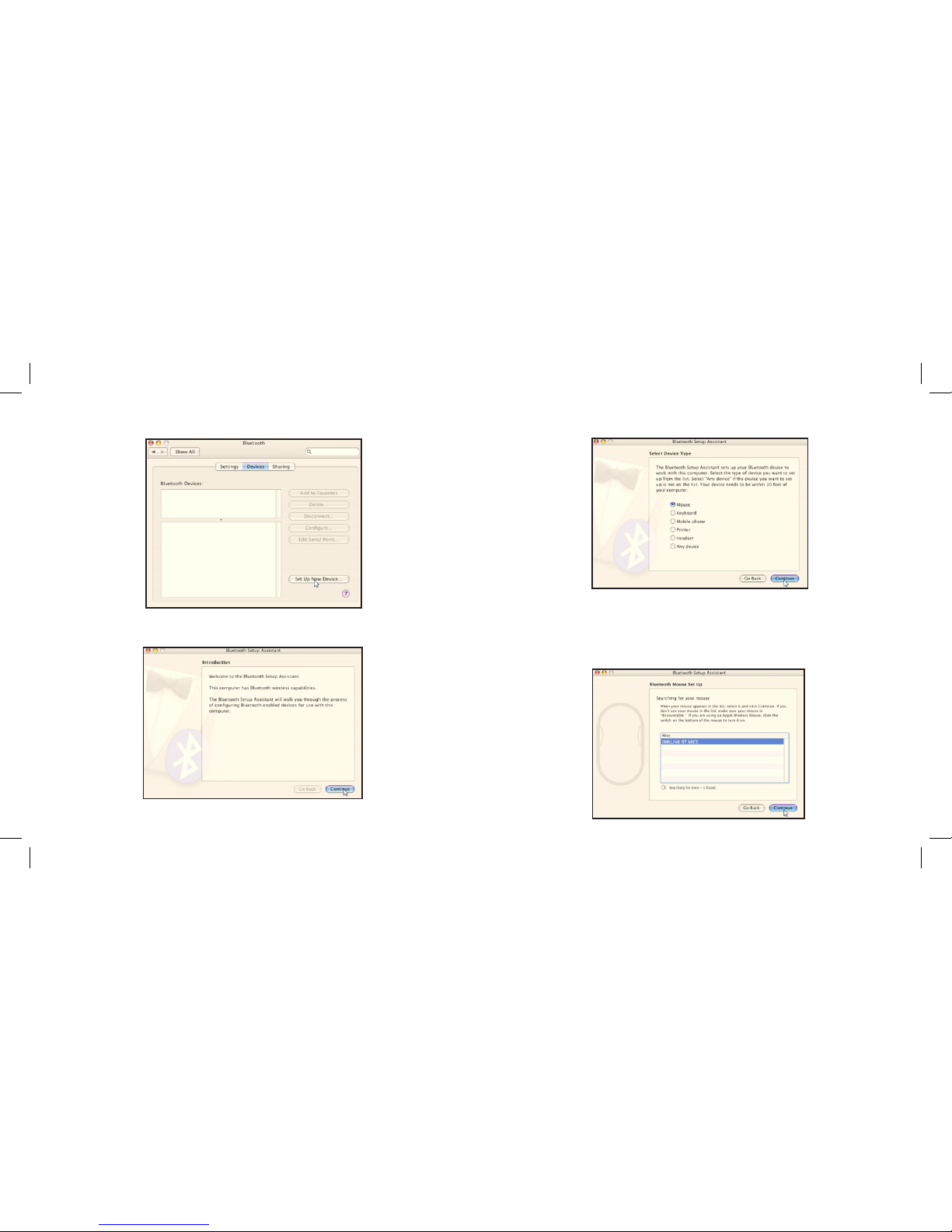
1.Make sure your computer’s Bluetooth radio is turned on. Open “System
Preferences” page.
2.Double click the Bluetooth icon to open MAC Bluetooth GUI and select
“Devices” page.

3.Press “Set Up New Device” to set up new Bluetooth devices.
4.“Bluetooth Setup Assistant” page will show up. Click “Continue”.
5.Select “Mouse“ from the device list and click “Continue”.
6.Turn your mouse on. Press the connect button located at the bottom of the
mouse until the red LED mouse sensor lights up and the scroll wheel of the
mouse ashes blue.
7.Bluetooth Setup Assistant will search for new Bluetooth mouse devices in
the range. Select “SMK-Link Bluetooth Mouse” and click “Continue”.
Page 13 Page 14

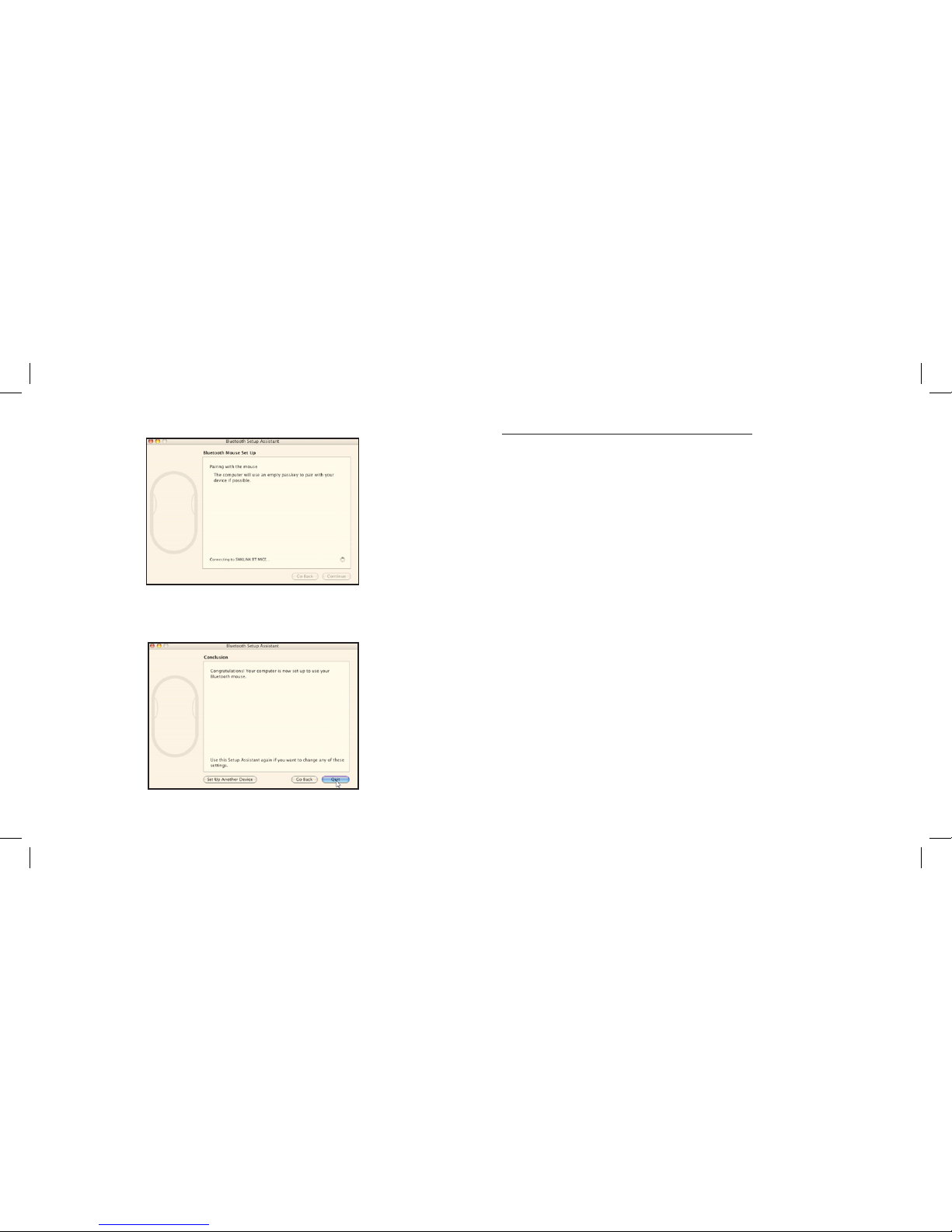
8.The computer will start pairing with the mouse. Click “Continue”.
9.On the Conclusion screen, click “Quit” to exit setup. Your Bluetooth mouse
is successfully installed.
Operating Tips & Troubleshooting
• This mouse is designed with the latest blue optical sensor technology. The
high precision blue sensor allows you to work the mouse on reective
surfaces, i.e. some glass surface.
• Check the on/off switch located at the bottom of the mouse to make sure
the mouse is powered on before using it.
• Conserve the battery power by switching the on/off switch to “off”
position while traveling or if the mouse will not be in use for awhile. If you
will not use the mouse for a long period of time remove the batteries from
the battery compartment.
• During operation the mouse will go into sleep mode after 8 minutes of
inactivity to save battery power. Move the mouse or click on any mouse
button to wake it up.
• If the mouse cursor behaves erratically check the scroll wheel for
power-low indicator, i.e. yellow LED light glowing; and follow the
instructions in Charging the Batteries section to recharge the batteries. The
mouse is functional during recharge.
• The mouse stays connected to your Bluetooth-enabled computer even when
it’s turned off and out of range once it’s set up. If for any reason the
connection to the system is lost, rst check if the Bluetooth mouse icon is
still displayed in “My Bluetooth Places” and verify that the Bluetooth
computer is within the range (up to 30 feet). If the connection is lost it can
be xed by following the instructions in the Setting up Bluetooth
Connection section to reconnect the devices.
• If the connection is frequently lost under normal operation, contact your
system vendor’s technical support or check for Bluetooth stack update on
your system vendor’s website.
Page 15 Page 16

Warranty
SMK-LINK ELECTRONICS CORPORATION (SMK-LINK) warrants to the
original end-user purchaser of the Product (“you”) that the Product, excluding
batteries, will be free from defects in materials or workmanship under normal
use and service for one-year from date of purchase. Dated invoice or sales
receipt is necessary to accompany the Product returned for warranty service
consideration. Any Product repaired or replaced under the terms of the
warranty is covered for the remainder of the original warranty period or ninety
(90) days from the date of service or return shipping, whichever is longer. If the
Product becomes defective in materials or workmanship during the warranty
period, SMK-LINK will, at its option, either repair or replace it with a more
current or upgraded model if the originally purchased model is not available.
This warranty does not cover products which have been subjected to misuse,
accident, physical damage, improper installation, abnormal operation or
handling, neglect, inundation or re, or when product regulatory label has
been removed, altered or rendered illegible; nor does it cover accessory and
consumable items. In no case shall SMK-LINK be liable for any indirect special,
incidental, or consequential damages based upon breach of warranty, breach
of contract, negligence, strict tort or any other legal theory. Such damages
include, but are not limited to, loss of prots, loss of savings or revenues,
inability to use the product or any associated equipment, cost of capital, cost
of any substitute equipment, facilities or services, claims by third parties other
than you, and injury to property. SMK-LINK’s total liability for damages for any
cause related to, or arising out of, the use or inability to use the product, shall
not exceed the original price paid for the product even if SMK-LINK has been
informed of such possibility. If your Product requires warranty service, you must
rst contact SMK-LINK Product Support to receive an RMA Number. The contact
information can be found on SMK-LINK website:
http://www.smklink.com/support/contactsupport.html.
This warranty does not affect your statutory right and you may also have other
rights which vary from state to state. Unless modied in writing, signed by
both you and SMK-LINK, this warranty is understood to be the complete and
exclusive agreement between the parties, superseding all prior agreements,
oral or written, and all other communica¬tions between the parties relating to
the subject matter of this warranty.
Product Support
SMK-Link Electronics Corporation
3601-B Calle Tecate, Camarillo, CA 93012
TEL: (888) 696-3500 FAX: (805) 987-6665
www.smklink.com
Page 17 Page 18
Table des matières
Autres manuels SMK-Link Souris