
Smartwares Home Easy Box Manuel utilisateur
EN
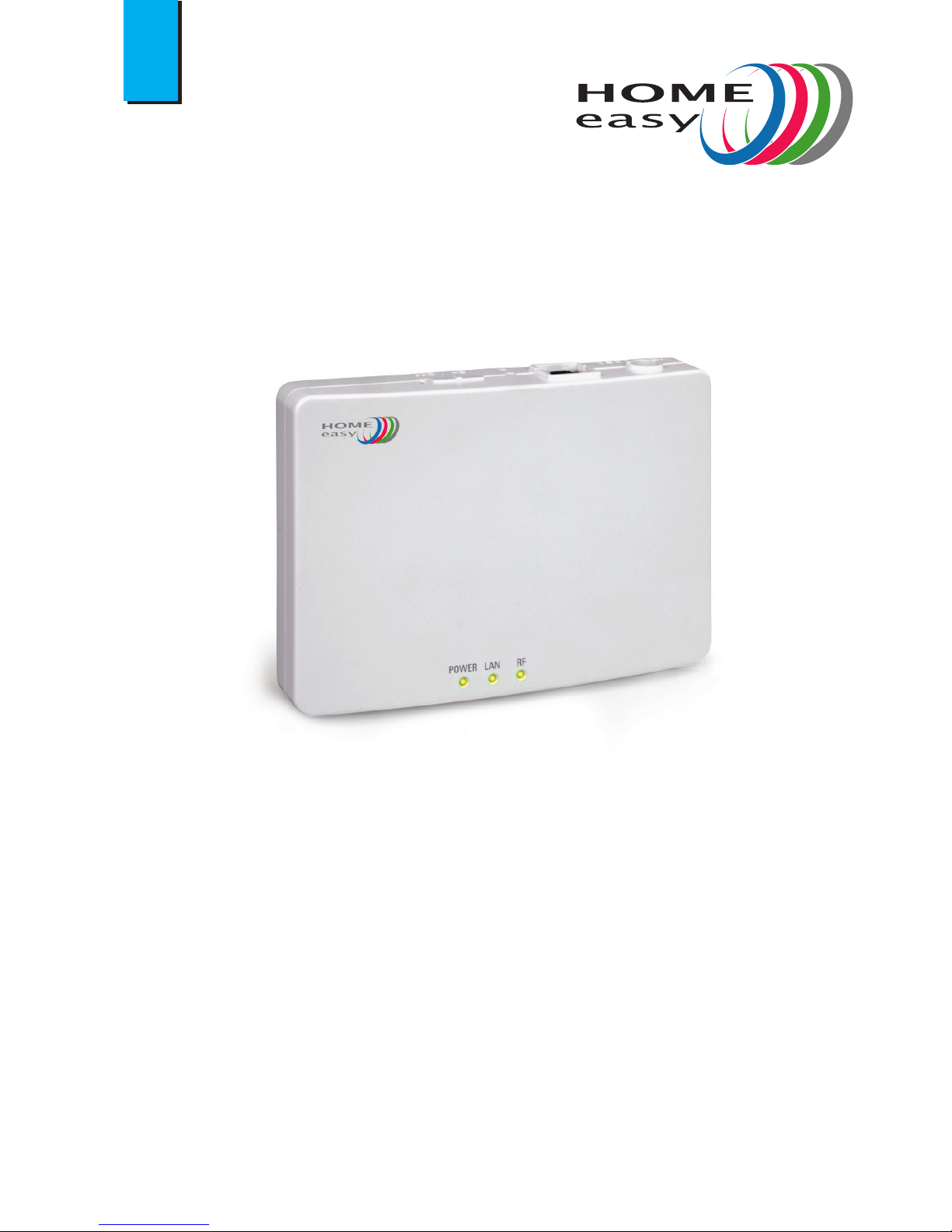
HOME Easy Box
User manual
Versie 1.0 / 2014

2
Content
1 Introduction ............................................................................ 3
2 Intended use ........................................................................... 4
3 Preventive measures and safety instructions............................................ 5
3.1 Safety symbols used......................................................................5
3.2 Notications .............................................................................5
4 Preparations for use .................................................................... 6
4.1 Unpacking ...............................................................................6
4.2 Package contents ........................................................................6
5 Installation ............................................................................. 7
5.1 Connecting ..............................................................................7
5.2 Positioning...............................................................................7
5.3 Switch the HOME Easy Box on ............................................................7
6 Getting access to your HOME Easy Box.................................................. 8
6.1 By using your Windows computer.........................................................8
6.2 Login to your HOME Easy Box .............................................................8
7 Adding a room.......................................................................... 9
8 Adding a device to a room .............................................................10
9 Pairing a device with the HOME Easy Box ..............................................11
10 Adding a scene ........................................................................12
11 Adding a device to a scene.............................................................13
12 Controlling your devices using your internet browser..................................14
13 Installing the HOME Easy App on your smartphone ....................................15
13.1 Download the app ..................................................................... 15
13.2 Set up a connection with your HOME Easy Box using Auto Scan.......................... 15
13.3 Set up connection with your HOME Easy manually ......................................16
14 Frequently asked questions............................................................17
14.1 Why adding a room? ...................................................................17
14.2 What is a scene?........................................................................ 17
14.3 What is a task?..........................................................................17
14.4 What is a device? . . . . . . . . . . . . . . . . . . . . . . . . . . . . . . . . . . . . . . . . . . . . . . . . . . . . . . . . . . . . . . . . . . . . . . . 17
15 Troubleshooter . . . . . . . . . . . . . . . . . . . . . . . . . . . . . . . . . . . . . . . . . . . . . . . . . . . . . . . . . . . . . . . . . . . . . . . . 18
15.1 Why can’t I delete a room? ..............................................................18
15.2 Why can’t I delete a device? .............................................................18
15.3 Why can’t I delete a scene?..............................................................18
Appendix I EG verklaring van overeenstemming ..................................................19

3
1 Introduction
Dear customer,
Thank you for purchasing the HOME Easy Box. This manual contains all the information necessary in
order to quickly familiarize yourself with the product. We kindly ask you to go through this information
carefully before working with the product.
This manual is intended for the end user of the HOME Easy Box. You can nd the information you need
in the manual through the table of contents.
This is the original manual. There’s also a quick start manual available.
Keep this manual!
For more information or to order manuals, please contact:
Smartwares Safety & Lighting B.V.
P.O. Box 117, 5126 ZJ Gilze
The Netherlands
E-mail: [email protected]
www.smartwares.eu
4
2 Intended use
The HOME Easy Box is a device which makes it possible to control dierent compatible devices wireless,
using your smartphone or computer.
The manufacturer cannot be held responsible for any damage caused by improper, incorrect or
unreasonable use. Read and understand this manual completely.
5
3 Preventive measures and safety instructions
3.1 Safety symbols used
Warning! A warning indicates the risk of (serious) damage to the user or the product if the user
does not carry out the procedures with care.
Please note! A comment makes the user aware of possible problems.
!Tip: A tip makes the user aware of convenient functions and additional options.
3.2 Notications
Warning! Do not install the product in any place that might be exposed to extreme heat or cold.
Warning! Before beginning assembly, check to make sure there are no electrical wires or water
pipes running through the wall where you want to drill.
Warning! By removing the plug from the power outlet, you immediately cut o power to the
product; then contact the Smartwares service desk when:
• the product’s hardware components are open, drilled through, damp or have suered a hard fall;
• the adapter’s power cable is frayed or open, so that the metal is showing;
• the adapter housing is damaged;
• the adapter has come in contact with moisture or liquid;
• the glass of the camera is cracked or broken;
Warning! It is not permitted to open the product yourself or to have it opened, neither is it
permitted to repair the product yourself or to have it repaired. This will void the warranties.
Please let any maintenance be carried out by certied maintenance personnel.
Warning! Only use original accessories from the manufacturer.
Warning! Keep the product out of reach of children.
Warning! Disconnect the device from all power sources before cleaning it.
Warning! Use a clean, dry cloth to clean the product.
Warning! Do not use any abrasive agents, corrosive cleaning products or any substances that
contain bleach or solvents to clean the product.
Warning! Remove the adapter from the power outlet during storms, lightning and whenever the
product will not be used for a longer period of time.
Please note! Install the product as indicated in this manual. If in doubt, consult a recognised
technician and always take account of local installation codes and regulations.
Please note! The product must not be discarded as unsorted municipal waste, it must be disposed
of separately.
Please note! Find out about the options in your region for disposing of the product after use. Do
not throw away electrical appliances or components, but see whether the product (components)
can be turned in, recycled or reused.
Please note! Wireless systems can be aected by interference from wireless telephones,
microwave ovens and other wireless devices that operate in the 2.4 GHz range. Keep the product
at least 3 metres away from any possible sources of interference during installation and operation.

6
4 Preparations for use
4.1 Unpacking
Unpack the HOME Easy Box carefully.
Check the package contents as described below. If any item is missing, please contact your reseller.
!Tip: We recommend that you retain the original carton and packing materials in case it ever
becomes necessary to return your product for service. This is the only way to safely protect the
product against damage in transit. If you do dispose of the carton and the packing materials,
please remember to recycle with due care to the environment.
4.2 Package contents
The following items are included in the received package:
1 x HOME Easy Box
1 x Adapter
1 x Internet cable
1 x Quick installation Guide
7
5 Installation
5.1 Connecting
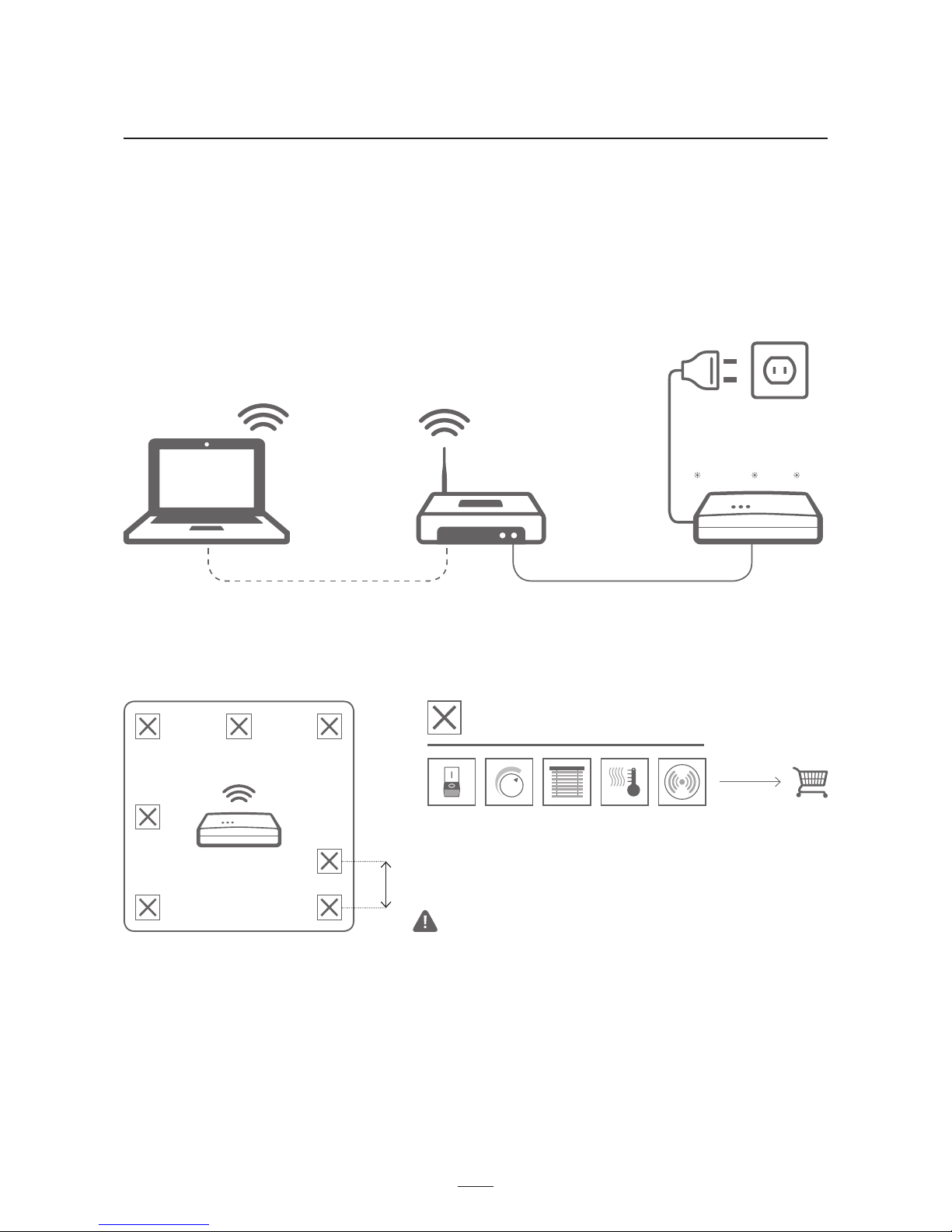
Connect the HOME Easy Box to your router, using the internet cable.
Connect the 12V adapter to the HOME Easy Box.
Connect the adapter to the mains.
Make sure you have a computer in your local network, to get access to the HOME Easy Box.
5.2 Positioning
Position the HOME Easy Box centrally in the house.
Make sure that the compatible devices are placed with more than one meter space in between them.
5.3 Switch the HOME Easy Box on
At the back you will nd a power switch.
Put the switch in ON position. After a short period three LED lights will light up.
>1m
DEVICES
POWER LAN RF
8
6 Getting access to your HOME Easy Box
6.1 By using your Windows computer
Make sure your Windows computer is part of the same local area network as the HOME Easy Box. See for
more information chapter 5.
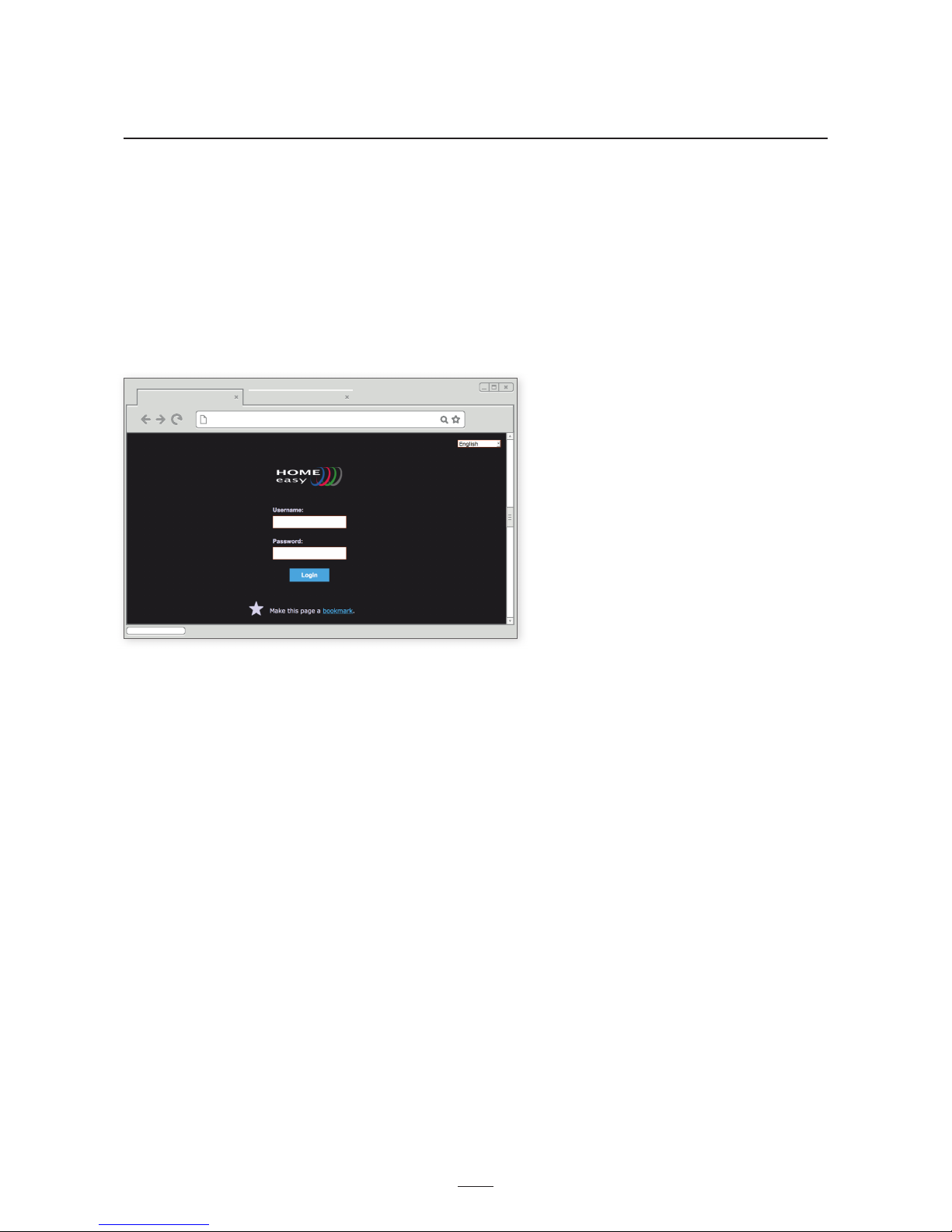
Run HOME_easy_start.exe on your Windows computer.
(You can nd this on www.smartwares.eu).
After running it the following screen will appear:
6.2 Login to your HOME Easy Box
After running HOME_easy_start.exe on your Windows computer, you can login to your HOME Easy Box,
using:
Username: Admin
Password: 11111111
9
7 Adding a room
Make sure you have access to your HOME Easy Box. See for more information chapter 6.
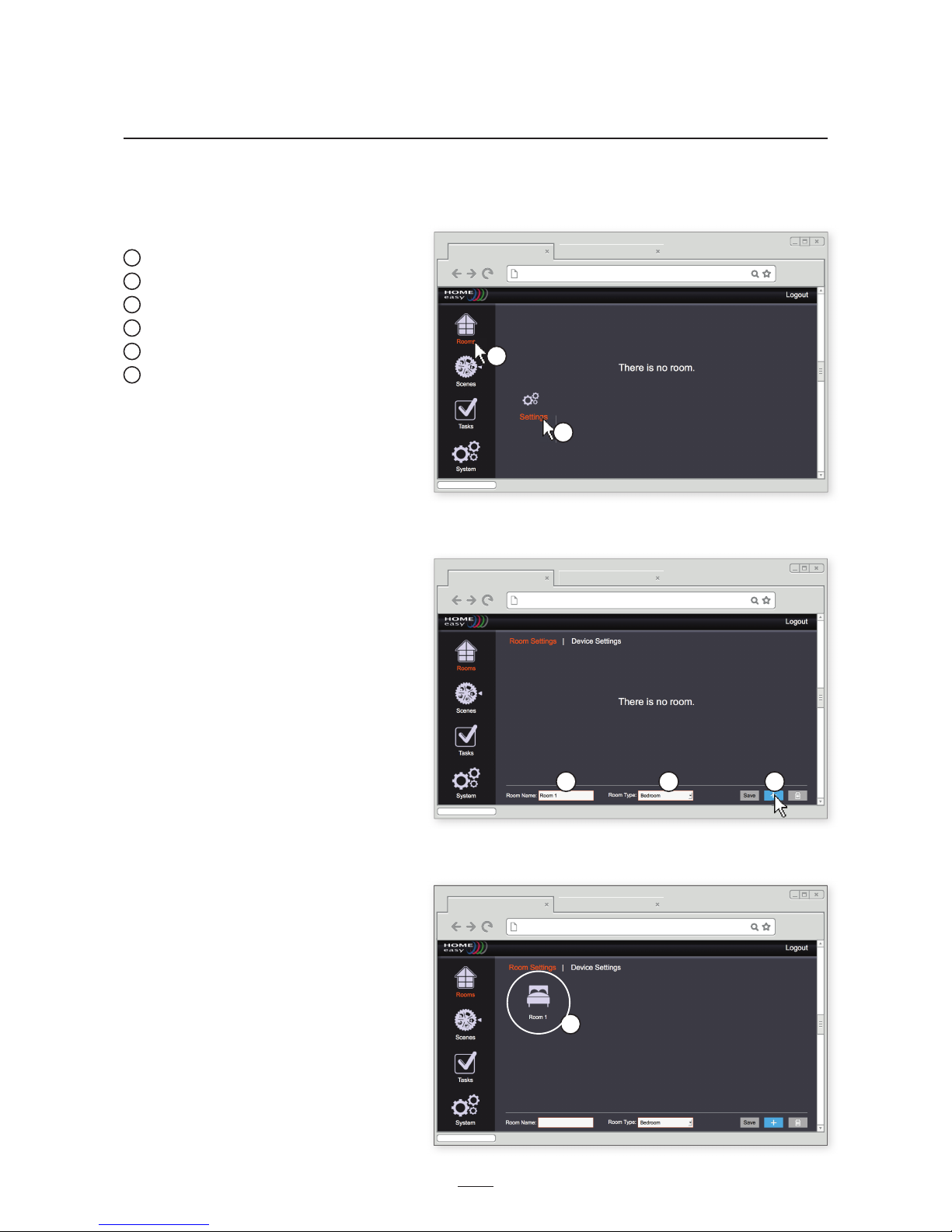
To add a room, follow the next steps:
1Go to Rooms
2Go to Settings
3Enter Room Name
4Select a Room Type
5Click on +
6You have added a room
1
2
3 4 5
6
10
8 Adding a device to a room
Make sure you have access to your HOME Easy Box. See for more information chapter 6.
Make sure you have added a room. See for more information chapter 7.
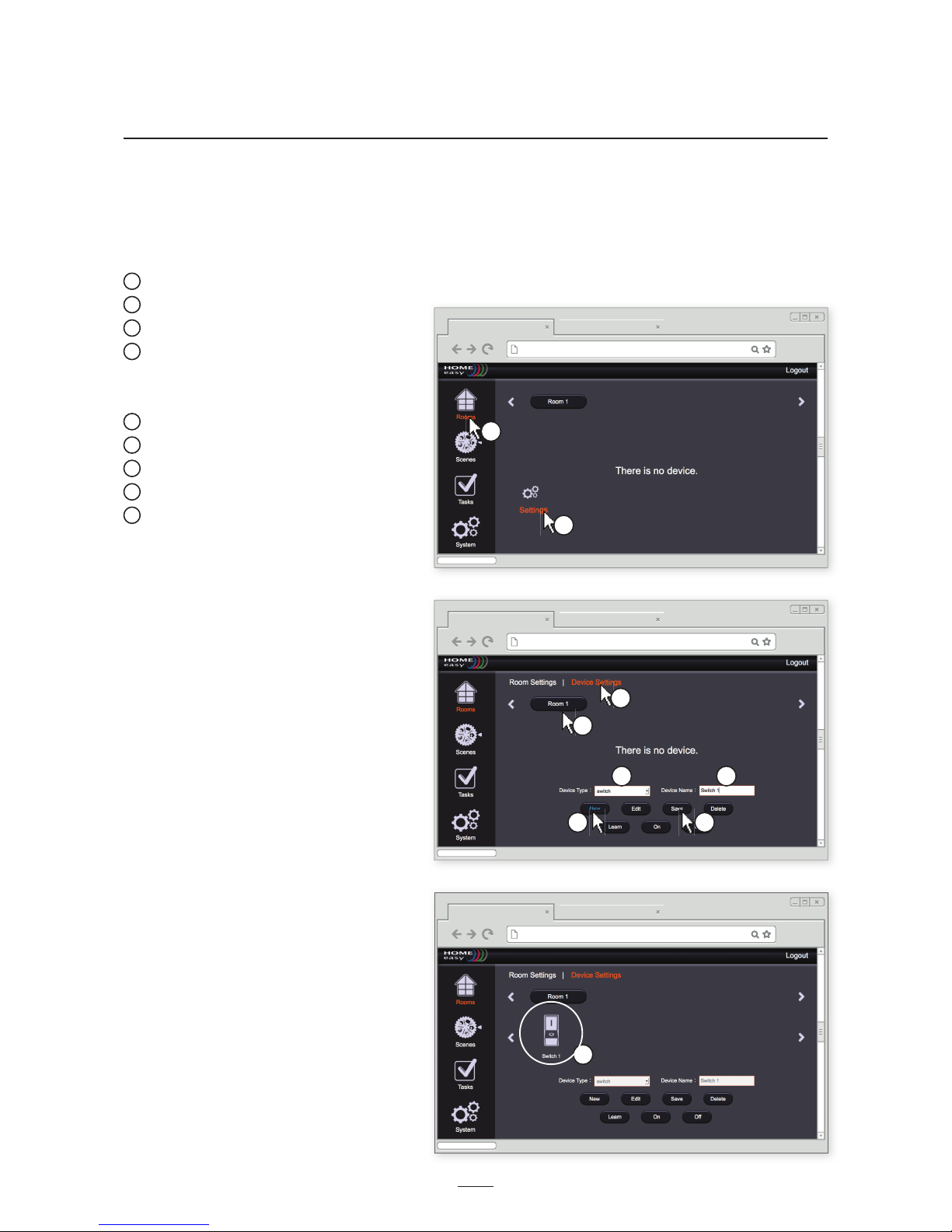
To add a device to a room, follow the next steps:
1Go to Rooms
2Go to Settings
3Go to Device Settings
4Select a room
If you have only one room added, this
room will be selected automatically.
5Click on New
6Select a device Type
7Enter a device name
8Click on Save
9You have added a device to a room
1
2
3
4
85
6 7
9
Table des matières
Manuels Porte populaires d'autres marques

LST
LST M500RFE-AS Manuel utilisateur

Kinnex
Kinnex Media Gateway Manuel utilisateur

2N Telekomunikace
2N Telekomunikace 2N StarGate Manuel utilisateur

Mitsubishi Heavy Industries
Mitsubishi Heavy Industries Superlink SC-WBGW256 Manuel utilisateur

ZyXEL Communications
ZyXEL Communications ZYWALL2 ET 2WE Manuel utilisateur

Telsey
Telsey CPVA 500 - SIP Manuel utilisateur


