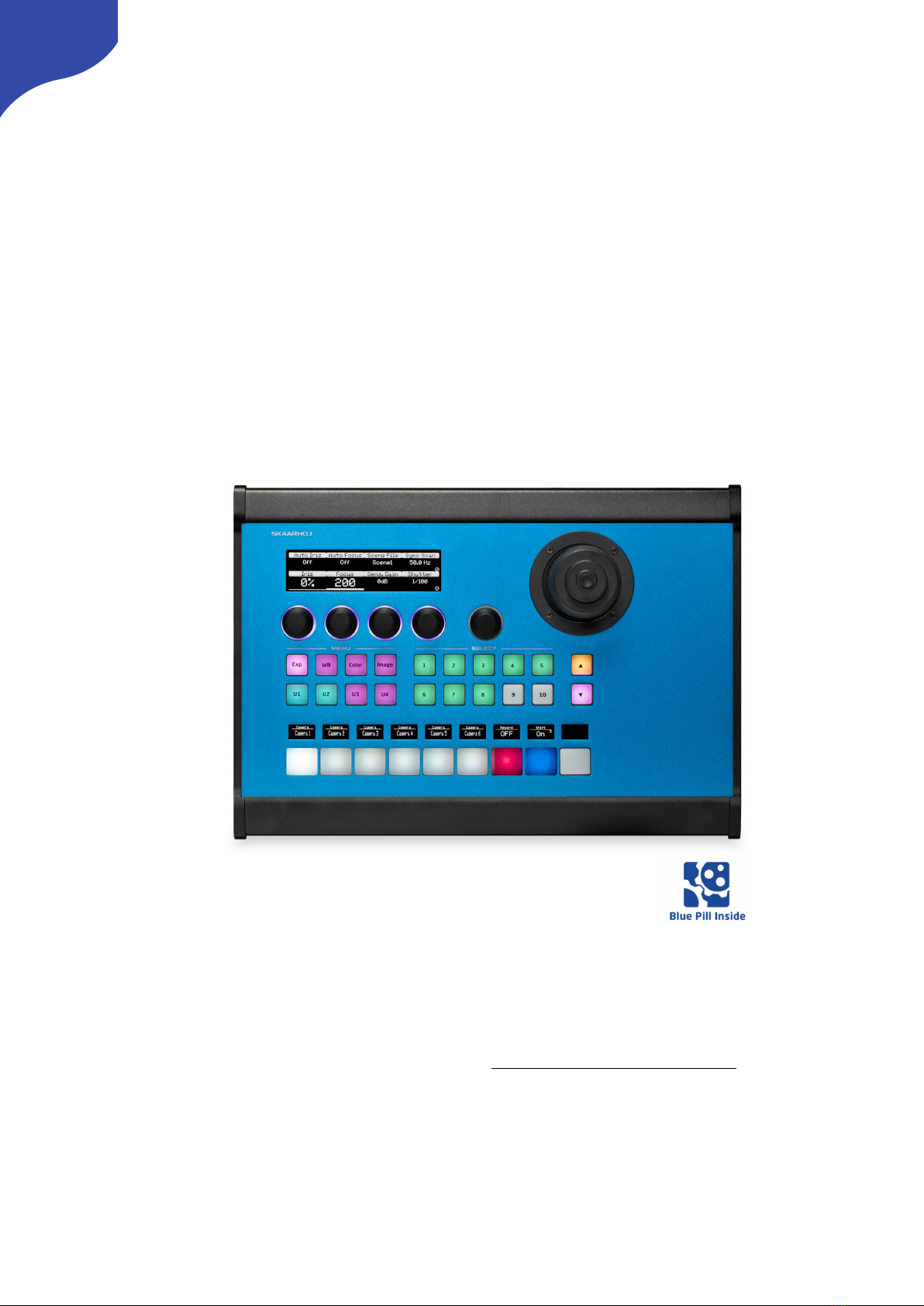
SKAARHOJ PTZ Pro v2B Manuel utilisateur

Contents
Contents 2
Important Information 3
Legal Notice 3
Warnings 3
Maintenance Precautions 3
Regulatory Compliance 3
What’s In the Box 4
Overview 4
Features 4
Controller Diagram 5
Top 5
Backside 6
System Configuration 7
Connection 7
Power 7
Network Interface Details 8
Power over Ethernet (PoE) Specifications 8
Accessing Blue Pill 8
DHCP or Static IP 8
Wi-Fi Access Point 9
Link from SKAARHOJ Firmware Updater 9
SKAARHOJ Firmware Updater and Micro USB 10
Select Mapping 10
Adding Devices 11
Auto Discover 11
Manually Added 11
Device Details 12
Populate Constant Sets 13
Controller Use 14
Dimensions 15
Troubleshooting 15
Contact Support 16
Additional Resources 16
2

Important Information
Legal Notice
Attention:
The content and instructions of this document are
subject to change without prior notice. Updates
will be added to the manual.
Best effort have been conducted to verify the
correctness of the content in this manual, but no
statement, information, or recommendation in this
manual shall constitute formal guarantee of any
kind, expressed or implied. We shall not be held
responsible for any technical or typographical
error in this manual.
The product and graphic appearance
demonstrated in this manual is for reference only,
and may differ from the actual appearance of your
device and associated software applications.
Use of this manual and the subsequent result shall
be entirely on the user’s own responsibility.
Reference to product names of other companies
in this manual are the trademark or registered
trademark of the respective companies.
Warnings
•If the product does not work properly, please
contact your dealer. Never attempt to
disassemble the controller yourself (we will not
assume any responsibility for problems caused
by unauthorized repair or maintenance)
•This installation should be made by a qualified
service person and should conform to all the
local codes
•When shipping, the controller should be packed
in its original packaging
•Make sure the power supply voltage is correct
before using the controller
•Do not drop the controller or subject it to
physical shock
Maintenance Precautions
•If there is dust on the controller and the
displays, remove the dust gently using a oil-free
brush or dust blowing apparatus
•Do not use organic solvents, such as benzene or
ethanol when cleaning the surface of the
controller
Regulatory Compliance
For private households: Information on
Disposal for Users of WEEE
This symbol on the product(s)
and / or accompanying documents
means that used electrical and
electronic equipment (WEEE)
should not be mixed with general
household waste. For proper
treatment, recovery and recycling, please take this
product(s) to designated collection points where
it will be accepted free of charge.
Alternatively, in some countries, you may be able
to return your products to your local retailer upon
purchase of an equivalent new product.
Disposing of this product correctly will help save
valuable resources and prevent any potential
negative effects on human health and the
environment, which could otherwise arise from
inappropriate waste handling.
Please contact your local authority for further
details of your nearest designated collection
point.
Penalties may be applicable for incorrect disposal
of this waste, in accordance with you national
legislation.
For professional users in the European Union
If you wish to discard electrical and electronic
equipment (EEE), please contact your dealer or
supplier for further information.
For disposal in countries outside of the
European Union
This symbol is only valid in the European Union
(EU). If you wish to discard this product please
contact your local authorities or dealer and ask for
the correct method of disposal.
3
Figure 1

What’s In the Box
1 x SKAARHOJ PTZ Pro v2B Controller
1 x Power Adaptor including power plug
1 x 2m CAT.5E Ethernet cable
Overview
This user guide is suitable for the following
models
-PTZ Pro v2B with Canon CR-N300/N500 default
configuration
Features
•Support for XC protocol including
•Zoom
•Zoom Mode
•Focus
•Auto Focus
•MF Speed
•Face Detection
•Iris Absolute
•Auto Iris
•White Balance
•Black Gain
•Gain
•Sharpness
•Shutter
•Shooting Mode
•Joystick Sensitivity
•Gain Mode
•Image Stabilisation
•Presets
•Preset Speed
•Preset Time
•Preset Store Mode
•NR Mode
•Noise Reduction
•Super crisp display tiles for settings
•High-quality encoders with RGB backlight for
function identification
•Four-way buttons with OLED legends for
dynamic labelling and functionality
•Classic PTZ joystick with top button reset
•Power: 5W-30W PoE (+)
•PoE Standard: IEEE 802.3af/t
•Option for changing configuration layout
4

Controller Diagram
Top
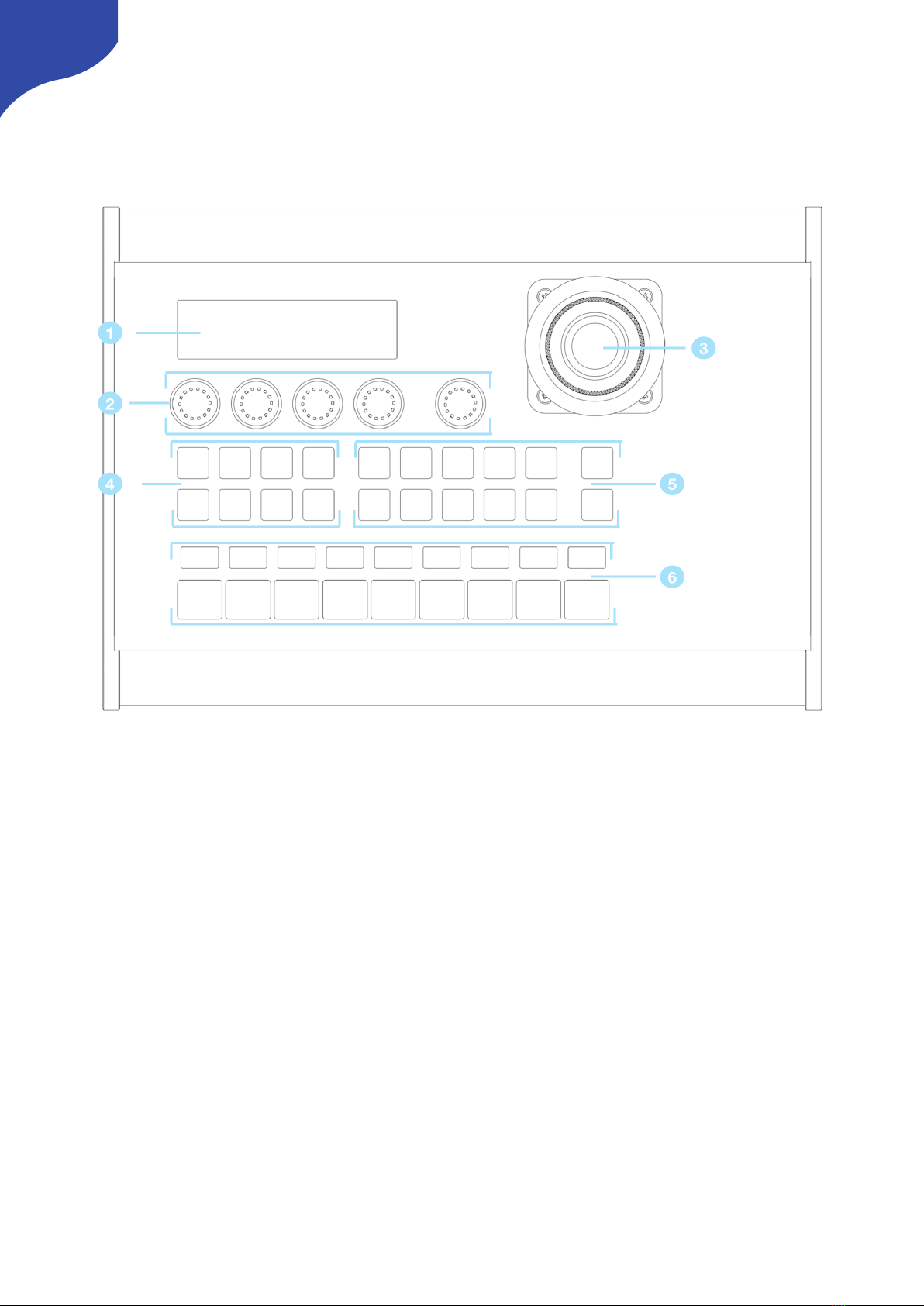
1. Large display with 8 tiles. Functions associated with encoders from group 2 and buttons in groups 4
and 5
2. 5 rotary encoders with RGB backlight for function identification
3. 3 point joystick for pan/tilt/zoom and top button home function
4. Menu navigation buttons
5. Camera preset buttons
6. Camera select buttons with associated displays
5

Backside
1. Micro USB Port
For serial communication with SKAARHOJ Firmware Updater
2. IP Network RJ45 Port
For IP Control and 5W-30W PoE (+) /PoE Standard: IEEE 802.3af/t
3. Status LED
For monitoring and debugging
4. Reset
Use only under the guidance of SKAARHOJ support
5. Config Button
To enable WiFi Access Point
6. 12V DC Power Supply
Connect the supplied DC Power adaptor
7. USB-A Port
For specific connection types.
6

System Configuration
Connection
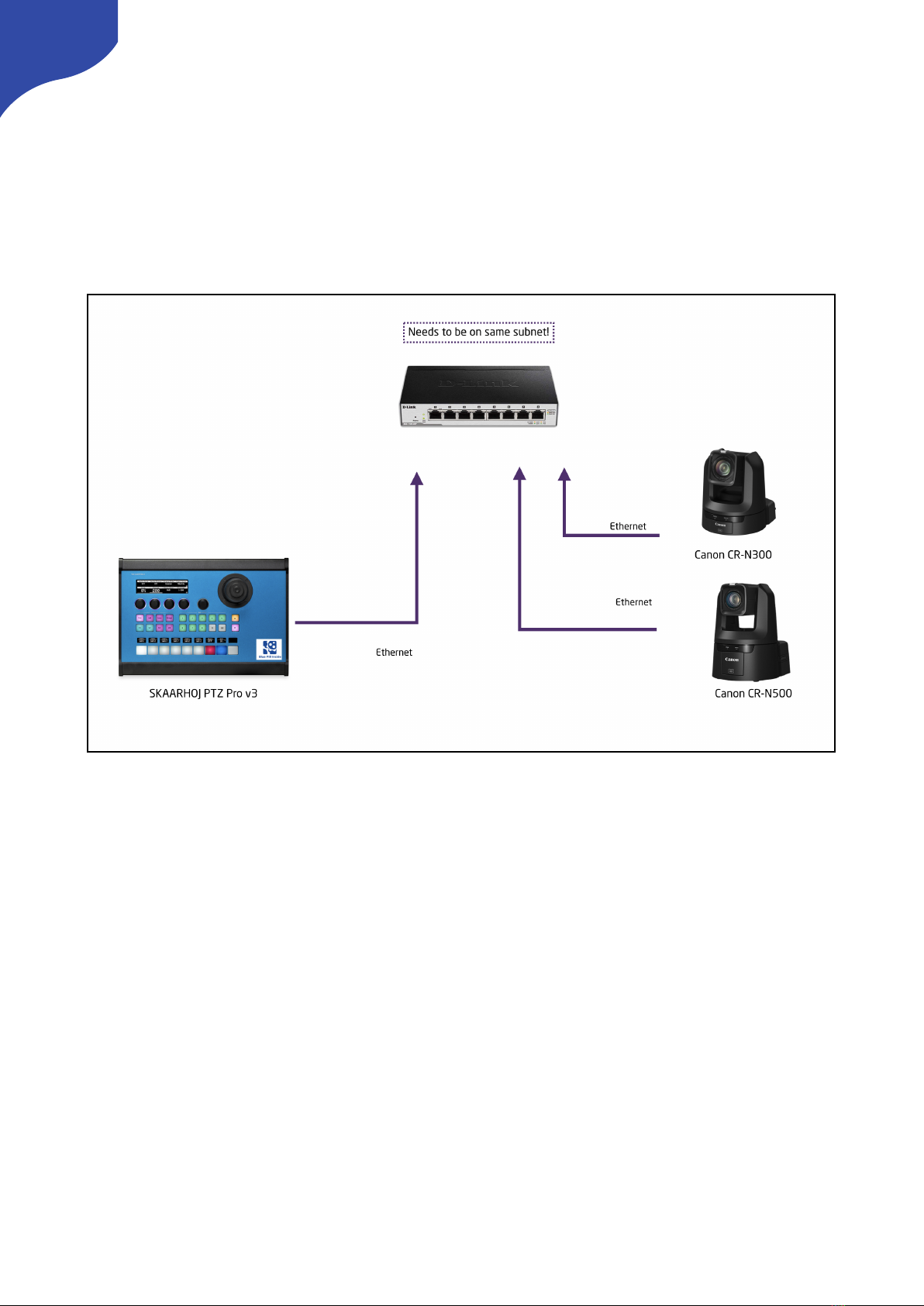
The SKAARHOJ PTZ Pro v2B communicates to
camera(s) via a networked IP connection. This is
the supported case. No video signal processing is
done on the SKAARHOJ PTZ Pro v2B.
The layout of the configuration for the PTZ Pro v2B
is expandable to handle multiple connected
cameras with a camera select row of buttons.
Power
•Use only the DC power adapter supplied with the controller. Do not use any other DC power
adaptor
•If using PoE to power the controller, make sure the network switch supports 5W-30W PoE (+)/PoE
Standard: IEEE 802.3af/t
•Ensure the PoE provider has sufficient power budget to power the controller. Otherwise it will not
function properly
•Power Consumption: 6 Watts
7

Network Interface Details
-SKAARHOJ Blue Pill controllers have a 1 GBit network interface
-5W-30W PoE (+)
-PoE Standard: IEEE 802.3af/t
Remember a SKAARHOJ controller and client must be on the same subnet (192.168.10.* or one defined
for the local network used by the controller). With multiple SKAARHOJ units connected to the same
network they need to have different IP addresses!
Power over Ethernet (PoE) Specifications
We use the PoE industry standard 5W-30W PoE (+) IEEE802.3af/t. To power our controllers using PoE it is
important the switch supports this standard. Please notice some manufactures such as Ubiquity have their
own non-standard 24V type of PoE which is incompatible with our controllers. Especially pay attention to
the standard when using a PoE injector.
Accessing Blue Pill
DHCP or Static IP
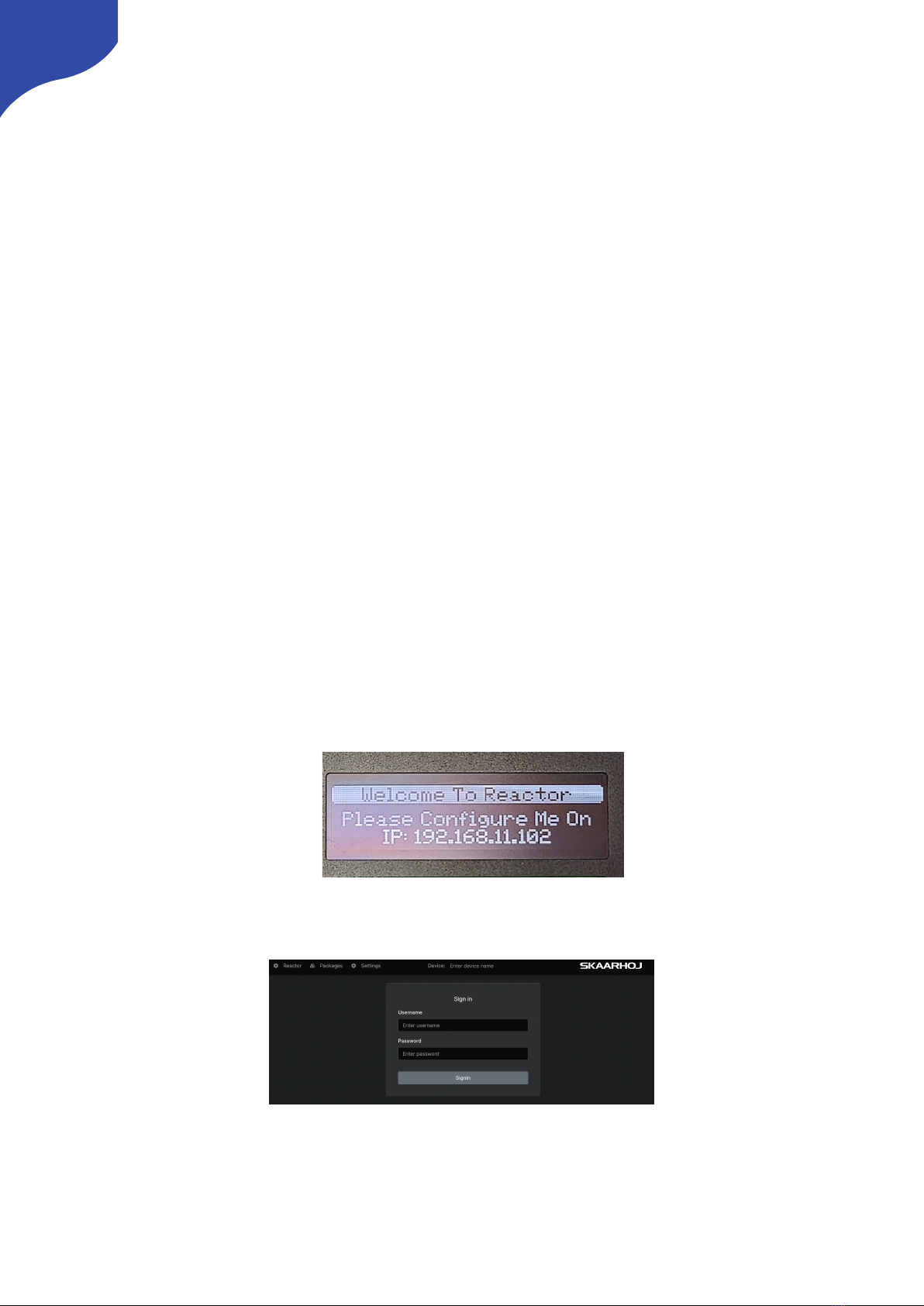
The Blue Pill’s user interface is accessed via the device’s IP Address and any web browser. The IP address
can be found on the display after it is plugged into a network connection with PoE or a network
connection and a power supply (5V Micro USB).
Entering the IP address into the address bar of a search engine will bring up a prompt for username and
password. The default is username: admin password: skaarhoj
8

Wi-Fi Access Point
If the Blue Pill is not displaying an IP address, the web interface is accessible by enabling the internal Wi-Fi
access point.
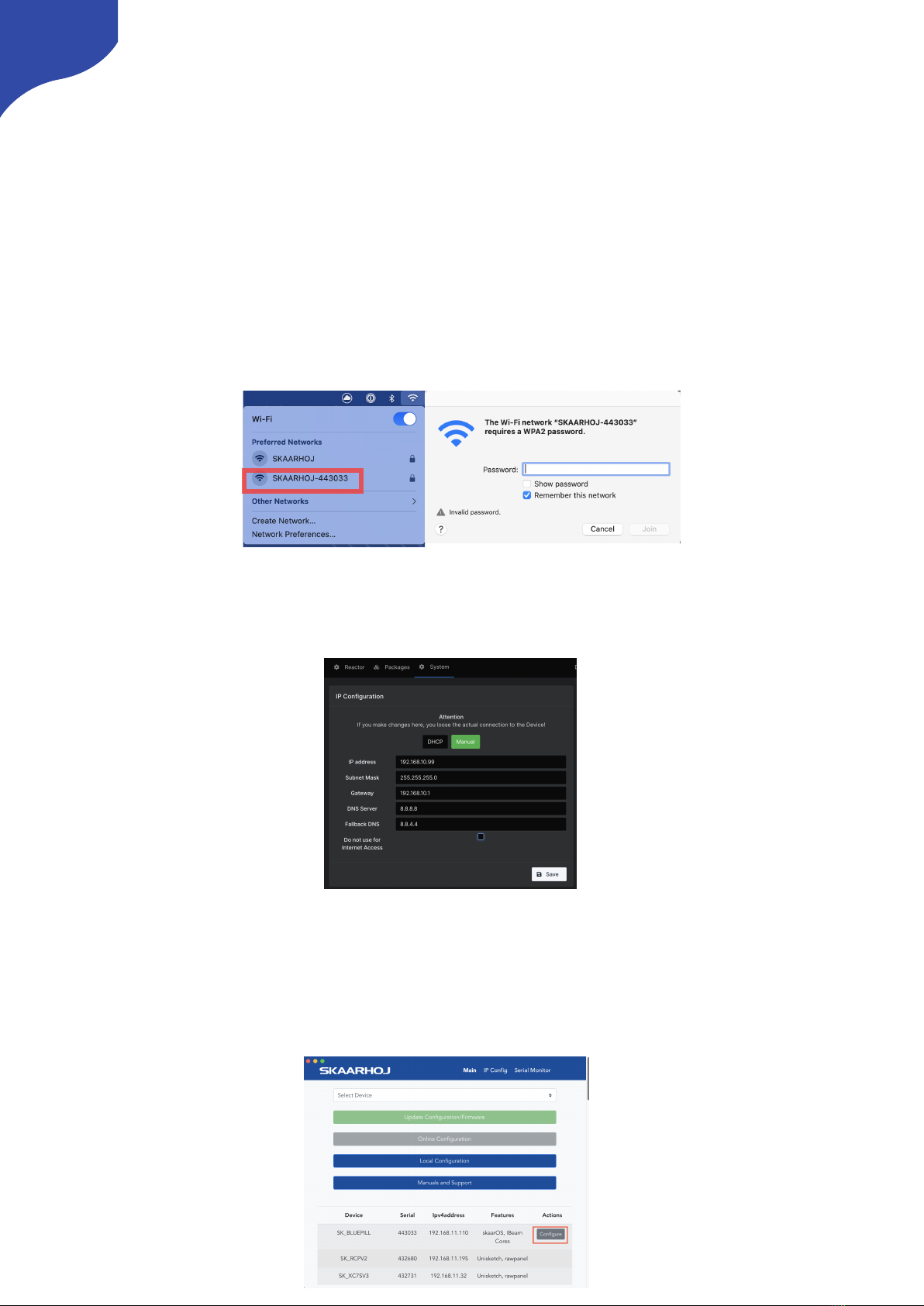
To enable the Wi-Fi access point, gently press and hold the config button on the side of the Blue Pill for
about 3 seconds (Found next to the Ethernet jack. Use a flat screw driver, a paper clip or similar). When
released, it will enable the internal Access Point and the LED will light up purple. It will show up in the Wi-
Fi networks list as SKAARHOJ-XXXXXX (Blue Pill’s serial number).
The default password is: skaarhoj
The web interface is then accessed at the IP address: 192.168.4.1
After accessing the Blue Pill it is best to navigate to the System Menu/System page to set a static IP
address. Once saved, the new IP address will appear on the Blue Pill’s display, it may be necessary to
reboot or power cycle the device afterwards.
Link from SKAARHOJ Firmware Updater
If the SKAARHOJ Firmware Updater open on a computer running on the same subnet as the Blue Pill, the
Blue Pill should appear below the main controller access buttons of the updater. Clicking on Configure
next to the panel’s information will open the web interface directly. The Blue Pill does not need to be
connected to the computer via USB.
9

SKAARHOJ Firmware Updater and Micro USB
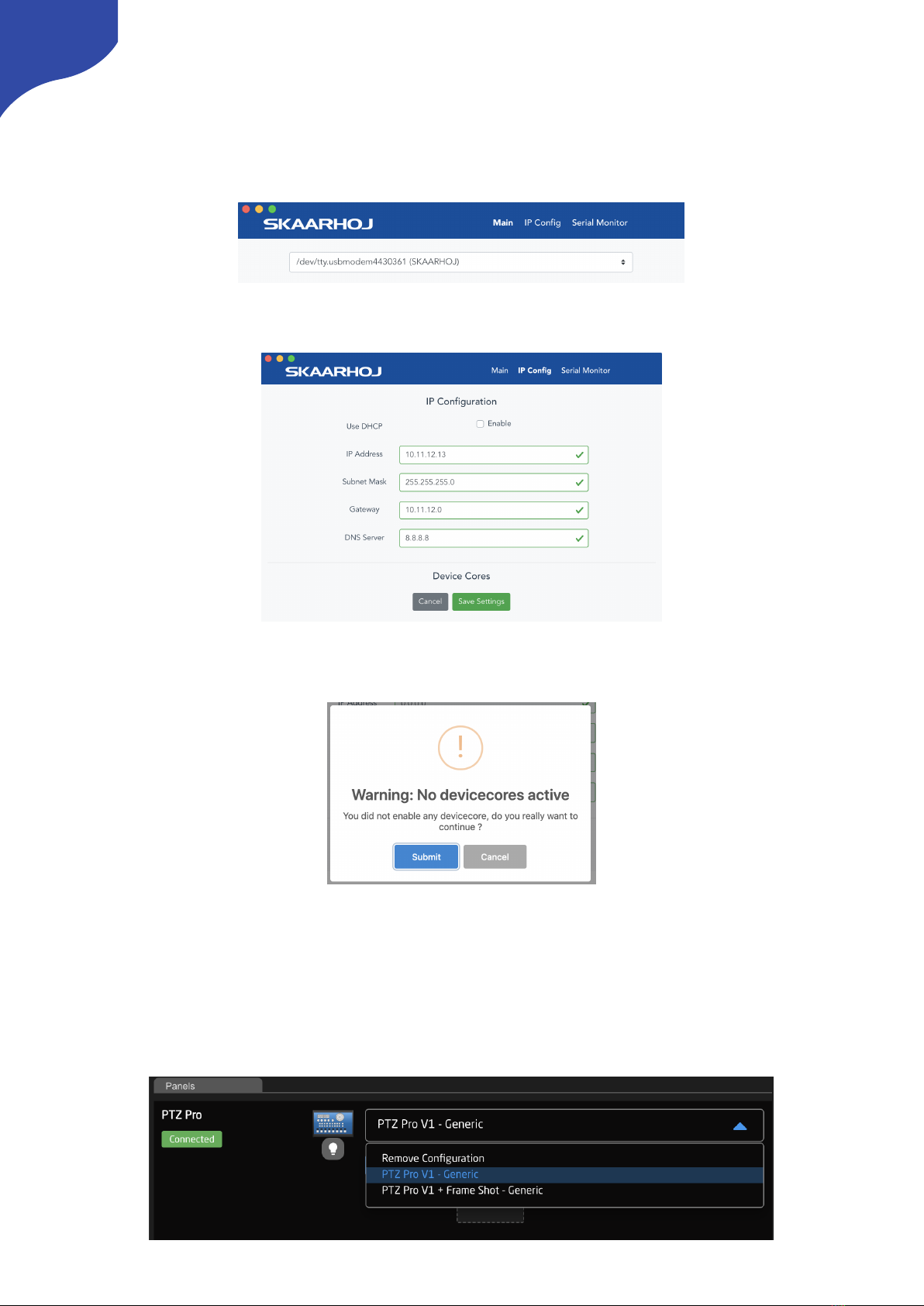
If a network connection to the Blue Pill in not available, the IP address can be set using a Micro USB cable.
In this case the Blue Pill will appear in the “Select Device” dropdown and the “IP Config” tab in the
Firmware Updater can be used to set the IP address (same procedure from UniSketch):
In this case it was identified as “/dev/tty.usbmodem4430361” (on MacOS) and pressing IP Config will
open the IP set up page:
If/When the warning below appears, press “Submit” and reboot the Blue Pill:
Select Mapping
The controller’s layout is determined by the Mapping. For our Canon PTZ integration, PTZ Pro.Generic is
the needed mapping.
The mapping is chosen in the drop down next to the panel.
10
Table des matières
Autres manuels SKAARHOJ Contrôleurs