07
Fig 2
vol
vol
Android™ --Setting > Bluetooth: On > Scan for devices*
Note: *Menus may vary by device.
STEP 2: Select “SIMOLIO” - If prompted, enter
passkey “0000"/accept connection.
STEP 3: Once successfully paired, you will hear a long “beep” sound with
the blue LED flashing slowly.
Note: (1) We suggest you to use music player App on your phone to listen music,
or the previous track and next track function will be unavailable when listening
the on-line music.
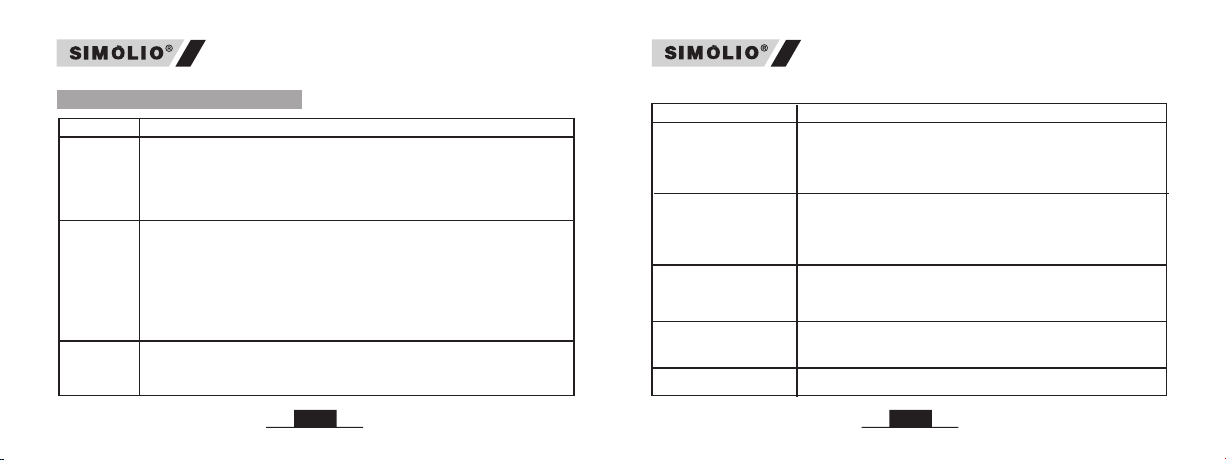
STEP 1: While the headphones LEDs are flashing
red and blue alternately, activate Bluetooth on
your phone and set it to search for new devices.
®
®
iPhone --Setting > Bluetooth > On*
(2) You can check the battery power of your Bluetooth headset on your phone,
the premise is that the phone should support the power display function.
08
Disconnecting Bluetooth
When the “SIMOLIO” is connected, Press MFB twice in quick succession,
you will hear a prompt tone, the Bluetooth will be disconnected with the red
and blue LEDs flashing alternately. Or you can disconnect the “SIMOLIO” on
your phone. Or just turn off the Bluetooth feature on your phone.
The next time you turn on the SIMOLIO and your phone’s Bluetooth, it should
automatically reconnect to your phone. Alternatively you can tap the
“SIMOLIO" in the Bluetooth list of your phone to reconnect them.
Reconnecting Bluetooth
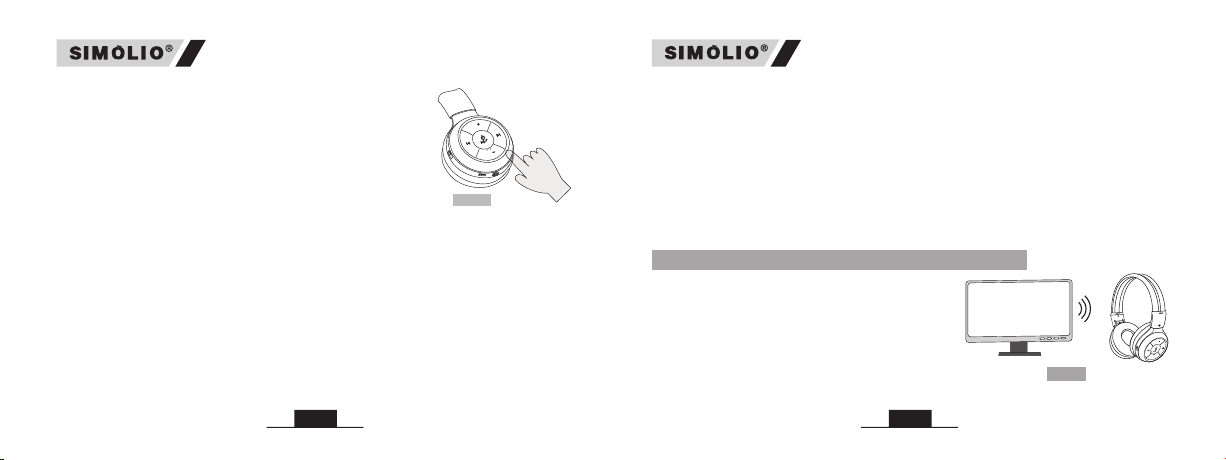
STEP 2: Press and hold the MFB for about 4
seconds until the blue LED flashing slowly,
you will hear a prompt tone, after about 8-10s,
the red and blue LEDs flash alternately and
enter the pairing mode.
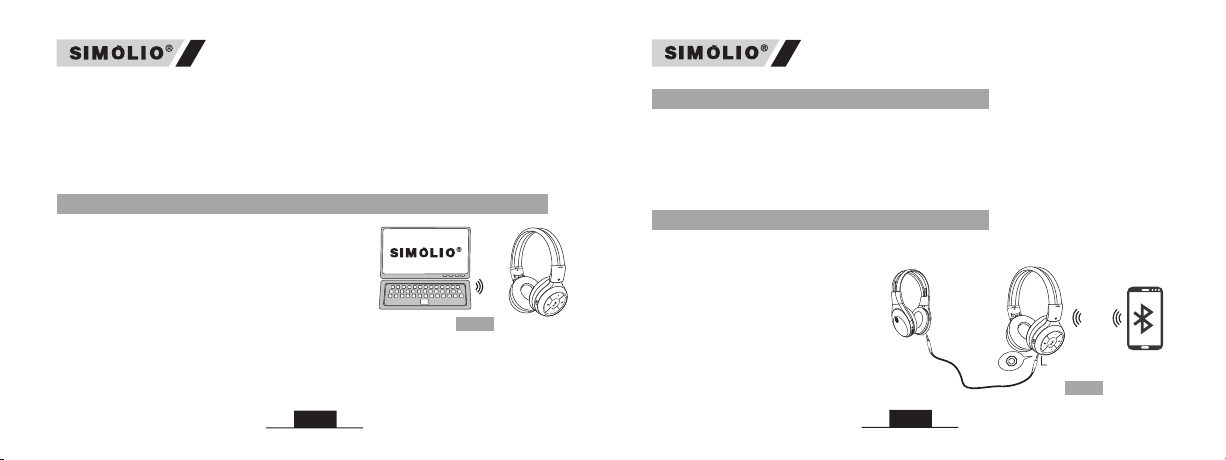
Smart TV
Fig 3
vol
vol
STEP 3:Take “SIMOLIO” close to your TV and
7. Connecting with a Bluetooth enabled TV
STEP 1: Make sure “SIMOLIO” is OFF.
JH-712 / 714 Manual JH-712 / 714 Manual
(3) If there is a phone call while you are listening to music, the phone call will
take precedence over the music, and after the call, it will automatically return
to the previous listening state.