Network Pairing Mode
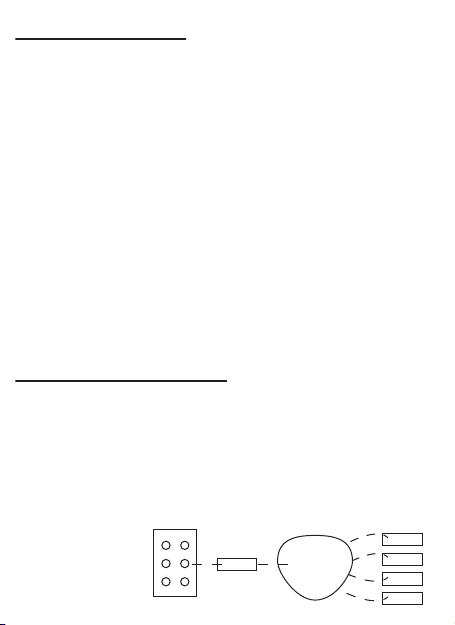
This requires you to discover the Touch Lamina®from the Android / IOS App.
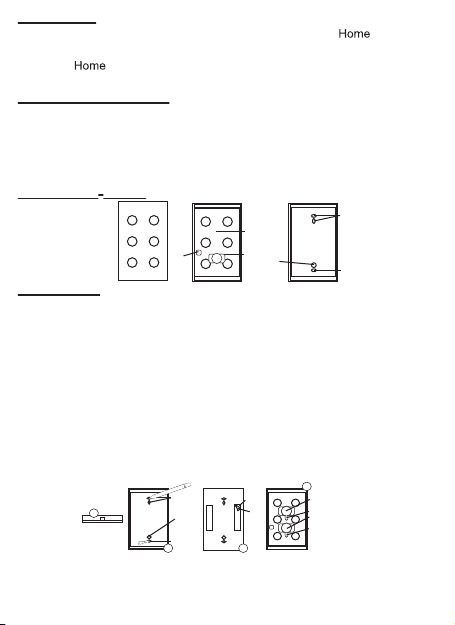
1. Once the teach light stops flashing, all the buttons will be network paired.
2. Tap a button on the front of the Touch Lamina®to ensure it is discoverable
on the network.
3. Open your Silux Home®App.
4. Tap on the “Add device” button.
5. Look for the Touch Lamina®in the list of devices, by its serial number.
(Located on the sticker on the underside of the Touch Lamina®plastics, or
on the Touch Lamina®packaging)
6. Tap on the “Add” button and fill in the required details.
7. Press "save" and the Touch Lamina®will be available to link to Silux
Home® devices or schedules.
*Please note: After pressing the teach button you have 30 seconds to pair
the devices.
V. How to delete (unpair) paired Silux Home®devices:
To delete a Silux Home®device from the Touch Lamina®both the Touch
Lamina®and device needs to be on.
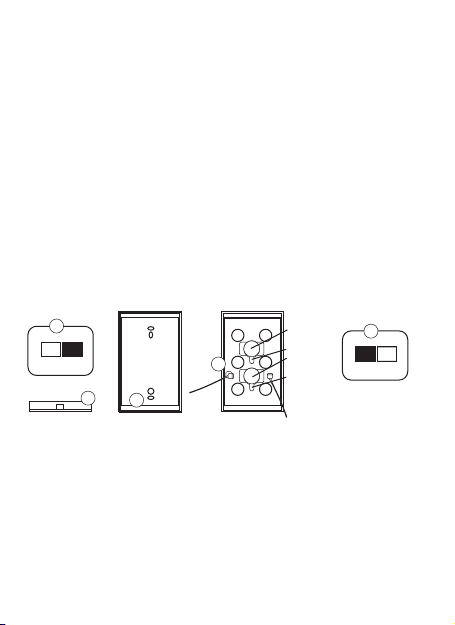
1. Press the teach button on the Silux Home®device you wish to unpair.
2. Press the teach button on the Touch Lamina®three times. The light will
start flashing.
3. Press the button on the Touch Lamina®front panel you wish to
unpair or delete. Once pressed, the teach light will go solid.
4. The light on the Touch Lamina®will begin to flash again.
5. You can then tap the next button on the front panel of the Touch
Lamina®you wish to unpair / delete, and repeat the above process.
6. Once both lights have stopped flickering, your device will be
unpaired.
VI. How to control a Silux Home®device:
Once the Touch Lamina®is paired to a device, the device can be
controlled by touching a button previously paired. The Touch Lamina®
can also dim a device by tapping and holding the corresponding button.
You are able to pair up to 6 buttons to one device. This can be done by
different combinations ranging from 6 buttons paired onto one Touch
Lamina®or 1 button paired onto 6 different Touch Lamina®’s.
*Please note: The Collector®controlling the device hase to be the
Collector Dimmable®to be able to dim.