SHARK ZONE M52
8.3 Macro Manager C
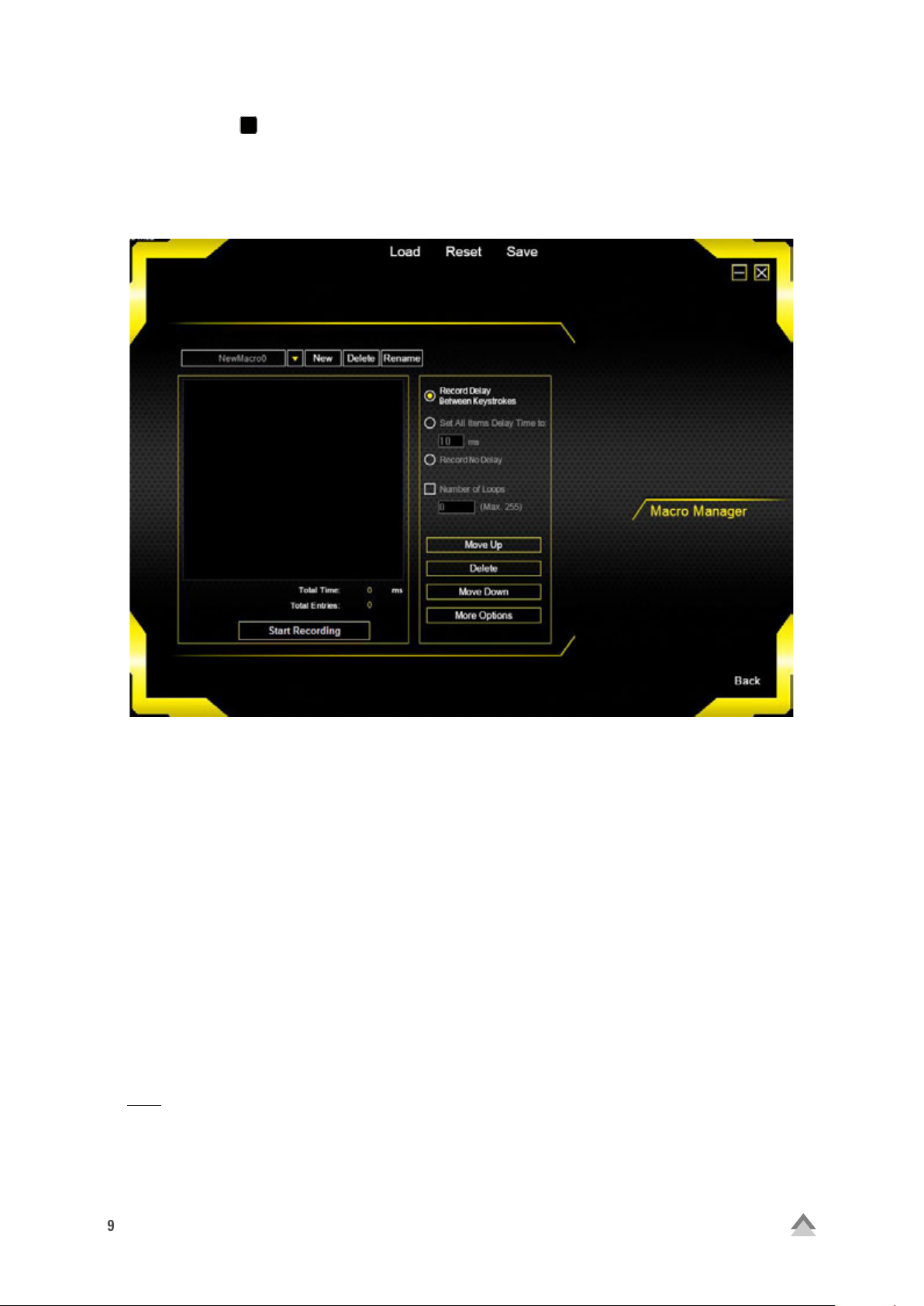
Through the Macro Manager, record, modify and delete up to 15 macros, each with 160 button commands inclu-
ding delays. By clicking the "New" button, a new macro is created with the default name "New Macro" and conse-
cutive numbering in the adjacent drop-down list. Change the name of the currently selected macro by clicking on
the "Rename" button. The "Delete" button will remove it permanently.
If the box "Record Delay Between Keystrokes" is checked, the input breaks apply also during the recording of the
macro for that specific macro. By activating the "Set All Items Delay Time to" field, individual delays of at least 10
ms can be set. If no delay is desired, simple check the "Record No Delay" field.
Also in this field, adjust the number of loops. To do this, check the "Number of Loops" box and input the specific
number of loops desired. Maximum of 255 are possible.
Example: A macro containing the key sequence "F6, F2, 478" with three loops; the macro’s output will be the follo-
wing: F6 F2 478 F6 F2 478 F6 F2 478.
With the "Move Up" and "Move Down" buttons, a selected and previously recorded key command within the
macros can be moved around from its order in this respective direction. The "Delete" button removes a single
previously recorded key command. Under "More Options" other key sequences within the macro can be added,
copied, cropped or deleted. This function can also be accessed by right-clicking on the desired key command
within the macro.
Click "Start Recording" to record a macro. Each subsequent key command is now recorded. Pressing and releasing
a key is assessed as two commands. Pressing a key is marked with a downward arrow symbol before the entry, an
upward pointing symbol when releasing the key. Click on "Stop Recording" to end the recording.
Note:
If you leave the gaming software during the recording of a macro, the macro will continue to record in the back-
ground, resulting in the keyboard not responding to any keystrokes in other programs or windows.
Assign each macro to a mouse button through the "Button Assignment" menu (see 8.5 Button Assignment).