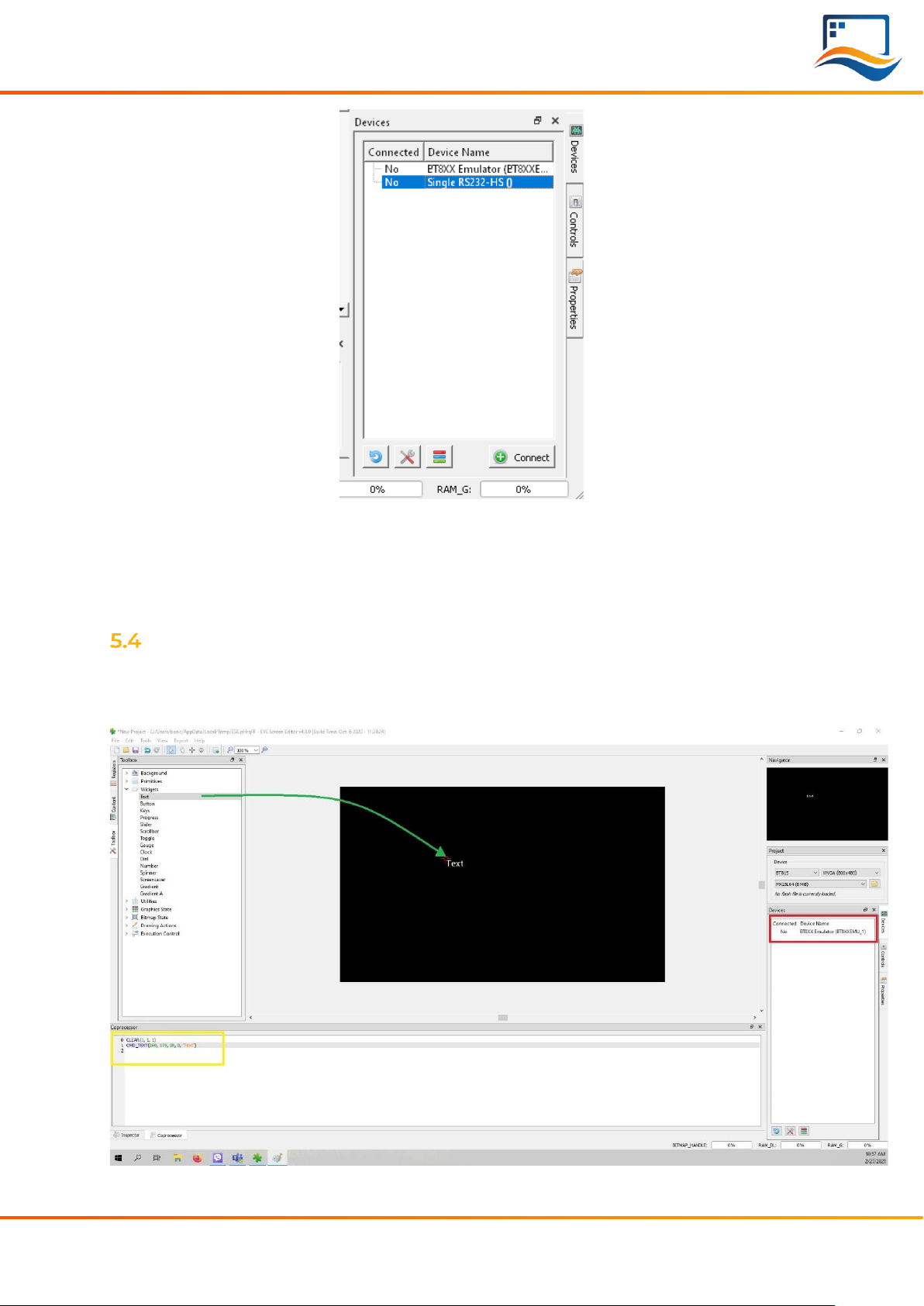
(The drag operation is shown in green; the generated coprocessor commands
are shown in the yellow box and the button to send the data to the EVE display is
seen inside the red box.)
What you see now is the preview of what will be drawn on the physical screen in a
moment. Note that in the lower part of the window the coprocessor tab shows
which EVE pre-processor commands were generated and will be sent to the EVE4
display shortly after.
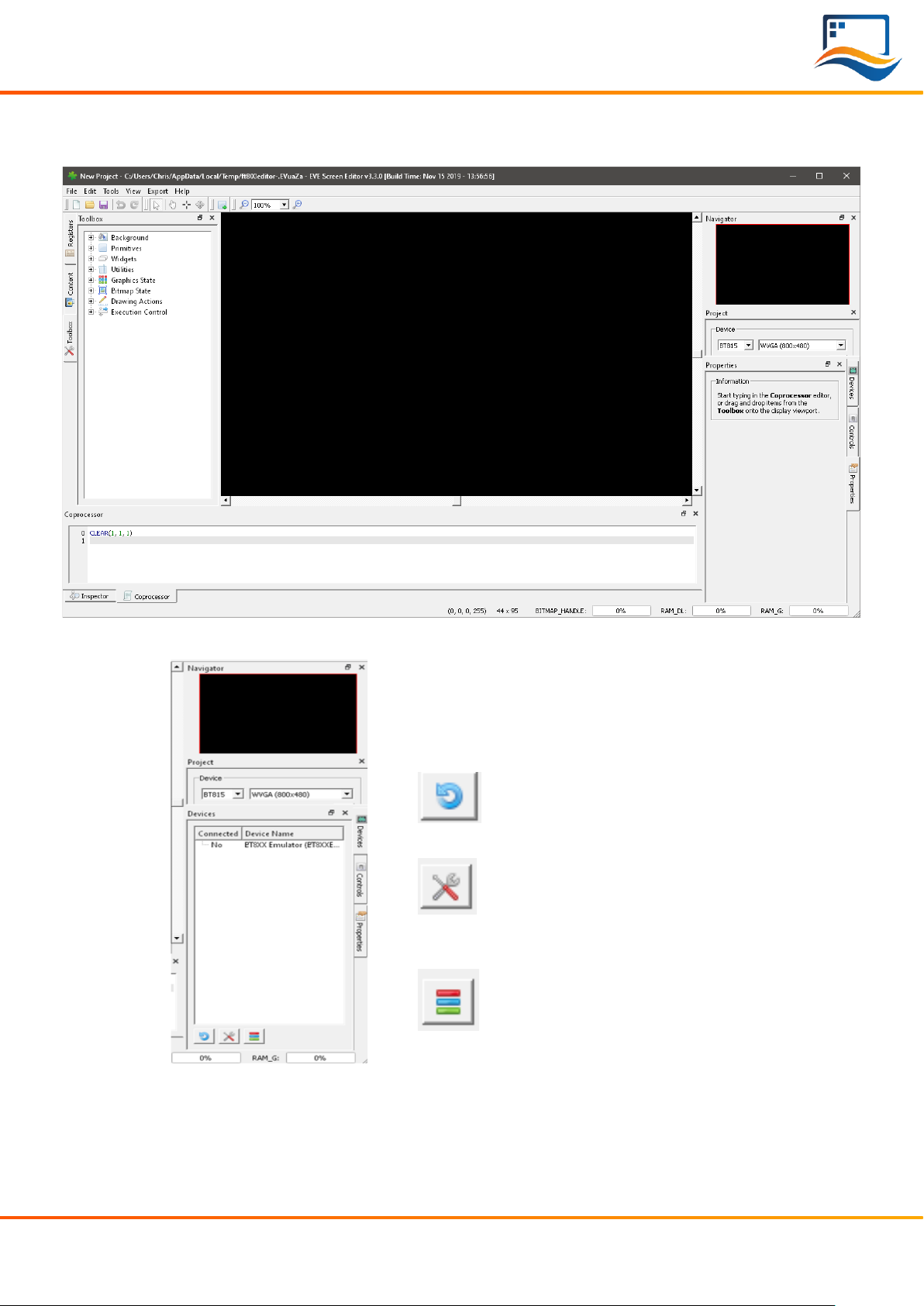
To send the commands also drawn in the preview pan to the physical display,
press the button labeled “Upload RAM_G and RAM_DL”.
EVALUATING RIVERDI EVE4 INTELLIGENT DISPLAY
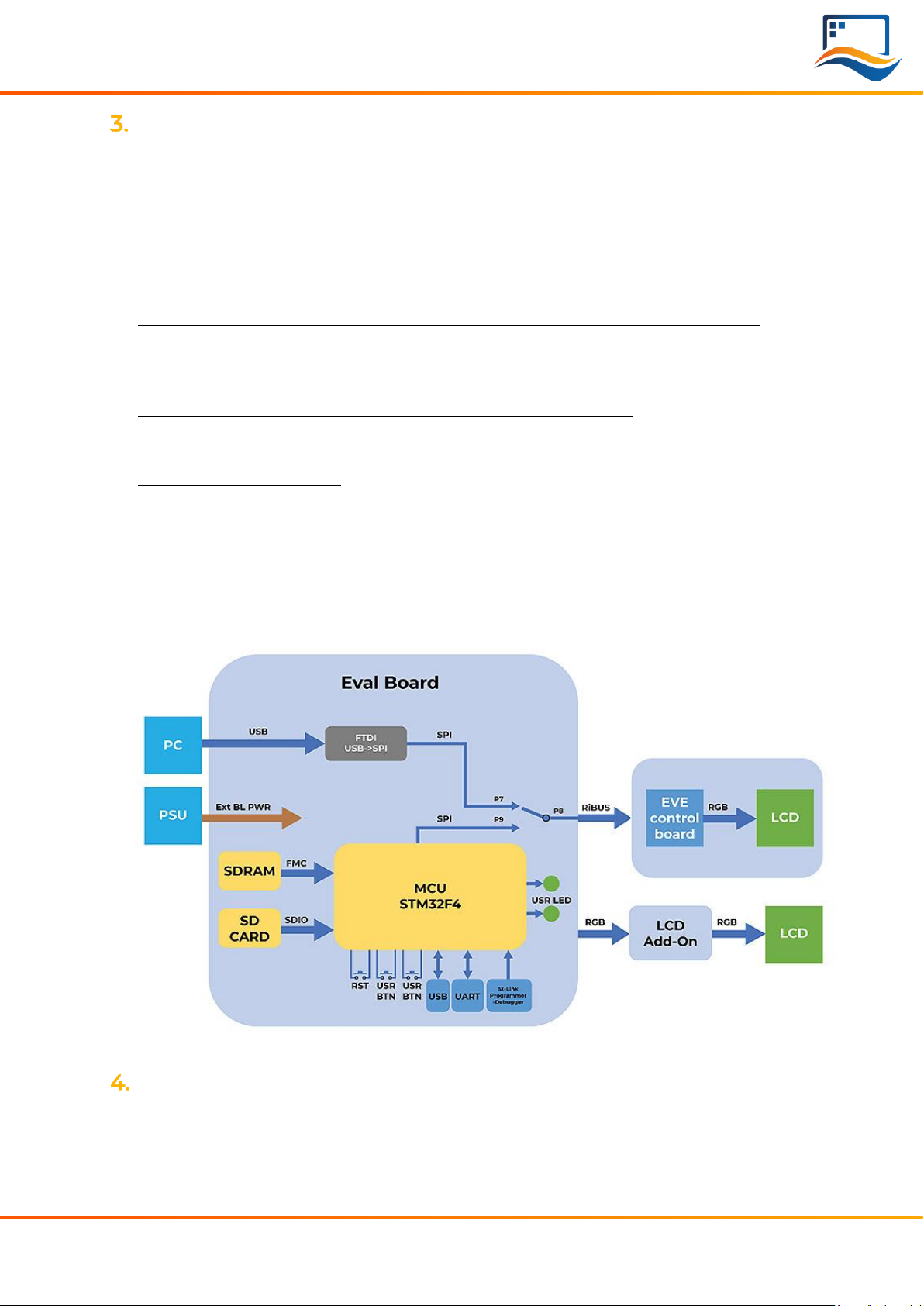
A list of required items
•Riverdi STM32 Evaluation Board
•EVE4 enabled display
•RiBUS flexible flat cable (20 pins, 0.5mm pitch), 1 pcs
•Micro USB cable, 1 pcs
•Pre-loaded Micro SD card with demonstration files, 1 pcs
•2.54mm pitch, 2x6pins Jumper, 1 pcs
•2.54mm pitch, 1x2 pins Jumper, 1 pcs
Note 1: All accessories required are included into the package STM32 Evaluation
Board.
Note 2: When the board is extracted from its ESD bag, check that no component
remains in the bag. The main component to verify is the microSD card that may
have been ejected from the Micro SD Slot.
Software ready to use
Riverdi has prepared official, ready-to-use software for the STM32 Evaluation board.
The demonstration software is preloaded in the STM32 flash memory. And Mico SD
card is pre-loaded with images, hex file and flash bin file which are associated for
easy demonstration.
The latest versions of the demonstration source code and associated files can be
downloaded from Riverdi GitHub.
Configuration
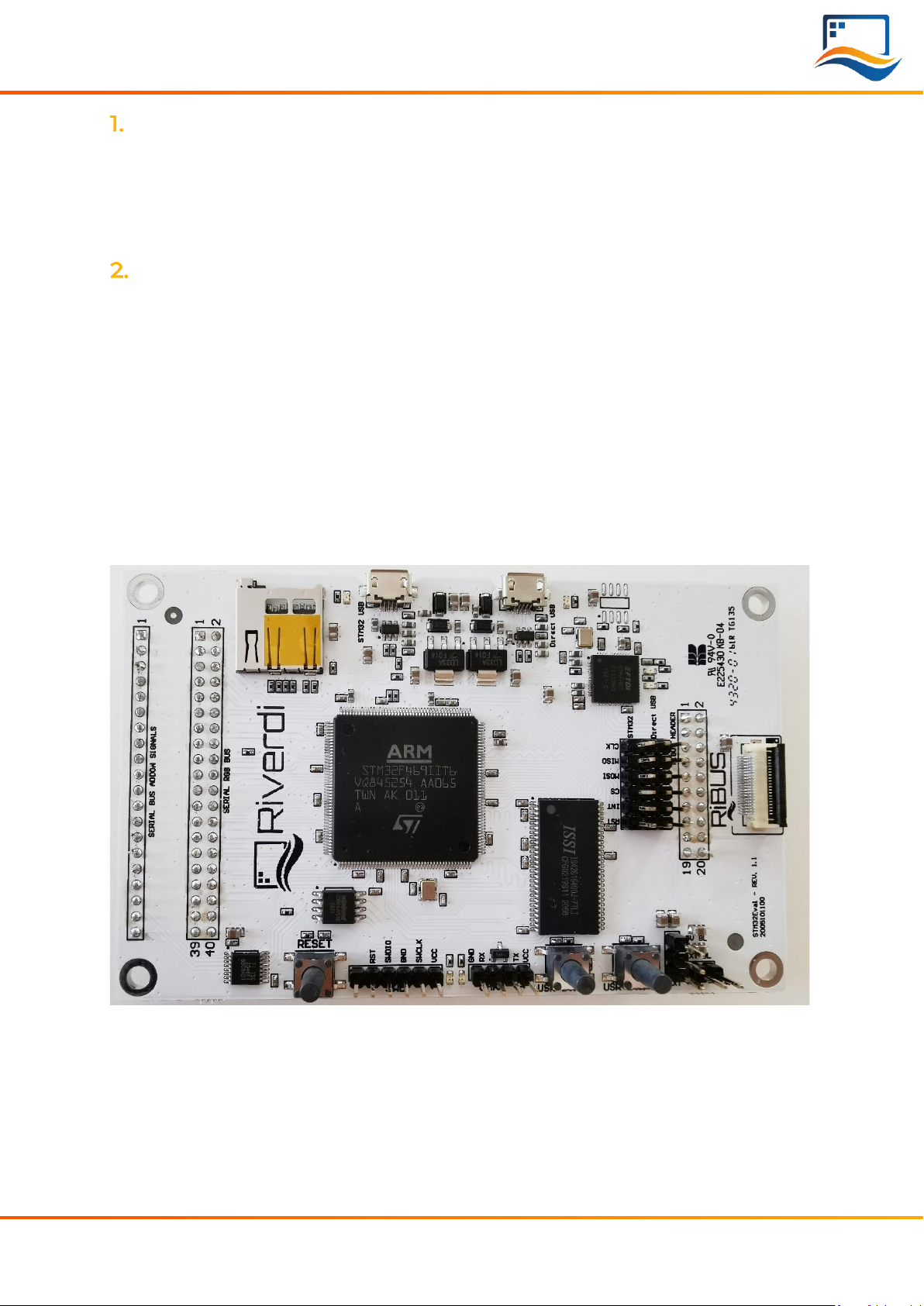
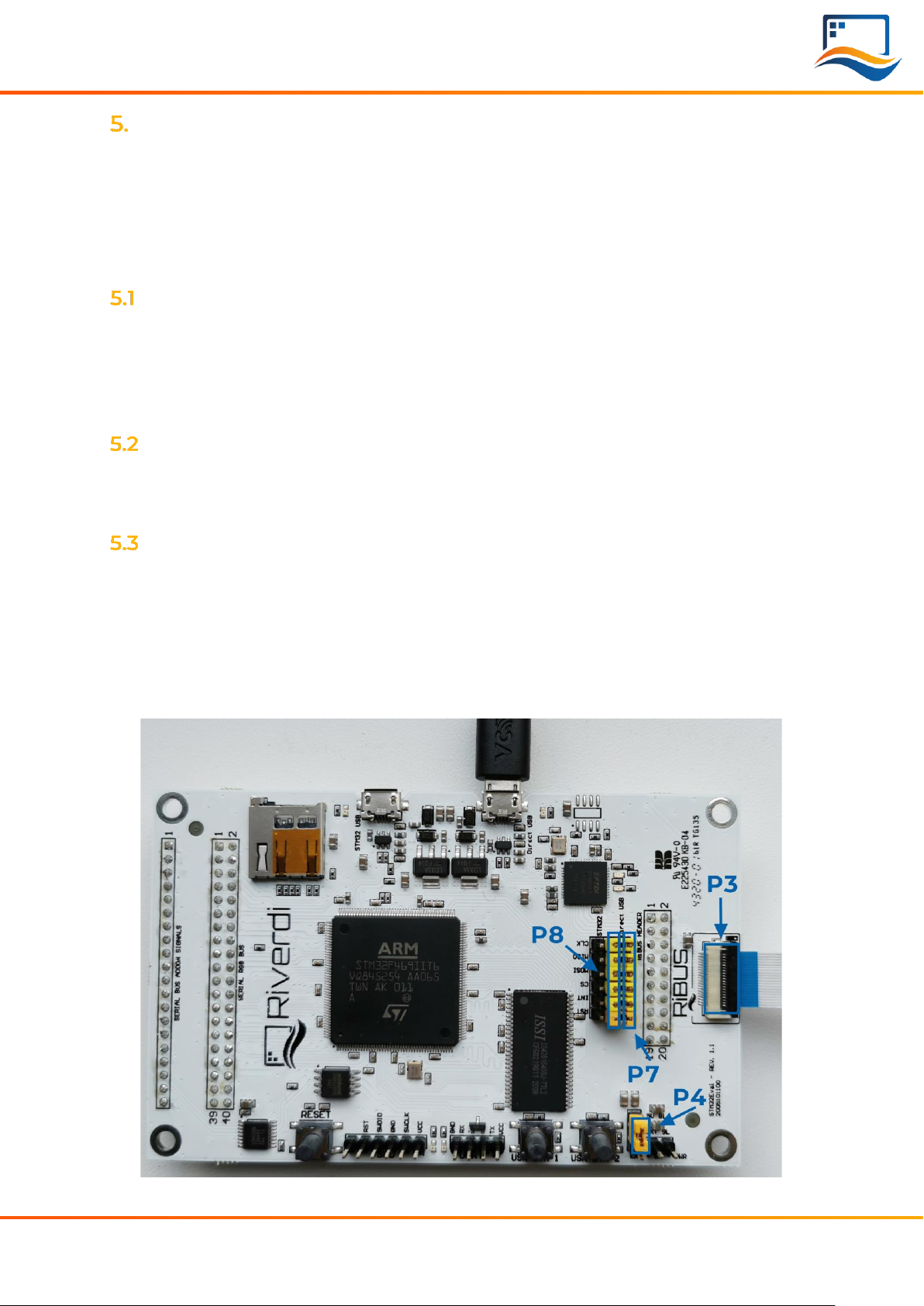
First, please connect Riverdi EVE4 display to RiBUS connector (P3) STM32
Evaluation Board by using the 150 mm long FFC.
Second, the configuration jumpers, 2x6pins, need to be placed between P9 and
P8. Check the jumper and the USB cable position (in ‘STM32 USB’ socket) in the
picture below.