ProofCam PC 105 Manuel utilisateur

Fo V
PC 105 HD Dash Cam
Designed and tested by experts
INSTRUCTION MANUAL
2.0’’
32GB
support
120°

Congratulations on
choosing the PC 105
Forward Facing HD
Dash Cam.
Please read these
instructions carefully
before use.

Contents
Product Features P01
Unpacking P01
Identification of Controls P02
Preparing for Use P03
Installing the Dash Cam P04
Connecting to Power P04
Powering the Dash Cam On / Off P05
Set the Date / Time P06
Mode Selection P06
Using the Dash Cam P06
Recording Screen P07
Emergency File Protection P07
Motion Detection P09
G-sensor Collision
Recording Protection P09
Video Menu Options
P10
Video Mode
P10
Setup Menu Options
P11
Setup Mode
P12
Taking Picture
P14
Still Capture Menu Options
P14
Still Capture Settings
P15
Playing Back Videos and Photos
P16
Play Video and Photo Screen
P16
Playback Menu Options
P17
P18
Battery Warning and
Installation Notes
P19Caution
P19Warranty
P20Specification
Audio On / Off P09

Product Features
›HD 720p Dash Cam
›1.3 Megapixel CMOS Sensor
›2.0” TFT Display
›120˚ Wide Angle Lens
›Support up to 32GB Class10 Micro SD Memory Card
›G-sensor Collision Recording Protection
›Motion Detection
›Seamless Loop Recording
Unpacking
Unpack the contents of the box and ensure the following components
are present.
›PC 105 Dash Cam
›Micro SD Card
›In Car Charger
›Suction Pad
›Sync Cable
›Quick Start Guide
›Windows Sticker
›Advertising Card
01
PC 105 HD Dash Cam

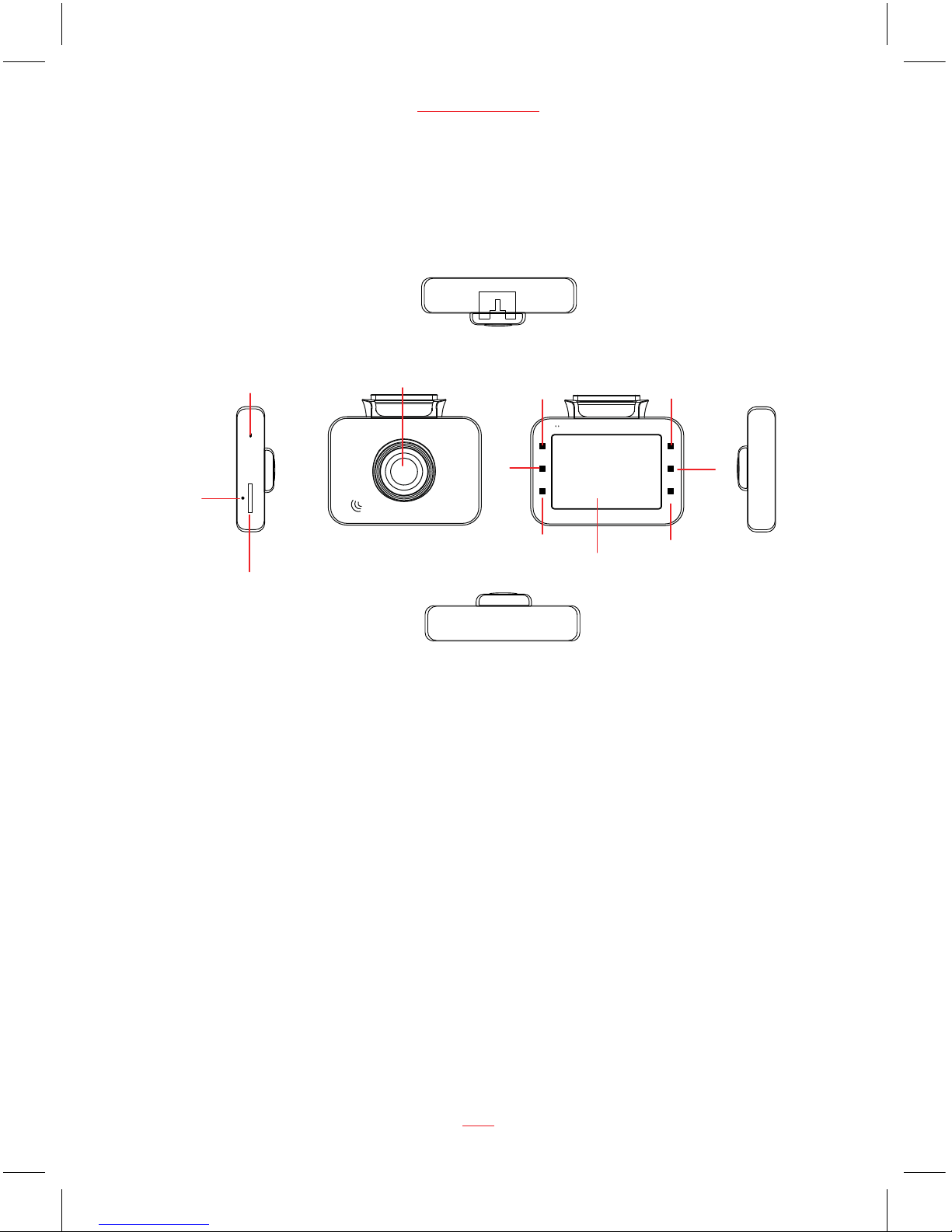
Identification of Controls
Controls:
1. Lens
2. Power button
3. Mode button
4. Menu button
5. LCD
6. Down / Motion Detection button
7. REC/OK button
8. Up button
9. Micro SD Card slot
10. USB Port for power adaptor
11. Reset button
www.proofcam.com
02
F
=
2
.
0
1
2
0
°
W
i
d
e
A
n
g
l
e
1
2
3
10
11
9
8
6
5
4
7

Preparing for Use
Battery Indicator and Charging
Inserting the Micro SD Card (included)
Follow the direction indicated on the dash cam to insert the Micro SD card,
a click sound is heard indicating the Micro SD card is in position.
To remove the Micro SD card, push to eject the Micro SD card out of the slot.
NOTE:
1. Do not remove or insert the Micro SD card when the dash cam is turned on.
This may damage the Micro SD card.
2. Please use a minimum Class 10 or higher rating Micro SD card, maximum
up to 32GB.
3. Please format the Micro SD card before the initial use.
4. When removing the Micro SD card, be careful that the card may spring out
and get lost. The Micro SD card slot has this spring-out feature for easy removal
of the card.
Micro SD Card slot
03
PC 105 HD Dash Cam
5. Dash Cam pre-installed a 4GB Class 10 Micro SD card, which has two months
warranty. The warranty date is deemed to be from the date you received your
Dash Cam.

Installing the Dash Cam
1. Push the suction pad into the slot on the top of the dash cam, make sure the
suction pad is securely locked in place.
2. Remove the protective film from the suction cup, with the suction-cup laying
flat, position the suction-cap on the windshield, and then press down the
clamp to suction pad the holder to the windshield. Make sure the base is securely
locked in place.
3. Loosen the knob to swivel the dash cam vertically. Lock the knob, to confirm that
the dash cam is securely locked in place.
4. Rotate the dash cam 360° to have proper view if required.
Connecting to Power
Use only the supplied in car charger for activating the dash cam and charging the
built-in battery.
1. Connect one end of car charger to USB port on the dash cam.
2. Plug the other end of the car charger to the in car power socket of your
vehicle. Once the vehicle engine is started, the device automatically turns on.
It will also turn off when the engine is turned off.
www.proofcam.com
04
Note:
Some vehicles have an in car power supply that remains on, even if the engine
is turned off. If this is the case, you will need to manually turn the dash cam on
and off, using the power button, when you enter and leave the vehicle.
1.
2. Any excess cable can normally be tucked into the ceiling of the vehicle. We have
a video to advise on how best to fit the PC 105 which is available at
www.proofcam.com and visit “ Dash Cam Resources”. You can also search
“How to fit an PC 105” on YouTube.

Powering the Dash Cam On / Off
Auto Power On / Off
Once the vehicle engine is started, the dash cam automatically turns on and starts
recording (must have Micro SD Card installed). After the car engine is stopped, the
dash cam will automatically save the last recorded file and shutdown.
Manual Power On / Off and Reset
Manual Power On / Off
Short press the Power button 1 second to power the dash cam on and off.
Reset the Dash Cam
In case the dash cam fails to function normally due to unknown causes, press the
Reset button with sharp pin, wait for 5 seconds and then press the Power button
to restart the dash cam. Sometimes it is also necessary to format the Micro SD Card,
which can be performed from the menu settings.
Power
button
Reset
button
05
PC 105 HD Dash Cam
Note: If your vehicle in car power remains on after the car engine has been turned
off, you may need to remove the car charger, or turn the PC 105 off using the
power button. This is because if the in car power remains on, the PC 105 will
not know that the engine has turned off.

Set the Date / Time
To set the correct date and time, press MENU button to enter the menu setting,
then press MENU button again to change to Setup Settings,
button to select Date/Time setting, press REC/OK button to set it, then press
and buttons to adjust the value, press
setting, after finished all the settings, press
to exit from menu setting. To start recording press once.
Mode Selection
The default settingis Video Mode , press MODE button to switch to
Capture Mode , PlaybackMode.
Using the Dash Cam
Recording Videos
Before starting to record, please ensure that the Micro SD card (included) is
inserted. If you are using the dash cam for the first time, please format the
SD card at first. Please press button to start recording, the video
•
recording icon flashes on the screen. The recorded files are saved to the
SD card. To stop recording, press button again. With the car charger
connected the dash cam will automatically turn on and start recording when
the car engine starts. When the engine stops, the dash cam will automatically
save the last file and turn off.
www.proofcam.com
06
then press Down
REC/OK button to switch to next
MENU button to exit from menu
REC/OK button
Still
then press MODE button to switch to
REC/OK
REC/OK
Note - if your vehicle in car power remains on after the car engine has been
turned off, you may need to remove the power lead, or turn the PC 105
off using the power button. This is because if the in car power remains
on, the PC105 will not know that the engine has been turned off.

Emergency File Protection
Important:
The RAC 107 records in segments onto the Micro SD card. The default segment
duration is 2 minutes, which can be changed from the menu settings. For
example, 1 hour of recording would generate 30 x 2 minute segments.
During recording, press MENU button
to protect current video, the lock icon
appears on the screen, if you press the MENU button during the first 10 seconds
of this video, both the current and the last video segment will be protected; if you
press the MENU button between the first 10 seconds and the last 10 seconds, the
current video will be protected; if you press the MENU button during the last 10
seconds, both current and the next video segment will be protected and cannot be
replaced .
Remove the protection from the video:
Press REC/OK button to stop recording, then press Mode button twice switch to
Playback Mode, choose the protection video and then press Menu button to enter
playback menu, press up and down buttons to enter Protect settings and then
press REC/OK button to enter Protect Sub menu , using UP and DOWN buttons to
select “Unlock Current” or “Unlock All”, press REC/OK button to confirm unlock
current video or all the protected videos, the lock icon will disappear from
the screen, the video will not be protected and can be replaced if the Micro SD card
is full.
Recording Screen
07
PC 105 HD Dash Cam
Note: The protective video can be seen the lock icon in dash cam playback
mode, but it can’t be distinguished in computer.
Autres manuels pour PC 105
1
Table des matières
Autres manuels ProofCam Caméra embarquée