Powapos T25 Manuel utilisateur

IPAD AIR MOUNT
USER GUIDE

2
TABLE OF CONTENTS
OVERVIEW ............................................................................................................................. 3
INSTALLATION....................................................................................................................... 4
Paper..................................................................................................................................................4
Scanner ..............................................................................................................................................4
Tablet .................................................................................................................................................5
CONNECTIONS....................................................................................................................... 6
Power .................................................................................................................................................6
Cash Drawer.......................................................................................................................................6
External PIN Pad ................................................................................................................................6
Connection Ports – Maximum Ratings ................................................................................................6
ADJUSTING THE TABLET ....................................................................................................... 7
Swiveling and Tilting the Base............................................................................................................7
TEARING RECEIPTS ............................................................................................................... 8
USING THE BARCODE SCANNER............................................................................................ 9
Mounted..............................................................................................................................................9
Handheld ............................................................................................................................................9
USING THE CARD READER/PIN PAD .................................................................................... 10
Swiping a Card..................................................................................................................................10
Swiping an EMV Card ........................................................................................................................10
Tapping a Card..................................................................................................................................11
Entering a PIN ..................................................................................................................................11
TROUBLESHOOTING ............................................................................................................ 12
Tablet Installation Difficulties ..........................................................................................................12
Tablet Does Not Function..................................................................................................................12
Scanner Difficulties ..........................................................................................................................12
Printer Difficulties............................................................................................................................12
External PIN Pad Difficulties ............................................................................................................13
Cash Drawer Difficulties...................................................................................................................13
Swiveling the PowaPOS T25..............................................................................................................13
Integrated PIN Pad Error Messages .................................................................................................14
WARRANTY AND SUPPORT.................................................................................................. 15

3
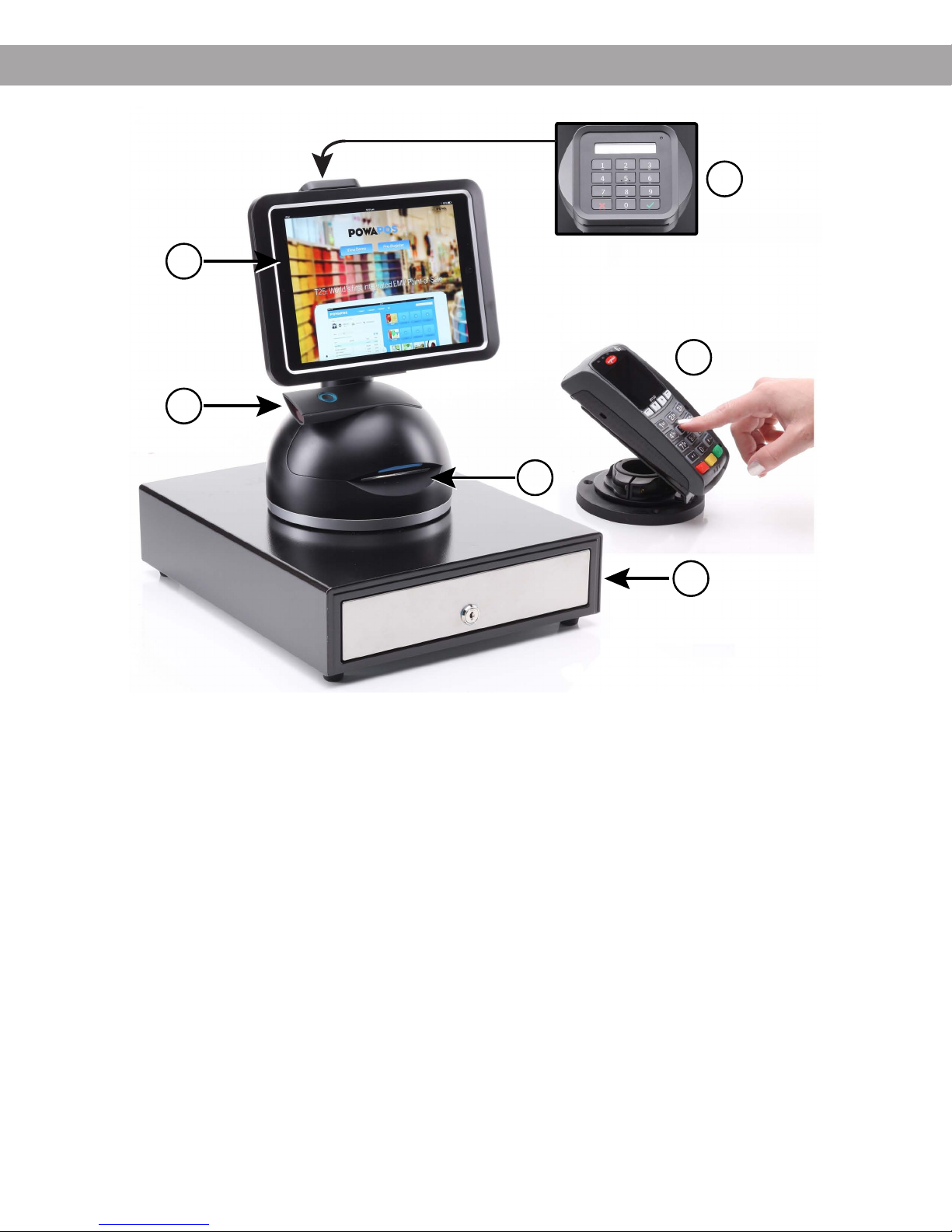
OVERVIEW
Congratulations on your purchase of the PowaPOS T25! You now have what you need to make your
business a success, including:
1. Tablet mount supporting iPad Air tablets
2. (Optional) Barcode scanner
3. (Optional) Integrated PIN pad supporting EMV chip and magnetic stripe payment card types
4. Receipt printer
5. (Optional) Third party PIN pad
6. (Optional) Cash drawer
Note:
For additional product information see www.powapos.com. All images in this guide are for
illustrative purposes. Actual product may differ.
1
2
3
4
6
5

4
INSTALLATION
PAPER
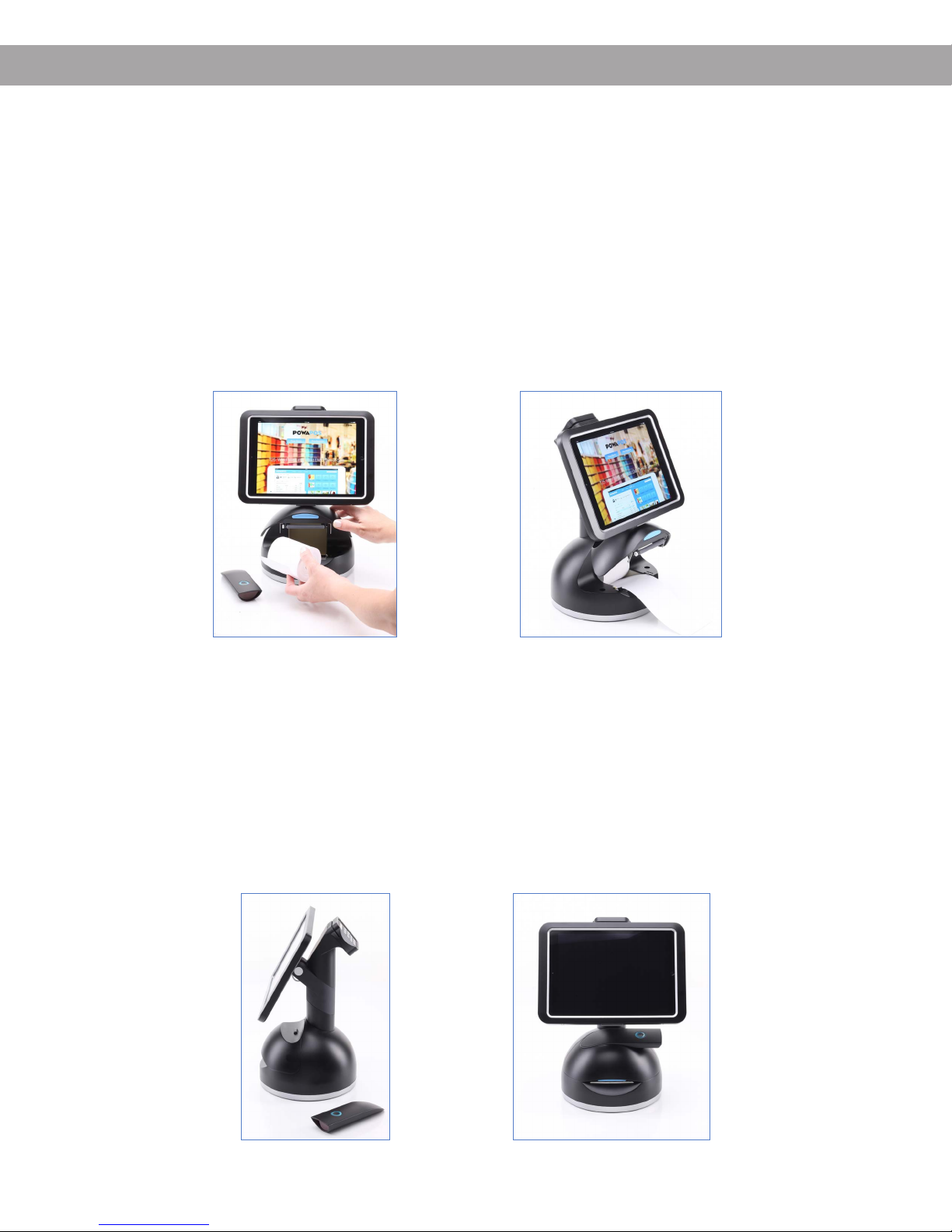
To install paper for the receipt printer or replace an empty paper roll, do the following:
1. Remove the barcode scanner from the base.
2. Lift the base cover by placing your thumbs into the opening and lifting upwards.
3. If necessary, remove the empty paper roll.
4. Insert a new paper roll with the loose end of the paper coming from underneath the roll
through the front opening.
5. Close the base lid and tear downwards to tear off excess printer paper.
6. If desired, place the barcode scanner on the base.
SCANNER
The scanner can be used as a mounted or a handheld device. When used as a handheld, you must
hold down the button to scan an item. If the scanner does not appear to be functioning, press and hold
the button for five seconds to turn the scanner on. To mount the barcode scanner, do the following:
1. Place the barcode scanner into the slot at the top of the base using the notch to secure
placement.
2. The barcode scanner can be placed with the scan window facing either the left or the right side
of the base.

5
INSTALLATION (CONT’D)
SCANNER (CONT’D)
If the scanner is not functioning it may need to be paired with the tablet. To pair the scanner with the
tablet, do the following:
1. On your tablet, go to the Settings menu.
2. Go to Bluetooth settings.
3. Turn on Bluetooth to make devices discoverable.
4. Select the PowaPOS device. If there are multiple scanners within Bluetooth range, select your
unit’s specific scanner as identified by the ID number located on the bottom of the scanner.
TABLET
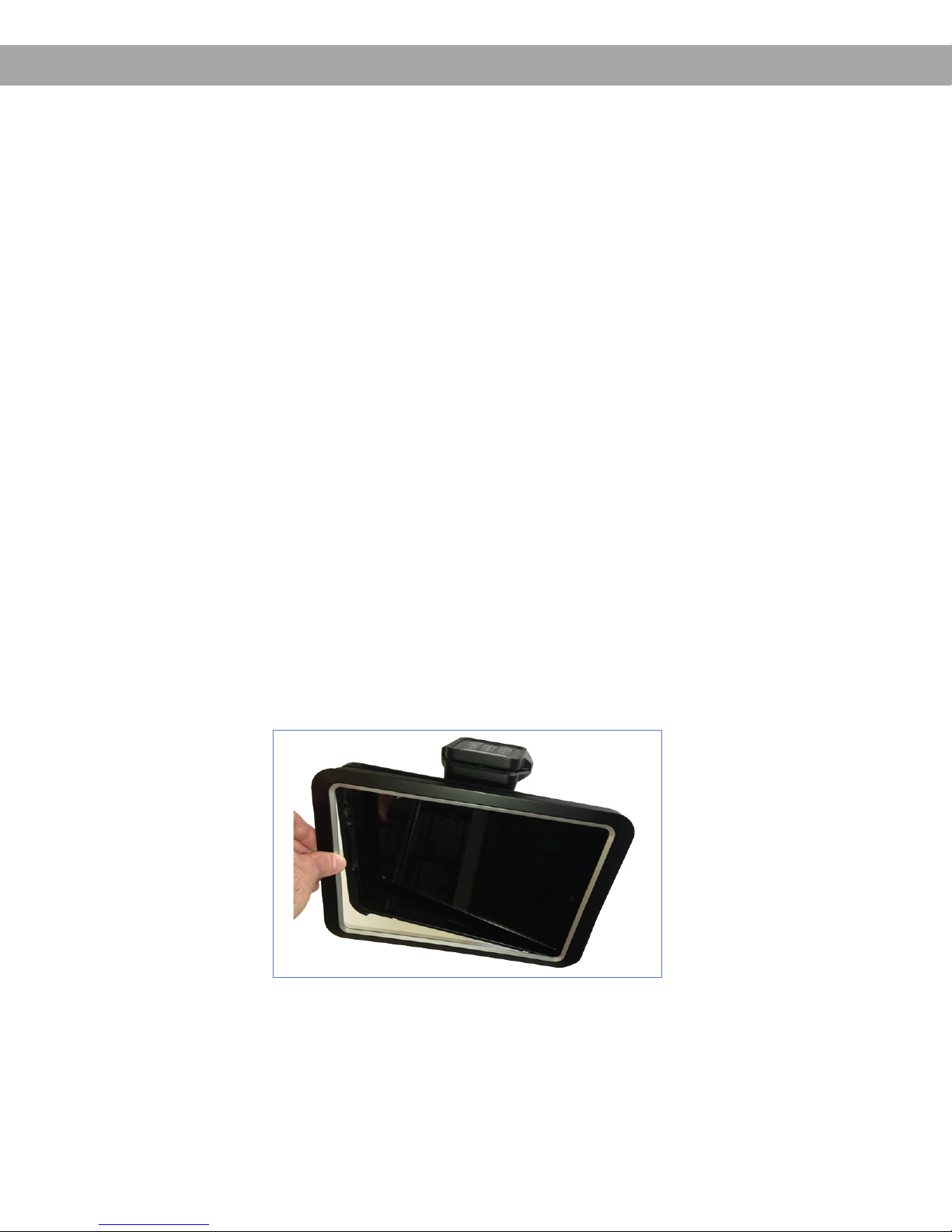
To install an iPad Air, do the following:
1. Tighten (turn clockwise) the two screws on the bottom of the tablet mount bezel to loosen the
bezel.
2. Firmly hold the tablet bezel and slide the bezel up vertically by 0.25” (6.35 mm).
3. Lift the front bezel to remove it from the stand.
4. Insert the iPad Air onto the stand with the charging port of the iPad facing the right side.
5. Connect the lightning cable on the right side of the iPad.
6. Take the front bezel and hold it slightly higher, press back onto the stand, and slide the front
bezel down to secure it back on the stand.
7. Loosen (turn counter-clockwise) the two screws until they push against the bezel to secure the
tablet bezel in place.

6
CONNECTIONS
Connections for power and external accessories are on the underside of the PowaPOS T25. To access
any of these connection ports, do the following:
1. If mounted, remove the barcode scanner from the PowaPOS T25 and set it aside.
2. Pick up the PowaPOS T25 with two hands and carefully turn it on its side.
3. Connect the cables to the correct ports and route the cables through the groove on the
underside of the PowaPOS T25.
4. Place the PowaPOS T25 right-side up and mount the barcode scanner.
POWER
To connect power to the PowaPOS T25, do the following:
1. Follow steps 1-3 under Connections. Plug the DC cable of the power supply into the Power port
on the underside of the PowaPOS T25.
2. Connect the AC power cable into the power supply socket and into an electrical outlet.
CASH DRAWER
The cash drawer is an optional accessory used to support cash payments. To connect the cash drawer
to the PowaPOS T25, do the following:
1. Follow the steps under Connections and use the port labeled Cash Drawer.
2. Plug the other end of the cable into the connection on the top of the cash drawer.
3. Place the PowaPOS T25 on top of the cash drawer.
CONNECTION PORTS – MAXIMUM RATINGS
The maximum ratings for the connection ports are:
CONNECTION MAX RATING CONNECTION MAX RATING
Cash Drawer 24V @ 1.0A USB 1 5V @ 1.0A
Tablet 5V @ 2.1A USB 2 5V @ 0.5A
PIN Pad 5V @ 0.5A DC Input 24V @ 4.0A
Scanner 5V @ 0.5A
EXTERNAL PIN PAD
A third party PIN Pad is an optional accessory used to support payment transactions. To connect a
third party PIN Pad to the PowaPOS T25, do the following:
1. Follow the steps under Connections and use the 5V, 1.0A USB 1 port to connect a third party
PIN Pad.
2. Plug the other end of the cable into the PIN Pad.

7
ADJUSTING THE TABLET
SWIVELING AND TILTING THE BASE
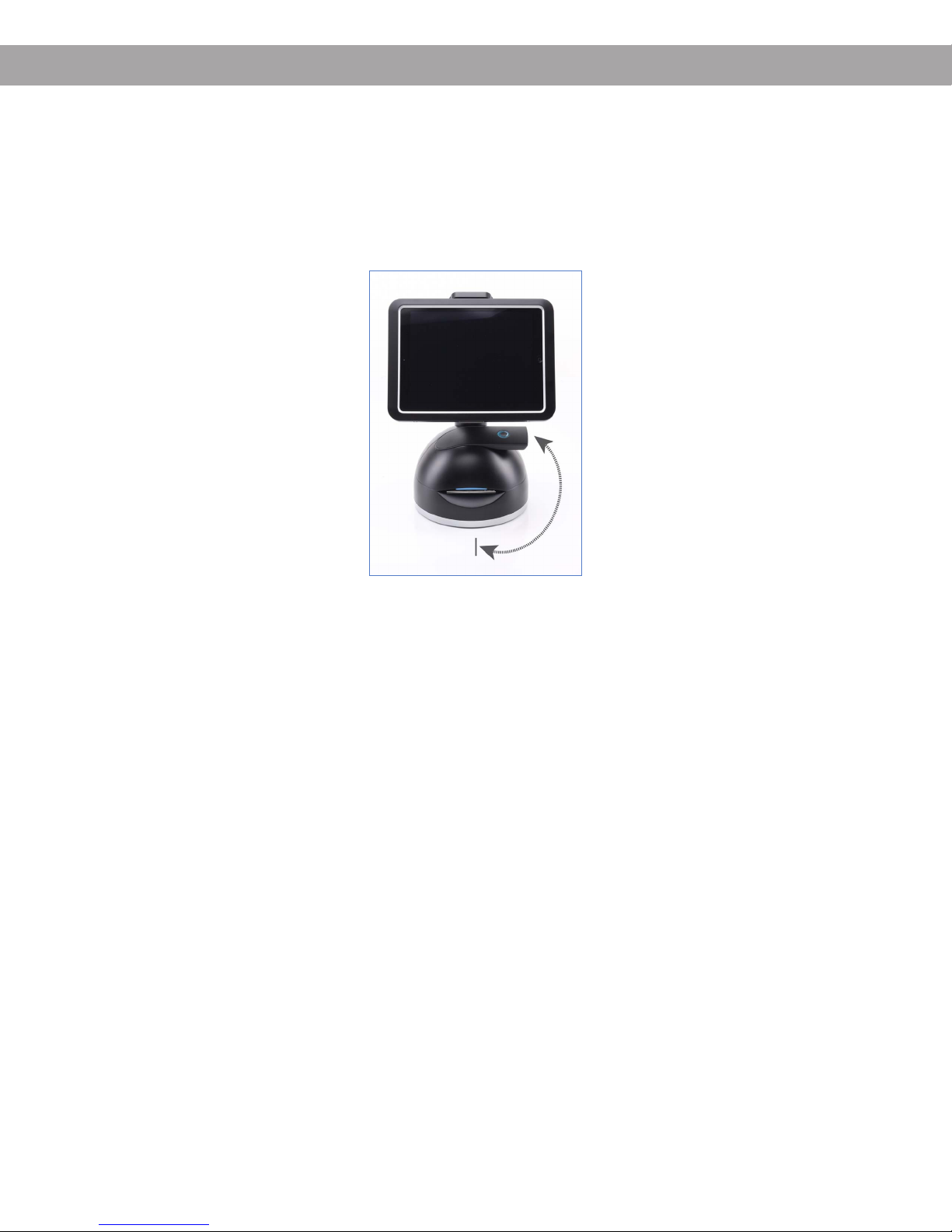
The PowaPOS T25 can rotate 180 degrees counterclockwise from the starting (cashier facing) position
to the consumer facing position. To swivel the base, do the following:
1. Place your hands on each side of the base.
2. Firmly but gently rotate the base counterclockwise.
The PowaPOS T25 display screen can be tilted. To tilt the display screen, do the following:
1. Firmly hold both tablet sides or place one hand on the top or bottom of the mount with the
other hand holding down the base.
2. Press forward or back to adjust the tilt of the display screen.

8
TEARING RECEIPTS
After the PowaPOS T25 prints a receipt, you must tear it off to hand it to the customer. To tear a
receipt, do the following:
1. Firmly grip the receipt in your hand.
2. Pull the receipt quickly at a downward angle towards either the left or right.

9
USING THE BARCODE SCANNER
The barcode scanner can be used as a mounted or a handheld device. If the scanner does not appear
to be functioning, press and hold the button for five seconds to turn the scanner on.
MOUNTED
If the barcode scanner is mounted, it is always active during checkout. To scan an item, do the
following:
1. Hold the item with its barcode facing the scanner.
2. The red light from the barcode scanner should be seen on the item’s barcode.
3. After a slight delay, the item should scan properly and be visible on the tablet.
HANDHELD
If the barcode scanner is being used as a handheld, it is only active when you hold the button. To scan
an item, do the following:
1. Hold the button and point the scanner at the item’s barcode.
2. The red light from the barcode scanner should be seen on the item’s barcode.
3. After a slight delay, the item should scan properly and be visible on the tablet.

10
USING THE CARD READER/PIN PAD
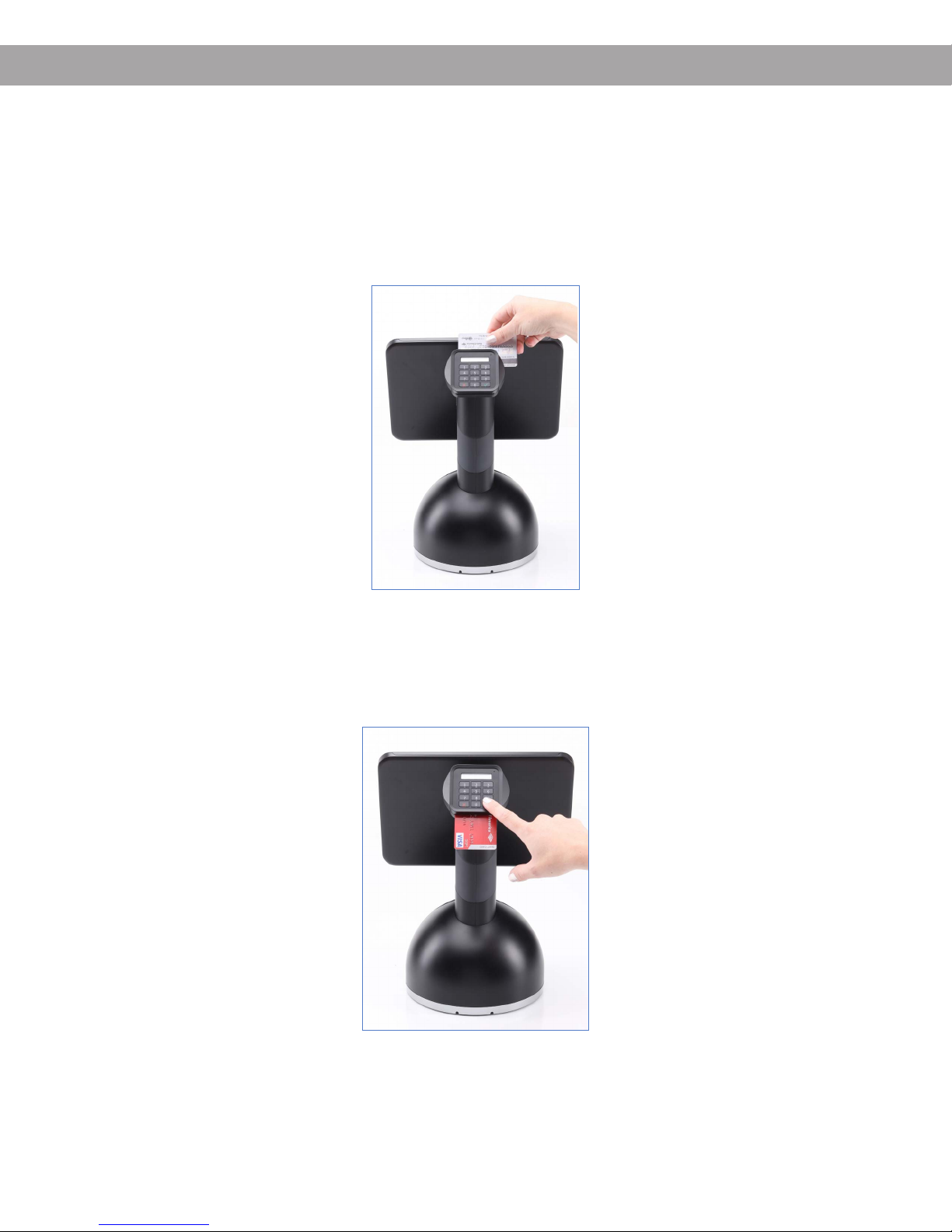
A card reader and PIN pad are required to process credit and debit card transactions. The
PowaPOS T25 supports both an integrated and third party PIN pads. The integrated PIN pad supports
both EMV chip (swipe only) and magnetic stripe payment card types, but an external PIN pad is
required to support contactless payments. The instructions and images below describe the integrated
PIN pad where supported.
SWIPING A CARD
To swipe a magnetic stripe payment card, place the card in the slot at the top of the PIN pad with the
magnetic stripe facing the PIN pad and then quickly slide the card.
SWIPING AN EMV CARD
To swipe an EMV chip payment card, insert the chip side of the card, face up, into the opening on the
bottom of the PIN pad. Remove the card from the PIN pad when instructed.
Table des matières
Manuels Terminal tactile populaires d'autres marques

Wincor Nixdorf
Wincor Nixdorf iPOS plus Advanced Manuel utilisateur

Ingenico
Ingenico AXIUM EX4000 Manuel utilisateur

Heisei Electronics
Heisei Electronics Q-POS 815 Manuel utilisateur

Amano
Amano MTX-15 Manuel utilisateur

FLOWBIRD
FLOWBIRD CWT Compact Touch Manuel utilisateur

Demco
Demco SP7 Manuel utilisateur