
Pocketbook CoverReader Manuel utilisateur
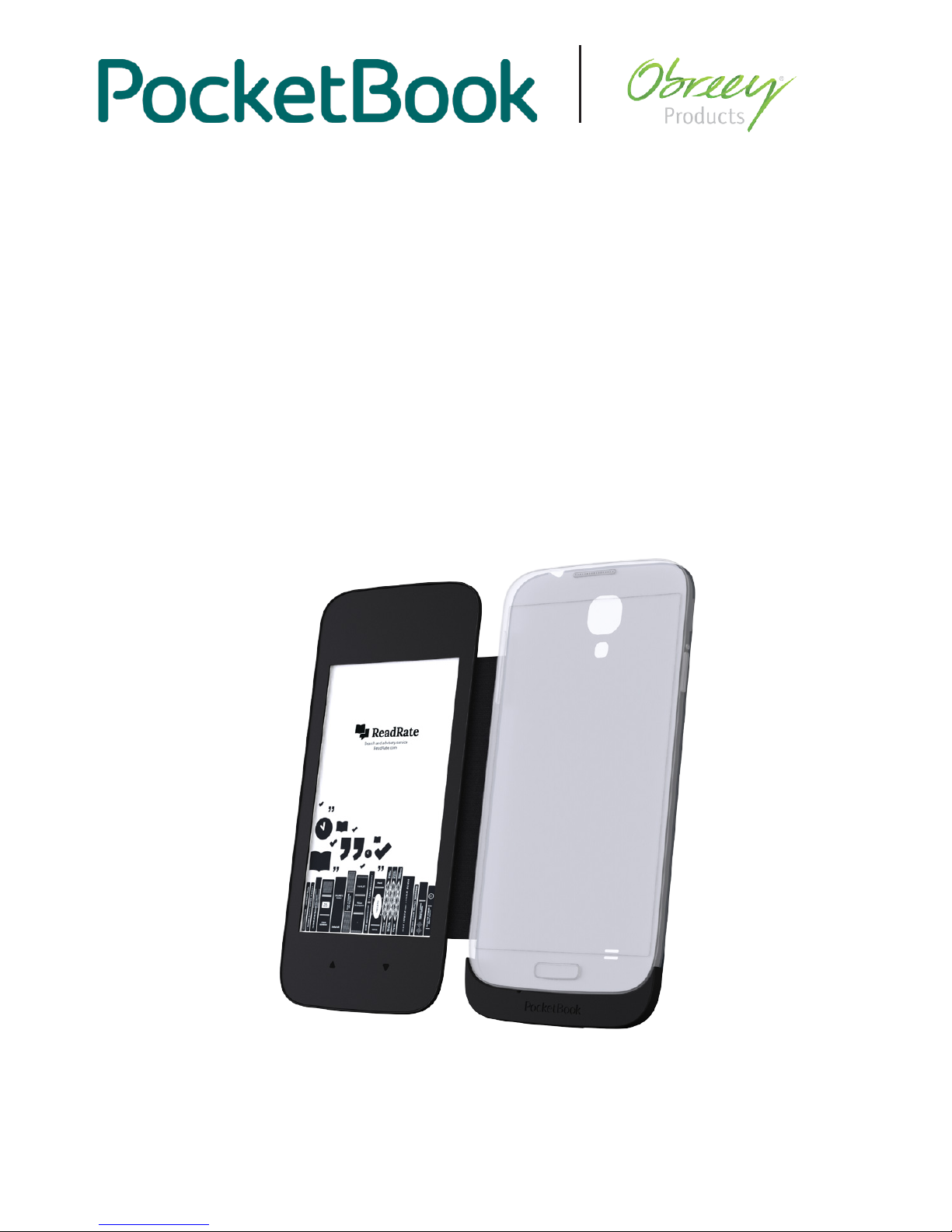
User Manual
PocketBook CoverReader
for Samsung Galaxy S4smartphones

2
Table of Contents
SAFETY PRECAUTIONS 3
Storage, Carriage and Usage Conditions 3
Maintenance 4
Utilization 4
APPEARANCE 5
TECHNICAL SPECIFICATIONS 5
GETTING STARTED 6
Smartphone software installation 6
Connecting to smartphone, turning it on for the first time, and start
using CoverReader 6
DEVICE CONTROL 8
Reading books 8
Button Control 8
Tap Zones 9
Sharing Content to the Device 9
Images 9
Text 9
Wallpaper Settings 10
Call and Message Notifications 10
SETTINGS 11
Page Turn 11
Picture output 11
Wallpaper 11
Standby Mode 11
Notifications in standby 11
Automatic Power off 11
Uninstall CoverReader 12
TROUBLESHOOTING 13
COMPLIANCE WITH INTERNATIONAL STANDARDS 14
LEGAL INFORMATION 15

3
Safety Precautions
Before start working with the Device, please, read this section carefully. Following these
instructions will ensure your safety and extend service life of the Device.
Storage, Carriage and Usage Conditions
Device operating temperature range is 0°C to +40°C, so do not expose the Device to ex-
cessively high or low temperatures.
Try to avoid next impacts:
•direct sunlight
•direct flame or smoke
•penetration of liquids or moisture
•exposure to strong electromagnetic fields, electrostatic charges and artificial sources
of UV electromagnetic radiation
•excessive mechanical pressure on the screen, connectors and keys of the Device.
Do not leave the Device for a long time in poorly ventilated environment, e.g. in a car.
Glass was used in the manufacture of this Device, so do not throw or try to bend it. Protect
the screen from objects which may scratch or damage it.
Failure to comply with the terms of use of the Device and this User Guide may lead to dam-
age to the Device and/or your smartphone. If the Device is used for purposes other than
that intended or if it is damaged as a result of the user’s actions aimed at making changes
to the Device’s construction, the manufacturer shall not be liable for its integrity and cor-
rect performance.
PocketBook software is provided on the “as is” principle. The manufacturer does not guar-
antee continuous and faultless performance of PocketBook software and is not responsi-
ble for its compatibility with smartphone software and/or third-party applications. Use of
the Device or PocketBook software may affect the performance of other software in your
smartphone. It is recommended to back up the data stored in your smartphone before
installing PocketBook software and regularly after its installation. The manufacturer shall
not be held liable for the loss of information resulting from the operation of PocketBook
software and/or resulting from the operation of the Device.
The manufacturer shall not be held liable for damages related to the loss of information,
other indirect damages, lost profit or other accidental or indirect damage related to the
purchase, use or impossibility to use the Device, even if the manufacturer was notified of
the possibility of such damages. In the jurisdictions of certain countries, indemnity against
Safety Precautions
4
or limitation of liability as indicated above is prohibited. The above-listed limitations of li-
ability apply to the maximum extent, inasmuch as allowed by legislation.
The Device will closely touch the screen of your smartphone, which may lead to scratches
and scuff marks on the screen of your smartphone. To prevent scratches on the screen of
your smartphone, you can use protective film (protective film is not included in the pack-
age contents of the Device).
Keep away from children.
Maintenance
Do not disassemble or modify the book reader.
Do not use organic or inorganic solvents (e.g. benzoyl etc.) to clean the screen/case. Use
a soft cloth to remove dust from the Device’s surface. Apply a few drops of distilled water
to remove dirt.
Up to five faulty pixels are acceptable in the screen and do not constitute a warrantable
defect of the screen.
By the end of product guarantee term, please contact the nearest authorized service facil-
ity for examination on the subject of security is maintained.
For detailed information about service centers in your region please visit the official web-
site of PocketBook International: http://www.pocketbook-int.com/support/.
Utilization
Incorrect disposal of this Device may have adverse impacts on the environ-
ment and public health. To prevent such consequences follow the device-spe-
cific disposal requirements. Recycling of these materials helps preserve natural
resources. For more information regarding recycling issues please contact lo-
cal municipal authorities, your domestic waste collection service, store where
you purchased the Device, or the authorized service center.
Disposal of electric and electronic components (the Directive is applicable to the EU and
other European countries where separate waste disposal systems exist). In other countries
dispose batteries accordingly to local laws.
5
Appearance
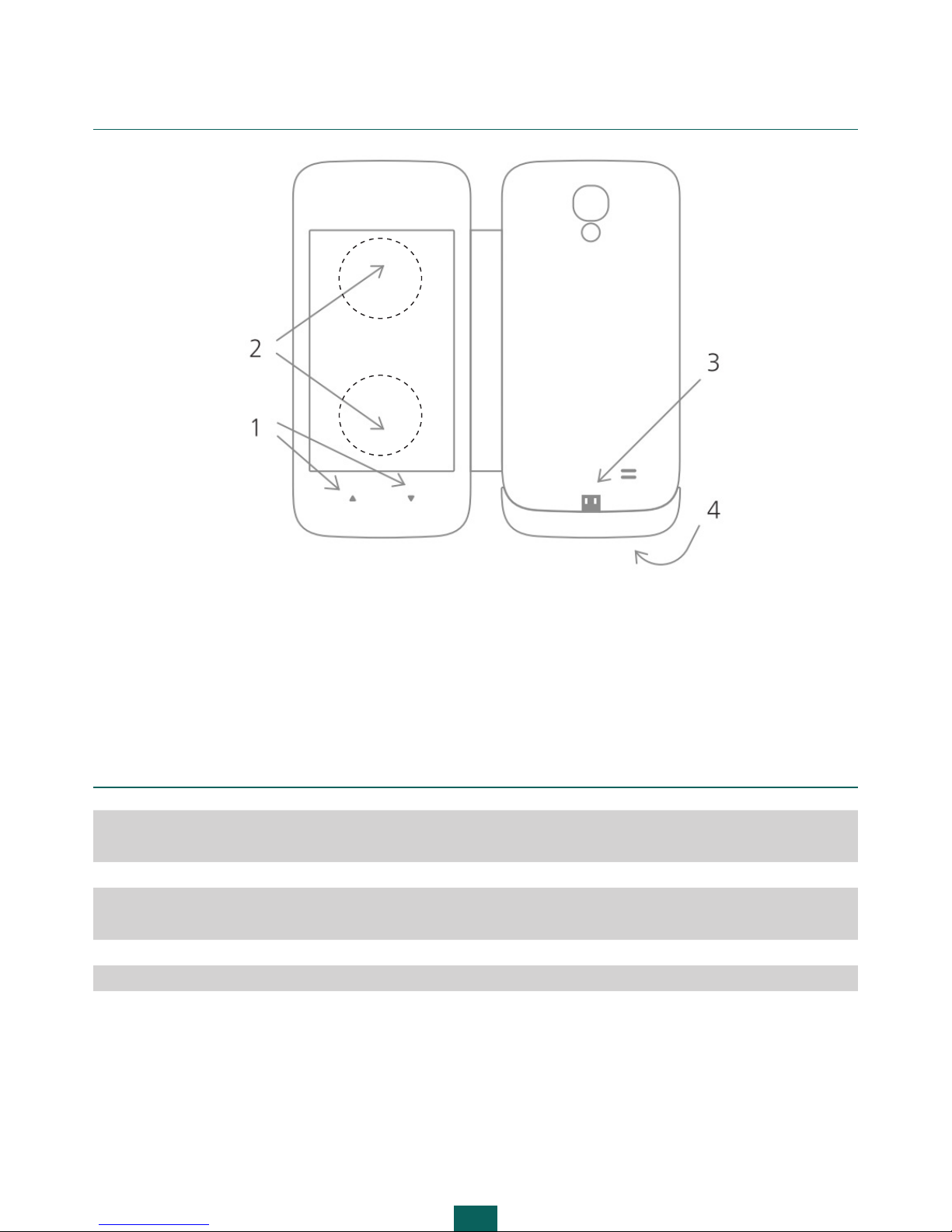
1. Page-turning buttons
2. Touch screen page-turning zones
3. Internal USB-port — microUSB port to connect your smartphone
4. External USB-port — microUSB port to connect to storing device or a computer
Technical Specifications
Display 4,3’’ EPD, 480 × 800 pixels, 217 dpi, black/white,
two-position touch screen
Communications MicroUSB-port (type A male/female)
Book formats PDF (Adobe DRM), EPUB (Adobe DRM), DjVu, TXT,
FB2, FB2.zip
Image formats JPEG, GIF, PNG, BMP, WebP
Dimensions 146.3 × 69.0 × 12.6 mm
Weight 65 g
6
Getting Started
SMARTPHONE SOFTWARE INSTALLATION
1. Fully charge your smartphone battery and connect to internet via Wi-Fi network.
2. Install the CoverReader application from Google Play Market:
https://play.google.com/store/apps/details?id=com.pocketbook.coverreader
3. Install the PocketBook Reader application from Google Play Market:
https://play.google.com/store/apps/details?id=com.obreey.reader.
CONNECTING TO SMARTPHONE, TURNING IT ON FOR THE FIRST TIME, AND
START USING COVERREADER
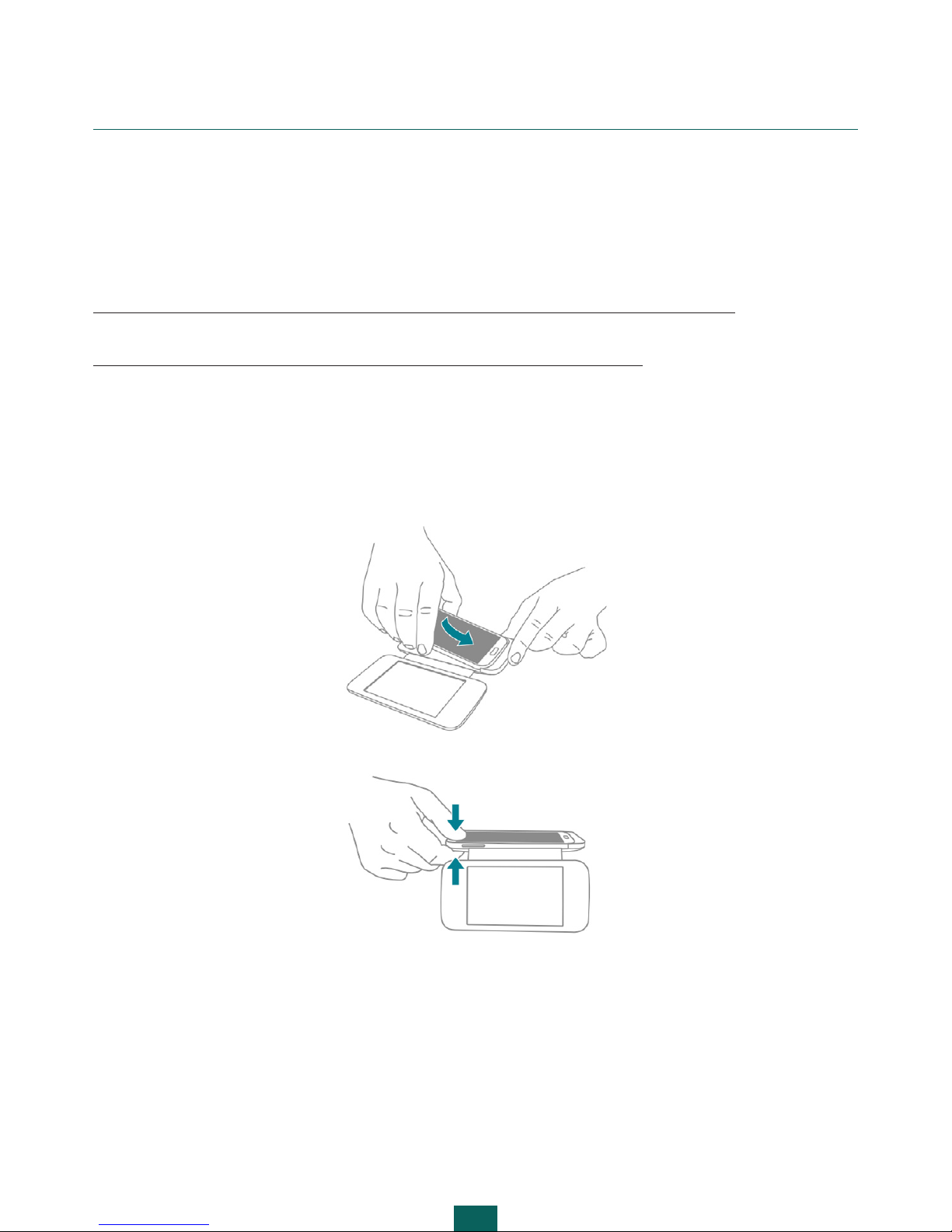
1. Turn your smartphone off and remove the back cover.
2. Connect your PocketBook CoverReader to the smartphone’s USB connector as shown:
3. Gently press the back cover smartphone until it clicks:
4. Turn the smartphone on and wait for it to load.
5. Turn on PocketBook CoverReader by pressing any of page turning buttons, or by closing
the cover and opening it again.
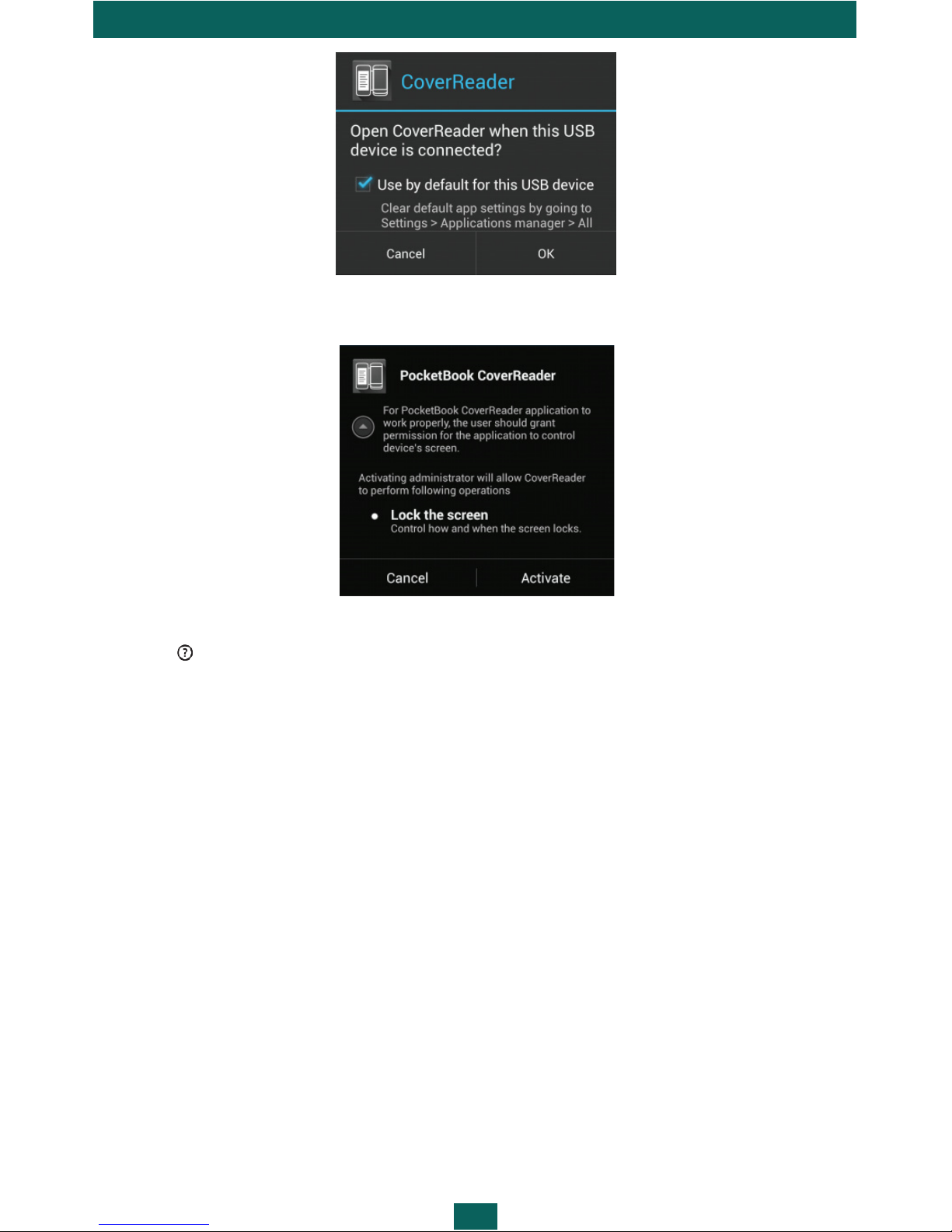
6. When a USB access request is shown, allow the CoverReader application as the default
for the device by ticking the Use by default for this USB device box and pressing the OK button.
Getting Started
7
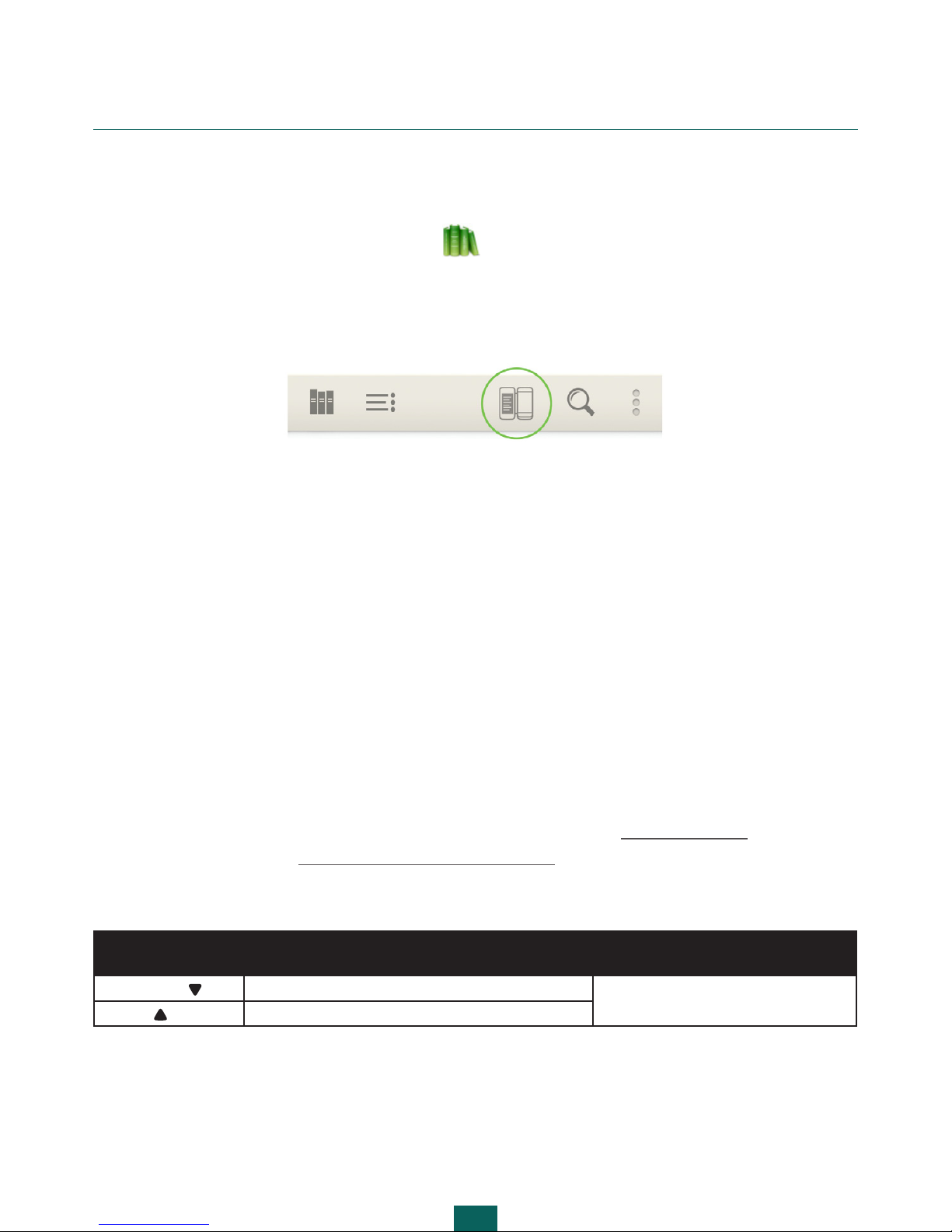
7. When the device administration request is shown, confirm the access privileges:
8. To familiarize yourself with the main functions, run the CoverReader application and
press the button.
8
Device Control
READING BOOKS
1. Launch the PocketBook application .
2. Select and open a book from the library
3. Open the PocketBook menu by touching the center of the smartphone touchscreen.
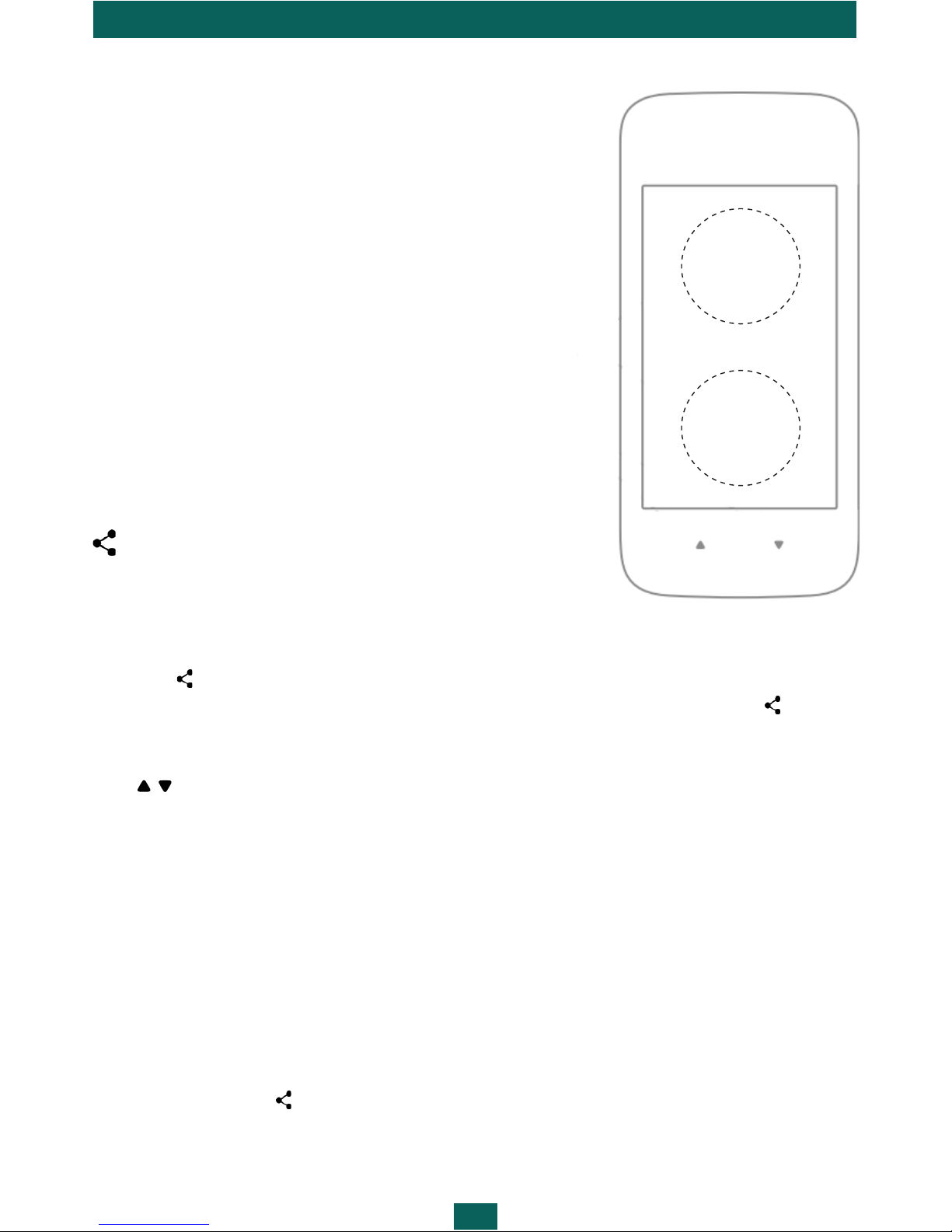
4. Switch the reading to the cover by touching the CoverReader icon in the upper menu
bar:
5. Turn pages using the buttons or by touching the screen’s page-turning zones.
NOTE: The Device is intended for reading and image viewing only. You can not follow links
and footnotes. Reading and viewing images on your Device is impossible when an external
USB-port is used.
EXIT FROM READING MODE
To exit reading mode and go to the smartphone’s main screen:
1. Press the button On/Off or Home on your smartphone and slide your finger on the
screen to unlock.
2. Your smartphone’s backlight will turn on and the Device will enter standby mode and
wallpaper will appear on the screen.
To exit standby mode, enter reading mode from CoverReader (Reading books) or send text
or image to the Device (Sharing Content to the Device).
BUTTON CONTROL
If CoverReader is on If CoverReader is off
Forward Next page Turn CoverReader on
Back Previous page
Device Control
9
TAP ZONES
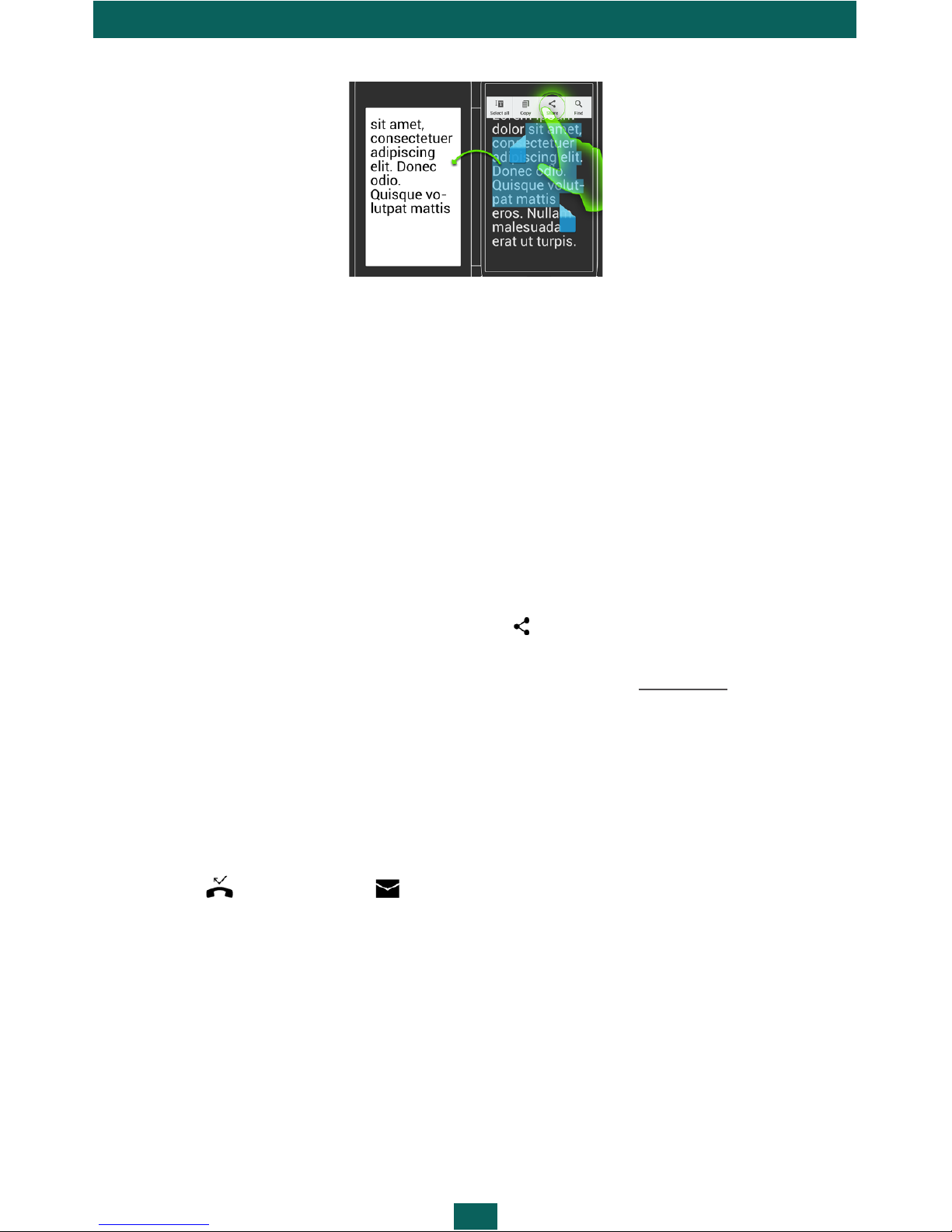
IMPORTANT! The touch screen of the Device is fairly
sensitive and is a fragile component. Please note that the
Device has only two tap zones as shown on the picture.
Be careful, the Device does not support swiping, scaling
gestures, etc. To avoid damaging the screen, tap it care-
fully and do not apply too much pressure.
Touch the tap zones of the touch screen shown on the
picture to go to the next or previous page.
NOTE: Choose the way to turn pages in Settings CoverRead-
er > Page turn (Buttons, Touch screen or Buttons and touch
screen). The function of buttons and page-turning zones de-
pends on the orientation of sent text.
SHARING CONTENT TO THE DEVICE
Images
To view an image on the Device:
1. Open Gallery or other photo management application which supports the function
Share via .
2. Touch the content you want to send and hold it. Then in the Share via context
menu choose CoverReader.
3. The image will appear on the Device if it is turned on, otherwise press one of the but-
tons / to turn the Device on.
NOTE: You can choose how to view images on the Device in the Picture output menu of
the CoverReader application settings: fit to screen size, crop to fit screen size or stretch to fit
screen size.
To see information on the Device from an application which does not support the function
Share via, take a photo of the screen with the information you need and follow the above-
described instructions.
Text
1. Highlight the text (in the reading application, browser, mail client, etc.).
2. In the Share via context menu select CoverReader.
Previous
page
Next
page
Device Control
10
3. Turn pages with buttons or by touching the screen’s page-turning zones.
NOTE: The Device is intended for reading and image viewing only. You can not follow links
and footnotes. Reading and viewing images on your Device is impossible when an external
USB-port is used.
WALLPAPER SETTINGS
Wallpaper is displayed on screen of the Device when it is turned off or is in standby mode.
1. Select the image you want to set as wallpaper in a graphics application which sup-
ports the function Share via.
2. Set it as wallpaper by touching the element > Set as wallpaper of CoverReader.
The wallpaper can also be set in the Cover Reader settings (See Wallpaper).
NOTE: In the Picture output menu of the CoverReader application settings you can choose
how to view wallpaper on the Device: fit to screen, crop to screen or stretch to screen.
CALL AND MESSAGE NOTIFICATIONS
Missed calls and messages will be displayed on the Device as notifications ap-
pearing over the wallpaper or instead of it.
NOTE: You can turn notifications off or customize the way they are displayed in the applica-
tion’s settings CoverReader > Picture output.
If you receive a message or call while reading from the Device, it will enter standby mode.
Notifications will not be displayed in standby mode after you have viewed missed calls and
messages on the smartphone.
Table des matières


