Novatel Merlin U630 Manuel utilisateur

GU-90023610GU REVISION 1
U630 USER MANUAL WITH MOBILINK 2.0™
The information contained in this document is subject to change without notice and should not be construed as a
commitment by Novatel Wireless Inc. unless such commitment is expressly given in a covering document.

U
U6
63
30
0
U
US
SE
ER
R
M
MA
AN
NU
UA
AL
L
P
PA
AG
GE
E
2
2
GU-90023610GU Revision 1
1Getting started...........................................................................................................................................3
1.1 Your UMTS account......................................................................................................................................3
1.2 Your UMTS Merlin........................................................................................................................................3
1.3 The UMTS package......................................................................................................................................3
1.4 Getting started ............................................................................................................................................4
1.5 System requirements ...................................................................................................................................4
1.6 Care of your Merlin ......................................................................................................................................4
1.7 Installing MobiLink 2 ....................................................................................................................................6
1.7.1 Windows 2000 Installation....................................................................................................................6
1.7.2 Windows 2000 detects your UMTS Merlin...............................................................................................9
1.7.3 Windows XP Installation .....................................................................................................................11
1.7.4 Windows XP detects your modem........................................................................................................14
2MobiLink 2................................................................................................................................................16
2.1 MobiLink 2 Overview..................................................................................................................................16
2.2 Starting MobiLink 2....................................................................................................................................16
2.2.1 Main Display Window .........................................................................................................................17
2.2.2 Main Display Window Description ........................................................................................................17
2.2.3 MobiLink 2 Buttons.............................................................................................................................18
2.2.4 Features............................................................................................................................................18
2.2.5 Creating a data session.......................................................................................................................19
3Sending and receiving SMS messages .....................................................................................................24
3.1 What is SMS..............................................................................................................................................24
3.2 Mobilink’s SMS window...............................................................................................................................24
3.2.1 Sending SMS Messages.......................................................................................................................25
3.2.2 Receiving and Reading SMS Messages .................................................................................................26
4Determine Merlin states...........................................................................................................................27
5Troubleshooting .......................................................................................................................................29
1.1 Cannot install MobiLink 2............................................................................................................................30
1.2 Problem: When I run the MobiLink 2 software, I get the message “No Card Detected”.....................................30
1.3 Problem: When I insert the modem, I get Unknown_PCMCIA_Manufacturer” instead of “Novatel_ Wireless
Merlin_UMTS_Modem.........................................................................................................................................32
1.4 Problem: When I run the MobiLink 2 software, I get the message “SIM not Found – Check Orientation............32
1.5 Problem: Modem cannot read SIM. LED flashing RED..................................................................................32
1.6 Problem: When I run MobiLink 2 software, the Window “searching for network” will be displayed continuously.33
1.7 Problem: Cannot connect to network..........................................................................................................33
1.8 Problem: Cannot browse the web...............................................................................................................33
6Product Specification ...............................................................................................................................36
6.1 Technical specification................................................................................................................................36
6.1.1 Environmental specification.................................................................................................................37
7Safety and regulations .............................................................................................................................38
7.1 Wireless Communications ...........................................................................................................................38
IMPORTANT NOTICE ......................................................................................................................................38
7.2 Safety hazards...........................................................................................................................................38
7.3 Regulatory notices .....................................................................................................................................39
8Appendix A ...............................................................................................................................................42
8.1 Unlocking a simlocked modem with MobiLink 2.............................................................................................42

U
U6
63
30
0
U
US
SE
ER
R
M
MA
AN
NU
UA
AL
L
P
PA
AG
GE
E
3
3
GU-90023610GU Revision 1
1GETTING STARTED
In This Section
•Description of Your UMTS Merlin
•The UMTS Package
•System Requirements
•Care of Your UMTS Merlin
•Installing MobiLink 2 on Windows 2000
•Windows 2000 detects your UMTS Merlin
•Installing MobiLink 2 on Windows XP
•Windows XP detects your UMTS Merlin
This section will walk you through how to get started using your UMTS Merlin, including software and driver
installation, inserting the card so Microsoft Windows is able to detect and install the drivers for your UMTS Merlin
and setting up a data session to connect to the Internet.
1.1 YOUR UMTS ACCOUNT
For information about your UMTS account, User Name, Password and Access Point Name, please contact your
UMTS Service Provider.
1.2 YOUR UMTS MERLIN
Your UMTS Merlin is a PC card that fits into the PC card slot (Type II, 5V) of most Windows based laptop
computers. The U630 utilizes the UMTS (Universal Mobile Telecommunications System) Network to connect to
the Internet transferring data at rates of 220-320 kbps, and bursts speeds of up to 384kbps. The Merlin U630
runs on Microsoft Windows 2000 and Microsoft Windows XP.
The MobiLink 2 software will allow you to control and monitor your connection to the UMTS network. It will also
allow you to send and receive SMS (Short Messaging Service), get online help and has an address book.
1.3 THE UMTS PACKAGE
¾Merlin U630 PC Card Protection Case
¾Merlin U630 PC Card
¾SIM (Subscriber Identification Module) -- Depending on Service Provider
¾MobiLink 2 software on installation CD
¾Quick Start Guide
¾Merlin U630 user manual

U
U6
63
30
0
U
US
SE
ER
R
M
MA
AN
NU
UA
AL
L
P
PA
AG
GE
E
4
4
GU-90023610GU Revision 1
1.4 GETTING STARTED
Before you use your UMTS Merlin, you must first:
1. Have an active UMTS account with a UMTS Service Provider.
2. Have a properly configured SIM (Provided by the Service Provider) – facilitates permission to use network.
3. Install the MobiLink 2 software, located on the installation CD.
4. Insert SIM card into the UMTS Merlin U630 SIM card slot.
5. Insert into the PC card slot on your PC for Microsoft Windows to detect and configure the UMTS Merlin.
6. Launch MobiLink 2, create a profile if necessary and select the Connect button.
IMPORTANT NOTICES: DO NOT INSERT THE MERLIN INTO THE PC CARD SLOT UNTIL YOU HAVE UNINSTALLED ANY
PREVIOUSLY EXISTING UMTS SOFTWARE FROM YOUR COMPUTER AND INSTALLED THE MOBILINK 2SOFTWARE.
MOBILINK 2 WILL NOT INSTALL UNLESS PREVIOUS VERSIONS OF MOBILINK ARE REMOVED.
USE WINDOWS ADD/REMOVE PROGRAMS TO REMOVE.
1.5 SYSTEM REQUIREMENTS
¾133 MHz or faster Pentium- compatible
¾Windows 2000 and XP (Home and Professional)
¾64 MB RAM
¾16 MB available hard drive space
¾CD-ROM drive
¾Type II, PC CARD slot --- 5V
1.6 CARE OF YOUR MERLIN
Novatel Wireless recommends the following handling guidelines:
¾Handle with care.
¾Avoid storing your UMTS Merlin in extreme temperatures.
¾Store the card in a dry and clean environment.
¾Avoid spilling any liquid or immersing the card in water.
¾Do not place any labels on the Antenna as this may alter the sensitivity of the antenna.
¾Do not place any labels on the card or the SIM as this may interfere with the PC card slot/SIM slot when
inserting.
¾Do not force the Merlin into the PC card slot.
¾Ensure the edges of the SIM are smooth before inserting into SIM slot.
¾Do not force the SIM into the SIM slot.
¾Do not apply force on the top or bottom of the Merlin.
¾When transporting your laptop, remove the Merlin from the PC card slot.

U
U6
63
30
0
U
US
SE
ER
R
M
MA
AN
NU
UA
AL
L
P
PA
AG
GE
E
5
5
GU-90023610GU Revision 1
NOTE: TO REMOVE YOUR MERLIN, YOU MUST EXIT MOBILINK 2, THEN STOP THE MERLIN USING THE PC
CARD TRAY ICON LOCATED IN THE BOTTOM-RIGHT CORNER OF YOUR PC. CLICK THE ICON AND
SELECT STOP FROM THE DIALOG BOX. ONCE YOUR CARD HAS BEEN STOPPED, PRESS THE PC CARD EJECT
BUTTON LOCATED ON YOUR PC AND REMOVE THE CARD COMPLETELY FROM THE PC CARD SLOT.

U
U6
63
30
0
U
US
SE
ER
R
M
MA
AN
NU
UA
AL
L
P
PA
AG
GE
E
6
6
GU-90023610GU Revision 1
1.7 INSTALLING MOBILINK 2
This portion of the guide will instruct you how to install the MobiLink 2 software from the Installation CD.
1.7.1 Windows 2000 Installation
1. Insert the installation CD in the CD drive of your PC.
2. If the auto-run does not start, double-click on the Autorun.exe on the CD.
3. The "Preparing to Install" window will appear as below.
PREPARING TO INSTALL WINDOW
4. Following preparation the "Welcome to the InstallShield Wizard for MobiLink 2 will appear. See Figure 1.
FIGURE 1
5. Read the information and click Next.

U
U6
63
30
0
U
US
SE
ER
R
M
MA
AN
NU
UA
AL
L
P
PA
AG
GE
E
7
7
GU-90023610GU Revision 1
6. The “License Agreement” window will appear next. See Figure 2.
FIGURE 2
7. Read the License Agreement and acknowledge your agreement by selecting “I accept the license
agreement”. Then click Next.
8. The "Ready to Install the Program" window will appear. See Figure 3.
FIGURE 3
9. Click Install.

U
U6
63
30
0
U
US
SE
ER
R
M
MA
AN
NU
UA
AL
L
P
PA
AG
GE
E
8
8
GU-90023610GU Revision 1
10. The "Installing MobiLink 2" window will appear while MobiLink 2 is being installed. See Figure 4.
FIGURE 4
11. When the installation is complete, the "InstallShield Wizard Completed" window will appear. See Figure 5.
FIGURE 5
12. Click Finish.
13. Restart your PC.

U
U6
63
30
0
U
US
SE
ER
R
M
MA
AN
NU
UA
AL
L
P
PA
AG
GE
E
9
9
GU-90023610GU Revision 1
1.7.2 Windows 2000 detects your UMTS Merlin
1. Insert the SIM card into the modem. The SIM card is required to connect to the Network.
NOTE: SIM CARD CONTACT POINTS MUST FACE UPWARDS, AND THE ORIENTATION NOTCH MUST BE
POSITIONED AS SHOWN IN THE PICTURE. PLEASE SEE SECTION 1.6 ON SIM CARE AND INSERTION
2. Insert the modem into the PC card slot of your PC. Windows reads the information from the Modem and
installs drivers for each function of your UMTS Merlin.
The “Novatel_Wireless Merlin_UMTS_Modem” window will appear momentarily, see Figure 6. Then the “Novatel
Wireless UMTS Modem Parent” window will appear. See Figure 7.
FIGURE 6
FIGURE 7
Modem Case (top side)
PCMCIA Connector
LED
ANTENNA

U
U6
63
30
0
U
US
SE
ER
R
M
MA
AN
NU
UA
AL
L
P
PA
AG
GE
E
1
10
0
GU-90023610GU Revision 1
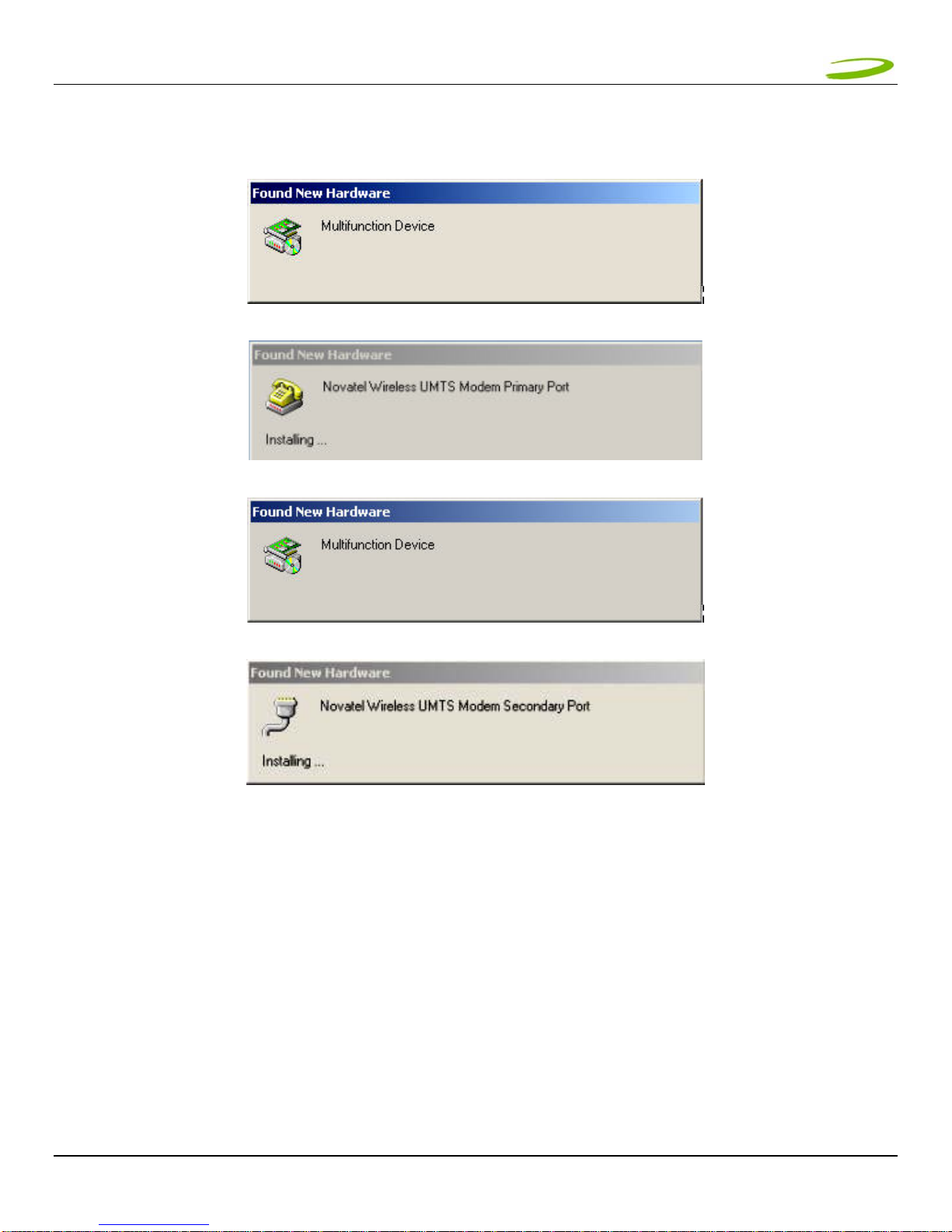
After the Novatel Wireless Parent driver is installed, a “multifunction device” driver will be installed. Additional
drivers installed are, the Novatel Wireless Modem Primary Port and the Novatel Wireless Secondary Port. See
Figure 8, 9, 10, and 11.
FIGURE 8
FIGURE 9
FIGURE 10
FIGURE 11
Windows has now detected and installed the drivers for your UMTS Merlin. Proceed to Section 2.
Table des matières
Autres manuels Novatel Matériel informatique
Manuels Matériel informatique populaires d'autres marques

EMC2
EMC2 VNX Series Manuel du propriétaire

Panasonic
Panasonic DV0PM20105 Manuel utilisateur

Mitsubishi Electric
Mitsubishi Electric Q81BD-J61BT11 Manuel utilisateur

Gigabyte
Gigabyte B660M DS3H AX DDR4 Manuel utilisateur

Raidon
Raidon iT2300 Manuel utilisateur

National Instruments
National Instruments PXI-8186 Manuel utilisateur