
Nexstar NST-370GX Manuel utilisateur

Package Contents:
NexStarGXExternal3.5”HDDEnclosure:
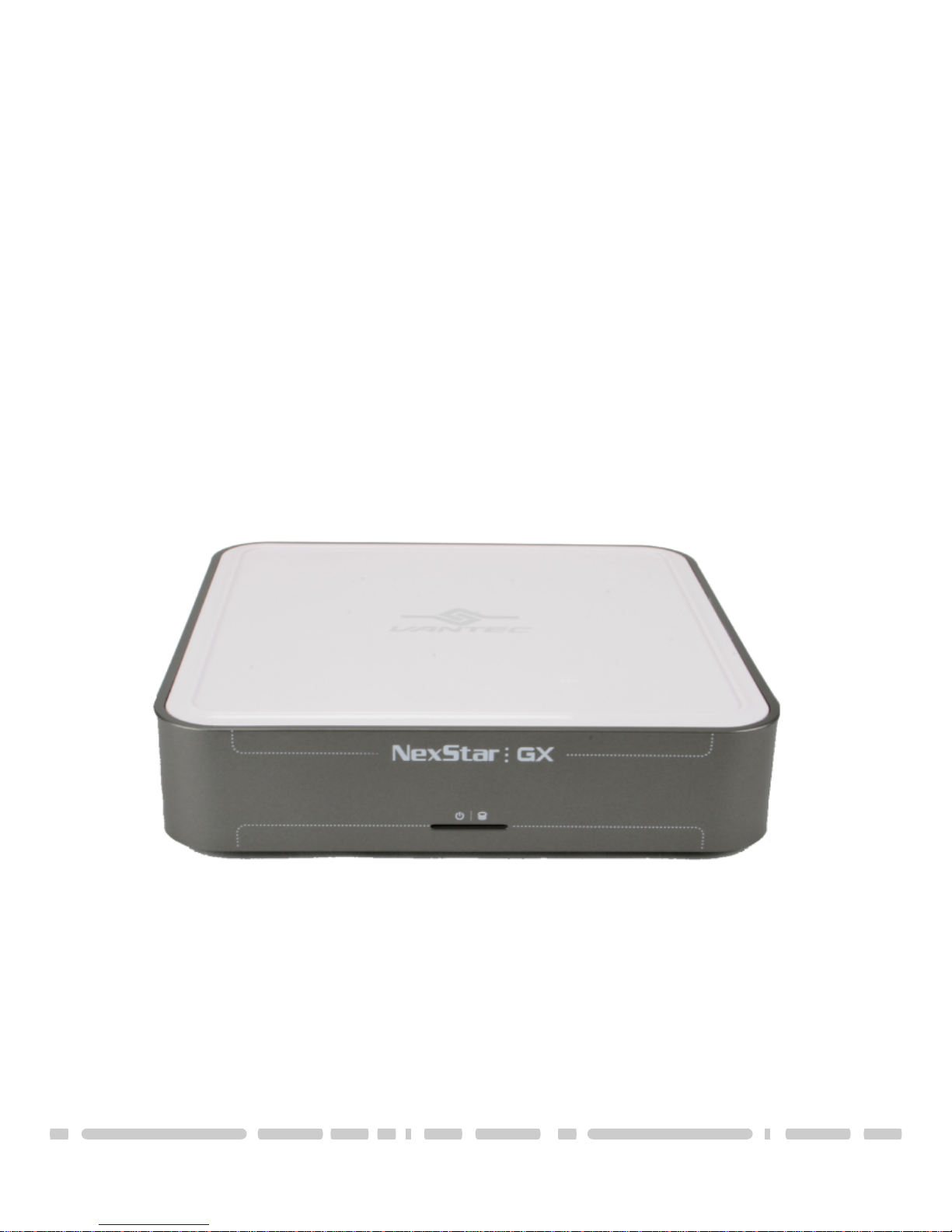
• NexStar GX
• Power Adapter
• Power Cable
• USB Cable
• User Manual
• Driver CD
• Screws
TRADEMARKS
MS-DOS, Microsoft, Windows 95/98/NT/2000/ME/XP are trademarks of Microsoft Corporation.
Apple, Macintosh and Mac are trademarks of Apple Computer
*All other third-party brands and names are the property of their respective owners.

Table of Contents
1
Table of Contents:
1. Introduction ...................................................................................................................................... pg. 2
2.Specifications/Features
NexStar GX External 3.5”HDD Enclosure ...............................................................................pg. 3
3.System Requirements ....................................................................................................................pg. 4
4. InterfaceInformation
NexStarGXExternal3.5”HDDEnclosure.................................................................................pg. 5
5.Installation
NexStar GX External 3.5”HDD Enclosure
5.1.Hardware Installation ....................................................................................................pg. 6
5.2.Driver Installation ............................................................................................................pg. 8
6.DisconnectingtheNexStarGX
NexStarGXExternal3.5”HDDEnclosure................................................................................pg.10
7.CreatingANewPartition..............................................................................................................pg.11
8.Troubleshooting/FAQ
NexStar GX External 3.5”HDD Enclosure..............................................................................pg.14
9.Warranty.............................................................................................................................................pg.16
10.Contact .............................................................................................................................................pg.16
Introduction
2
1. Introduction:
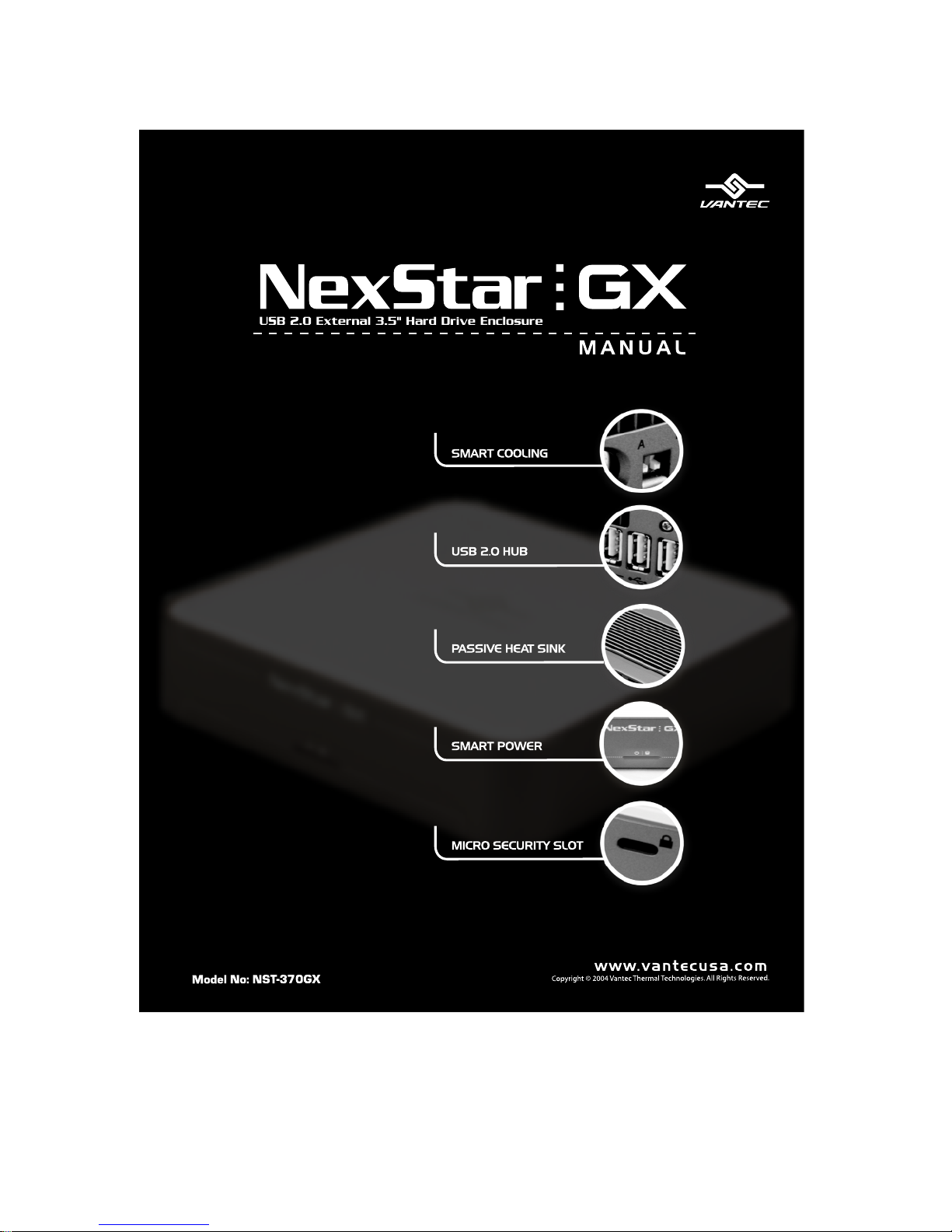
The NexStar GX provides the next generation of external hard drive enclosures. More
than conveniently allowing added storage, the NexStar GX increases expandability by
integrating a powered USB hub. Using a specially designed SMART active/passive
cooling system ensures that your drive stays cool and functioning optimally. The
NexStar GX utilizes high speed USB 2.0, offering speeds up to 480 Mbps, 40 times the
speed of USB 1.1! Smart and expandable, the NexStar GX is the ideal way to store and
transfer your data.

Specifications/Features
3
2. Specifications/Features:
NexStar GX External 3.5” HDD Enclosure:
SPECIFICATIONS:
Application: 3.5” IDE(Parallel ATA) hard drive, ATA-6 compatible
Interface/Ports: USB 2.0 high speed(USB 1.1) 1 port(4 pin)
1 port upstream(B Type)/3 ports downstream(A Type)
Windows Requirements: USB 2.0: Windows 98SE/ME/2000/XP
USB 1.1: Windows 98SE/ME/2000/XP
Mac Requirements: USB 2.0: Mac OS 10.2 or higher
USB 1.1: Mac OS 9.1 or higher
Power Supply: Universal auto-switching external power adapter
Input: AC 100-240V, 1.2A, 50-60Hz
Output: DC +5/1.5A, +12V/1.5A
Enclosure Dimensions: 16.51 x 16.51 x 5.08cm
FEATURES:
Smart Power
NexStar GX will automatically power on/off in tandem with your computer.
Smart Cooling
Cool your hard drive while minimizing noise with built-in temperature controlled
cooling system.
Passive Heat Sink
Large contact area heat sink radiates excess heat to the outside of the enclosure.
Built-In High Speed USB 2.0 3 Port Hub
Conveniently add USB devices to your computer.
Micro Security Slot
Protect your NexStar GX by anchoring to a desk via security cable lock(Not included).

System Requirements
4
3. System Requirements:
• Intel Pentium II 350MHz-compatible or Apple G3 processor and greater
• Microsoft Windows 98SE/ME/2000/XP or Mac OS 9.1 and greater
• USB-equipped system with available USB port
• For USB 2.0 speeds, the system must support USB 2.0 specifications
• CD Rom drive (if drivers are needed)
Interface Information
5
4. Interface Information:
NexStar GX External 3.5” HDD Enclosure:
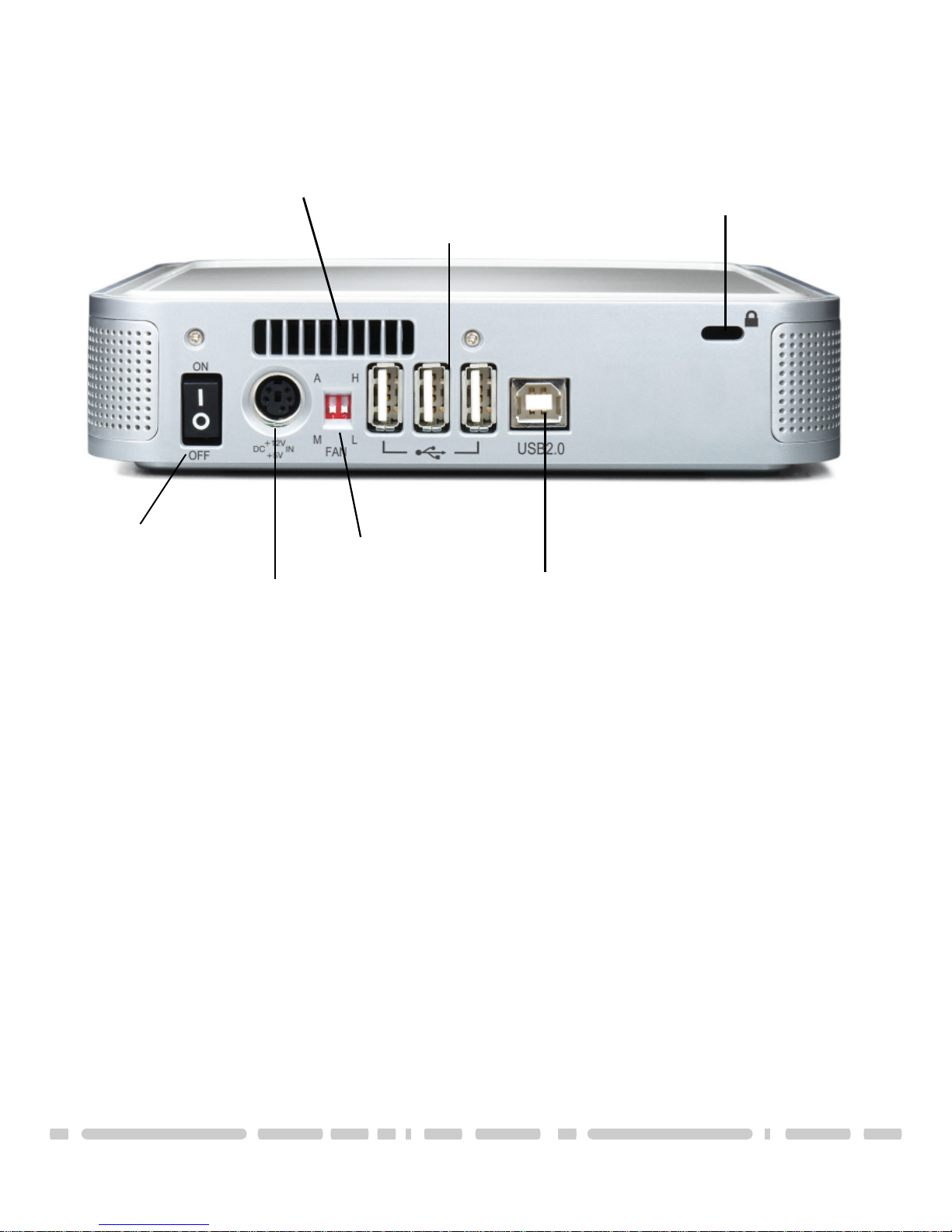
Micro Security Slot
USB port to PC/Mac
USB Hub
Exhaust Fan Vent
Fan Settings
Power Connector
On/Off Switch
USB Hub
In order for the USB Hub function to work, the USB cable must be
attached to your computer.
Fan Settings
There are 3 modes available for you to select the desired cooling.
Automatic (A) / Manual Low (M/L) / Manual High (M/H).
We recommend you leave your unit on the Auto setting. When this
mode is selected, the NexStar GX automatically adjusts the fan speed up
and down as necessary to keep the hard drive cool.
Smart power
The NexStar GX will turn itself off when the computer is off. Therefore, it
needs to be connected to a USB port in order to turn on.
Installation
5
5. Installation:
NexStar GX External 3.5” HDD Enclosure:
5.1. Hardware Installation:
Preparing the hard drive:
1) Set the hard drive jumpers to MASTER or SINGLE DRIVE ONLY. Please refer
to the documentation included with your hard drive for information on
how to accomplish this.
Preparing the NexStar GX:
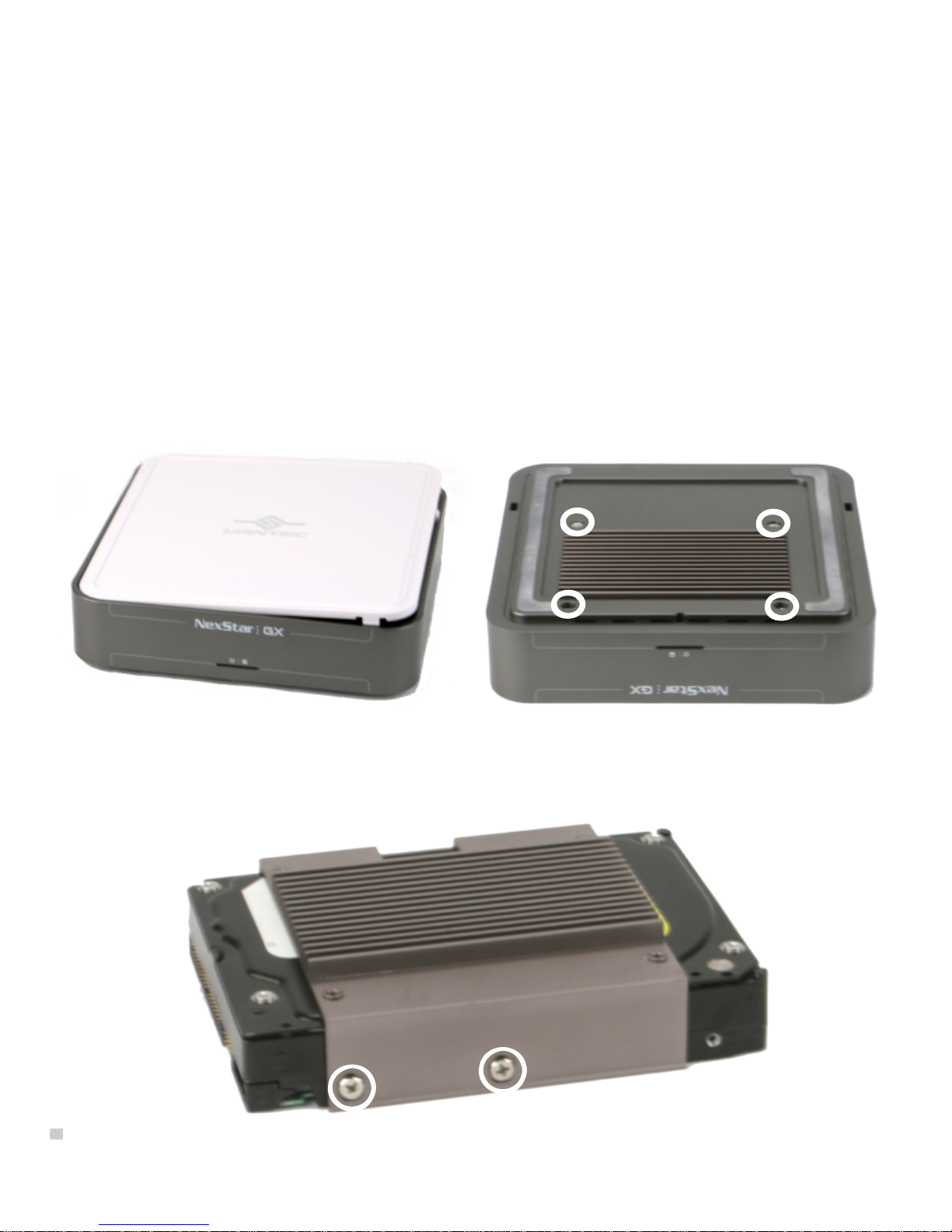
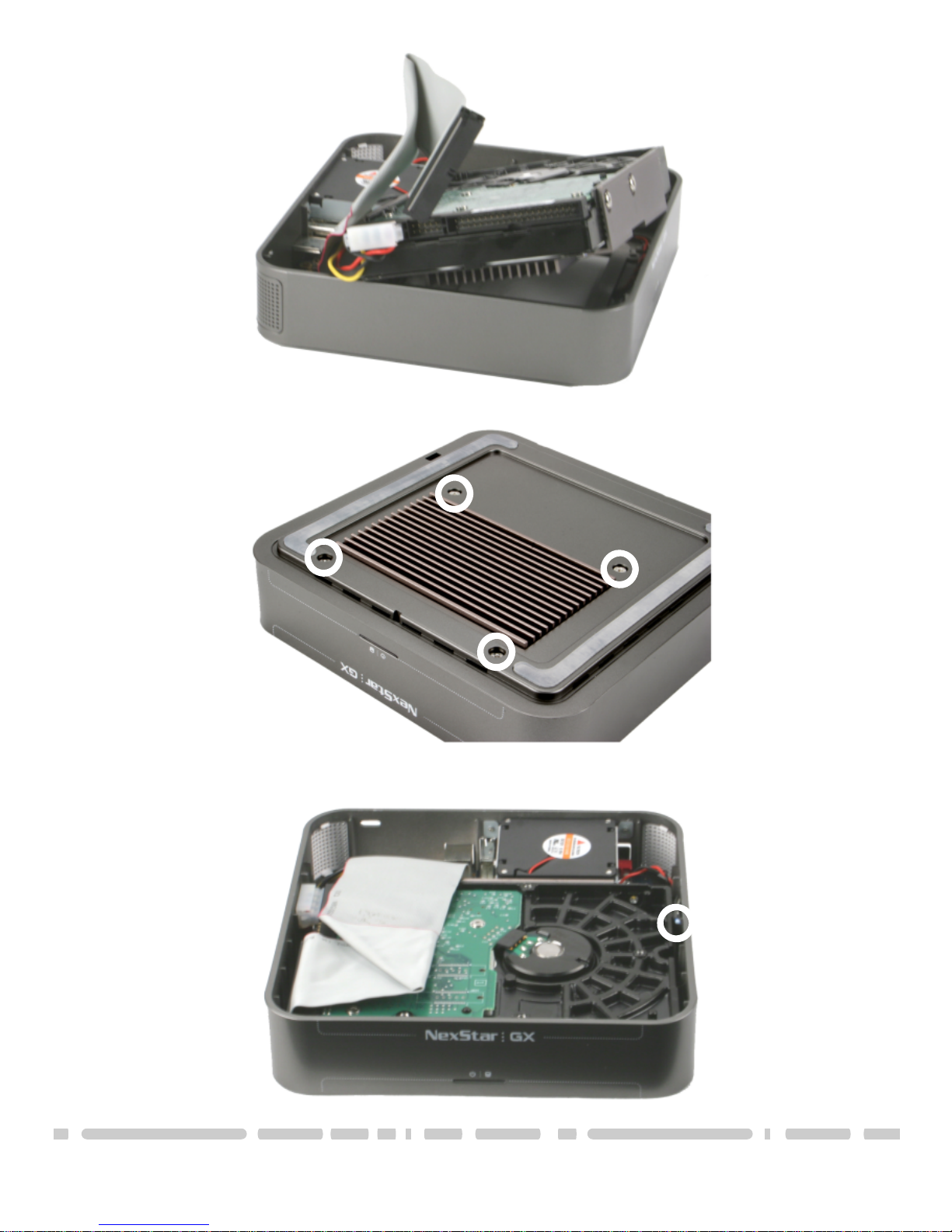
1) Remove the lid of the NexStar GX
2) Unscrew and remove the heatsink tray.
Installing the hard drive into the NexStar GX:
1) Align the heatsink tray on the hard drive and attach with the four screws
provided. Try to establish good contact between the drive and the tray.
Installation
7
2) Connect the IDE and power cables to the drive. Make sure drive is jumpered
to master or single.
3) Insert the heatsink tray back into the enclosure and screw into place.
4) Fold the cables so that they are flat against the drive. Position the thermal
probe in front of the hard drive. When finished, attach lid.
Installation
8
Connecting the NexStar GX to your computer:
1) Connect the type B USB connector to the NexStar GX and the type A USB
connector to an available USB 1.1/2.0 port on your system.
2) Connect the power cable to the NexStar GX and plug the cable into an
available outlet.
3) Turn on the NexStar GX via the power switch.
4) Your operating system should detect the NexStar GX and automatically install
the necessary drivers (if you have Windows 98SE/MacOS 8.6, you will need to
install drivers). Once your operating system finishes setting up the NexStar
GX, it will mount your hard drive. On Mac OS systems, the new volume should
appear on the desktop. On a Windows PC, the new volume will appear under
My Computer.
NOTE: For new hard drives, you will need to initialize and partition your hard
drive before it will appear in Windows Explorer or on your Mac desktop. Please
refer to your hard drive manufacturer’s documentation or read the “Creating a
New Partition” section of this manual.
5) Your NexStar GX External Hard Drive is now ready for use.
5.2. Driver Installation:
Windows ME/XP/2000
1) No drivers are necessary when using Windows ME/XP/2000. If the hard drive
does not appear under My Computer, be sure to partition your hard drive.
Windows 98SE
1) The first time you plug in the NexStar GX into a USB port of your computer, the
[Add New Hardware Wizard] dialog box will appears.
2) Click on [Next]. Check the [Search for the best driver for your device] and click
on [Next] again.
3) Insert the device driver CD into your CD-ROM drive if you have not already
done so and click on [Next], a screen should be appears to show which
Storage Device you installed. Click on [Next].
4) After the needed files are copied into your system, click on [Finish].
5) You should now be able to see the new hard drive under My Computer. A
green Unplug or Eject hardware icon will appear in the system tray as well. If
the drive does not appear, you may need to partition your hard drive first.
Table des matières
Autres manuels Nexstar Enceinte


