
Nexstar CX 3.5 Manuel utilisateur

USER’S MANUAL
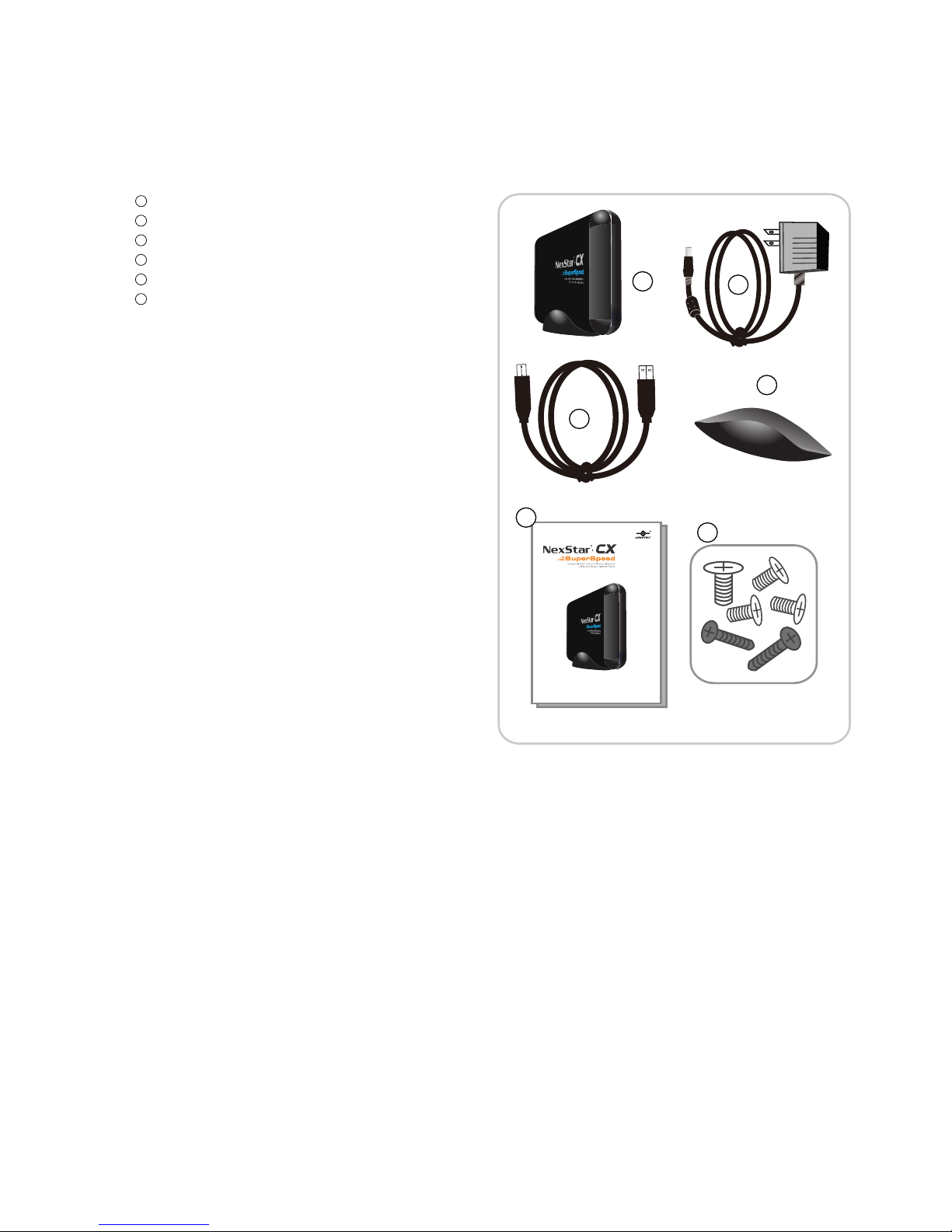
Package Contents:
13.5" NexStar CX HDD Enclosure
2Power Adapter
3USB 3.0 Cable (3ft A to B Cable)
4Enclosure Stand
5User’s Manual
6Installation Screws
TRADEMARKS
MS-DOS, Microsoft, Windows NT/2000/XP/Vista/7 are trademarks of Microsoft Corporation.
Apple, Macintosh and Mac are trademarks of Apple Computer.
NexStar is a registered trademark of Vantec Thermal Technologies.
*All other third-party brands and names are the property of their respective owners.
USER’S MANUAL
5
6
4
3
12
NexStar CX 3.5” SATA to SuperSpeed USB 3.0
External Hard Drive Enclosure

1. Introduction ................................................................................................................02
2. Specifications/Features.....................................................................................03
3. System Requirements..........................................................................................04
4. Parts Layout ..................................................................................................................05
5. Installation
5.1 Hardware Installation ..................................................................................................06
6. Disconnecting the NexStar CX....................................................................09
7. Creating A New Partition
..................................................................................10
8. Warranty ...........................................................................................................................13
9. Contact ...............................................................................................................................13
Table of Contents
1
Table of Contents:
Introduction
2
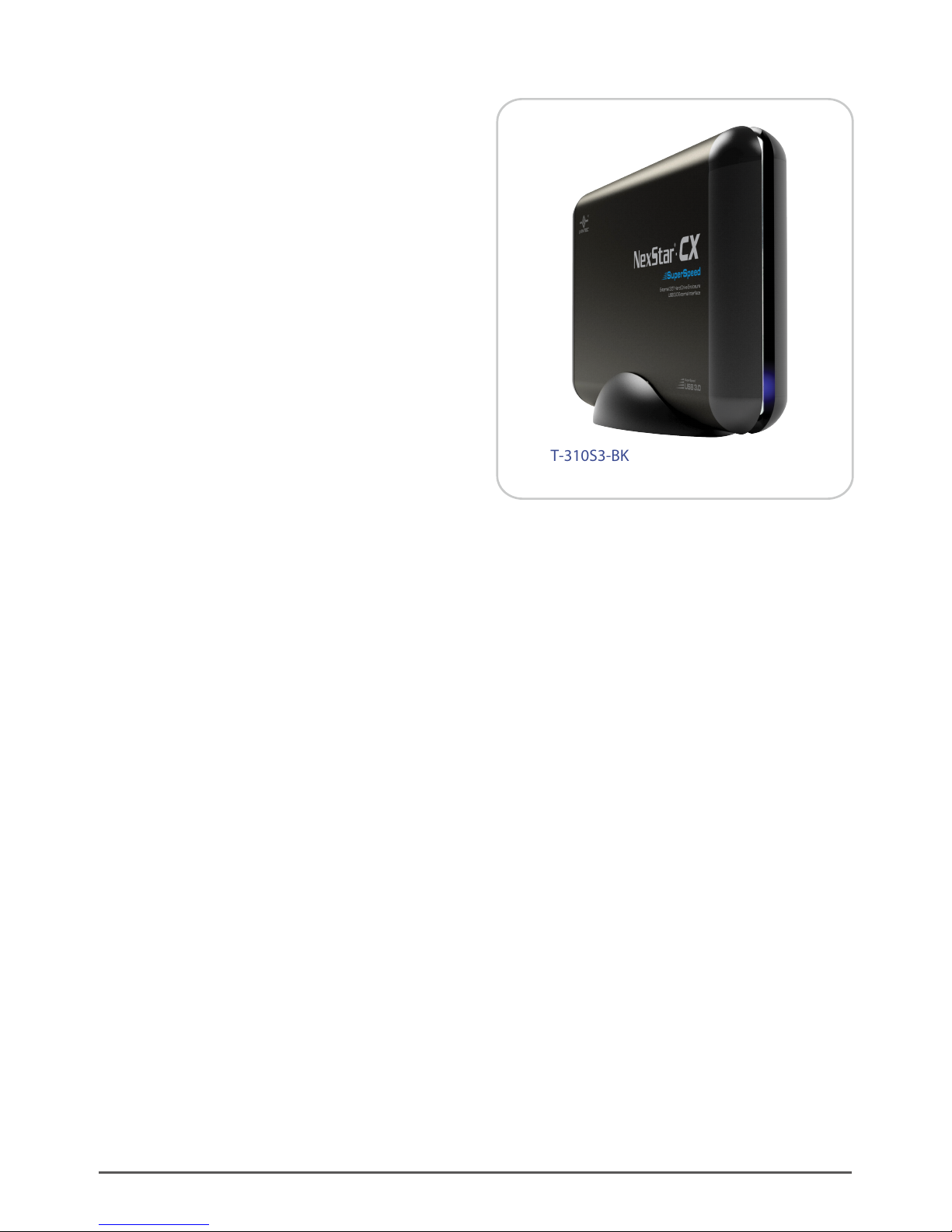
NST-310S3-BK
1. Introduction:
Vantec introduces the NexStar® CX 3.5"
SuperSpeed USB 3.0 External Hard Drive Enclosure,
ideal for anyone in need of storing and transfer-
ring large amounts of data. Integrated with the
latest USB 3.0 technology, performance is
increased by 10 fold offering maximum speeds of
up to 5 Gbps. In addition, the sleek aluminum
casing not only protects the drive from overheat-
ing but also provides sound dampening qualities
to minimize vibrations. The Vantec NexStar® CX
3.5" SuperSpeed USB 3.0 External Hard Drive
Enclosure is great for anyone who requires a high
performance, lightweight, and durable external
storage solution.

Specifications/Features
3
2. Specifications/Features:
NexStar CX SuperSpeed SATA to USB 3.0 External 3.5” HDD Enclosure:
Specifications:
• Model: NST-310S3
• Device Support: SATA I/II Hard Drive
• Device Size: 3.5”
• Internal Interface: SATA I/II
*For the most updated Storage Capacity, please check our website: www.vantecusa.com
• External Interface: USB 3.0
• HD Capacity: Up to 2.0 TB*
• Power Supply: AC Adapter
• Material: Aluminum
• Dimension: 215 x 123 x 31mm
• Maximum Transfer Rates Up to 5 Gbps With USB 3.0
• Maximum Transfer Rates Up to 480 Mbps With USB 2.0
• Backward-Compatible with USB 2.0 or 1.1
• Hi-Quality Shielded USB 3.0 Cable Ensures Data Integrity and Speed
• Hot-Swappable: Plug & Play Without Rebooting
• Attractive Blue LED Indicates Power & HDD Activity
Features:
Power Connection
USB 3.0 Port
Power Switch

3. System Requirements:
System Requirements
4
Microsoft Windows XP/Vista/7 Mac OS 10.4 & greater
1. For USB 2.0 speeds, the system must
support USB 2.0 specifications
2. For USB 3.0 speeds, the system must
support USB 3.0 specifications
1. For USB 2.0 speeds, the system must
support USB 2.0 specifications
2. For USB 3.0 speeds, the system must
support USB 3.0 specifications
NOTE :
USB 3.0 products will work with a USB 2.0 ports
however they will only function at USB 2.0
specifications.

4. Parts Layout:
Parts Layout
5
Hard Drive Caddy
Aluminum Housing
LED Cable
SATA/Power Connector
NexStar CX SuperSpeed SATA to USB 3.0 External 3.5” HDD Enclosure:

5. Installation:
Installation
6
Preparing the hard drive:
Preparing the NexStar CX:
5.1. Hardware Installation:
NexStar CX SuperSpeed SATA to USB 3.0 External 3.5” HDD Enclosure:
If there are jumper settings on the hard
drive, please set the hard drive jumpers to
MASTER or SINGLE DRIVE ONLY. Please
refer to the hard drive manufacturer’s
documenttation for further information on
your jumper settings.
(1)
Remove the side of the NexStar CX
SuperSpeed wih the power and USB
connection ports.
Carefully slide out the hard drive caddy.
(1)
(2) ( figure 5.1-A )

Installing the hard drive to the NexStar CX SuperSpeed:
( figure 5.1-B )
( figure 5.1-C )
( figure 5.1-D )
( figure 5.1-C )
(2) Align the hard drive mounting holes with the
holes on the back of the drive caddy and secure
the hard drive with the screws provided.
Installation
7
( figure 5.1-B )
(1) Connect the SATA and power connector to
the hard drive as pictured.
(3) Insert the drive caddy back into the aluminum
housing. Be sure to reconnect the LED cable
before closing the unit. When reinserting the
caddy, also be sure to align the caddy with the
guide rails within the housing.
( figure 5.1-D)
Installation
8
Connecting the NexStar CX to your computer:
If you can see the USB icon in the system tray ,
but there is no any disk appear in your computer,
pleaseconfirm your hard disk is partitioned.
NOTE :
(3)
( figure 5.1-E )
NOTE :
For new hard drives, you will need to initialize and
partition your hard drive before it will appear in
Windows Explorer or on your Mac desktop. Please
refer to your hard drive manufacturer's documen-
tation or read the "Creating a New Partition" section
of this manual.
(1)
USB 3.0 Cable
( figure 5.1-E )
( figure 5.1-E )
( figure 5.1-E )
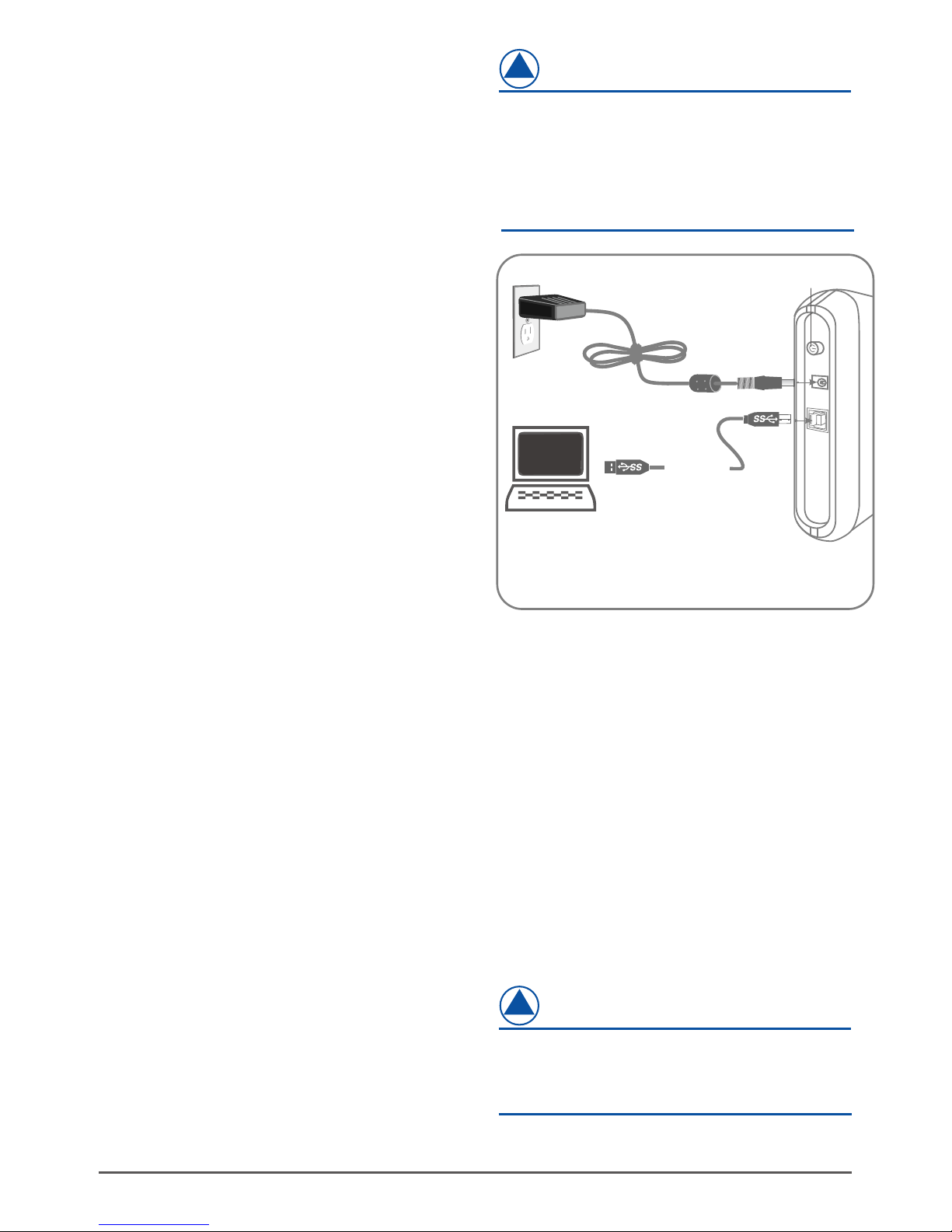
Connect the type (B) USB connector to the
NexStar CX SuperSpeed and the type (A) USB
connector to an available USB port on your
system.
Connect the power cable to the NexStar CX
SuperSpeed and plug the cable into an
available outlet.
Turn on the NexStar CX SuperSpeed via the
power switch.
Your operating system should detect the
NexStar CX SuperSpeed and automatically
install the necessary drivers. Once your
operating system finishes setting up the
NexStar CX, it will mount your hard drive. On
Mac OS systems, the new volume should
appear on desktop. On a Windows PC, the new
volume will appear under My Computer.
Your NexStar CX SuperSpeed External Hard
Drive is now ready for use.
(1)
(2)
(3)
(4)
(5)
(2)
Table des matières
Autres manuels Nexstar Enceinte


