
NetComm Airdisk NW21 Manuel d'exploitation

airdisk - WiFi USB Drive
NW21 Product User Manual V1.1
Shenzhen Netcom Electronics Co.,Ltd.
2013-04-24
All rights are reserved by Shenzhen Netcom. Not allowed to be reproduced in any
form without permission of Netcom. Subject to change without notice.

NW21 Product User Manual
Shenzhen Netcom Confidential
2
1. Product Revision History
Version
No.
Revised
Date
Revised
By
Description
Notes
V1.0
2013-01-03
Preliminary user manual draft
V1.1
2013-04-24
Update photo

NW21 Product User Manual
Shenzhen Netcom Confidential
3
Content
1. Product Revision History ....................................................... 2
2. Product Description................................................................ 4
2.1 Introduction.............................................................................................................................................4
2.2 Package Contents ....................................................................................................................................4
3. Key Features............................................................................ 4
3.1 Supported File Types...............................................................................................................................5
3.2 System Requirements..............................................................................................................................5
3.3 airdisk interface introduction...................................................................................................................6
3.4 Charge introduction.................................................................................................................................6
3.5 Connecting to a Computer.......................................................................................................................6
4. Installing the airdisk App........................................................ 6
4.1 Installing theApp on iOS/Android devices.............................................................................................7
4.2 [A+Disk]App connect to airdisk.............................................................................................................7
4.3 Using [A+Disk] App ...............................................................................................................................8
5. Additional Information.......................................................... 13

NW21 Product User Manual
Shenzhen Netcom Confidential
4
2. Product Description
2.1 Introduction
WiFi USB Drive is a wireless portable cloud storage device that wirelessly streams HD
videos, music, pictures and documents to multiple devices simultaneously (iPhone, iPad, iPod
touch, Android devices).
The NW21 built-in 1050mAh polymer Li-ion battery and supports 4.5hrs playback and 6hrs
standby.
The WiFi USB Drive NW21 is designed in a 104mm x 34mm x 11.8mm RoHS compliant
100% lead (pb) free form factor.
2.2 Package Contents
Main unit, User Manual
3. Key Features
•Qualcomm solution
•Compliant IEEE802.11b/g/n standard(Max 150Mbps)
•WiFi encryption by WPA,WPA2,WPA2 Mixed
•Supports view photos, view files, playback music, playback video via WiFi
•Supports 3 users share content and access external Internet simultaneously
•Free App for iOS and Android system devices
•Capacity:16GB, 32GB, 64GB, 128GB
•Built-in rechargeable lithium polymer battery 1050mAh
•Supports 4.5hrs playback and 6hrs standby
•USB3.0 interface for fast file transfers and charge
•Supports NTFS, FAT32, exFAT, ext2, ext3 file system
•USB average Write/Read speed: 15MB/50MB
Supports encrpytion function
•

NW21 Product User Manual
Shenzhen Netcom Confidential
5
3.1 Supported File Types
iOS:
•Document: .pdf, .txt, .doc, .docx, .xls, .xlsx, .rtf, .ppt, .pptx
•Photos: .jpg, .png
•Music: .mp3, .wav, .aif
•Video: .mp4, .mov
Android:
•Document: .pdf, .txt, .doc, .docx, .xls, .xlsx, .ppt, pptx
•Photos: .jpg, .png, bmp, .gif
•Music:.mp3, .mp4, .3gp, .wav, .ogg, .imy, .aif
•Video:.mp4, .3gp
The video formats supported by iOS and Android OS are limited. You are suggested use 3rd
party players to play the video format which is not supported by iOS/Android OS. Such as AVI,
RMVB, MKV etc, so you can install a third-party App to play it.
3rd party players in App Store and Google Play for
- Android OS: QQ video, MoboPlayer, RockPlayer
- iOS OS: OPlayer, GoodPlayer
More than that, input the website address of “192.168.222.254” can directly access the airdisk.
3.2 System Requirements
System requirements via USB transferring data
Microsoft Windows® XP
Microsoft Windows Vista®
Microsoft Windows® 7
Mac OSX 10.5 or later
Linux Kernel 2.4 or later
iOS device requirements:
iPhone, iPad, iPod touch and Mac(iOS5.0 or later)
Android device requirements:
Android 2.2 or later device

NW21 Product User Manual
Shenzhen Netcom Confidential
6
3.3 airdisk interface introduction
Power key: Power on/off
USB3.0: recharge and connect to PC
Power Level LED: Battery power signal
WiFi LED: WiFi signal(according to the data speed)
Reset hold: Reset system and data will be reserved
3.4 Charge introduction
Charge:You need to charge the battery fully first time when use USB connecting to computer
or adapter. airdisk can display the LED according to the battery level. When the Airdisk is
charging, current power is above 20%,then the LED is light and green always, but the power is
under 20% LED will flash and is red.
3.5 Connecting to a Computer
1. You can connect to a computer and act like a normal hard disk drive.
2. Airdisk can be charged when connected to a computer.
4. Installing the airdisk App
[A+Disk] is a App only for airdisk,and fits to iOS and Android devices. You must first install
the free App on your devices from the on-line App Store. Then It’s easy to customize the
WiFi settings and wirelessly access the content you’ve uploaded to airdisk.

NW21 Product User Manual
Shenzhen Netcom Confidential
7
[WirelessCloud] is other neutual App for airdisk in App Store and Google Play.
4.1 Installing the App on iOS/Android devices
Open the App Store or Google Play and search for [A+Disk].
App Store download address two-dimension code
Google Play download address two-dimension code
1. Select[A+Disk],open the website page and select free to install App.
2. Your iOS/Android devices will display the icon of [A+Disk] when finish to install the App.
3. You can open the “anzhi”, “baidu”, “hiapk” App market and search [A+Disk] or [AirDisk]
for Android device.
4. App function:share data, exchange data ,WiFi setting, music playlist,photo thumbnail,mobile
phone photo upload to airdisk.
4.2 [A+Disk] App connect to airdisk
1. Follow the steps (iOS/Android device):
1. The WiFi signal LED will display after long press the power key 5s,then the system is
power on.
2. You can select the “settings” to open WiFi function on iOS/Android device, then select
the [A+Disk] and connect it.
NW21 Product User Manual
Shenzhen Netcom Confidential
8
3. Open the [A+Disk] App after your iOS/Android device connect the airdisk, then you can
use the files on airdisk.
Note:Other users are following the same steps.
2. Follow the steps(other devices)
1. The WiFi signal LED will display after long press the power key
3s, then the system is power on.
2. You can select the “setting” to open WiFi function on iOS/Android device, then select
the [A+Disk] and connect it.
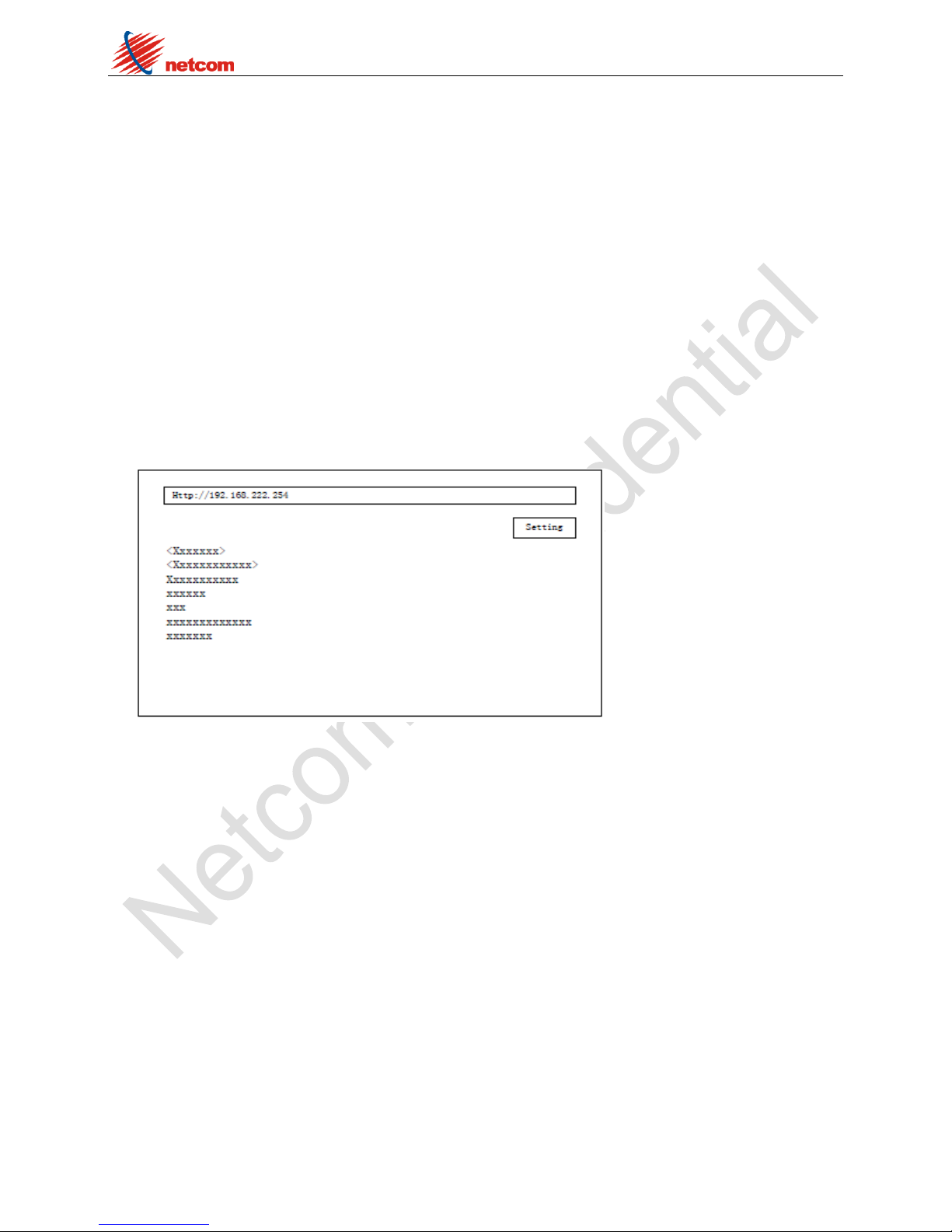
3. Open the browser and input the IP address [Http://192.168.222.254] or [Http://airdisk] after
your iOS/Android device is connected to the airdisk.
4. You can see the airdisk’s folders and files after open the browser.
4.3 Using [A+Disk] App
1. You can use [A+Disk] App after your iOS/Android device is connected to the airdisk’s WiFi.
Notes:Please confirm the file type can be supported on your iOS/Android device.
You can see the function item when you access the [A+Disk] main menu. The icon type are
music,video,picture,document and setting.

NW21 Product User Manual
Shenzhen Netcom Confidential
9
2. Music menu
Playlist:You can add music from “Songs” and “Artist”.
Songs:List all music,then you can play and eidt it.
Artists:List all artists.then you can select and edit it.
You can see the function item when you access the [A+Disk] main menu. The icon type are
music,video,picture,document and setting.
Create Playlist Add music to playlist Play music
3. Video menu
V-Folder:List the video files.
THEATER:List the all videos, then you can play it.
Others, you can edit the videos and files(Downlaod, Upload, Add to, Delete).

NW21 Product User Manual
Shenzhen Netcom Confidential
10
Video file Video file edit Video file operation
4. Picture menu
ALBUMS:List the photo files.
THEATER:List the all photos, then you can play it.
Others, you can edit the photoss and files(Downlaod, Upload,Share, Add to, Delete).
Photo file Photo file edit Photo view
Table des matières
Autres manuels NetComm Stockage


Manuels Stockage populaires d'autres marques


Spectra Logic
Spectra Logic T-Series Spectra T50e Manuel utilisateur

Panasonic
Panasonic LKM-F931-1 Manuel utilisateur

Tabernus
Tabernus Enterprise Erase E2400 Manuel utilisateur

Rocstor
Rocstor COMMANDER 3F series Manuel utilisateur

HP
HP P9000 Manuel utilisateur

Western Digital
Western Digital Ultrastar Data60 Manuel utilisateur