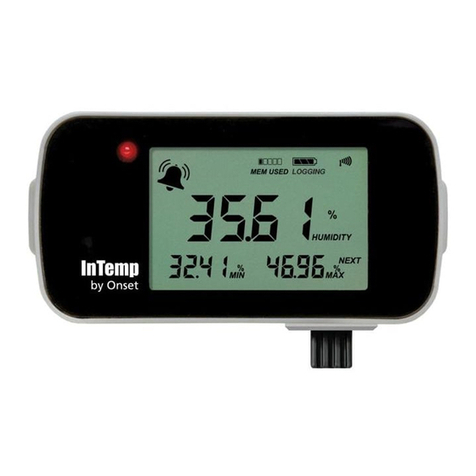
InTemp CX500 Series Temperature Logger Manual
www.prosensor.com3
•Change the orientaon of your phone or tablet to ensure
the antenna in your device is pointed toward the logger.
Obstacles between the antenna in the device andthe
logger may result in intermient connecons.
•If the logger appears in the list, but you cannot connect
to it, close the app, power down the mobile device, and
then turn it back on. This forces the previous Bluetooth
connecon to close.
c. Once connected, tap Configure. Swipe le and right to
select a logger profile. Type a name for the logger. Tap
Start to load the selected profile to the logger.
InTempConnect users: If trip informaon fields were set
up, you will be prompted to enter addional informaon.
Tap Start in the upper right corner when done.
4. Deploy and start the logger.
Important: Reminder, CX502 loggers cannot be
restarted once logging begins. Do not connue with
these steps unl you are ready to use these loggers.
a. Deploy the logger to the locaon where you will be
monitoring the temperature.
b. Press the buon on the logger when you want logging to
begin (or if you chose a custom profile, logging will begin
based on the sengs in the profile).
If the logger was configured with alarm sengs, an alarm will
trip when the temperature reading is outside the range
specifiedin the logger profile. The logger alarm LED will blink
every 4 seconds, an alarm icon appears in the app, and an
Alarm Out of Range event is logged. You can review alarm
informaon in the logger report (see Downloading the Logger).
InTempConnect users can also receive noficaons when an
alarm is tripped. See www.intempconnect.com/help for more
details on configuring the logger and monitoring alarms.
Passkey Protection
The logger is protected by an encrypted passkey automacally
generated by the InTemp app for InTempConnect users and
oponally available if you are using the InTemp app only. The
passkey uses a proprietary encrypon algorithm that changes
with every connecon.
InTempConnect Users
Only InTempConnect users belonging to the same
InTempConnect account can connect to a logger once it is
configured. When an InTempConnect user first configures a
logger, it is locked with an encrypted passkeythat is
automacally generated by the InTemp app. Aer the logger is
configured, only acve users associated with that account will
be able to connect to it. If a user belongs to a different account,
that user will not be able to connect to the logger with the
InTemp app, which will display an invalid passkey message.
Administrators or users with the required privileges can also
view the passkey from the device configuraon page in
InTempConnect and share them ifneeded. See
www.intempconnect.com/help for more details. Note: This
does not apply to InTempVerify. if the logger was configured
with a logger profile in which InTempVerify was enabled, then
anyone can download the logger with the InTempVerify app.
InTemp App Only Users
If you are using the InTemp app only (not logging in as an
InTempConnect user), you can create an encrypted passkey for
the logger that will be requiredif another phone or tablet
aempts to connect to it. This is recommended to ensure that
a deployed logger is not mistakenly stopped or purposely
altered by others.
To set a passkey:
1. Tap the Devices icon and connect to the logger.
2. Tap Set Logger Passkey.
3. Type a passkeyup to 10 characters.
4. Tap Save.
5. Tap Disconnect.
Only the phone or tablet used to set the passkey can then
connect to the logger without entering a passkey; all other
mobile devices will be required to enter the passkey. For
example, if you set the passkey for the logger with your tablet
and then try to connect to the device later with your phone,
you will be required to enter the passkeyon the phone but not
with your tablet. Similarly, if others aempt to connect to the
logger with different devices, then they would also be required
to enter the passkey. To reset a passkey, connect to the logger,
tap Set LoggerPasskey, and select Reset to Factory Default.
Downloading the Logger
You can download the logger to a phone or tablet and generate
reports that include logged data and alarm informaon.
Reports can be shared immediately upon download or accessed
later in the InTemp app.
InTempConnect users: Privileges are required to download,
preview, and share reports in the InTemp app. Report data is
automacally uploaded to InTempConnect when you download
the logger. Log in to InTempConnect to build custom reports
(requires privileges). In addion, InTempConnect users can also
download CX loggers automacally on a regular basis using the
CX5000 Gateway. Or, if the logger was configured with a logger
profile in which InTempVerify was enabled, then anyone can
download the logger with the InTempVerify app. For details on
the gateway and InTempVerify, see www.intempconnect/help.
To download the logger with the InTemp app:
1. Tap the Devices icon and connect to the logger.
2. Tap Download.
3. Choose a download opon:
Important: CX502 loggers cannot be restarted. If you
want a CX502 logger to connue logging aer the
downloadis complete, select Download& Connue.
•Download & Connue. The logger will connue logging
once the download is complete.
•Download & Restart (CX503 models only). The logger will
start a new data set using the same profile once the
download is complete. Note that if the logger was
originally configured with a push buon start, you must
push the start buon for logging to restart.