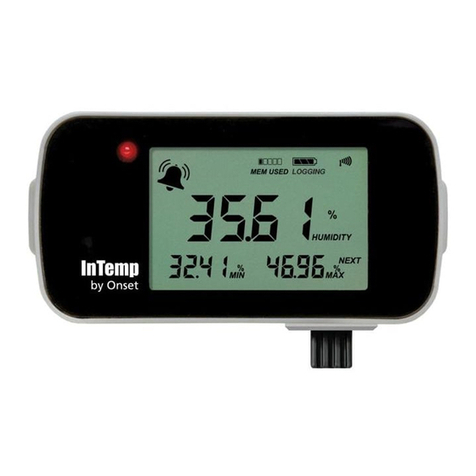
InTemp CX400 Series Temperature Logger Manual
www.prosensor.com5
Administrators or users with the required privileges can also
view the passkey from the device configuraon page in
InTempConnect and share them if needed. See
www.intempconnect.com/help for more details. Note: This
does not apply to InTempVerify. if the logger was configured
with a logger profile in which InTempVerify was enabled, then
anyone can download the logger with the InTempVerify app.
InTemp App Only Users
If you are using the InTemp app only (not logging in as an
InTempConnect user), you can create an encrypted passkey for
the logger that will be required if another phone or tablet
aempts to connect to it. This is recommended to ensure that
a deployed logger is not mistakenly stopped or purposely
altered by others.
To set a passkey:
1. Tap the Devices icon and connect to the logger.
2. Tap Set Logger Passkey.
3. Type a passkey up to 10 characters.
4. Tap Save.
5. Tap Disconnect.
Only the phone or tablet used to set the passkey can then
connect to the logger without entering a passkey; all other
mobile devices will be required to enter the passkey. For
example, if you set the passkey for the logger with your tablet
and then try to connect to the device later with your phone,
you will be required to enter the passkey on the phone but not
with your tablet. Similarly, if others aempt to connect to the
logger with different devices, then they would also be required
to enter the passkey. To reset a passkey, simultaneously press
both the top and boom buon on the logger for 3 seconds, or
connect to the logger, tap Set Logger Passkey, and select Reset
to Factory Default.
Downloading the Logger
You can download the logger to a phone or tablet and generate
reports that include logged probe (if applicable) and ambient
readings, events, user acvity, alarm informaon, and more.
Reports can be shared immediately upon download or accessed
later in the InTemp app.
InTempConnect users: Privileges are required to download,
preview, and share reports in the InTemp app. Report data is
automacally uploaded to InTempConnect when you download
the logger. Log in to InTempConnect to build custom reports
(requires privileges). In addion, InTempConnect users can also
download CX loggers automacally on a regular basis using the
CX5000 Gateway. Or, if the logger was configured with a logger
profile in which InTempVerify was enabled, then anyone can
download the logger with the InTempVerify app. For details on
the gateway and InTempVerify, see www.intempconnect/help.
To download the logger with the InTemp app:
1. Tap the Devices icon and connect to the logger.
2. Tap Download.
3. Choose a download opon:
•Download & Connue. The logger will connue logging
once the download is complete.
•Download & Restart. The logger will start a new data set
using the same profile once the download is complete.
•Download & Stop. The logger will stop logging once the
download is complete.
A report of the download is generated and is also uploaded to
InTempConnect if you are logged into the InTemp app with
your InTempConnect user credenals.
In the app, tap Sengs to change the default report type and
report sharing opons. The report is also available in Secure
PDF, XLSX, and VFC CSV (if enabled) formats for sharing at a
later me. Tap the Reports icon to access previously
downloaded reports. See www.intempconnect.com/help for
details on working with reports in both the InTemp app and
InTempConnect.
Performing Logger Checks
If your monitoring applicaon requires that you perform daily
or twice daily checks of the logger, you can use the InTemp app
to connect to the logger and perform a check.
To enable the perform check feature in the InTemp app (if you
are not using InTempConnect):
1. Tap the Sengs icon.
2. Under Record CX400 Logger Checks, select either Once
Daily or Twice Daily. If you choose Twice Daily, a Perform
Morning Check acon will be listed in the Connected screen
from 12:01 AM unl 12:00 PM and then a Perform
Aernoon Check acon will be listed from 12:01 PM to
12:00 AM. If you choose Once Daily, an acon will be listed
in the Connected screen to Perform Daily Check.
To enable the perform check feature if you are using
InTempConnect, an administrator or user with the required
privileges must create a new profile for a CX400 logger and set
the Daily Checks to Once Daily or Twice Daily. For details on
managing profiles, see www.intempconnect.com/help.
Note: Changes to the Record CX400 Logger Checks seng will
take effect the next me the logger is configured. Also, when
this seng is enabled, the minimum and maximum values
displayed on the logger LCD represent the minimum and
maximum readings within the current 24-hour periods and will
reset every 24 hours. Otherwise, if this seng is not enabled,
the minimum and maximum values represent the enre logging
period and only reset when the logger is downloaded and
restarted or stopped and reconfigured (they will not reset if you
download the logger and connue logging).
To perform a check:
1. Tap the Devices icon and connect to the logger.
2. Tap Perform (Morning, Aernoon, or Daily) Check.
Once a check is completed, it is recorded as a logged user
acon along with the user email and the locaon, and is
available for view in reports. The acon is also listed as
performed in the Connected screen and a checkmark will
illuminate on the logger LCD.
You can also set up a noficaon to display on your phone or
tablet to remind you to perform a check. Use the Reminders
opon under Sengs in the InTemp app.