
Ingo Minnie Manuel utilisateur

Digital Camera
Pack

EN
Minnie Digital Camera Pack

English
CONTENTS
I Getting to know your camera……………………..1
1. Configuration & installation…………………..….1
2. Monitor screen display……………….….…….2
3. Preparation before capture……………………..2
4. Shooting……………………………………………3
5. Video& Audio recording…………………….…7
6. Audio input /output………………………………..8
7. Image review setup……………………….…..10
8. Other setup………………………………………12
II Software & Download………………………………15
1. PC-CAM driver installation…………………..15
2. How to use PC CAM function…………………23
3. How to download the photos………………......23
III Maintenance…………………………………….……24
IV Specification and system requirement………....27

English
1
I Getting to know your camera
1. Configuration & installation
1 Shutter button
2 Power button
3 Flash light
4 Macro switch
5 USB jack
6 Lens
7 TFT monitor screen
8 Left/self-timer button
9 Playback button
10 Zoom out button
11 Zoom in button
12 Busy light
13 Macro light
14 Up/Display button
15 Ok button
16 Right / Flash button
17 Down/Mode button
18 Delete Button
19 Menu button
20 Battery cover
21 SD card slot
22 Tripod socket
This product is not a toy
English
2
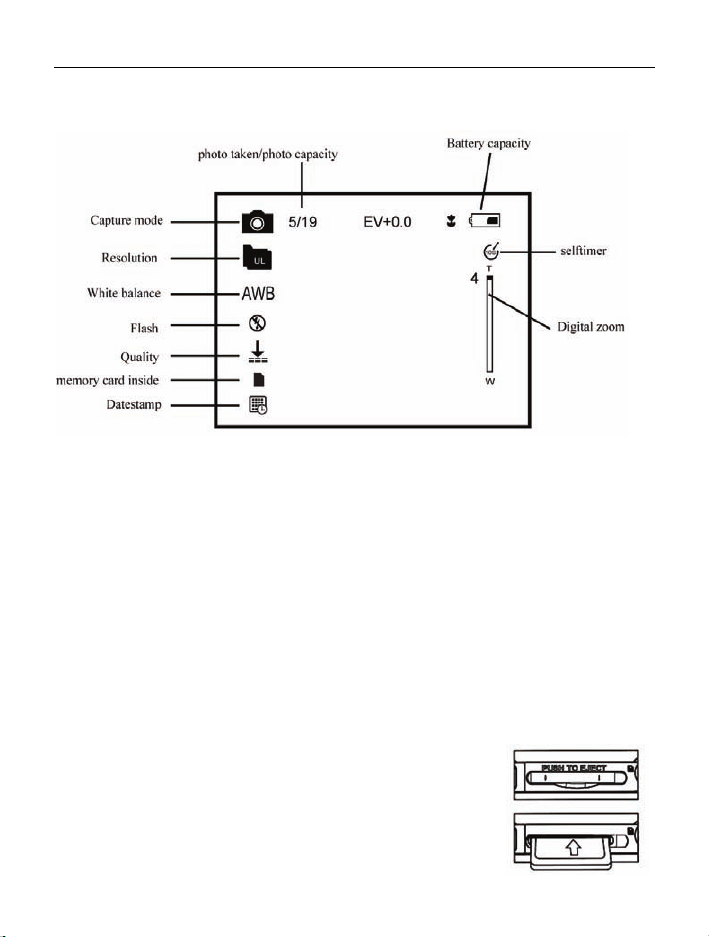
2. Monitor screen display
3. Preparation before capture
3.1 Battery
It’s optional to use LR03(AAA) alkaline batteries or rechargeable batteries.
Open the battery cover and load the batteries according to the polarity
indicated on the battery door.
3.2 Insert the memory card
Insert the memory card to the card slot carefully. Check the right direction
before insert the memory card.
Attention: If you can not insert the SD card, take it out
and insert again.

English
3
4. Shooting
1): Press POWER button to enter the default capture mode;
2): Press the SHUTTER button to take pictures.
Attention:
zDo not take the memory card or battery out when camera is saving
the image, otherwise, the image won't be saved completely.
zThe screen will power off automatically if the camera is not in working
status for 30 seconds. Press any key to restart the screen.
4.1 Review photos
Press PLAYBACK button to view the pictures. Press the LEFT or
RIGHT button to select the picture.
4.2 Delete photos
a) Press the PLAYBACK button to enter review mode.
b) Press the DELETE button to enter the DELETE mode;
c) Press the LEFT button to select “Yes”;and press the OK button to
delete the file.
4.3 Shooting setup
Press “MENU” to enter main menu for 2 options: “Image” mode and “Setup”
mode:
Select “Image”, the following settings are: Resolution, Quality, White
Balance, Color Effect, Exposure, DateStamp, Selftimer, and Burst
Snapshot

English
4
A. Resolution:
a) Press the UP or DOWN button to select the “resolution” mode,
then press the RIGHT button for 5 options :2592x1944 ,
2048x1536 ,1600x1200,1280x960, 640x480. Press the UP or
DOWN button toselecttheresolution.
b) press the “OK” button to confirm and press “MENU” button to exit.
B. Quality:
a) Press the UP or DOWN button to select “Quality” and press
the RIGHT button for 3 options: “Super”, “Fine”, “Normal”.
b) Press the UP or DOWN button to select the image quality.
c) Press the OK button to confirm and press the MENU button to exit.
C. White Balance:
a) Press the UP or DOWN button to select “White Balance”, press
the RIGHT button for 5 options: Auto, Day Light, Tungsten, Fluorescent,
and Cloudy;
b) Press the UP or DOWN button to select the proper mode;
c) Press the “OK” button to confirm and press the MENU button to exit;
D. Color Effect:
a) Press the UP or DOWN button to select “Color Effect”, press
the RIGHT button for 3 options: “Color”, “Sepia”, “Monochrome”;
b) Press the UP or DOWN button to select the color you desired;
c) Press the “OK” to confirm and press the MENU button to exit.

English
5
E. Exposure:
a) Press the UP or DOWN button to select “Exposure”, and then
press the RIGHT button to select;
b) Press the LEFT or RIGHT button to adjust the exposure from
-2.0 to +2.0; then press the “OK” button to confirm.
F. Date Stamp:
Set up "date stamp" if you would like to show the “date" on you picture
a) Press the UP or DOWN button to select “Date Stamp”, press the
RIGHT button to select;
b) Press the UP or DOWN button to select “Enable” or “Disable”;
c) Press the “OK” button to confirm and press the MENU button to exit.
G. Self-timer:
a) Press the UP or DOWN button to select “Selftimer”, press the
RIGHT button to select: “Disable”, “10SEC”, “20SEC”;
b) Press the UP or DOWN button to select the time you desired;
c) press the “OK” to confirm and press MENU button to exit.
Attention: select “Disable” if you want to cancel the selftimer function.
H. Burst Snapshot:
You can select the Burst Snapshot to take 3 pictures continuously.
a) Press the UP or DOWN button to select “Burst Snapshot”, press
the RIGHT button for 2 option: ”Single”, “Burst”;
b) Press the UP or DOWN button to select “Burst”;

English
6
c) Press the “OK” button to confirm and press the MENU button to exit.
Flashlight
Auto: Automatically turn on/off according
to the light
Flash on: Force on the flash
Flash off: Force off the flash
In capture mode, press the FLASH button to adjust the flash mode.
●The screen is in blank when the flash is in charge status, the next image
can be shot only when the charge is completed.
●If shooting with flash under a bright environment, the facular in the image
will cause the incorrect exposure.
Attention: The flash does not work in “Burst snapshot” mode.
In order to save power, the flash will not work when battery is low.
Digital zoom
To view the zoom effected by LCD.
Note: digital zoom may affect the quality of image. The higher digital zoom
multiples, the lower of the image quality, maximum 4X digital zoom is
available.
In the camera/video/playback mode, press the ZOOM IN or ZOOM OUT
button to zoom in or zoom out;

English
7
5. Video recording:
1): Press the “MODE” button to select video mode“ ” ;
2): Press the SHUTTER button to start video recording;
3): Press the SHUTTER button again to stop recording.
5.1 Play video files
a) Press the PLAYBACK button to view the video file.
b): Press the LEFT or RIGHT button to select the video file;
c): Press the SHUTTER button to play video file and press the SHUTTER
button again to end the playing;
d): Press the OK button to pause, press it again to continue.
Attention: Please note that this camera does not support the speaker;
the volume is only available when connecting with TV or PC.
5.2 Delete video file
See page 3 for detail set up.
5.3 Video recording setup
In the video mode press the “MENU” button to enter the main menu for 2
options: “video” and “setup”. There are 4 options available for “video” setup:
“Resolution”, “Frame rate”, “White balance” and “Audio”.
A: Video Resolution:
a) Press the UP or DOWN button to select “Resolution”, press the
RIGHT button to select: 640x480 or 320x240;
Table des matières
Langues :
Autres manuels Ingo Appareil photo numérique


