
Gogo Smart TV Stick Manuel utilisateur
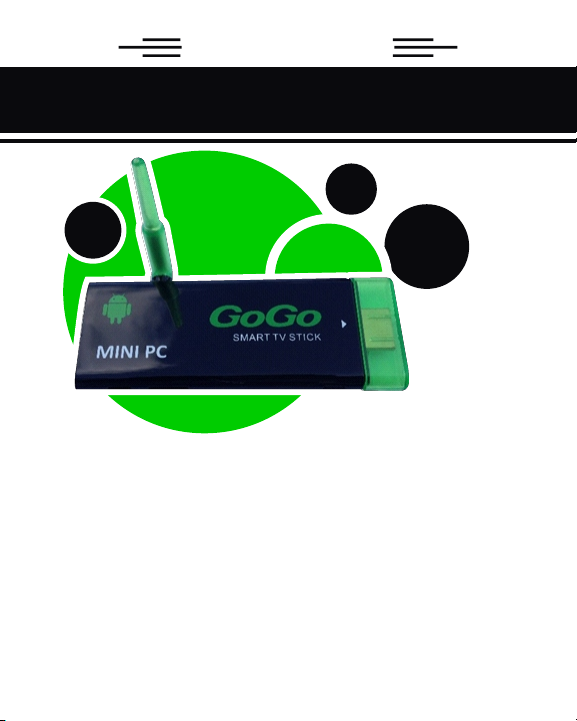
User Guide
GoGo Smart Tv Stick
Powered by Android
NEED SUPPORT?
For troubleshooting tips and email support
Visit: WWW.GOGOTVSTICK.COM
Support Email is: [email protected]
For Live Phone help: 855-799-0050
Thank you for purchasing the GoGo Smart TV Stick powered by Android. The
operational guidelines below are a quick and convenient guide to its main functions
providing the user with trouble free use for business and pleasure. This guide has
been designed to help setup your GoGo Smart TV Stick, however it is not
designed as a complete Android reference manual. Please read the instructions carefully
before use.
We cannot support the Google Android Operating System or any of the
programs the user may download or install. For Android support, we suggest you
visit the Android forums on-line or visit www.android.com.
Unplug the power cable before cleaning the device. Wipe the unit with a soft piece of dry cloth. Do not let any
liquid or foreign substance be inserted inside the unit that could result in a short circuit with fire or
electrocution hazards.
When connecting the unit and TV with the HDMI or Component cables, disconnect power first to both devices.
Do not attempt disassembling or remodeling the unit. When the unit is not working properly, please contact
your place of purchase.
When connecting the unit to other devices, read the user guide of other devices for safety cautions. Do not
connect the unit to incompatible products.
Do not plug or unplug the power cable with wet hands.
Keep the power cable away from heating devices.
Do not put heavy items on the power cable or the unit Storage
Disconnect the power when the device is unused for long periods of time or
if it is damaged.
Do not expose the unit to extreme moisture, dust and vibrations.
Store the unit away from direct sunlight, excessive heat, fire and extreme
cold environments.
Do not interrupt the power while in the process of upgrading or
uploading/downloading the firmware, to avoid data loss or program error.
Make sure power is not interrupted when the storage card is inserted or
removed, to avoid data loss.
Protection of the power cable
Others
CAUTIONS
1
Before you get started
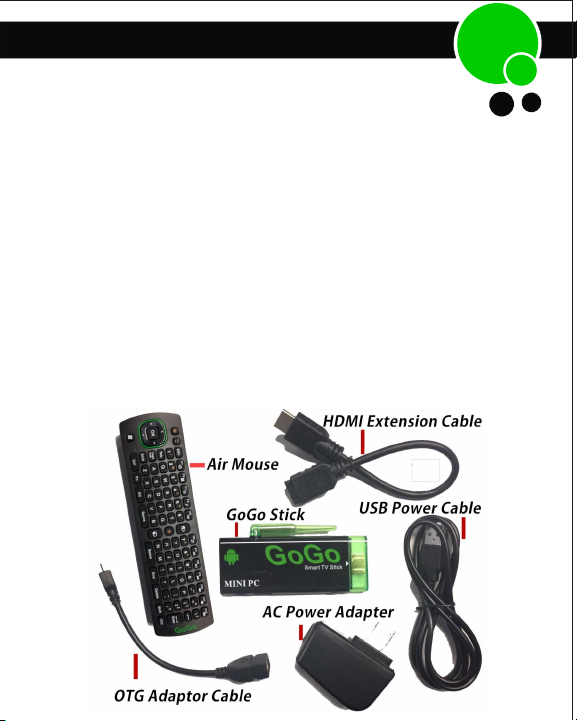
What's in the Box
GoGo Stick HDMI dongle to plug into your TV
Air-mouse remote control and wireless receiver
USB-to-Micro USB power cable to provide power to GoGo Stick
AC adapter with USB port (in case TV’s USB does not supply enough power or do not have)
HDMI extension cable
USB OTG adaptor cable
Product Features
This unit upgrades your normal TV to become a SMART TV using the
Android operating system from Google. Combining TV, PC, the entire web,
and applications, SMART TV brings a new experience into your living room.
With the preloaded apps, you now have the full functions of a PC.
2
Welcome
Congratulations and thank you for choosing the GoGo smart TV stick.
Simply plug this Android™ smart stick into any TV’s HDMI input and surf
the Internet over a Wi-Fi connection and run your applications just like on
a tablet or smartphone.
Enjoy this powerful and easy-to-use Wi-Fi / Internet HDMI smart stick to:
Use your TV just like an Android-Powered tablet or smartphone
Access the on-line store to download thousands of applications
Share your photos, listen to music, stream videos
Access the Internet and your on-line services
Use your on-line e-mail accounts
Take the GoGo Stick with you when you travel… use
it anywhere you have a TV and Wi-Fi Internet access!
First-time use: Choose the display language (Default is English)
The GoGo Stick Setup runs the first time you plug your into your TV. Follow the simple steps
on your TV screen to:
Connect to your home Wi-Fi router and enter your router’s password (note: some routers
may be case-sensitive to the characters you enter here). Set your time zone. Navigate around
the interface. For more details on using the Android system, apps and other features, please
see www.google.com.
Runs standard Android applications
The Android operating system was developed for a wide variety of mobile devices, including
smartphones, tablets, set-top TV boxes and consumer electronics/entertainment equipment.
Offering the numerous features found in these various types of connected multimedia/
Internet terminals; GoGo Stick supports the same applications as other Android devices. You
may purchase and download new applications, access Web sites, run searches, watch videos,
and much more.
3
What You Need
An HDTV with an available HDMI port
Wireless Network (The better the internet connection is the better the device will
perform with all Apps) An 802.11b/g/n Wi-Fi wireless network (wireless video
streaming requires 802.11g or 802.11n), or
10/100 Base-T Ethernet network (requires adapter, not included).
A high speed Internet connection (DSL, cable or LAN).
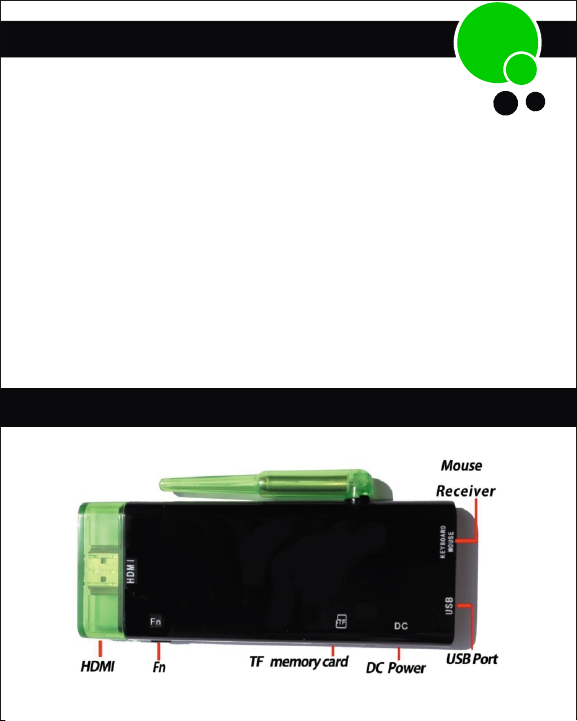
Getting to know the GoGo Stick
CONNECTIONS:
4
YOU WILL NEED YOUR Login Information for internet:
User names and passwords needed to access Wi-Fi, apps and
accounts like Facebook, Gmail etc.
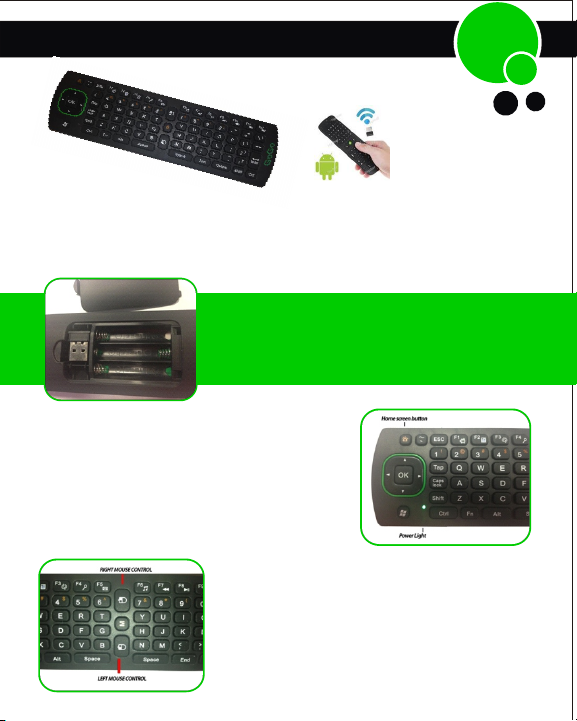
Be sure to install the batteries correctly. (AAA batteries not supplied)
The REMOTE KEY is store in back of remote next to batteries.
Remove key and place in back of GoGo Stick to control remote
5
BACK OF REMOTE
Look for Green Lights at top left of remote to
show batteries are correct and power is on
The Air mouse works as a Mouse and Keyboard at
the same time. The two mouse control in the center
is the left and right mouse. Click the Left mouse to
select anything that the pointer is located at. Click
the Right mouse to go back to previous page.
When the pointer is locked you can scroll around a
page using the commands in the GREEN circle
where the “OK” is. This is also the Top of remote
that should be facing the TV.
The Wireless GoGo Air Mouse:
6
DOUBLE CLICK the Center (M) between the left and right mouse will
turn pointer on. This will also lock and unlock lock the pointer. If it is
lock the pointer will not move, to UNLOCK POINTER simply DOUBLE
CLICK and it will unlock and move again.
*Note – The Function Keys are used for generic Android functions
and may produce different results
when used with other Android Apps you may have installed. Please
check the notes/manual of any App you download / install for their exact
function within that App.
After 2 minutes of no use, the remote will Power Down or put the unit in to
Sleep Mode.
Important
Mouse Left Button (Bottom left): Works the same as the common left mouse
button
Mouse Right Button (Bottom right): Works the same as the common right
mouse button.
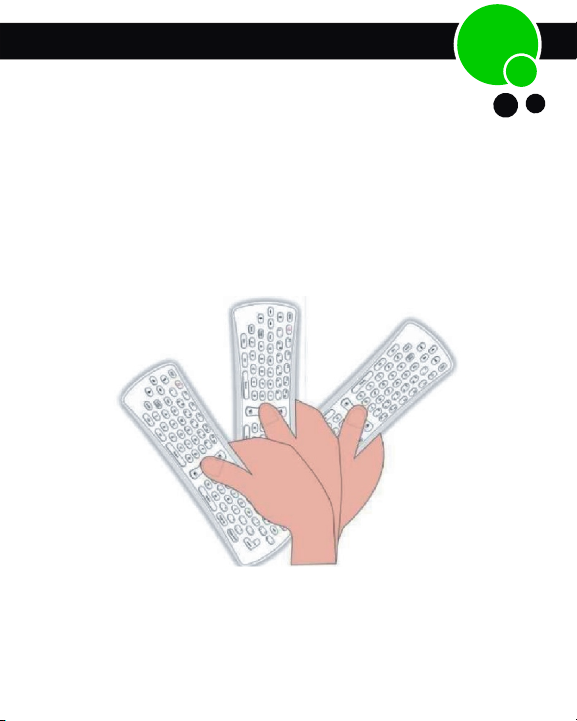
Tip: Be sure to point the remote to TV screen on as straight of a path as
possible, this will help you to control it better.
When pointing mouse to screen, be sure the end where power light is located
should be aimed towards screen
The center of device operates like a standard mouse by clicking on left mouse.
Clicking on right mouse will return you to previous page.
Please make sure you have a direct line of connection between the remote
control and the front of the unit. You may not be pointing the remote directly
enough at the TV if you’re not controlling pointer
Sensitivity of Remot
e
Slide the sensitivity bar to adjust the speed of the pointer.
Your GoGo stick uses a wireless air-mouse to control an
arrow-cursor on your TV screen. Use this remote control exactly like
a traditional mouse, as well as to simulate various swipe movements supported
by the Android operating system. The following pictures show the various
features of your remote control:
6
Sensitivity of Remote
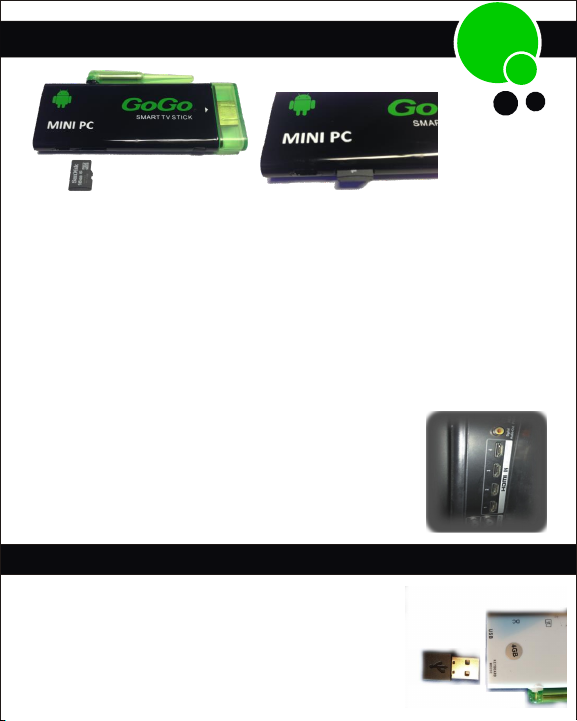
HOW TO INSERT A TF MEMORY CARD (not included)
Note: The GoGo Stick has a TF card slot that supports cards up to 32 GB
For our installation, locate the HDMI ports on your TV
and be sure they are accessible to you
( TV must have a HDMI port or you would need an
adapter not supplied)
Remove USB hub from back of remote and install
into USB slot of GoGo stick
The GoGo stick can use a TF card to increase the storage capacity, as well as the storage
media for your music. Gently insert TF card (Brand name side face up) into the TF Card
slot until flush.
Use your finger to insert the card into the slot. *The card will go all the way inside of device
flush. DO NOT FORCE THE CARD OR PUT IT IN UPSIDE DOWN AS YOU DAMAGE THE
UNIT OR THE CARD.
HOW TO REMOVE AN TF CARD
Close all applications or documents which have been opened on the card. Use fingertip to
push card in slightly and then it will spring out to be accessible to be remove
Step 1
7
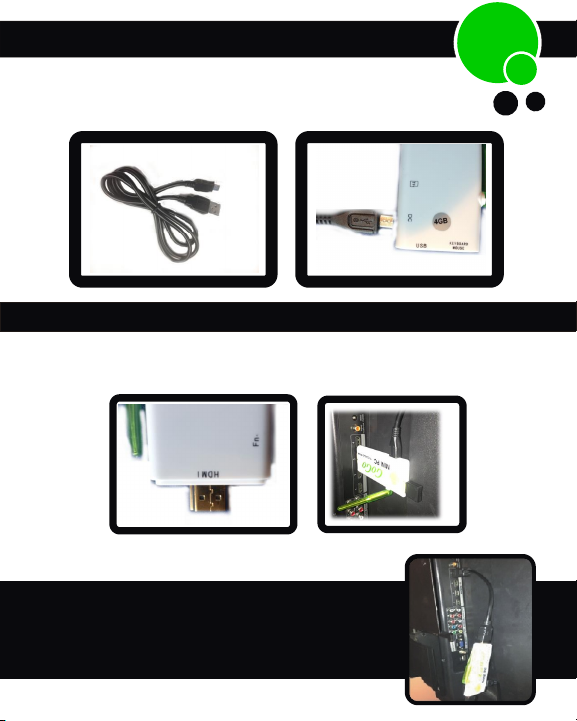
Connect smaller end of power cord into
DC slot on the side of GoGo Stick
Step 2
Step 3
If it’s accessible, connect the GoGo Stick directly into any
HDMI port of your TV
* If you have difficulty plugging GoGo Stick directly
into HDMI cord adapter supplied like photo
8
Autres manuels pour Smart TV Stick
1
Table des matières
Autres manuels Gogo Modem

Manuels Modem populaires d'autres marques

Davicom
Davicom DM562AP Manuel utilisateur

EpiValley
EpiValley TATA indicom SXC-1080 Manuel utilisateur

Zte
Zte WiMAX Manuel utilisateur

Intelimax
Intelimax MA-2060 Manuel utilisateur

SMC Networks
SMC Networks D3CM1604V Manuel d'utilisation et d'entretien

Telstra
Telstra Wi-Fi 4G Advanced Pro X Manuel utilisateur


US Robotics
US Robotics 3453C Manuel utilisateur

MaxTech
MaxTech Plug & Play Internal Voice/FAX/Data/SVD... Manuel utilisateur

Zte
Zte MF823 Manuel utilisateur

Four-Faith
Four-Faith F1403 Manuel utilisateur

Sierra Wireless
Sierra Wireless AIRLINK MP595W Manuel utilisateur

Gemtek
Gemtek WiMAX WIXFBR-103 Manuel utilisateur