
GeoVision GV-FR Manuel utilisateur
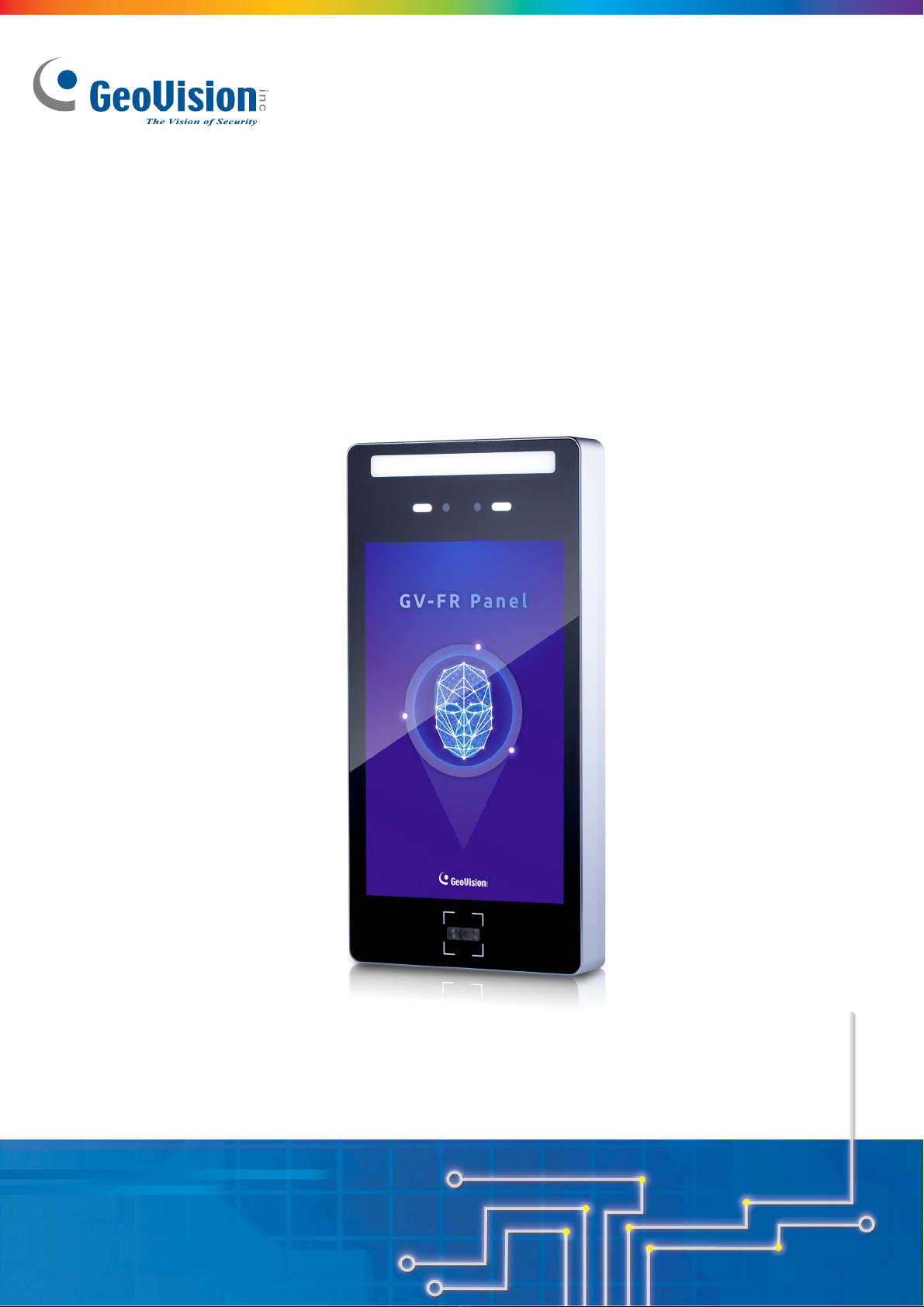
GV-FR Panel
Quick Start Guide
FRPANELV10-QG-A
Thank you for purchasing GV-FR Panel. This guide is designed to assist the new user in getting immediate
results from the panel. For advanced information on how to use GV-FR Panel, please refer to GV-FR Panel
User’s Manual.

© 2021 GeoVision, Inc. All rights reserved.
Under the copyright laws, this manual may not be copied, inwhole or inpart,
without the written consent of GeoVision.
Every effort has been made to ensure that the information in this manual is
accurate. GeoVision, Inc. makes no expressed or implied warranty of any kind
and assumes no responsibility for errors or omissions. No liability is assumed
for incidental or consequential damages arising from the use of the information
or products contained herein. Features and specifications are subject to
change without notice.
GeoVision, Inc.
9F, No. 246, Sec. 1, Neihu Rd.,
Neihu District, Taipei, Taiwan
Tel: +886-2-8797-8377
Fax: +886-2-8797-8335
http://www.geovision.com.tw
Trademarks used inthis manual: GeoVision, the GeoVision logo and GV
series products are trademarks of GeoVision, Inc. Windows is a
registered trademark of Microsoft Corporation.
January 2021

1
Contents
Recognition and Authentication Considerations................................2
1. Introduction ....................................................................................3
1.1 Packing List...............................................................................3
1.2 Overview...................................................................................4
2. Installation ......................................................................................6
2.1 Connecting GV-FR Panel..........................................................6
2.2 Installation.................................................................................7
3. Accessing GV-FR Panel .................................................................9
3.1 Looking Up the IPAddress......................................................10
4. Advanced Settings .......................................................................12
4.1 Upgrading System Firmware...................................................12
4.2 Restoring to Factory Default....................................................13
2
Recognition and Authentication Considerations
Face Recognition Distance:
•GV-FR Panel delivers optimal face recognition results when the faces of the
targets are within 1 meter (3 ft) of the GV-FR Panel.
Lighting Conditions:
•GV-FR Panel is designed for indoor use only. Avoid exposing it to direct sunlight as
it may affect its face recognition performance.
Face Recognition Limitations:
•GV-FR Panel may not be able to recognize faces wearing any type of masks or
sunglasses.
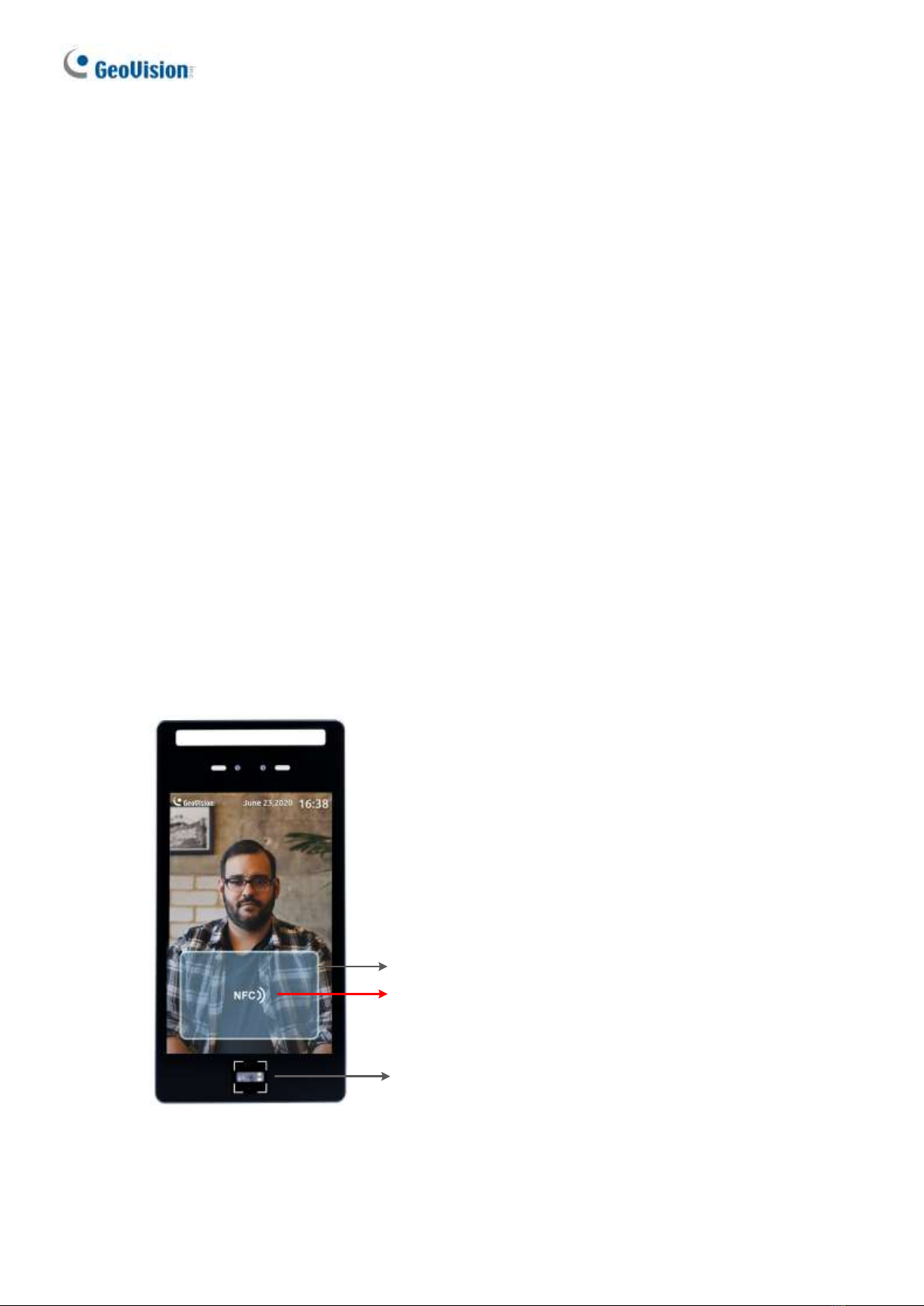
Detection Area of Cards, Tags / Fobs, QR Codes:
•When swiping cards, place them closely against the touch screen for optimal
detection effect.
•When swiping tags / fobs, place them closely against the text “NFC”on the touch
screen for optimal detection effect.
•When scanning QR codes, keep a distance of 10-15 cm (4-6 in) from the reader
for effective scanning.
Detection Area for Card
Place tags / fobs closely against the text “NFC”
QR code reader
.

3
1. Introduction
Welcome to the GV-FR Panel Quick Start Guide. In the following sections, you will learn the
basic installations and configurations of GV-FR Panel. For details, see the GV-FR Panel
User’s Manual.
1.1Packing List
•GV-FR Panel
•Wall Mount Bracket kit
•Wiegand cable
•USB Host PH2.0-4P cable
•RJ-45 cable
•USB OTG PH2.0-4P cable
•Power cable

4
1.2Overview
1
11
2
3
4
56
810
9
12
7
13
14
No.
Name
Function
1
LED Light
•White LED: Turns on LED lighting when its radar sensor
detects motion.
•Green LED: Turns on when recognizing registered faces.
•Red LED Turns on when detecting unknown faces.
2
Built-in Cameras
Captures real-time live images at the front of the panel.
3
Touchscreen Panel
Displays the live images captured by the built-in cameras and
accesses its local settings.
4
QR Code Reader
Reads QR codes used for access control. The QR code LED
turns on when detecting motion around.
5
Rear Panel
Contains all the ports of the GV-FR Panel, see No. 6 –10.
6
Reset Button
Restarts the GV-FR Panel.
7
Wiegand Port
Connects to 3rd-party controllers. See Chapter 8 Third-Party
Controller Integration.
8
USB OTG PH2.0-4P Port
Connects to a PC for data backup and/or firmware upgrade
via the supplied USB OTG PH2.0-4P cable
(currently non-functional).
9
USB Host PH2.0-4P Port
Connects to a USB keyboard or mouse via the supplied USB
Host PH2.0-4P cable.
10
RJ-45 Port
Connects to the network via the supplied RJ-45 cable.
11
Relay Output
Contains the following 3 relay pins: NO, COM and NC.

Introduction
5
1
12
2-Pin Power connector
Connects to power via the supplied 2-pin power cable and an
optional power adapter.
13
Microphone
(Currently non-functional)
14
Speaker
Sounds when typing the settings on the touchscreen, swiping
a card and scanning the QR code.
Note: The SIM card slot, RS-485 and RS-232 ports are not functional.

6
2. Installation
2.1 Connecting GV-FR Panel
Follow the steps below to connect GV-FR Panel.
1
2
23
1. Connect the GV-FR Panel to the network using the supplied RJ-45 cable with a
user-supplied Ethernet cable.
2. Optionally connect an output device, e.g. door lock, to the GV-FR Panel via its digital relay.
3. Connect the GV-FR Panel to power using the supplied 2-pin power cable and an optional
power adapter.
Upon first-time starting GV-FR Panel, users are prompted to set the login password for its
Administrator account. After setting the password, the live view of the GV-FR Panel’s built-in
camera appears.
Note: GV-FR Panel supports the output device of 30V DC, 1A.

Installation
7
2
2.2 Installation
For installing GV-FR Panel on a wall, follow the steps below.
1. Place the mounting bracket on the wall and mark the locations of the 4 screw positions
as illustrated below.
2. At each of the 4 screw positions marked on the wall, drill a hole slightly smaller than the
plastic screw anchors provided.
3. Insert the 4 plastic screw anchors into the holes drilled and secure the mounting bracket
onto the wall with the screws provided.
4. Secure the large sealing rubber and the back cover onto the back of the GV-FR Panel
with the screws provided.
Sealing Rubber
Back Cover
Note: Thread the necessary cables through the back cover and connect them to the panel
before securing the cover.

8
5. Secure the small sealing rubber and the mounting plate onto the GV-FR Panel with the
screws provided.
6. Secure the GV-FR Panel onto the wall by attaching its mounting plate onto the wall
mount bracket.
7. Insert a screw onto each side of the wall mount to secure and complete the installation.
For optional installation to mount GV-FR Panel on a surface, see the User’s Manual.
Autres manuels pour GV-FR
1
Table des matières
Autres manuels GeoVision Contrôleurs d'accès IP

GeoVision
GeoVision GV-CS1320 Manuel utilisateur

GeoVision
GeoVision GV-FR Manuel utilisateur

GeoVision
GeoVision GV-FWC Manuel utilisateur

GeoVision
GeoVision GV-Reader 1251 Manuel utilisateur

GeoVision
GeoVision GV-CS1320 Manuel utilisateur

GeoVision
GeoVision GV-FR2020 Manuel utilisateur

GeoVision
GeoVision GV-CS1320 Manuel utilisateur

GeoVision
GeoVision GV-QR1352 Manuel utilisateur


