GeoVision GV-CS1320 Manuel utilisateur

GV-CS1320 Camera Access Controller
Before attempting to connect or operate this product, please
read these instructions carefully and save this manual for future use.
User’s Manual
CS1320V302-A

© 2019GeoVision, Inc. All rights reserved.
Under the copyright laws, thismanual may not be copied, inwhole or inpart,
without the written consent of GeoVision.
Every effort has been made to ensure that the information in this manual is
accurate. GeoVision, Inc. makes no expressed or implied warranty of any kind
and assumes no responsibility for errors or omissions. No liability is assumed
for incidental or consequential damages arising from the use of the information
or products contained herein. Features and specifications are subject to
change without notice.
GeoVision, Inc.
9F, No. 246, Sec. 1, Neihu Rd.,
Neihu District, Taipei, Taiwan
Tel: +886-2-8797-8377
Fax: +886-2-8797-8335
http://www.geovision.com.tw
Trademarks used in this manual: GeoVision, the GeoVision logo and GV
series products are trademarks of GeoVision, Inc. Windows is the registered
trademark of Microsoft Corporation.
November 2019

Contents
Naming and Definition ...........................................................vii
Optional Device ......................................................................vii
Installation Considerations ....................................................ix
Chapter 1 Introduction ..........................................................1
1.1 Key Features ............................................................................................................4
1.2 Packing List ..............................................................................................................5
1.3 System Requirements ..............................................................................................6
1.4 Physical Description .................................................................................................8
1.5 Installation ................................................................................................................9
1.5.1 Wire Definition..............................................................................................9
1.5.2 Installing GV-CS1320.................................................................................10
1.5.3 Replacing the Silica Gel Bag......................................................................11
1.6 Connecting GV-CS1320 .........................................................................................12
1.6.1 Connecting RS485 Readers ......................................................................12
1.6.2 Connecting Network Readers ....................................................................13
1.6.3 Connecting Input Devices to GV-CS1320..................................................13
1.6.4 Connecting an Output Device to GV-CS1320............................................14
1.6.5 Connecting GV-CS1320 to PC...................................................................15
1.6.6 Connecting the Power................................................................................17
1.7 LED Status and Beeper..........................................................................................18
Chapter 2 Getting Started ...................................................19
2.1 Creating Login Credential.......................................................................................20
2.1 Checking the Dynamic IP Address .........................................................................21
2.3 Assigning an IP Address ........................................................................................21
Chapter 3 Accessing the Camera Access Controller.......23
3.1 Accessing Your Surveillance Images .....................................................................23
3.2 Functions Featured on the Main Page ...................................................................25
3.2.1 The Live View Window...............................................................................25
3.2.2 The Control Panel of the Live View Window ..............................................27
iii

3.2.3 Snapshot of a Live Video ...........................................................................30
3.2.4 Video Recording.........................................................................................30
3.2.5 Digital PTZ .................................................................................................30
3.2.6 Wide Angle Lens Dewarping......................................................................31
3.2.7 Picture-in-Picture and Picture-and-Picture View ........................................32
3.2.8 Alarm Notification .......................................................................................34
3.2.9 Video and Audio Configuration ..................................................................35
3.2.10 Remote Configuration ..............................................................................36
3.2.11 Camera Name Display .............................................................................36
3.2.12 Image Enhancement ................................................................................36
Chapter 4 Administrator Mode ...........................................37
4.1 Video ......................................................................................................................38
4.1.1 Video Settings ............................................................................................39
4.1.2 Text Overlay...............................................................................................43
4.2 Access Control .......................................................................................................44
4.2.1 Basic Setting ..............................................................................................44
4.2.2 Extended Device ........................................................................................52
4.3 Events and Alerts ...................................................................................................54
4.3.1 RTSP/ONVIF..............................................................................................54
4.4 Network ..................................................................................................................55
4.4.1 Status .........................................................................................................55
4.4.2 LAN ............................................................................................................56
4.4.3 Advanced TCP/IP.......................................................................................57
4.4.4 IP Filtering ..................................................................................................60
4.4.5 SNMP Setting.............................................................................................61
4.5 Management...........................................................................................................62
4.5.1 Date and Time Setting ...............................................................................62
4.5.2 Storage Setting ..........................................................................................63
4.5.3 User Account..............................................................................................64
4.5.4 Log Information ..........................................................................................64
4.5.5 Tools ..........................................................................................................65
4.5.6 Language ...................................................................................................66
4.6 SIP .........................................................................................................................67
Chapter 5 Advanced Applications .....................................69
5.1 Upgrading System Firmware ..................................................................................69
iv

v
5.1.1 Using the Web Interface.............................................................................70
5.1.2 Using the IP Device Utility..........................................................................71
5.2 Backing Up and Restoring Settings........................................................................72
5.2.1 Backing Up the Settings.............................................................................72
5.2.2 Restoring the Settings................................................................................73
5.3 Restoring to Factory Default Settings.....................................................................74
5.4 Verifying Watermark ...............................................................................................75
5.4.1 Accessing AVI Files ...................................................................................75
5.4.2 Running Watermark Proof..........................................................................75
5.4.3 The Watermark Proof Window ...................................................................76
Chapter 6 GV-DVR / NVR / VMS Configurations ...............77
6.1 Setting up GV-CS1320 on GV-DVR / NVR ............................................................78
6.1.1 Customizing the Basic Settings..................................................................80
6.2 Setting up GV-CS1320 on GV-VMS.......................................................................82
Chapter 7 Mobile Phone Connection .................................84
Chapter 8 Connecting to GV-I/O Box 4 Ports....................85
8.1 Physical Connection ...............................................................................................86
8.2 Setting up GV-CS1320 ...........................................................................................87
Appendix. ................................................................................89
A. RTSP Protocol Support ..............................................................................................89
B. The CGI Command.....................................................................................................89

Naming and Definition
GV-DVR/NVR
oftware. The GV-
, GV-NVR System, GV-
at the same time.
GeoVision Analog and Digital Video Recording S
DVR/NVR also refers to Multicam System
Hybrid DVR System and GV-DVR System
GV-VMS GeoVision Video Management System for IP cameras.
Optional Device
s 0. Consult
s
Optional device
your sales repre
can expand the capabilities and versatilities of your GV-CS132
entative for more information.
GV-AS ID Card &
GV-AS ID Key F
usiness and
reasons. 13.56 MHz cards and key fobs are available.
ob
GV-AS ID Cards and GV-AS ID Key Fobs are ideal for b
residential environment, where access control is important for security
GV-CR420
P wide angle
e camera for
GV-CR420 is a 13.56 MHz card reader with a built-in 4M
IP camera which saves the costs of maintaining a sperat
access control.
GV-CR1320
MP camera
e costs of maintaining a sperate camera for access
control. GV-CR1320 also supports VoIP calls, allowing the operator to
e door.
GV-CR1320 is a 13.56 MHz card reader with a built-in 2
which saves th
talk to visitors and entering the access code to open th
GV-DFR1352
FR1352 is a 13.56 MHz card reader. The reader has both
ny standard
GV-D
Wiegand and RS-485 outputs that can be connected to a
access control panel.
GV-FR2020
a 13.56 MHz face recognition reader. The reader
Face Recognition
GV-FR2020 is
supports two operation modes for access control:
and Card.
GV-FWC
ace Recognition Cameras (GV-FD8700-FR /
GV-VD8700) into access control systems by sending access card
TCP/IP or
GV-FWC integrates GV-F
data, paired to Face IDs, to controllers either through
Wiegand connection.
GV-GF Fingerprint
Readers
GV-CS1320 is compatible with GV-GF1921 / 1922. The reader
supports three operation modes for access control: Fingerprint Only,
Fingerprint + Card and Card Only. Readers with optical and
capacitance sensors are available.
GV-IB25 / 65 / 85
Infrared Button
The GV-IB25 / 65 / 85 Infrared Button detects infrared movement
within 3 to 12 cm and allows you to open the door with a wave of
hand.
vii

GV-I/O Box 4 Ports
V1.2
DC and AC output
A small but capable device, the GV-I/O Box 4 Ports V1.2 provides 4
inputs and 4 relay outputs. It supports both
voltages, and provides a USB port for PC connection.
GV-RK1352
MHz card reader with keypad. The reader has
both Wiegand and RS-485 outputs that can be connected to any
GV-RK1352 is a 13.56
standard access control panel.
GV-R1352
52 is a 13.56 MHz card reader. The reader has both Wiegand
ard access
GV-R13
and RS-485 outputs that can be connected to any stand
control panel.
GV-WTR
ce to RS-
, thereby enabling 3rd party readers to be connected to
gand-interface
ystems for
GV-WTR is a converter designed to support Wiegand interfa
485 interface
RS-485 GV-Controllers. Through the GV-WTR, Wie
readers can be easily combined to access control s
improved versatility.
Electric Lock types of electric locks are available: electromagnetic lock,Three
electric bolt and electric strike.
Power Adapter Contact our sales representatives for the countries and a
supported.
reas
Push Button Switch
The push button switch can be integrated with access control system,
allowing door exit by momentarily activating or deactivating the electric
locking device. Both American standard and European standard push
buttons are available.
viii

Installation Considerations
To make sure the finger and face of the cardholder can be detected, follow the instructions
below to set up GV-CS1320.
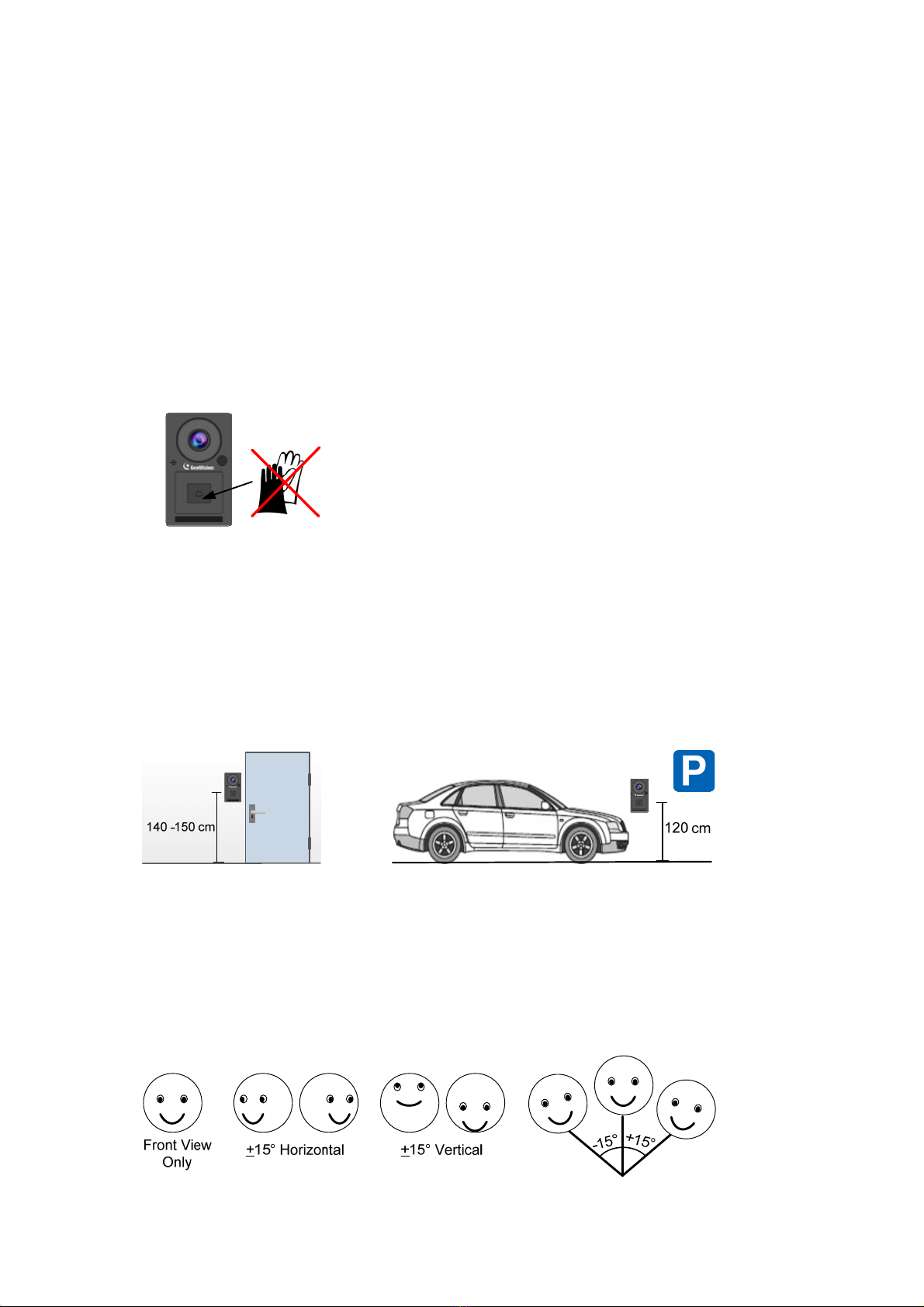
Touch Pad Recognition:
•The touch pad cannot be activated with gloves on.
•GV-CS1320 should be about 1.4-1.5 meters above the
ground.
•When placed at a parking lot gate, GV-CS1320 should be about 1.2 meters above the
ground to match the height of vehicles.
Installation Height:
When placed at a building gate,
Face Detection Limitations
•GV-CS1320 cannot detect the face of cardholders wearing facial masks or sunglasses.
•GV-CS1320 is designed to detect front-view faces only. If the face is slightly tilted
horizontally or vertically, the tilt angle cannot exceed 15°degree.
ix

x
•Prevent light from directly falling onto the GV-CS1320’s camera lens.
Lighting Conditions
•Avoid placing GV-CS1320 where the light source is directly behind the subject.

Introduction
1
Chapter 1 Introduction
GV-CS1320 is an access controller with a built-in 2 MP camera and 13.56 MHz
reader.
GV-CS1320 recognizes identification cards and grants access to up to 100,000 users
accordingly. With the integration of the wide angle camera, the Card and Face Mode enables
GV-CS1320 to perform face detection together with card verification before access can be
granted.
Figure 1-1
1
Autres manuels pour GV-CS1320
3
Table des matières
Autres manuels GeoVision Contrôleurs d'accès IP

GeoVision
GeoVision GV-FR Manuel utilisateur

GeoVision
GeoVision GV-FWC Manuel utilisateur

GeoVision
GeoVision GV-CS1320 Manuel utilisateur

GeoVision
GeoVision GV-FR2020 Manuel utilisateur

GeoVision
GeoVision GV-Reader 1251 Manuel utilisateur

GeoVision
GeoVision GV-FR Manuel utilisateur

GeoVision
GeoVision GV-CS1320 Manuel utilisateur

GeoVision
GeoVision GV-QR1352 Manuel utilisateur