
Genexis Hybrid Live! Titanium Manuel utilisateur

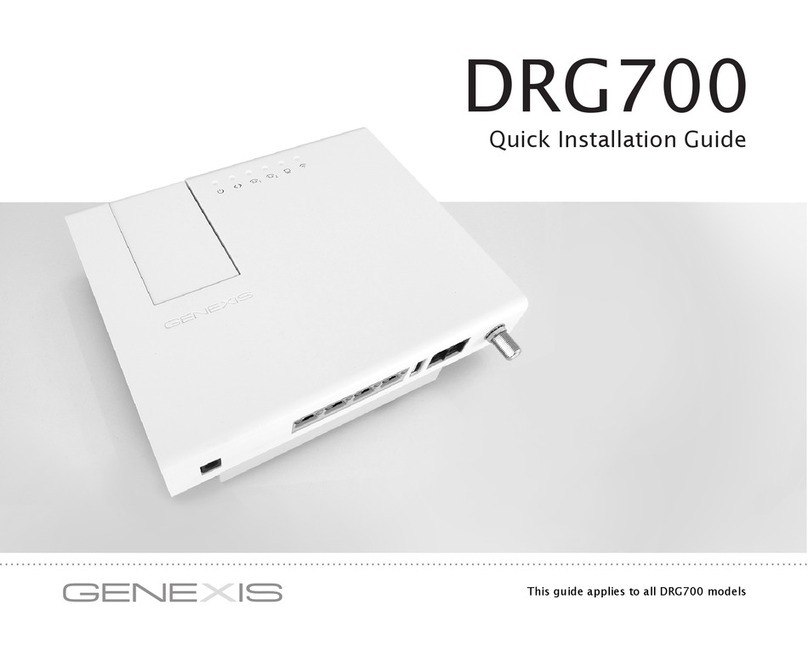
Quick Installation Guide
Live!
Titanium


1
Contents
1. Live! overview.............................
2. Installation......................................
3. Network setup.................................
4. Wireless setup.................................
5. Configuring your Live!......................
6. Troubleshooting..............................
2
4
7
8
9
10

2
1. Live! overview
User interfaces
Description
1 Live! Telephony ports
2 Live! Ethernet LAN ports
3 Live! USB 2.0 port
4 Reset touch button
5 WPS touch button
6 Element power port
7 Universe CATV connector
8 Hybrid Interface connector
Depending on your specific product type, port
configuration may differ.
3
4
5
8
7
1 2
6

3
Status feedback LEDS:
Activity Description
On
Off
Powered successfully
Power not connected
On
Off
Optical link activated
No optical link
On
Off
CATV enabled
CATV disabled
On
On (red)
Blink
Off
Successful data uplink
Hardware error
Firmware upgrade /
provisioning initializing
No data uplink
On
Blink
Off
Phone line enabled
Phone line initializing
Phone line disabled
On
Blink
Off
Internet connection enabled
Internet connection initializing
Internet connection disabled
On
Blink
Off
WLAN enabled
WPS active
WLAN disabled
LAN ports Green
Yellow
Link
Activity
Touch buttons:
Note: The buttons only need to be touched and do not require
physical pushing. When a button is being touched, the nearest
LED will blink rapidly.
Function Action
Reboot • Hold button until all LEDs blink once
(after 5 seconds)
• Release button to initiate reboot
Factory
Default
• Hold button until all LEDs have blinked
twice (after 10 seconds)
• Release button to initiate a Factory
Default reset. The Live! will reboot
automatically
WPS • Hold button touched until all LEDs blink
once (after 2 seconds).
• Release button to initiate WPS on WLAN
Note: If a second WLAN interface is available, WPS for
the second WLAN interface can be initiated by holding
the WPS button until all LEDs have blinked twice (after
5 seconds).

4
2. Installation
Step 1: Installing the Hybrid Live!
Click the Hybrid Live! module on the Hybrid Element, as
shown in the picture.
Note: Proper installation does not require excessive force.
Step 2: Powering the device
Connect the 12V plug of the supplied adapter to the Hybrid
Element and connect the adapter to a power socket. The unit
will now start up. During the start-up sequence the
LEDs are on, other LEDs may blink.
When the start-up sequence has finished the following LEDs
should be on: .
The complete start-up sequence may take several minutes.
1
2
Click!

5
Step 3: Connecting your computer
Connect your computer to one of the Ethernet LAN ports
on the Hybrid Live!, using an Ethernet cable with a RJ-45
connector. Your provider can tell you which ports to use.
Note: refer to section “fixed network setup” if your connection
is not working directly from the start.
Step 4: Connecting your telephone
This step is only relevant if the Hybrid Live! has voice ports.
A standard analog telephone handset can be connected to the
active voice ports, using a RJ-11 cable. The LED indicates
if voice is enabled and operating correctly. Your provider can
tell you which ports to use.
Reference image of
the back of a PC

6
Step 5: Connecting your analog television or radio
This step is only relevant if your Hybrid configuration has a
CATV receiver.
Connect your analog television or radio using a coaxial cable
with a male F-connector. The LED indicates if CATV
service is enabled.
Cleaning instructions:
Your Hybrid product may be cleaned using a soft, dry cloth.
For areas of persistent dirt, a damp cloth may be used with
mild detergent. Product and LED logos may be damaged
by using aggressive cleaning products or ethanol-based
cleaners - if in doubt do not clean near these logos. Under
no circumstances allow water or cleaning fluid to ingress the
product, as this may cause permanent damage and prevent
correct operation.

7
Step 1:
Open the web browser on your computer and check if your
connection is working. If your connection is working, you can
skip step 2 and 3.
Step 2:
(Instructions for Windows Vista / Windows 7; for other
operating systems please contact your service provider)
• On your computer, go to “Start” at the bottom left
corner and click on “Control Panel”.
• The Control Panel window will appear. Click on “View
Network Status and Tasks” at the “Network and Internet”
category.
• The Network and Sharing Centre will appear:
• For Windows Vista: Click on “Manage network
connections” at the top left hand corner.
• For Windows 7: Click on “Change adapter
settings” at the top left hand corner.
• Right click on the correct “Local Area Connection”
by identifying the correct network card and click
“Properties”.
• Select “Internet Protocol Version 4 (TCP/IPv4)”. Click on
“Properties”
• Select “Obtain an IP address automatically”, and “Obtain
DNS server address automatically”. Save the settings by
clicking “OK”, and close the window by clicking “OK” or
“Close”.
Step 3:
Open your web browser and check if your connection is
working. If your connection is not working, please refer to the
troubleshooting section.
3. network setup

8
4. Wireless setup
This section is only relevant if wireless functionality is
available on your Hybrid Live!. The LED indicates if
wireless functionality is enabled.
Step 1:
To set up the wireless connection between your computer and
the Hybrid Live! you may need the SSID and WPA key of the
Hybrid Live!. The SSID is the name of the wireless network.
The WPA key is the password needed for your secured wire-
less network. The default SSID and the WPA key are printed on
the label on the rear of your Hybrid Live!.
You may write down these values here:
SSID: _____________________________________________________
WPA key: _________________________________________________
Step 2:
(Instructions for Windows Vista / Windows 7; for other
operating systems please contact your service provider)
• Go to “Start” at the bottom left corner and click on
“Control Panel”.
• The Control Panel window will appear. Click on “View
Network Status and Tasks” at the “Network and
Internet” category.
• The Network Connections window will appear. Click
on the “Connect to a network”.
• Show “Wireless” and select the network (SSID) that is
printed on the label.
• If requested press the WPS button on your Hybrid
Live!. Alternatively you can connect using the WPA key
that is printed on the label.
• Your connection is now operational. Open your web
browser and verify that your connection is working.
If your connection is not working, please refer to the
troubleshooting section.
• After installation you can manually change the SSID
and WPA key, by using the web-interface of the Hybrid
Live!.
Ce manuel convient aux modèles suivants
1
Table des matières
Autres manuels Genexis Modem

Manuels Modem populaires d'autres marques

Davicom
Davicom DM562AP Manuel utilisateur

EpiValley
EpiValley TATA indicom SXC-1080 Manuel utilisateur

Zte
Zte WiMAX Manuel utilisateur

Intelimax
Intelimax MA-2060 Manuel utilisateur

SMC Networks
SMC Networks D3CM1604V Manuel d'utilisation et d'entretien

Telstra
Telstra Wi-Fi 4G Advanced Pro X Manuel utilisateur


US Robotics
US Robotics 3453C Manuel utilisateur

MaxTech
MaxTech Plug & Play Internal Voice/FAX/Data/SVD... Manuel utilisateur

Zte
Zte MF823 Manuel utilisateur

Four-Faith
Four-Faith F1403 Manuel utilisateur

Sierra Wireless
Sierra Wireless AIRLINK MP595W Manuel utilisateur

Gemtek
Gemtek WiMAX WIXFBR-103 Manuel utilisateur