Ferguson Smart Hub Manuel utilisateur

PL
EN
DE
ES
FR
IT
PT
instrukcja obsługi
instructions manual
Bedienungsanleitung
manual de usuario
manuel de l’utilisateur
manuale d’uso
manual do usuário

PL
2 3
UWAGA: Przeczytaj uważnie przed rozpoczęciem użytkowania. Ilustracje w in-
strukcji mają wyłącznie charakter poglądowy i mogą nie być zgodne z stanem
rzeczywistym.
Opis produktu
Smart Hub jest centrum kontrolnym dla urządzeń ZigBee oraz Bluetooth. Nasza
bramka współpracuje z wieloma rodzajami urządzeń ZigBee działających w standar-
dzie 1.2HA, np. czujnikiem dymu, alarmem CO, kontaktronami, czujnikami ruchu
itp.
Przez różne kombinacje peryferiów smart home możesz używać centralki jako sys-
temu alarmowego, zabezpieczającego, kontroli środowiskowej, automatyzacji swo-
jego domu itp.
Zawartość opakowania
• bramka
• instrukcja
• kabel USB
• zasilacz
• wkręty montażowe
• kabel Ethernet
• igła
Opis bramki
1. Wskaźniki LED statusu
2. Wskaźnik LED zasilania
3. Mocowanie
4. Alarm sabotażowy
5. Otwór resetu
6. Port USB/Port serwisowy
7. Port zasilania
8. Port Ethernet
1
2
3
4
5
6 7 8

PL
4 5
Funkcje
• Wspiera do 100 urządzeń Zigbee
• Obsługa Ethernet i Wi-Fi
• Automatyczne przełączenie sieci w przypadku zaniku połączenia
• Obsługa aktualizacji oprogramowania
• Wbudowany akumulator 2400 mAh
• Działanie na zasilaniu bateryjnym do 12 godzin przy połączeniu przez Ethernet
i do 6 godzin przy połączeniu przez Wi-Fi
• Alarm sabotażowy aktywujący się natychmiast po zdjęciu z uchwytu montażo-
wego
Specykacja
Zasilanie DC5V/2A
Bateria awaryjna/zapasowa 2400mAh/3.7V
Moc znamionowa 3W Ethernet, 3.5W Wi-Fi
Temperatura pracy 0°C ~ +55°C
Dopuszczalna wilgotność = <95% (bez kondensacji)
Sieć Ethernet, Wi-Fi
Komunikacja Zigbee, Bluetooth
Zasięg pracy Do 200m w przestrzeni otwartej
Wymiary 120.8 x 114.4 x 32.7 mm
Port zasilania Micro USB
Port Ethernet RJ45
Port USB USB typ A
Przycisk sabotażowy Normalnie zamknięty
Otwór reset Przyśnij przez 10 sekund by przywró-
cić ustawienia fabryczne

PL
6 7
Dodawanie bramki
Podłącz bramkę do zasilania przy użyciu dołączonego przewodu oraz zasilacza. Po-
bierz aplikację Ferguson Home w sklepie Play lub AppStore. Wykonaj kroki niezbęd-
ne do uruchomienia aplikacji.
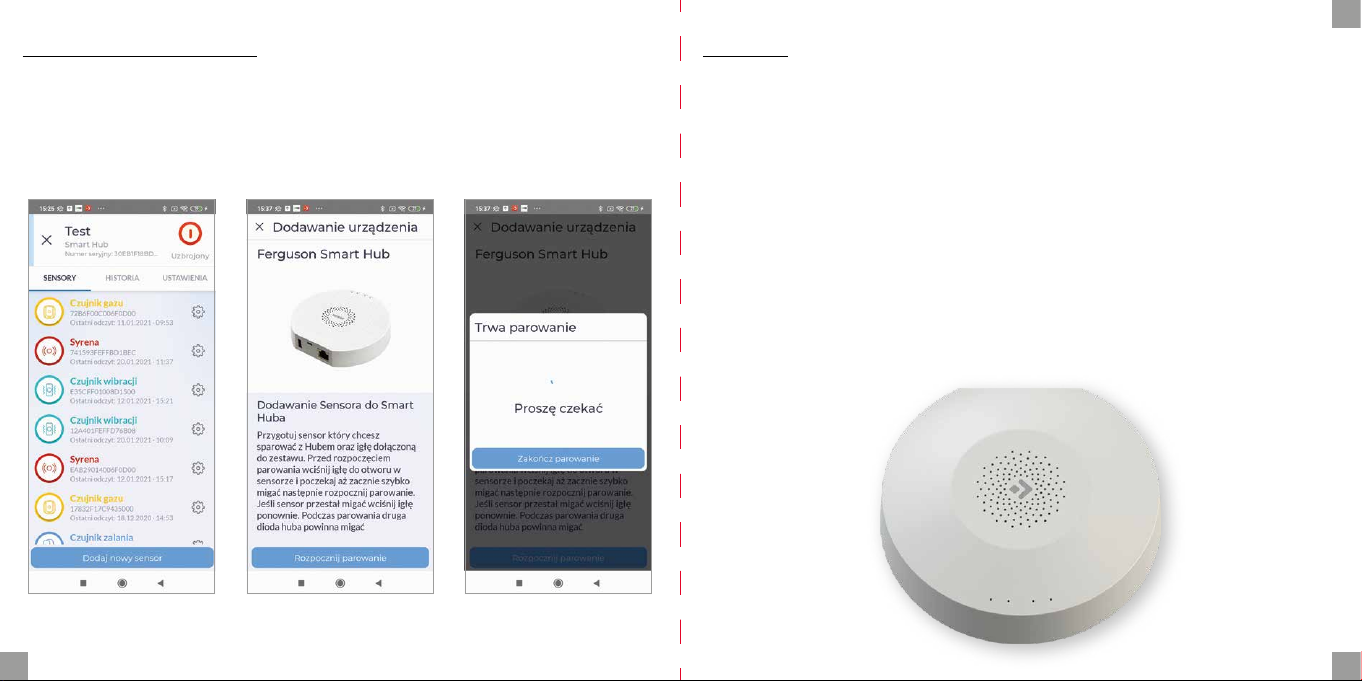
Następnie, przy użyciu symbolu „+” w zakładce „pulpit”, wybierz opcję dodania
Smart Hub. Postępuj zgonie z instrukcją zawartą w aplikacji. Po udanym połączeniu
bramka zasygnalizuje sygnałem dźwiękowym„udane połączenie”.
Parowanie może potrwać kilka minut.
aplikacja Ferguson Home
LED Kolor Opis
Power zielony status
zasilania
1. Świeci stale – zasilanie z zasilacza.
2. Miga – zasilanie bateryjne.
3zielony/
czerwony
wskaźnik
led statusu
bramki
1. Zielony świeci – HUB uzbrojony tryb nocny.
2. Czerwony świeci - HUB uzbrojony.
3. Zielony miga bardzo szybko – aktualizacja.
2 biały
wskaźnik
led statusu
połączenia
z siecią
1. Miga co sekundę – tryb
parowania bramki z Wi-Fi.
2. Świeci przez 5s - parowanie
zakończone sukcesem.
3. Miga bardzo szybko przez 2s –
parowanie z Wi-Fi nie powiodło się.
4. Świeci stale - połączenie z serwerem.
5. Miga bardzo szybko – aktualizacja.
1żółty/
niebieski
wskaźnik
led statusu
parowania
urządzeń
1. Żółty miga co sekundę – parowanie
z urządzeniem ZigBee.
2. Żółty świeci przez 5s – parowanie
urządzenia ZigBee zakończone sukcesem.
3. Żółty miga bardzo szybko przez 2s –
parowanie ZigBee nie powiodło się.
4. Niebieski miga co sekundę – parowanie
z urządzeniem Bluetooth.
5. Niebieski świeci przez 5s – parowanie
urządzenia Bluetooth zakończone sukcesem.
6. Niebieski miga bardzo szybko przez 2s –
parowanie Bluetooth nie powiodło się.
7. Żółty miga bardzo szybko – aktualizacja.

PL
8 9
Dodawanie peryferiów
1. Wejdź w ustawienia bramki (ikona koła zębatego).
2. Na dole ekranu znajduje się przycisk dodawania nowego urządzania.
3. Przygotuj sensor który chcesz dodać.
4. Wciśnij przycisk dodania i postępuj według instrukcji w zawartej w aplikacji.
Montaż
W celu montażu urządzenia:
1. Zdemontuj pokrywę montażową przekręcając ją przeciwnie do kierunku ruchu
wskazówek zegara.
2. Po wybraniu odpowiedniego miejsca montażowego, użyj śrub montażowych
do przytwierdzenia bramki do wybranej powierzchni.
Uwaga!
1. Dla lepszych parametrów komunikacji bezprzewodowej unikaj montażu na po-
wierzchni metalowej lub w otoczeniu metalu.
2. Aby dodać urządzenia zainstaluj aplikację.
3. Dla stabilnej łączności, urządzenia peryferyjne powinny być oddalone od bram-
ki o nie więcej niż 20 metrów. Najlepsze połączenie występuje w odległości ok
15 m od bramki.

EN
10 11
NOTE: Please read carefully before use. The illustrations in the manual are for
reference only and may not be accurate.
Product description
The Smart Hub is the control center for ZigBee and Bluetooth devices. Our gate-
way works with many types of ZigBee devices operating in the 1.2HA standard, e.g.
smoke detectors, CO alarms, reed switches, motion sensors etc.
Through various combinations of smart home peripherals, you can use the control
unit as an alarm system, security system, environmental control system, home auto-
mation system, etc.
Contents of the package
• control unit
• instructions manual
• USB cable
• power supply
• mounting screws
• Ethernet cable
• needle
Description of the control unit
1. Status LED indicators
2. Power LED indicator
3. Fastening
4. Tamper alarm
5. Reset hole
6. USB/Service port
7. Power port
8. Ethernet port
1
2
3
4
5
6 7 8

EN
12 13
Functions
• Supports up to 100 Zigbee devices
• Ethernet and Wi-Fi support
• Automatic network switching in case of connection loss
• Support for software updates
• Built-in 2400 mAh battery
• Battery life up to 12 hours when connected via Ethernet and up to 6 hours when
connected via Wi-Fi
• Tamper alarm that is activated immediately after removal of the device from the
mounting bracket
Specication
Power DC5V/2A
Backup battery 2400mAh/3.7V
Rated power 3W Ethernet, 3.5W Wi-Fi
Working temperature 0°C ~ +55°C
Permissible humidity = <95% (no condensation)
Network Ethernet, Wi-Fi
Communication Zigbee, Bluetooth
Working range Up to 200m in open space
Dimensions 120.8 x 114.4 x 32.7 mm
Power port Micro USB
Ethernet port RJ45
USB port USB typ A
Tamper button Normally closed
Reset hole Push for 10 seconds to do factory reset

EN
14 15
Adding a gateway
Connect the gateway to the power using the supplied cable and power adapter.
Download the Ferguson Home app in the Google Play Store or Apple AppStore. Fol-
low the steps necessary to run the application.
Then, using the „+” symbol in the „Desktop” tab, select the option to add a Smart
Hub. Follow the instructions in the application. After a successful connection, the
gateway will signal„successful connection”with a sound signal.
Pairing may take several minutes.
Ferguson Home application
LED Color Description
Power green power
status
1. Steady light - powered from the power supply.
2. Blinking - battery powered.
3 green/red
gateway
status LED
indicator
1. Green is on - HUB is armed at night mode.
2. Red is on - HUB is armed.
3. Green is blinks very fast - update.
2 white
network
connection
status LED
indicator
1. Flashes every second - gateway
pairing mode with Wi-Fi.
2. Lights up for 5s - pairing successful.
3. Flashes very quickly for 2s - Wi-Fi pairing failed.
4. Steady light - connection to the server.
5. Flashing very fast - update.
1 yellow/blue
device
pairing
status LED
indicator
1. Yellow ashing every second -
pairing with a ZigBee device.
2. Yellow is on for 5s - successful
pairing of the ZigBee device.
3. Yellow ashing very fast for
2s - ZigBee pairing failed.
4. Blue ashing every second - pairing
with a Bluetooth device.
5. Blue is on for 5s - Bluetooth
device pairing successful.
6. Blue ashing very fast for 2s -
Bluetooth pairing failed.
7. Yellow ashing very fast - update.

EN
16 17
Adding peripherals
1. Enter into gateway’s setup (gear icon).
2. At the bottom of the screen there is a button for adding a new device.
3. Prepare the sensor you want to add.
4. Press the add button and follow the instructions in the application.
Assembly
To assemble the device:
1. Remove the mounting cover by turning it counterclockwise.
2. After selecting the appropriate mounting location, use the mounting screws to
attach the goal to the selected surface.
Attention!
1. For better wireless communication parameters, avoid mounting on a metal sur-
face or in a metal environment.
2. To add devices, install the application.
3. For stable communication, peripherals should be placed no more than 20 me-
ters from the gate. The best connection is approx. 15 m from the gate.

DE
18 19
HINWEIS: Lesen Sie vor der Verwendung sorgfältig. Die Abbildungen in diesem
Handbuch dienen nur zur Veranschaulichung und sind möglicherweise nicht
korrekt.
Produkt-Beschreibung
Smart Hub ist eine Steuerzentrale für ZigBee- und Bluetooth-Geräte. Unser Gateway
arbeitet mit vielen Arten von ZigBee-Geräten zusammen, die im 1.2HA-Standard
arbeiten, wie z. B. Rauchmelder, CO-Alarm, Reed-Schalter, Bewegungsmelder, usw.
Durch verschiedene Kombinationen von Smart-Home-Peripheriegeräten können
Sie das Bedienfeld als Alarmanlage, Sicherheitssystem, Umweltkontrolle, Automati-
sierung Ihres Hauses usw. verwenden.
Inhalt der Verpackung
• Gateway
• Bedienungsanleitung
• USB-Kabel
• Netzgerät
• Montageschrauben
• Ethernet-Kabel
• Nadel
Gateway-Beschreibung
1. Status-LEDs
2. Power-LED-Anzeige
3. Montage
4. Sabotagealarm
5. Önung zurücksetzen
6. USB/Service-Anschluss
7. Stromanschluss
8. Ethernet-Anschluss
1
2
3
4
5
6 7 8
Table des matières
Langues :
Manuels Unité de contrôle populaires d'autres marques

Festo
Festo Compact Performance CP-FB6-E Manuel de la liste des pièces

Elo TouchSystems
Elo TouchSystems DMS-SA19P-EXTME Manuel utilisateur

JS Automation
JS Automation MPC3034A Manuel utilisateur

JAUDT
JAUDT SW GII 6406 Series Guide rapide

Spektrum
Spektrum Air Module System Manuel utilisateur

BOC Edwards
BOC Edwards Q Series Manuel utilisateur