
ENERGY SISTEM Neo Lite Manuel utilisateur

1/22 energysistem.com
ENGLISH
Introduction 3 .....................................................................................................................................................................
Care and maintenance 3 ...................................................................................................................................................
Key Features 3 ....................................................................................................................................................................
Product content 4 ...............................................................................................................................................................
General overview 4 ............................................................................................................................................................
Power 5 ................................................................................................................................................................................
Switch on and off 5 ............................................................................................................................................................
Main gestures 6 ..................................................................................................................................................................
Basic gestures 6 .............................................................................................................................................................
Main screen 7 ......................................................................................................................................................................
Widgets 8 .......................................................................................................................................................................
SIM card setup 8 .............................................................................................................................................................
Bluetooth setup 9 ...........................................................................................................................................................
Wi-Fi setup 10 .................................................................................................................................................................
Internet browser 11 ........................................................................................................................................................
E-Mail client 12 ...............................................................................................................................................................
Music player 12 ..............................................................................................................................................................
Video Player 13 ..............................................................................................................................................................
Camera 14 ............................................................................................................................................................................
Gallery 16 .............................................................................................................................................................................
MicroSD / USB 18 ................................................................................................................................................................
Updating 19 .........................................................................................................................................................................
Troubleshooting 20 ............................................................................................................................................................
Safety precautions and SAR 20 ........................................................................................................................................
Safety precautions 20 .....................................................................................................................................................
Exposure information (SAR) 20 .......................................................................................................................................
Warranty 21 .........................................................................................................................................................................
Warranty procedure 21 .....................................................................................................................................................
Trademarks 21 ....................................................................................................................................................................
Declaration of conformity 21 ............................................................................................................................................

2/22 energysistem.com
3/22 energysistem.com
Introduction
Thank you for your trust in us and for buying the new Phone Neo Lite. We hope you will enjoy it.
Your new phone has an IPS WVGA 4" (800x480 pixels) touch display, a Quad Core ARM Cortex A7 1.3 GHz processor,
Bluetooth, Wi-Fi, GPS, 3G connectivity, front camera and rear camera with flash.
Before you start using your smartphone we recommend you to read this manual and familiarize yourself with it. It only
takes a couple of minutes and it will help you to enjoy your device with maximum performance.
Care and maintenance
Do not expose your Phone Neo Lite to impacts, dust, direct sunlight, humidity or high temperatures.
Do not use corrosive nor abrasive cleaning products.
Keep the device clean and dust free using a soft, dry cloth.
Charge the battery when the display shows the low battery icon.
Do not disassemble the device. All reparation should be done exclusively by Energy Sistem Technology, S.A.
qualified staff.
Key Features
4" Touchscreen
IPS technology
WVGA Resolution (800x480 pixel)

4/22 energysistem.com
Quad Core ARM Cortex A7 1.3 GHz processor.
Integrated Mali-400 GPU
Android™ 5.1 Lollipop
5 Mpx rear camera with autofocus and LED flash.
VGA Front camera
1GB RAM.
4 GB of internal memory further expandable using microSDHC/XC (up to 128 GB)
3G: 850/1900 MHz (BANDS WCDMA V / II )
2G: 850/900/1800/1900 MHz (BANDS GSM)
Bluetooth
WI-FI 802.11 b/g/n
A-GPS
Dual SIM
MicroUSB 2.0 connection
Audio Jack 3,5 mm with standard CTIA
Battery capacity: 1.500 mAh
AC/DC (US plug) power adapter Input: 100-240VAC 50-60Hz. Output: 5V 1A
Motion sensor (accelerometer).
Proximity sensor.
Proximity sensor.
Integrated speaker.
Integrated omni directional microphone.
87.5 to 108 MHz FM radio with pre-sets
SAR rating: 0,339 (W/Kg) at the head and 0,406 (W/Kg) at the body (10 mm distance).
Product content
Phone Neo Lite
Quick guide
Protection Kit (case + screen protector)
USB cable
AC/DC 5V 1A (US plug) 100-240V AC 50-60Hz power adapter
Rechargeable lithium battery
General overview
5/22 energysistem.com
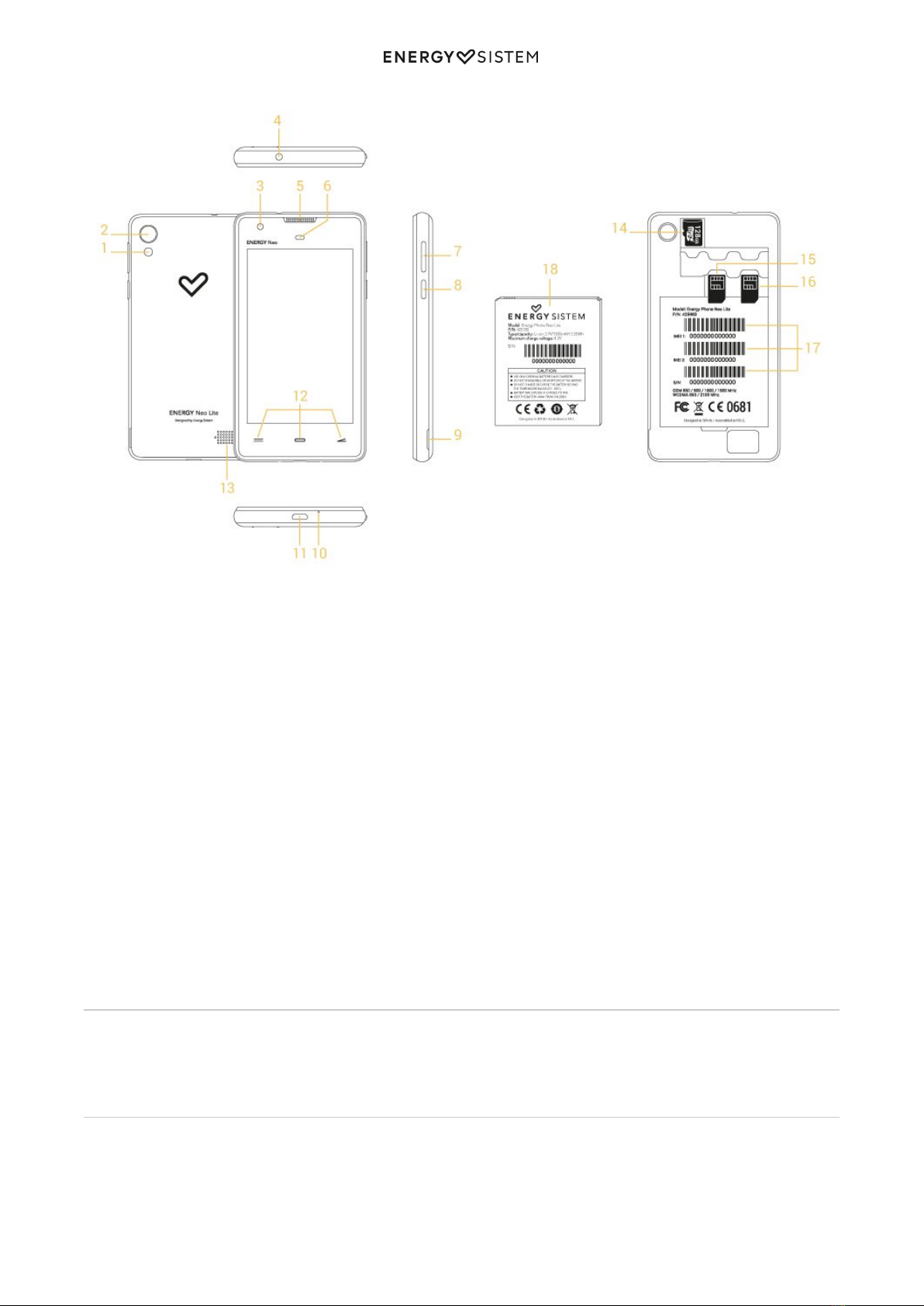
Rear flash1.
Rear camera2.
Front camera3.
Earphones output4.
Receiver5.
Proximity and luminosity sensors6.
Volume button7.
Power button8.
Back case extraction slot9.
Microphone10.
USB Input11.
Touch buttons: Recent Apps, Home, Back12.
Speaker13.
MicroSD card slot14.
SIM 2 card slot15.
SIM 1 card slot16.
IMEI and serial numbers17.
Battery18.
Power
Your Phone Neo Lite has a built-in rechargeable lithium ion battery. Recharge the battery by connecting the device to
the outlet using the power adapter and the USB cable included with the product. The charging time ranges from 2-4
hours, depending on whether the device is off or running.
Switch on and off
Before turning on your Phone Neo Lite, make sure that the SIM cards and the battery (18) are inserted in their slots.
After that, press the power button (8) located on the right side of your device for one second. When the operating
system has loaded, unlock the device to start using it. Enter the PIN number of your SIM cards and then drag the
padlock upwards.
6/22 energysistem.com
In order to turn off the device, hold the power button (8) until you see the power off menu, then select "Switch off".
Briefly press the power button (8) to lock/unlock the device, thus turning the screen on/off and activating the power
saving mode.
Main gestures
Basic gestures
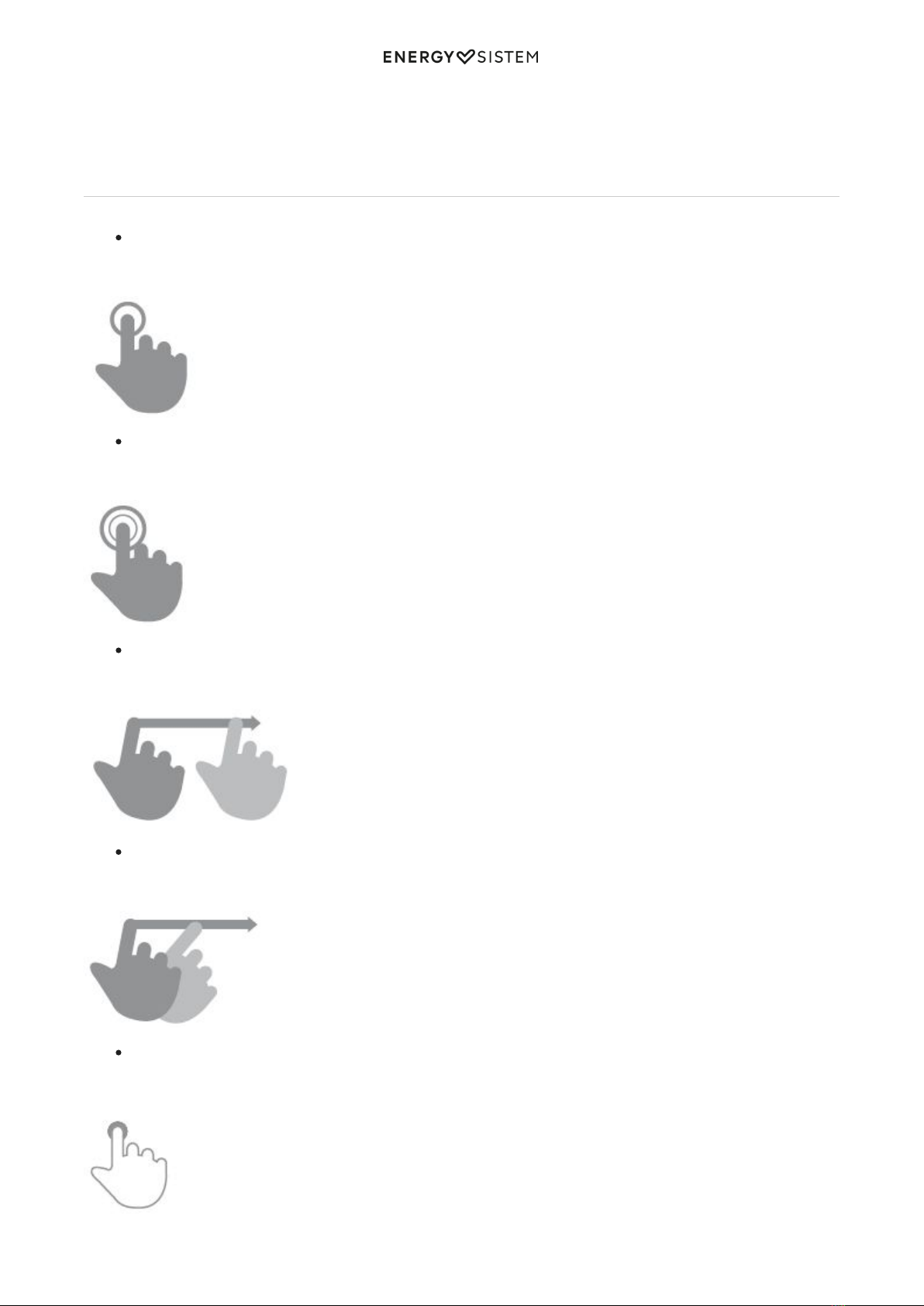
Tap
Touch the screen briefly
Double tap
Touch the screen twice quickly
Drag
Move your finger over the screen without losing contact
Slide
Slide your finger quickly over the screen
Press
Touch the screen for an extended period of time
7/22 energysistem.com
Zoom
Zoom in and out the screen image
Main screen
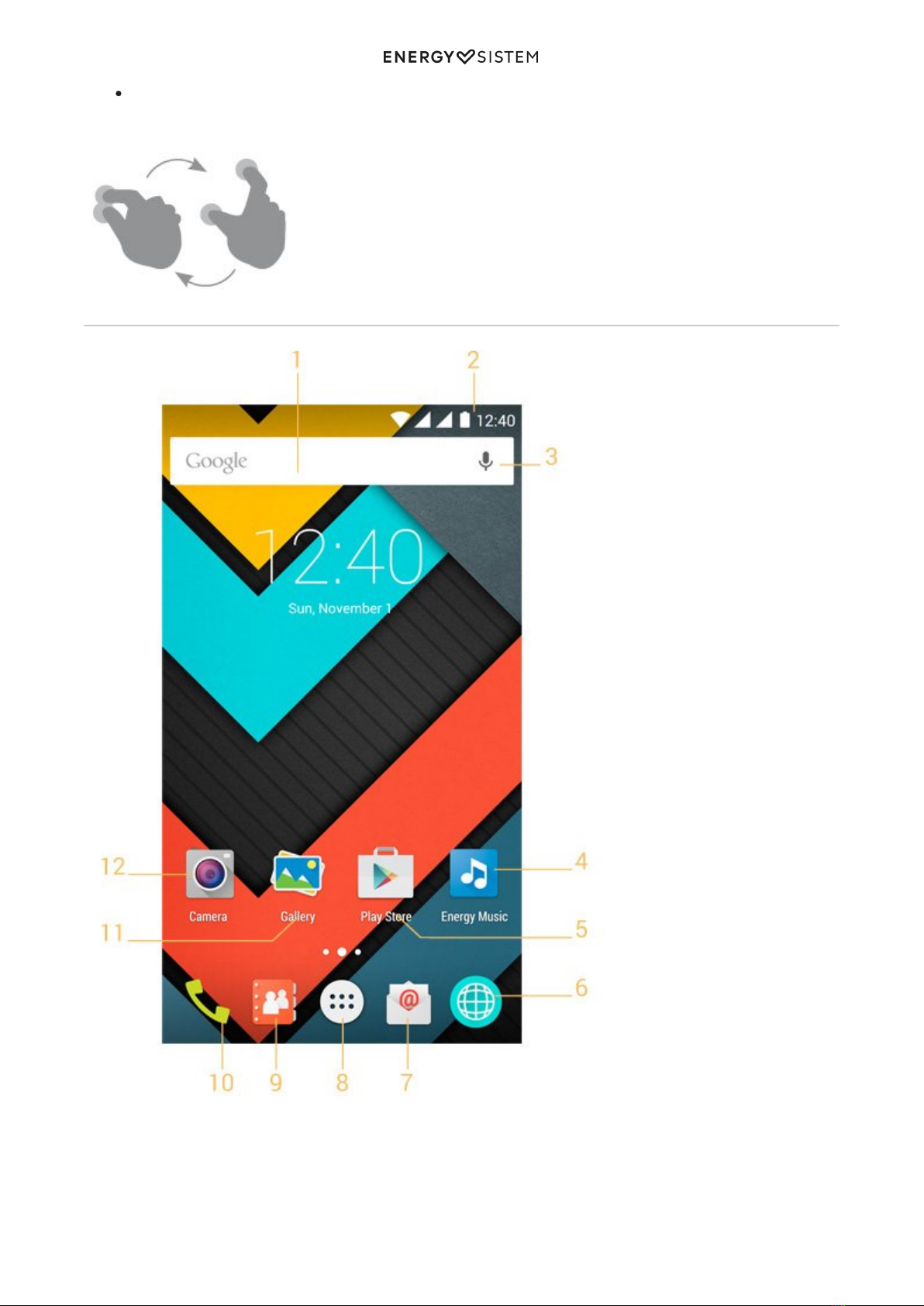
Search: Direct access to Google's™ search engine.1.
Status Bar: Displays information about the signal status, battery and clock. If you slide your finger down from2.
this area, you will access a new basic settings menu version that manages the notifications and the settings
menu.
Voice Search: Access to Google's™ voice search and much more.3.
8/22 energysistem.com
Music: Music player.4.
Play Store™: Download the best and most popular apps for your Android™ system.5.
Internet: Web browser.6.
Email: E-mail client.7.
Menu Access to the application and widget menu.8.
Contacts: Contact management.9.
Phone Make Calls and call log.10.
Gallery: Image gallery.11.
Camera: Access to the built-in camera.12.
Widgets
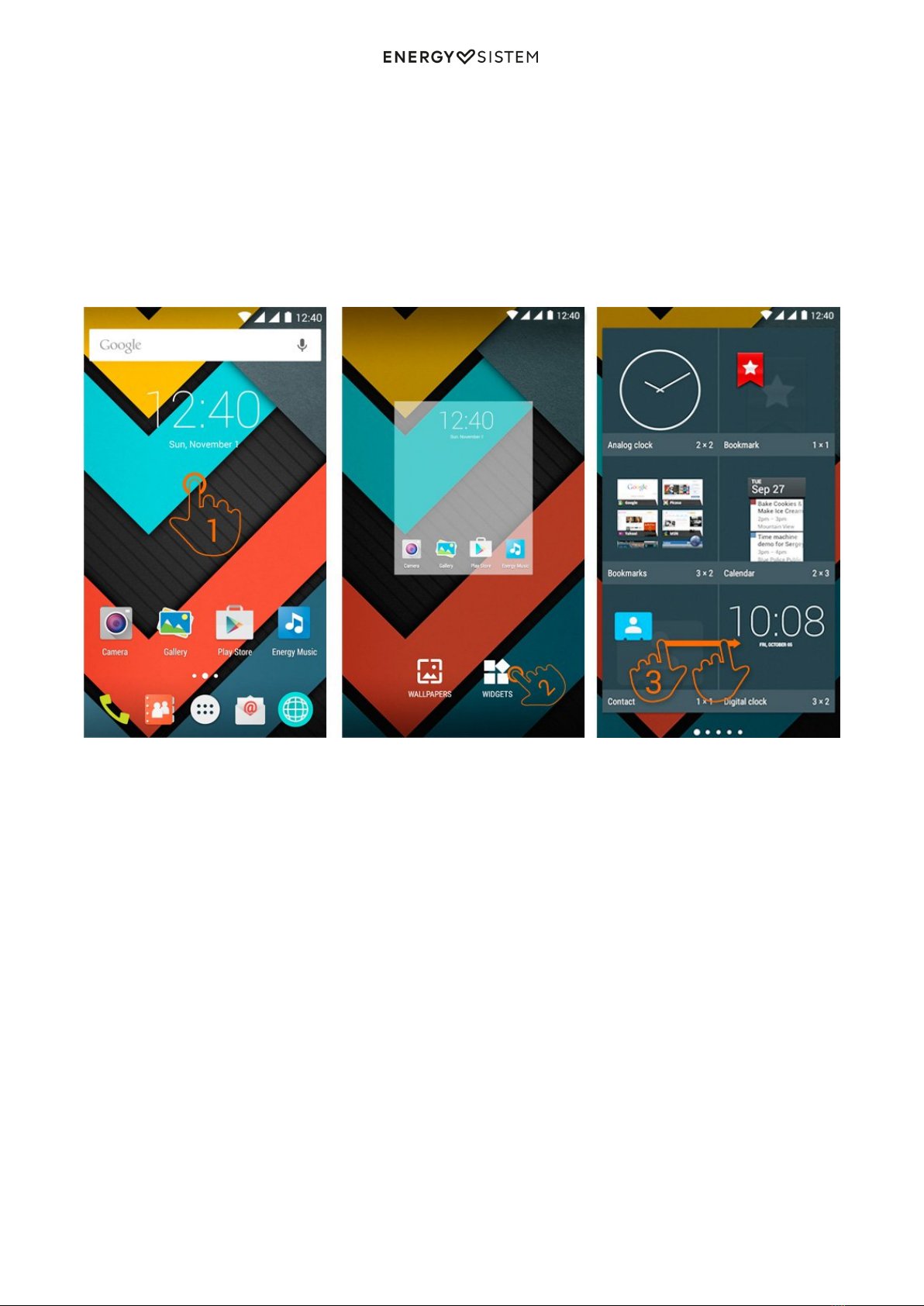
In order to add a Widget to one of your desktops, tap the centre of the desktop (1), then select "WIDGETS" at the
bottom of the screen (2). You can slide your finger to the left or right (3) to see all your installed Widgets. Select the one
you want to add to your desktop by holding press on it and then releasing it on the desktop.
A Widget can be easily relocated or removed . To relocate a widget, tap and hold it for a few seconds. Once the widget
is highlighted, you can move it to another position within the desktop.
To remove the widget, tap and hold it for a few seconds and the X icon will appear on the top side of the screen, drag
the widget to the X icon and release it.
SIM card setup
9/22 energysistem.com
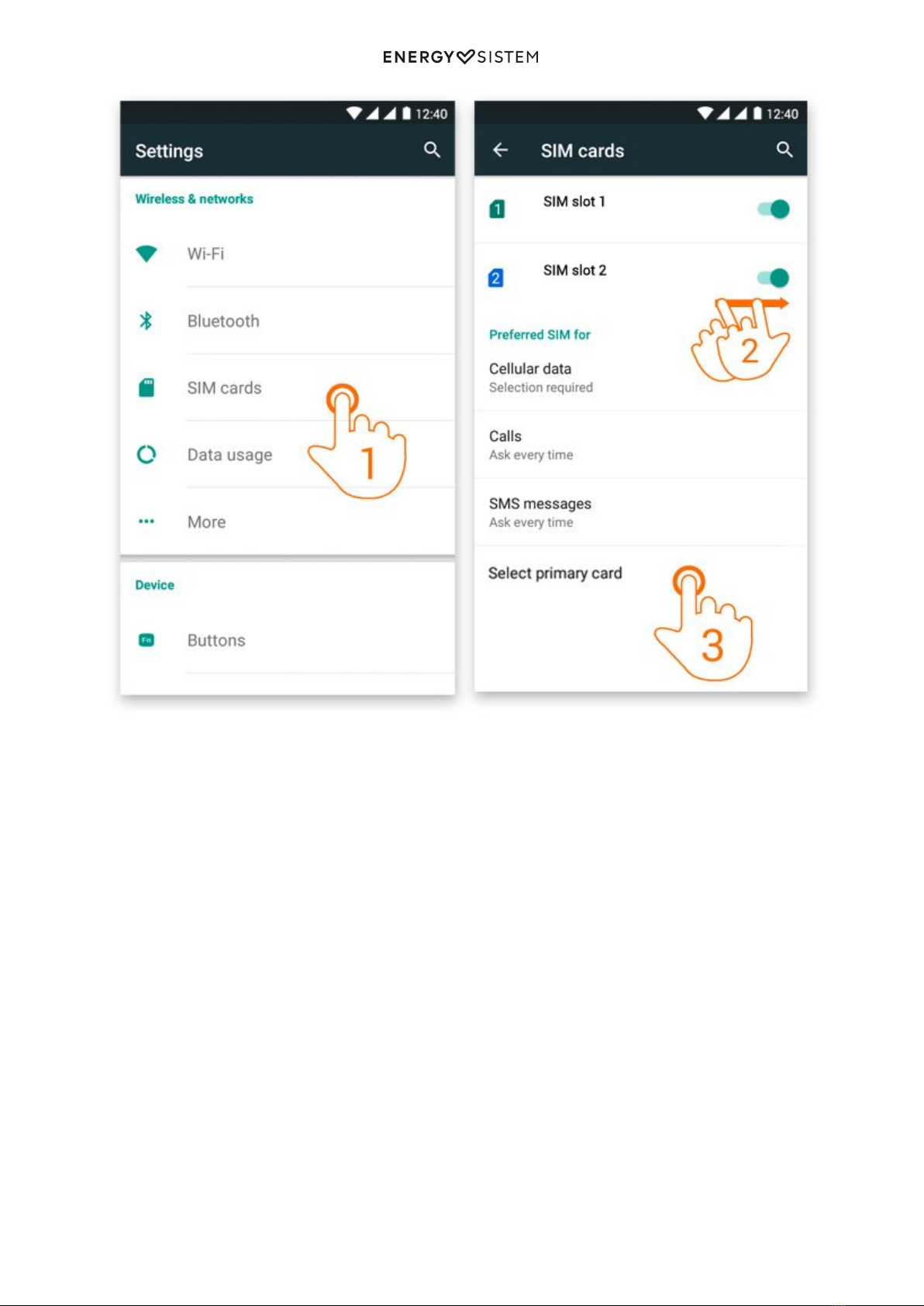
Your Phone allows you to use two microSIM cards. In Settings > SIM Management, you can manage them.
In this section you can set the default card to make or receive calls, send and receive text messages, the data
connection and the selection of the primary card with 3G connection.
Bluetooth setup
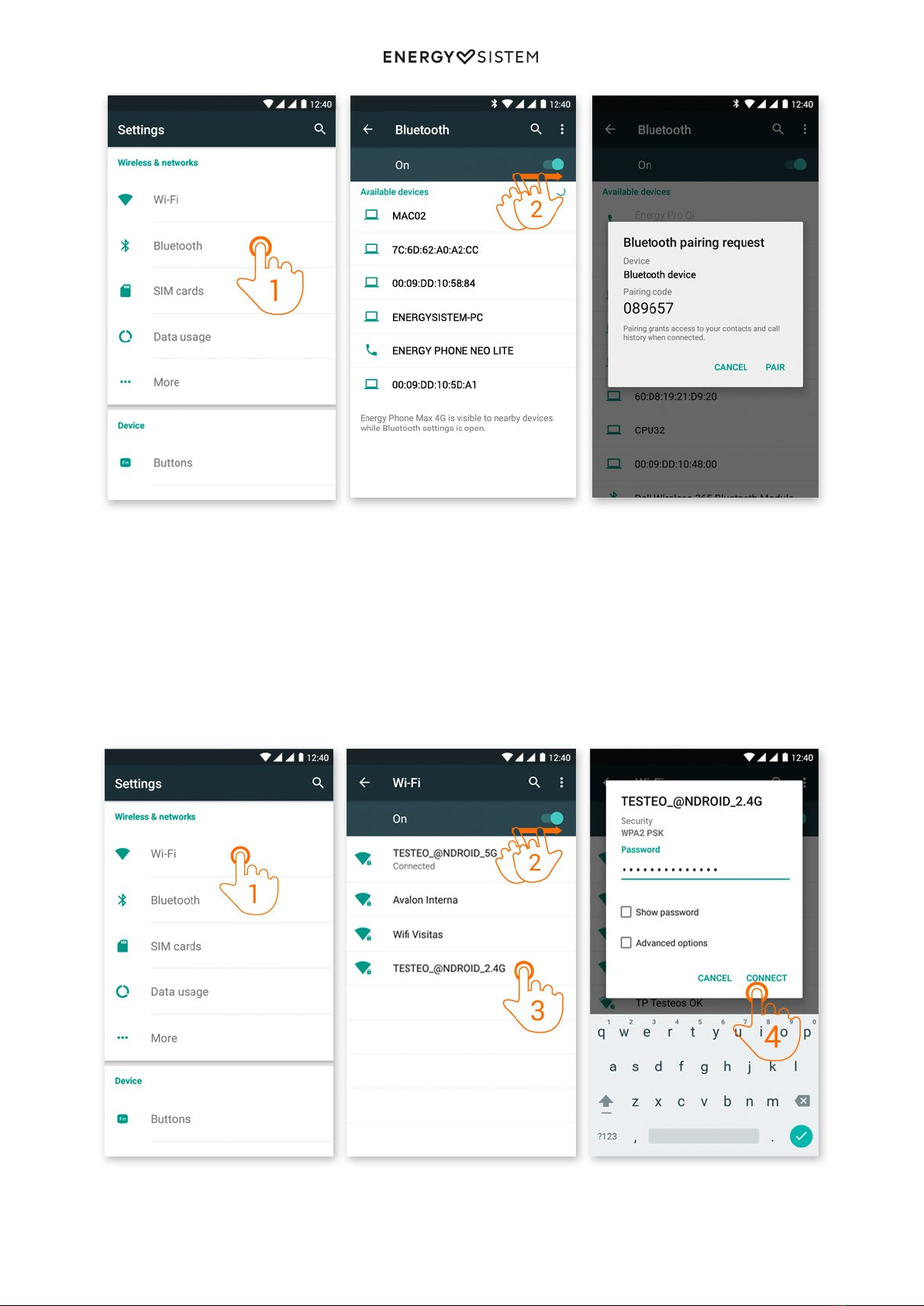
Your Phone Neo Lite has Bluetooth connection. To connect your device to any bluetooth device like headphones, PC,
speakers, etc. Go to Settings > Bluetooth and turn the switch to the ON position. Then the search will start and once it
has finished, select one of the devices available to start the connection.
10/22 energysistem.com
Settings > Bluetooth.1.
Enable the Bluetooth option.2.
Select the device you want to connect to.3.
Accept the synchronization request.4.
Wi-Fi setup
Your Phone Neo Lite has Wi-Fi 802.11 b/g/n connectivity. To connect your device to any wireless network go to Settings
> Wi-Fi and turn the switch to the ON position. The search will start, then select one of the networks available to start
the connection.
Settings > Wi-Fi1.
Table des matières
Autres manuels ENERGY SISTEM Téléphone portable

ENERGY SISTEM
ENERGY SISTEM ENERGY Phone Pro HD Manuel utilisateur

ENERGY SISTEM
ENERGY SISTEM Phone Pro Qi Manuel utilisateur

ENERGY SISTEM
ENERGY SISTEM Phone Max Manuel utilisateur

ENERGY SISTEM
ENERGY SISTEM Energy Tablet Windows Manuel utilisateur

ENERGY SISTEM
ENERGY SISTEM Max 4G Manuel utilisateur

ENERGY SISTEM
ENERGY SISTEM Neo 2 Manuel utilisateur

ENERGY SISTEM
ENERGY SISTEM Energy Phone Pro 3 Manuel utilisateur

ENERGY SISTEM
ENERGY SISTEM Phone Colors Manuel utilisateur

ENERGY SISTEM
ENERGY SISTEM Max 2+ Manuel utilisateur

ENERGY SISTEM
ENERGY SISTEM Energy Phone Neo 2 Manuel utilisateur


