E-TOP GR290n Manuel utilisateur

1
E-TOP 11n Broadband Router
N+ High Power Gigabit Broadband Router - All Broadbands
GR290n
User Manual

2
Table of Contents
FCC Caution ..........................................................................................................................................5
Safe Seating Gestures..........................................................................................................................6
CE Statement of Conformity ................................................................................................................6
Notice .....................................................................................................................................................6
Chapter 1 Introduction.................................................................................................................7
1.1 Overview ......................................................................................................................7
1.2 Features.......................................................................................................................8
1.3 Specifications..............................................................................................................9
1.3.1 Product Appearance ........................................................................................11
1.3.2 LED Indicator Status Description...................................................................11
1.4 System Requirements ..............................................................................................12
1.5 Get Your IP Automatically & Manually ....................................................................13
1.5.1 Network Testing................................................................................................16
1.5.2 Testing with Internet Browser.........................................................................16
1.5.2.1 Testing with DOS (Windows XP Platform).........................................................16
Chapter 2 Hardware Installation................................................................................................19
2.1 Diagram of Connecting Hardware to 11N Broadband Router ..............................19
2.1.1 Hardware Connection and Application for Router Mode.............................19
Chapter 3 One Button Setup......................................................................................................20
3.1 One Button Setup configuration for Router Mode ................................................20
Chapter 4 Basic Setup................................................................................................................24
4.1 Router Mode..............................................................................................................24
4.1.1 Administrator Setup Instruction.....................................................................24
4.2 Basic Setup................................................................................................................25
4.2.1 Time Zone Setup...............................................................................................25
4.2.2 LAN Interface Setup.........................................................................................26
4.2.3 WAN Setup........................................................................................................27
4.2.3.1 WAN Interface– Ethernet Port.............................................................................27
4.2.3.2 WAN Interface– Wireless ....................................................................................27
4.2.3.3 WAN Access Type – Static IP..............................................................................27
4.2.3.4 WAN Access Type – Dynamic IP ........................................................................27
4.2.3.5 WAN Access Type – PPPoE................................................................................28
4.2.3.6 WAN Access Type – PPTP ..................................................................................28
4.2.3.7 Wireless Setup.....................................................................................................28
4.2.3.8 Wireless Security Setup......................................................................................29
4.2.4 Basic Setup Complete .....................................................................................30

3
Chapter 5 Advanced Configuration ..........................................................................................32
5.1 IP Configuration........................................................................................................32
5.1.1 WAN ...................................................................................................................32
5.1.1.1 WAN Interface– Ethernet Port.............................................................................32
5.1.1.2 WAN Interface– Wireless ....................................................................................33
5.1.1.3 WAN Access Type – Static IP..............................................................................33
5.1.1.4 WAN Access Type –Dynamic IP .........................................................................34
5.1.1.5 WAN Access Type –PPPoE.................................................................................35
5.1.1.6 WAN Access Type – PPTP ..................................................................................37
5.1.2 LAN Interface Setup.........................................................................................38
5.1.3 Dynamic DNS Setting.......................................................................................40
5.2 Wireless Setup ..........................................................................................................41
5.2.1 Wireless Basic Settings...................................................................................42
5.2.2 Wireless Advanced Settings ...........................................................................46
5.2.3 Wireless Security Setup ..................................................................................47
5.2.4 Wireless Access Control .................................................................................49
5.2.5 WDS Settings....................................................................................................51
5.2.6 WPS ...................................................................................................................56
5.3 NAT.............................................................................................................................60
5.3.1 Visual Server.....................................................................................................60
5.3.2 Visual DMZ........................................................................................................62
5.4 Firewall.......................................................................................................................63
5.4.1 QoS....................................................................................................................63
5.4.2 Port Filtering.....................................................................................................65
5.4.3 IP Filtering.........................................................................................................67
5.4.4 MAC Filtering....................................................................................................68
5.4.5 URL Filtering.....................................................................................................70
5.5 System Management ................................................................................................71
5.5.1 Change Password ............................................................................................71
5.5.2 Upgrade Firmware............................................................................................72
5.5.3 Profiles Save.....................................................................................................73
5.5.4 Time Zone Setting ............................................................................................78
5.5.5 UPnP Setting.....................................................................................................80
5.5.6 Language Setting.............................................................................................81
5.6 Log & Status..............................................................................................................82
5.6.1 Network Config.................................................................................................82
5.6.2 Event Log..........................................................................................................83
5.7 Logout........................................................................................................................85

4
Chapter 6 DDNS Service Application........................................................................................87
Chapter 7 Q & A ..........................................................................................................................92
7.1 Installation .................................................................................................................92
7.2 LED.............................................................................................................................92
7.3 IP Address..................................................................................................................93
7.4 OS Setting..................................................................................................................93
7.5 11n Broadband Router Setup ..................................................................................94
7.6 Wireless LAN.............................................................................................................96
7.7 Support ......................................................................................................................98
7.8 Others.........................................................................................................................99
7.9 USB Device................................................................................................................99
Chapter 8 Appendices..............................................................................................................100
8.1 Operating Systems .................................................................................................100
8.2 Browsers..................................................................................................................100
8.3 Communications Regulation Information ............................................................100

5

6
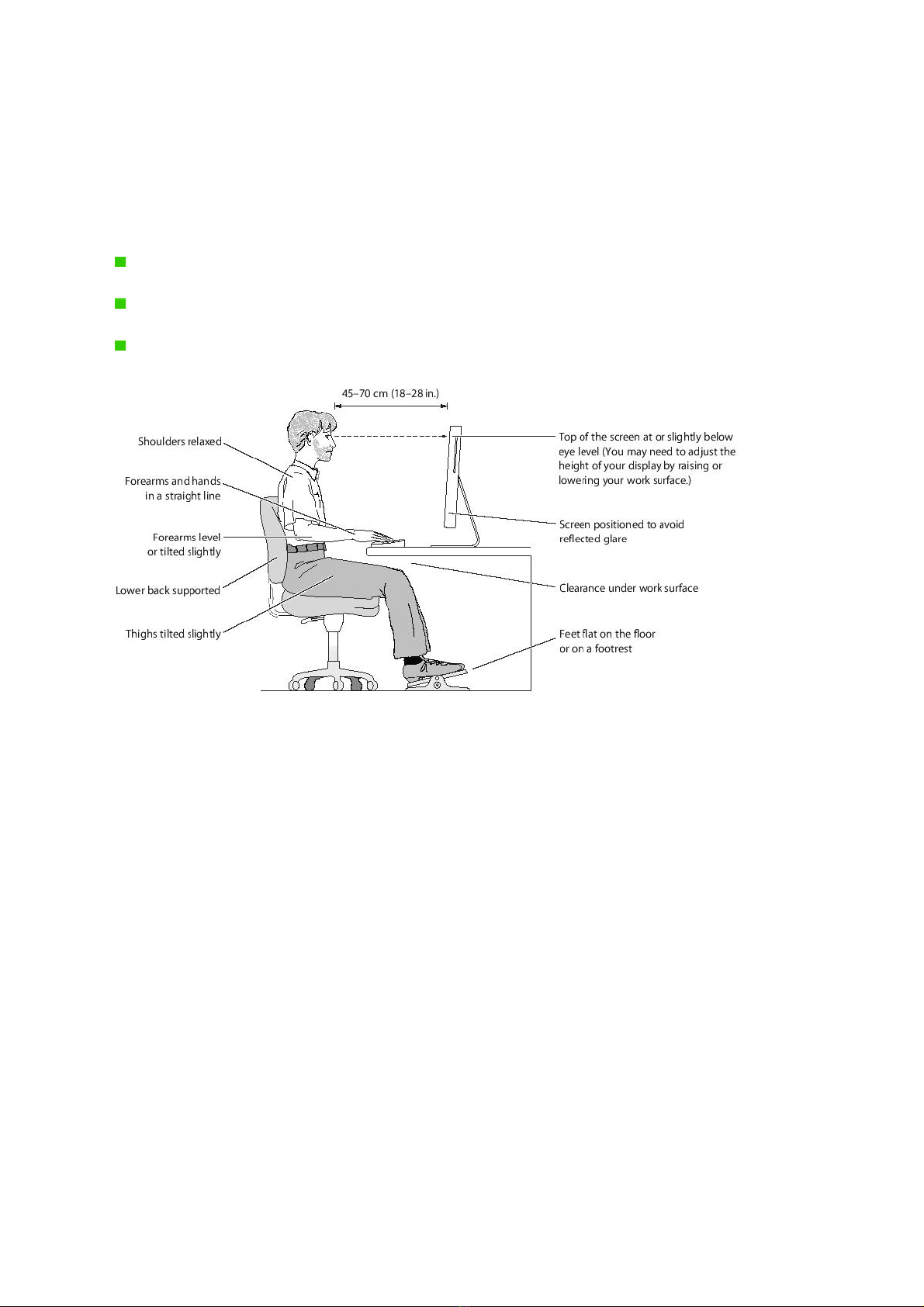
Safe Seating Gestures
You should follow the manufacturer’s instructions for adjusting the backrest to fit your body
properly.
An adjustable chair that provides firm, comfortable support is best.
Adjust the height of the chair so your thighs are horizontal and your feet flat on the floor.
The back of the chair should support your lower back (lumbar region).
CE Statement of Conformity
Our product has been tested in typical configuration by Ecom Sertech Corp and was found to
comply with the essential requirement of “Council Directive on the Approximation of the Laws
of the Member States relating to Electromagnetic Compatibility” (89/336/EEC; 92/31/EEC;
93/68/EEC)
Notice
Changing RF parameter is not allowed.

7
Chapter 1 Introduction
1.1 Overview
11n Broadband Router is a convenient wireless solution for delivering 802.11n wireless
connectivity with a maximum wireless signal rate of up to 300Mbps. Use it in home or
company.

8
1.2 Features
yWPS button provides not only an easy and secured wireless network but also a WDS
repeater in one push
yMultiple APs Supported : adds or limits the properties for classed SSID, increasing the
flexibility and efficiency of the network.
ySuperior, reliable performance : 20000 fast recycling sessions provide a stable
network connection for P2P downloading.

9
1.3 Specifications
Item Specification
Key Components
Main Processor Realtek RTL8198 (600MHz )
Flash 8Mbytes Serial Flash
RAM 64Mbytes DDR2
Wireless Chip Realtek RTL8192CE (MAC+BB+RF) 2T2R
Communication Interfaces
WAN Port 1 x 10/100/1000Mbps RJ45, with auto MDI/MDIX
LAN Port 4 x 10/100/1000Mbps RJ45, with auto MDI/MDIX
USB Port 1 x USB 2.0 host for 3.5G \ WiMAX USB dongle and
Smartphone
Wireless IEEE 802.11 b/g/n
Others
Wireless Antenna External 5dBi x 2
Transmission Power
802.11b: 13±1dBm @ normal temp. range
802.11g: 19±1dBm @ normal temp. range
802.11n (20MHz/40MHz): 18.5±1dBm @ normal temp.
range
Receive Sensitivity
11Mbps : TYP. -83dBm @ 8% PER
54Mbps: TYP. -70dBm @ 10% PER
11n (20MHz): TYP. -64dBm @ 10% PER
11n (40MHz): TYP. -61dBm @ 10% PER
Button
Reboot button / Reset button – one second for
reboot/ten seconds for restore to factory default
setting。
WPS button – When WPS button pushed,system will
enter WPS connecting mode。

10
Operation Requirement
Operating Temp. 0°C~40°C (32°F~104°F)
Storage Temp. -20°C~70°C (-4°F~158°F)
Operating Humidity 10% to 85% Non-Condensing
Storage Humidity 5% to 90% Non-Condensing
Power Supply Power Adapter DC5V/1.5A
Dimensions 198.2(L) x 107(W) x 39.1(H)mm
Notice:
1. USB device with power more than 500mA is not supported
Table des matières
Autres manuels E-TOP Routeur réseau

E-TOP
E-TOP DR368n Manuel utilisateur

E-TOP
E-TOP BR486n Manuel utilisateur

E-TOP
E-TOP PR126g Manuel utilisateur

E-TOP
E-TOP BR485d Manuel utilisateur

E-TOP
E-TOP GS293d Manuel utilisateur

E-TOP
E-TOP BR486n Manuel utilisateur

E-TOP
E-TOP BR480n Manuel utilisateur

E-TOP
E-TOP BR080n Manuel utilisateur

E-TOP
E-TOP BR280n Manuel utilisateur

E-TOP
E-TOP NR620M Manuel utilisateur
Manuels Routeur réseau populaires d'autres marques

NETGEAR
NETGEAR FS526T - Switch Manuel utilisateur

Korenix
Korenix JetNet 5710G Series Manuel utilisateur

Automated Logic
Automated Logic ZN551 Manuel du propriétaire

Cisco
Cisco ASR 1000 Series Manuel de l'opérateur

EnGenius
EnGenius ESR-9710 Manuel utilisateur

Cisco
Cisco 805 Series Instructions d'utilisation et de sécurité