Divus OPTIMA KNX MQTT Module Manuel utilisateur

OPTIMA MQTT Module Manual . 1
MQTT Module Manual
Version 3.0.0
REV01-20230221

OPTIMA MQTT Module Manual . 2
GENERAL INFORMATION
DIVUS GmbH
Pillhof 51
I-39057 Eppan (BZ) - Italy
Operating instructions, manuals and software are protected by copyright. All rights are reserved. Copying, multi-
plication, translation and conversion, either partially or as a whole, is not permitted. You are allowed to make a
single copy for backup purposes.
We reserve the right to make changes to the manual without prior notification.
We assume no responsibility for any errors or omissions that may appear in this document.
We do not assume liability for the flawlessness and correctness of the programs and data contained on the de-
livered discs.
You are always welcome to inform us of errors or make suggestions for improving the program.
The present agreement also applies to special appendices to the manual.
This manual can contain terms and descriptions, which improper use by third can harm the copyrights of the
author.
Please read the manual before beginning and keep the manual for later use.
The manual has been conceived and written for users who are experienced in the use of PCs and automation
technology.
CONVENTIONS
[KEYS]
Keys that are to be pressed by the user are given in square brackets, e.g. [CTRL] or [DEL]
COURIER
On-screen messages are given in the Courier font, e.g. C:\>
COURIER BOLD
Keyboard input to be made by the user are given in Courier bold, e.g. C:\>DIR
„…“
Names of buttons to be pressed, menus or other onscreen elements and product names are
given within double quotes. (e.g. “Configuration”).
PICTOGRAMS
In this manual, the following symbols are used to indicate particular text blocks.
Caution!
A dangerous situation may arise that may cause damage to material.
Hint
Hints and additional notes
New
New features

OPTIMA MQTT Module Manual . 3
INDEX:
1OVERVIEW ____________________________________________________________________________________4
1.1 FOREWORD ________________________________________________________________________________4
1.2 PURPOSE OF THIS DOCUMENT _______________________________________________________________5
1.3 PREREAUISITES _____________________________________________________________________________ 6
2MQTT BROKER _________________________________________________________________________________7
2.1 FOREWORD ________________________________________________________________________________7
2.2 BROKER-EINSTELLUNGEN____________________________________________________________________7
2.3 USERS _____________________________________________________________________________________8
3MQTT CLIENT __________________________________________________________________________________9
3.1 FOREWORD ________________________________________________________________________________9
3.2 NEW CONNECTION_________________________________________________________________________10
3.3 ASSOCIATION OF OBJECTS _________________________________________________________________12
3.4 INTERNAL CONNECTION ____________________________________________________________________13
3.5 M2M CONNECTION ________________________________________________________________________14
3.6 NOTES ____________________________________________________________________________________16

OPTIMA MQTT Module Manual . 4
1Overview
1.1 FOREWORD
DIVUS KNX SERVER can connect as a client to one or more MQTT brokers to publish them and receive data in
real time. This function is useful for interacting with devices or systems running on cloud services other than
those of DIVUS.
.
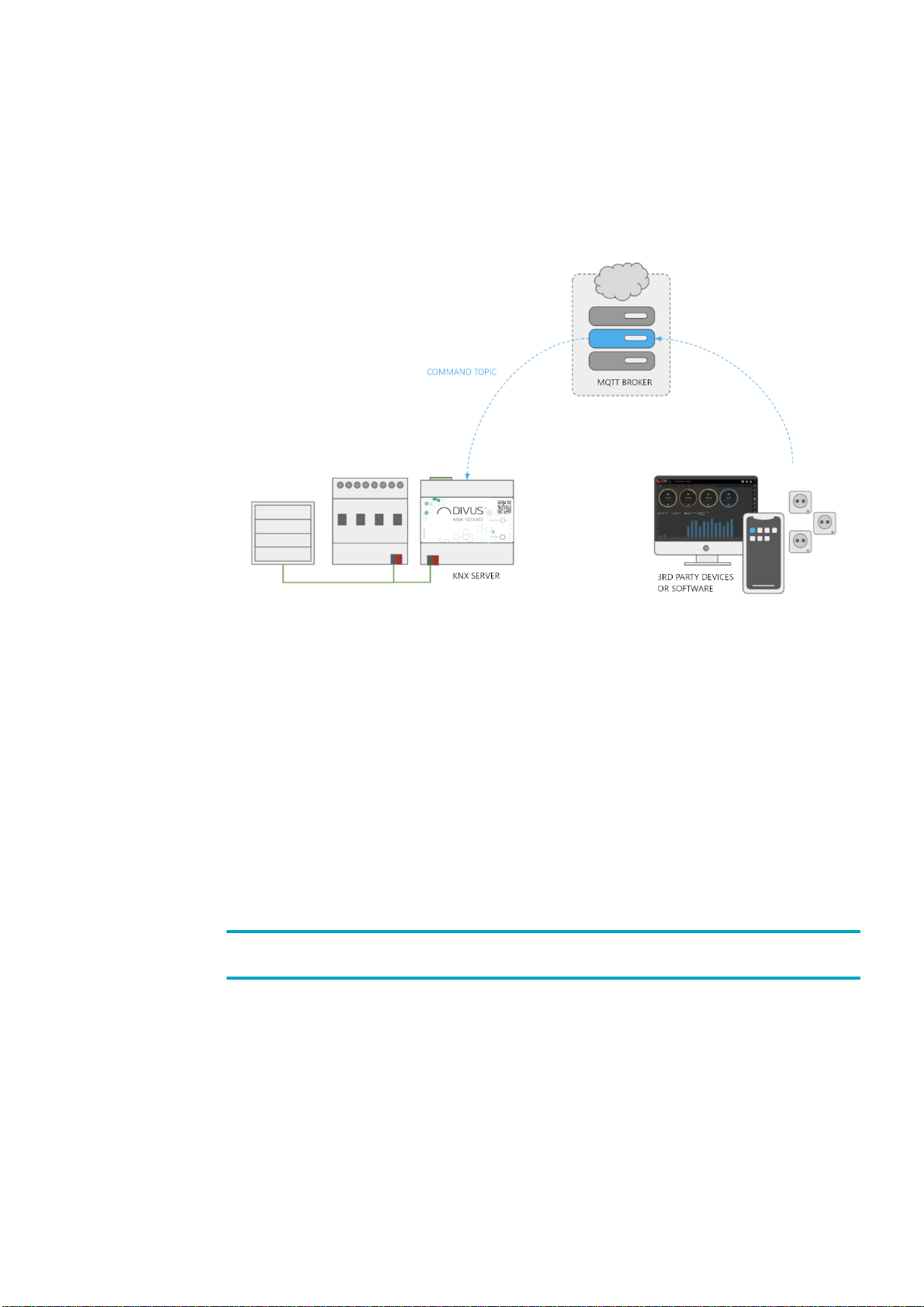
In addition, the KNX SERVER can in turn work as an MQTT broker and thus fulfils the role of a "star centre" for
communication with the devices of the local network with this exchange protocol:

OPTIMA MQTT Module Manual . 5
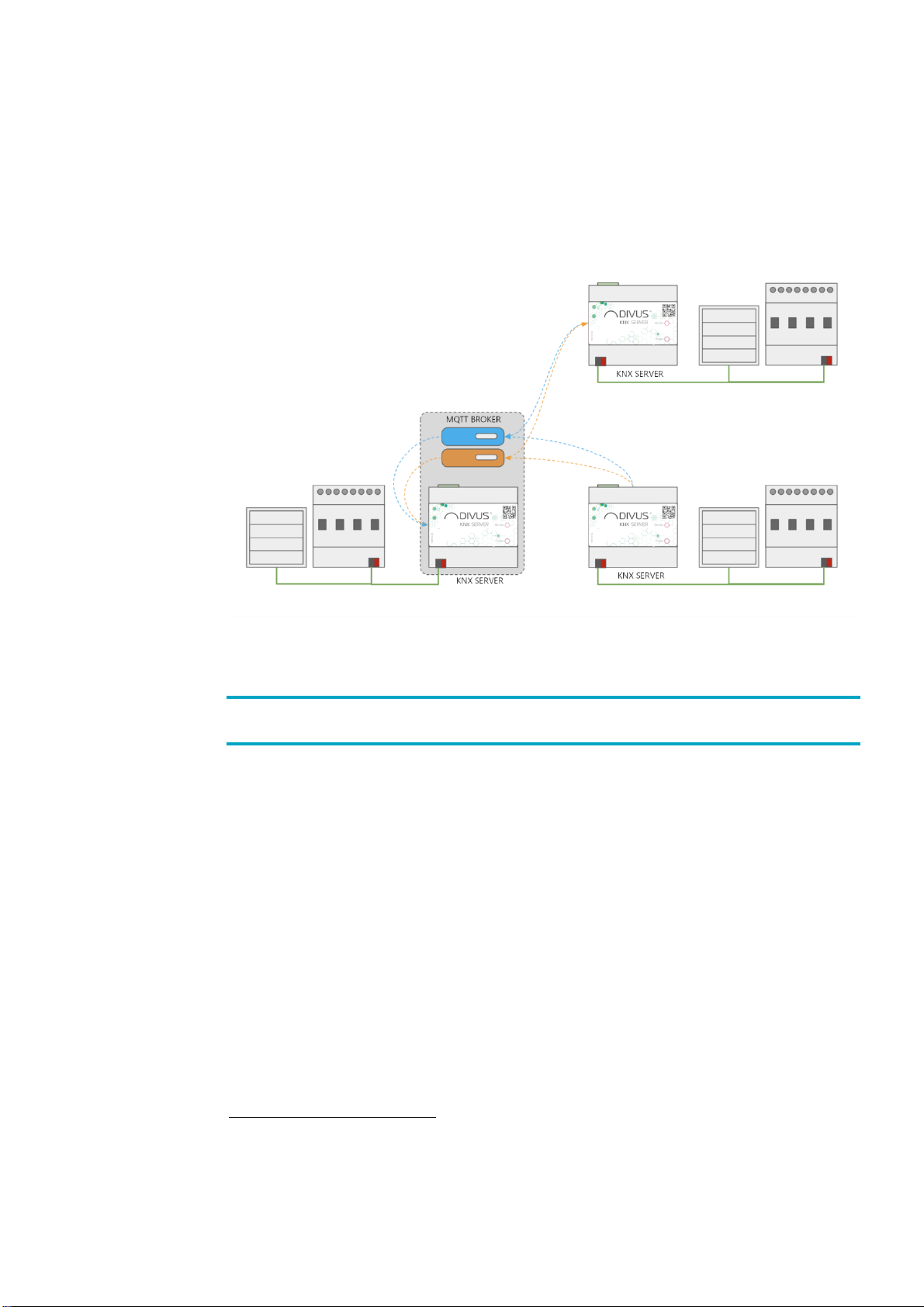
This prerogative can also be used to allow two or more KNX SERVERs to communicate with each other as shown
in the following diagram:
1.2 PURPOSE OF THIS DOCUMENT
This manual contains all necessary information to activate and configure the MQTT broker integrated in KNX
SERVER; chapter 3 is dedicated to this topic.
Chapter 4, on the other hand, illustrates how to configure and use KNX SERVER as a client for an MQTT broker
and how objects can be linked in such a way that when their state changes, they are published (to inform the
MQTT service of the state change) and vice versa, they are commanded by the broker when receiving a data
packet.
In particular, it is shown how to point the client to its own integrated broker or to the broker of another KNX
SERVER in the network.
The manual is primarily aimed at installers, but can also be a good guide for end users interested in personalising
the management of their own smart home system.
It assumes a good knowledge of the MQTT protocol and the devices to be managed and controlled by it, as well
as of OPTIMA; many sections of this document refer to general concepts that can be deepened in the following
manual:
KNX SERVER - Administration Manual

OPTIMA MQTT Module Manual . 6
1.3 PREREQUISITES
To integrate a KNX SERVER with one or more MQTT brokers, you must have the following
•A KNX SERVER 3 that has been updated to version 3.0.0 or higher.
To use the integrated MQTT broker on the device, you need:
•A KNX SERVER 3 that has been updated to version 3.0.0 or higher
Older server versions and other devices of the OPTIMA family do not support the MQTT module!

OPTIMA MQTT Module Manual . 7
2MQTT Broker
2.1 FOREWORD
The KNX SERVER 3 offers an MQTT broker, which can be used to connect not only the web server itself, but also
third-party devices that support this protocol or other KNX SERVERs, provided they are located in the same LAN.
This chapter explains how to set up the integrated MQTT broker of the KNX SERVER; after the described
procedures have been performed, it is typically necessary to activate the MQTT broker:
•Configure third-party devices to operate the broker.
•Configure the KNX SERVER itself to allow its objects to interact with the broker (internal client
connection).
•Configure other KNX SERVERs to point to the Broker.
For the first point, you need to refer to the documentation of the devices you want to integrate with the Broker.
The second and third point are described in the next chapter in reverse order; if you do not use the integrated
Broker of the KNX SERVER, but only want to configure a connection to an external Broker, please jump directly to
the next chapter.
2.2 BROKER SETTINGS
Select the item
TECHNOLOGIES > MQTT-BROKER > BROKER SETTINGS
to set the following:
EXECUTE AT
STARTUP
Activate this option to start the broker when the system is booted up.
AUTHENTICATION
Activate this option to check the credentials of the connecting clients. A highly
recommended option.
To start the broker, press the START button; after each further change, you must press UPDATE so that it is
correctly applied.

OPTIMA MQTT Module Manual . 8
2.3 USERS
If authentication is enabled, a user must be set up for each client device that is to connect to the Broker.
You must also prepare login information for the KNX SERVER itself when it connects to your Broker, as described
in more detail in the following chapter.
Pressing the ADD button inserts a new line in the User section; specify for each new line:
NAME
Description of the user within the system
USERNAME
User name to be used by the MQTT client
PASSWORD
Password to be used by the MQTT client
ENABLE
Deselect to keep the user's credentials in memory but not allow him to connect
Press Refresh after each change in the user list.
Once the users are set up and the Broker has been started, follow the instructions in the next chapter to configure
the client connection.

OPTIMA MQTT Module Manual . 9
3MQTT Client
3.1 FOREWORD
KNX SERVER allows the connection to more than one MQTT broker at the same time; it is advisable to keep the
number of such connections as low as possible in order not to overload the system resources.
One or more objects can be assigned to each MQTT connection:
•when a value is received via MQTT, it is passed as a command to the object
•Conversely, if the state of the object changes, its value is sent to the broker via MQTT.
Two topics can be assigned to each of the objects connected to the link, i.e. the communication channels through
which the KNX SERVER exchanges information with the broker; more information about MQTT topics can be found
in the specifications of this protocol and in the documentation widely available on the Internet.
The report topic is used by KNX SERVER to send the status of objects when it changes
:

OPTIMA MQTT Module Manual . 10
Conversely, when the KNX SERVER receives a value in the command topic, it executes it as a command for
objects:
In both cases, KNX SERVER expects numeric values to be exchanged via Topics, using the dot as decimal separator
(if they are not integer values); other formats, such as JSON, are not expected.
At least one command or report topic must be specified for each object. It is of course possible to specify both.
The use of the same topic for command and report is strongly discouraged, as this can create loops!
A KNX SERVER can take over the role of the MQTT broker, as described in the previous chapter. In order to
connect to the integrated broker, a connection must be established in any case, but according to a simplified
procedure, which is described in more detail below.
3.2 NEW CONNECTION
To create a new connection, expand
TECHNOLOGIES > MQTT-CLIENT
in the Administration side menu and press the (+) button in the toolbar. Once the new connection is created,
access its tab to set the parameters. A window like the one in the following figure is displayed:
Table des matières
Autres manuels Divus Unité de contrôle
Manuels Unité de contrôle populaires d'autres marques

Festo
Festo Compact Performance CP-FB6-E Manuel de la liste des pièces

Elo TouchSystems
Elo TouchSystems DMS-SA19P-EXTME Manuel utilisateur

JS Automation
JS Automation MPC3034A Manuel utilisateur

JAUDT
JAUDT SW GII 6406 Series Guide rapide

Spektrum
Spektrum Air Module System Manuel utilisateur

BOC Edwards
BOC Edwards Q Series Manuel utilisateur