
DEWESOFT V21-1 Manuel du produit

SIRIUSi-XHS®
TECHNICAL REFERENCE MANUAL
SIRIUSi-XHS® V21-1

DEVICE
TECHNICAL REFERENCE MANUAL
Table of contents
1. About this document 4
1.1. Legend 4
1.2. Online versions 5
1.2.1. Online SIRIUSi-XHS® technical reference manual 5
1.2.2. DewesoftX® User Manual 5
2. Getting started 6
2.1. Software installation 6
2.2. Connecting SIRIUSi-XHS® 7
2.2.1. Connection over 3.0. USB 7
2.2.1.1. Sample rate limitation when connected with USB 7
2.2.2. Connection over EtherNET 7
2.2.2.1. Sample rate limitation when connected with Ethernet 8
2.2.2.2. Ethernet configuration on the PC 8
2.2.2.3. Troubleshooting 9
2.2.3. DewesoftX® settings for SIRIUSi-XHS® 10
2.2.4. Channel Setup SIRIUSi-XHS® 16
2.3. Simple Measurement 17
2.3.1. Help - Manual 17
2.3.2. Analogue channel setup 17
2.3.3. Sample rate 18
2.3.4. Measurement Mode 19
2.3.5. Analyse Mode 19
2.4. Advanced configuration 20
2.5. Firmware upgrade 21
2.6. Licensing 22
2.7. Troubleshooting 23
3. System overview 24
3.1. Main features 25
3.1.1. Hybrid ADC technology 26
3.1.2. Perfect synchronization 26
3.1.3. Open interface protocols 26
3.1.4. Data Acquisition Software Included for Free 27
3.2. System specifications 27
3.3. Single slice 28
3.4. Single slice: Rear side 28
3.5. Connectors 29
3.5.1. Power in connector 29
3.5.1.1. Power out connector 29
3.5.2. SYNC connector 30
3.5.3. CAN 30
3.5.4. GND connector 31
SIRIUSi-XHS® - V21-1 2/51

DEVICE
TECHNICAL REFERENCE MANUAL
3.5.5. Ethernet Connector 31
3.5.6. USB connector 32
4. Module overview 33
4.1. SIRIUSi-XHS® dimensions 34
4.2. HV: Specifications 35
4.2.2. HV- Banana Connector 36
4.2.2. HV: Voltage 36
4.3. LV: Specifications 37
4.3.1. LV: DSUB connector 38
4.3.1.1. LV: Voltage 38
4.3.1.2. LV: Current 39
4.3.2. LV: BNC connector 39
4.4. ACC: Specifications 40
4.4.1. ACC: BNC connector 41
4.4.1.1. ACC: Voltage, IEPE 41
5. Real-time controller - XCP slave settings 42
5.1. XCP-Slave module settings 42
5.1.1. XCP output settings 44
5.1.2. XCP Event settings 44
5.1.3. XCP outputs (channels) 44
5.1.4. Generating A2L file 45
6. Safety instructions 46
6.1. General Safety Instructions 46
6.1.1. Environmental Considerations 46
6.1.2. Product End-of-Life Handling 46
6.1.3. General safety and hazard warnings for all Dewesoft systems 46
7. Notice 49
7.1. Warranty Information 49
7.2. Calibration 49
7.3. Support 49
7.4. Service/repair 49
7.5. Restricted Rights 49
7.6. Printing History 50
7.7. Copyright 50
7.8. Trademarks 50
7.9. Documentation version 51
SIRIUSi-XHS® - V21-1 3/51

DEVICE
TECHNICAL REFERENCE MANUAL
1. About this document
This is the Technical Reference Manual for SIRIUSi-XHS® device, version V21-1.
SIRIUSi-XHS® is a high performance, high speed line of SIRIUS® real time data acquisition hardware
used for the most demanded power measurements, specially designed for E-mobility applications. Each
system also includes a professional license for our award-winning DewesoftX® data acquisition
software.
The manual is divided into several chapters. You will find:
●A detailed description of the SIRIUSi-XHS® hardware
●A description of the connection variants and the pin assignments on the inputs and outputs
●A comprehensive introduction to the configuration of the modules using DewesoftX®
●Detailed technical data: Specifications, etc.
1.1. Legend
The following symbols and formats will be used throughout the document.
Important
Gives you important information about a subject.
Please read carefully!
Hint
Gives you a hint or provides additional information about a subject.
Example
Gives you an example to a specific subject.
Safety symbols in the manual:
Warning
Calls attention to a procedure, practice, or condition that could cause the body injury or death
Caution
Calls attention to a procedure, practice, or condition that could possibly cause damage to
equipment or permanent loss of data.
SIRIUSi-XHS® - V21-1 4/51

DEVICE
TECHNICAL REFERENCE MANUAL
1.2. Online versions
1.2.1. Online SIRIUSi-XHS® technical reference manual
The most recent version of this manual can be downloaded from our homepage:
https://download.dewesoft.com/list/manuals-brochures/hardware-manuals
In the Hardware Manuals section click the download link for the SIRIUSi-XHS® technical reference
manual.
1.2.2. DewesoftX® User Manual
The DewesoftX® tutorials document, provides basics and additional information and examples for
working with DewesoftX® and certain parts of the program.
The latest version of the DewesoftX® tutorials can be found here:
https://download.dewesoft.com/list/manuals-brochures/software-manuals
In the Software Manuals section click the download link of the DewesoftX® tutorials entry.
Important
Read safety instructions first in chapter Safety instructions.
SIRIUSi-XHS® - V21-1 5/51
DEVICE
TECHNICAL REFERENCE MANUAL
2. Getting started
This chapter will help you to install the software, connect your SIRIUSi-XHS® device to the PC via
Ethernet or via USB, and will show you how to configure DewesoftX® software.
To follow these steps, you need the following items:
●your brand new SIRIUSi-XHS® system (included in the shipment)
●your network cable (included in the shipment)
●Your USB cable (included in the shipment)
●Your PC with Windows 10 and the Dewesoft® software
●Note: older versions like Windows® 7 may also work
Hint:
As Siriusi-XHS® is a new device and its software functionality is still in the development phase, we
recommend using the latest Development or Release Candidate versions. As the FW of the
device is improving, the newer FW updates are always compatible with latest Development
versions. For more information please contact the support team.
2.1. Software installation
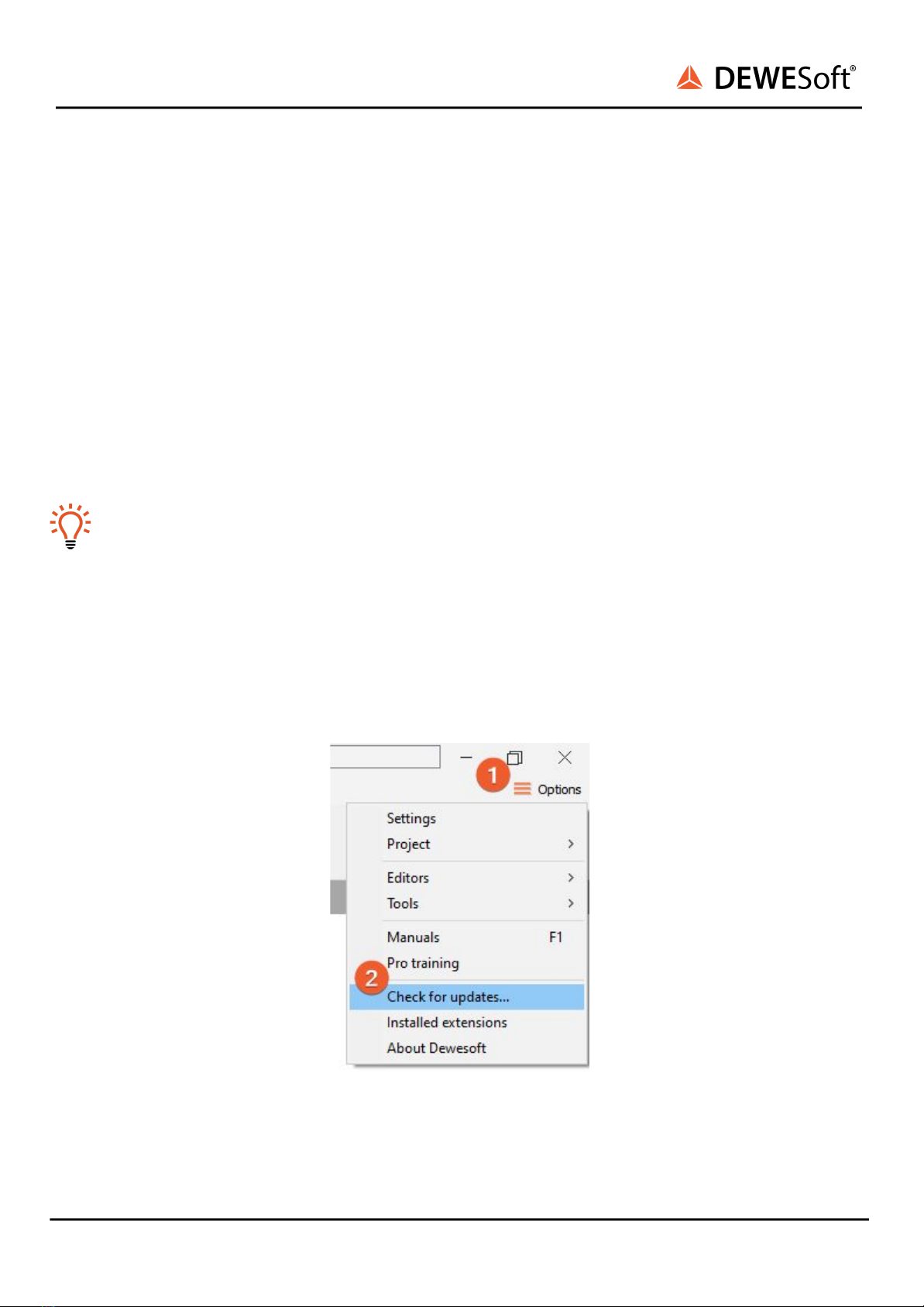
For optimal working, we recommend that you install the latest version of DewesoftX®. If you already
have installed the older version Dewesofti is recommended that you find the newest version on the
website under Support/Downloads/DewesoftX section. You can also check if a newer version is available
in software.
Image 1: Check for update
SIRIUSi-XHS® - V21-1 6/51

DEVICE
TECHNICAL REFERENCE MANUAL
2.2. Connecting SIRIUSi-XHS®
In this chapter, you can see the basic instructions for connecting SIRIUSi-XHS® devices over 3.0 USB
and RJ-45 ethernet connection. Advanced connections are described in the following chapters.
2.2.1. Connection over 3.0. USB
First connect the power supply cable (PS-120-L1B2f) to the PWR IN 2-pin LEMO 1B male connector. Then
connect the usb cable with the USB-C connector to the appropriate connector on the back of the XHS
device. Finally connect the other side of the USB cable with the USB-A connector to the PC. You can find
advanced connections in chapter
Image 2: USB connection
2.2.1.1. Sample rate limitation when connected with USB
When the device is connected via 3.0. USB all 8-channels can run with the 15MHz sample rate.
2.2.2. Connection over EtherNET
First connect the power supply cable (PS-120-L1B2f) to the PWR IN 2-pin LEMO 1B male connector. Then
connect the Ethernet Cable with RJ-45 connector to the appropriate GLAN connector on the back of
the XHS device. Finally connect the other side of the ethernet cable to the LAN port of PC.
Image 3: Connection over Ethernet
SIRIUSi-XHS® - V21-1 7/51

DEVICE
TECHNICAL REFERENCE MANUAL
2.2.2.1. Sample rate limitation when connected with Ethernet
When connecting the device via Ethernet there is a limitation of sample rate, depending on how many
channels we want to use.
2.2.2.2. Ethernet configuration on the PC
As SIRIUSi-XHS® is a network device with static IP, you need to adjust the Network Card settings when
connecting it via Ethernet. The ethernet port on your SBOX, data logger or PC should be configured in a
way to match the IP address of the SIRIUSi-XHS® device.
Example
SIRIUSi-XHS® has the IP address 192.168.10.1
Your network adapter should be set to:
- IP: 192.168.10.x, where x is number from 2-255
- Subnet mask: 255.255.255.0
Image 4: Setting up IP address
SIRIUSi-XHS® - V21-1 8/51
Nr. of channels used in measure
Data Rate / channel
2
15 MS/s
4
5 MS/s
6
1,875 MS/s
8
1 MS/s

DEVICE
TECHNICAL REFERENCE MANUAL
2.2.2.3. Troubleshooting
If DewesoftX® doesn’t detect your devices you should try pinging them via command prompt. In
command prompt write: ping IP replace IP with IP that is set on your device.
The result should be something like this:
Image 5: ping IP in Command Prompt
SIRIUSi-XHS® - V21-1 9/51
DEVICE
TECHNICAL REFERENCE MANUAL
2.2.3. DewesoftX® settings for SIRIUSi-XHS®
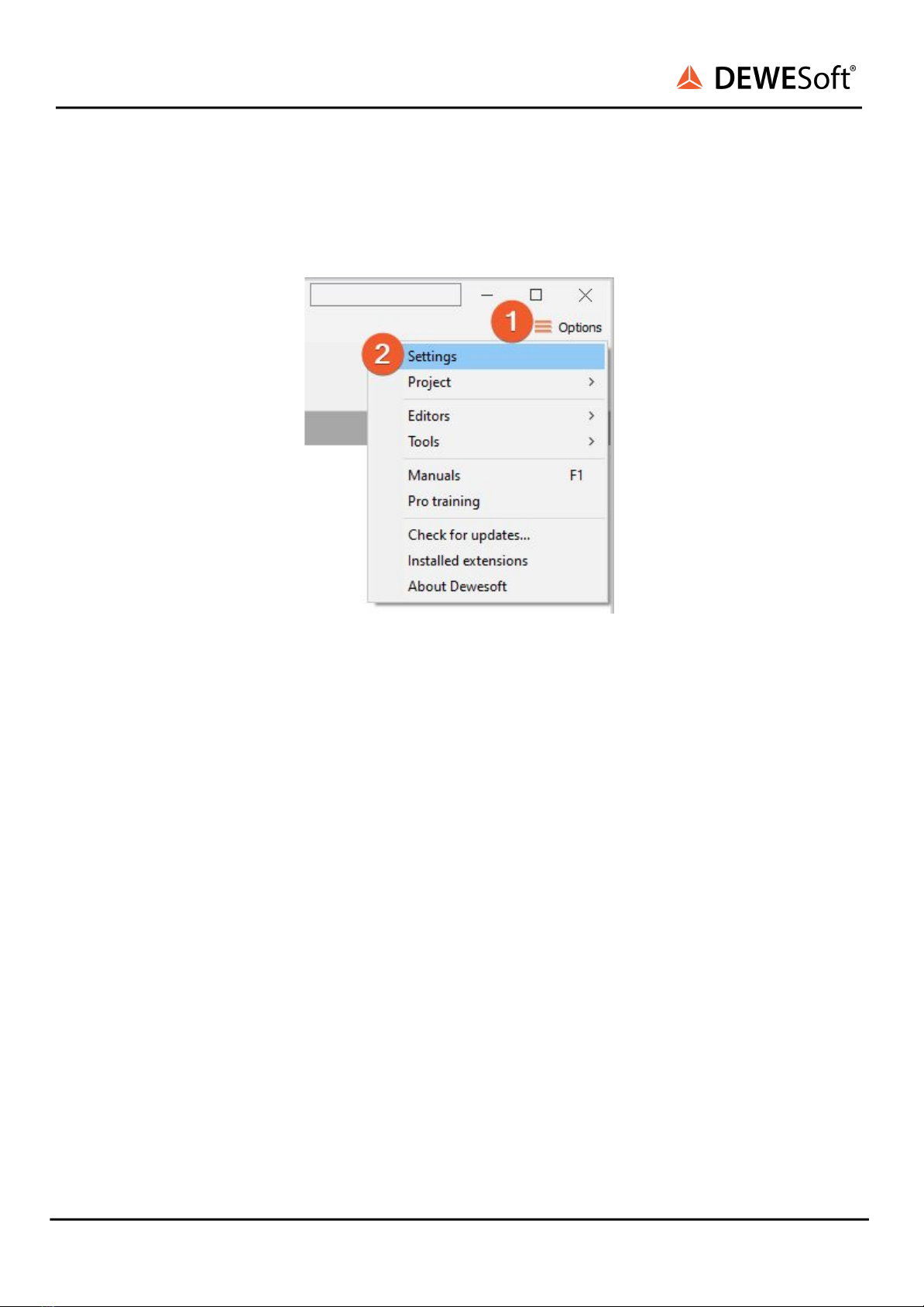
The connected device will show up in the DewesoftX® settings. Click on the Options button at the top
right, and then on the Settings item in the pop-up to open the DewesoftX® settings dialogue.
Image 6: DewesoftX® settings
In case the XHS device is connected via USB, the device will automatically be listed under the Dewesoft
devices. When you select the device the properties pane at the right will show the related data e.g.
Serial number, Firmware version, etc.
SIRIUSi-XHS® - V21-1 10/51
Autres manuels pour V21-1
4
Table des matières
Autres manuels DEWESOFT Enregistreur de données


